
Gaming on Linux has transformed from a niche experiment into a mainstream reality. With over 40 million users expected to migrate to Linux in 2026 following Windows 10’s end-of-life, choosing the best Linux distro for gaming in 2026 has never been more important for American gamers looking to break free from Windows constraints.
If you’re among the growing number of PC gamers exploring Linux alternatives, you’re in the right place. This comprehensive guide breaks down everything you need to know about selecting a gaming-optimized Linux distribution that matches your hardware, experience level, and gaming preferences.
Why 2026 Is the Breakthrough Year for Linux Gaming
Linux gaming has reached a pivotal moment. According to Steam’s official hardware survey data from November 2025, Linux now accounts for over 3.05% of all Steam users, a remarkable jump from just 2% a year earlier. This growth is driven by several key factors that make 2026 the ideal time to switch.
The Steam Deck ecosystem has revolutionized portable PC gaming, proving that Linux can deliver exceptional gaming performance. SteamOS now represents approximately 27% of all Linux installations on Steam, bringing thousands of new users into the ecosystem without requiring technical expertise.
Key Statistics:
- Linux gaming adoption increased by 50% year-over-year
- Over 90% of Steam games now launch successfully on Linux through compatibility layers
- Proton 10 supports thousands of Windows titles with near-native performance
- Major handheld manufacturers are releasing Linux-compatible devices
The combination of Valve’s Proton compatibility layer, improved driver support from AMD and NVIDIA, and the upcoming Steam Machine release in early 2026 has created the perfect storm for Linux gaming adoption.
Understanding What Makes a Linux Distro Great for Gaming
Before diving into specific recommendations, let’s explore the critical factors that separate average Linux distributions from the best gaming distros in 2026.
Performance Optimization
Top gaming distros include kernel-level optimizations, custom schedulers, and hardware-specific compilations that squeeze every frame per second from your GPU. Distributions like CachyOS compile packages specifically for your CPU architecture, delivering measurable performance improvements over generic builds.
Driver Support Out-of-the-Box
The best Linux distros for gaming ship with proprietary NVIDIA drivers, AMD ROCm support, and Vulkan implementations pre-configured. This eliminates the frustrating troubleshooting that plagued early Linux gaming.
Gaming Tool Integration
Look for distributions that include Steam, Lutris, Wine, and Proton pre-installed or easily accessible through software centers. Gaming-focused distros also bundle tools like MangoHud for performance monitoring and GameMode for system optimization.
System Stability vs. Cutting-Edge Software
This represents a crucial trade-off. Rolling release distros provide the latest drivers and game compatibility patches immediately, while fixed-release distributions prioritize stability for long gaming sessions without unexpected updates.
Top Linux Gaming Distros for 2026: Detailed Comparison
Let’s examine the leading contenders for the title of best Linux distro for gaming based on official 2026 data and community benchmarks.
Bazzite: The Immutable Gaming Powerhouse
Best For: Beginners, Steam Deck enthusiasts, and gamers who want console-like simplicity
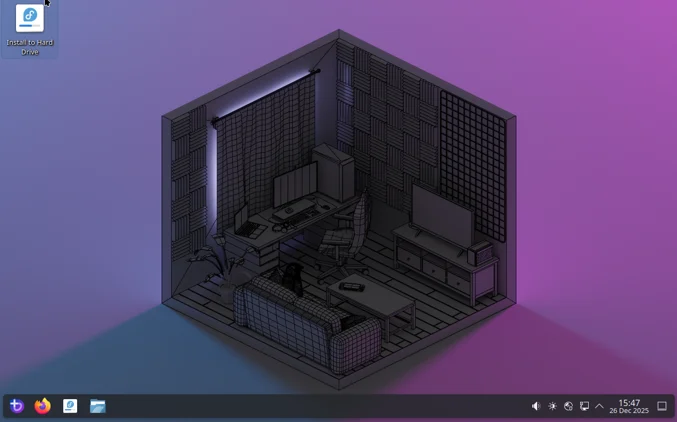
Bazzite has emerged as the breakout star of Linux gaming distributions in 2026. Built on Fedora Atomic’s immutable foundation, it delivers a SteamOS-like experience for both handheld devices and traditional gaming PCs.
Key Features:
- Immutable core system prevents accidental breakage
- Atomic updates with automatic rollback capability
- Pre-installed Steam, Lutris, and compatibility tools
- Optimized for AMD and Intel hardware
- Desktop and handheld variants available
- Gaming Mode for couch gaming experiences
The immutable architecture means you cannot accidentally break the system by installing conflicting packages or running problematic commands. Updates apply to an inactive partition, so failed updates simply require a reboot to restore functionality.
Bazzite includes HDR support, variable refresh rate (VRR) compatibility, and automatic controller recognition. According to recent benchmarks, Bazzite maintains competitive frame rates with Windows while using significantly less RAM at idle (under 100MB compared to Windows 11’s 1.2GB).
Limitations: The immutable nature restricts some system modifications that advanced users might want. Application installation relies primarily on Flatpak packages.
CachyOS: Maximum Performance for Enthusiasts
Best For: Performance-focused gamers with technical knowledge
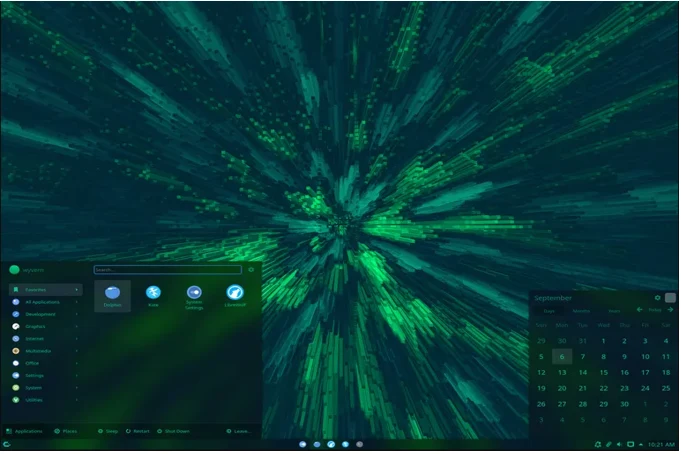
CachyOS consistently tops gaming benchmarks among Linux distributions. This Arch-based distro ships with CPU architecture-specific optimizations and scheduler tweaks that deliver measurable performance advantages.
Key Features:
- Optimized kernels for specific CPU architectures (x86-64-v3, x86-64-v4)
- Custom bore scheduler for improved gaming responsiveness
- Packages compiled with aggressive optimization flags
- Choice of multiple desktop environments (KDE Plasma, GNOME, etc.)
- Handheld edition with SteamOS-style interface
- Comprehensive gaming tools pre-installed
Real-world testing shows CachyOS delivering 5-15% higher frame rates compared to generic Linux builds in demanding titles. The distribution includes both stable and performance kernels, allowing users to balance cutting-edge features against reliability.
The installer provides a user-friendly experience uncommon in Arch-based distributions, making advanced optimizations accessible to intermediate users. You can select gaming-specific packages during installation, including specialized audio configurations and peripheral drivers.
Limitations: Being Arch-based means occasional manual intervention for updates. The rolling release model requires more maintenance than fixed-release alternatives.
Pop!_OS: NVIDIA GPU Excellence
Best For: NVIDIA GPU owners, developers who game, productivity-gaming balance
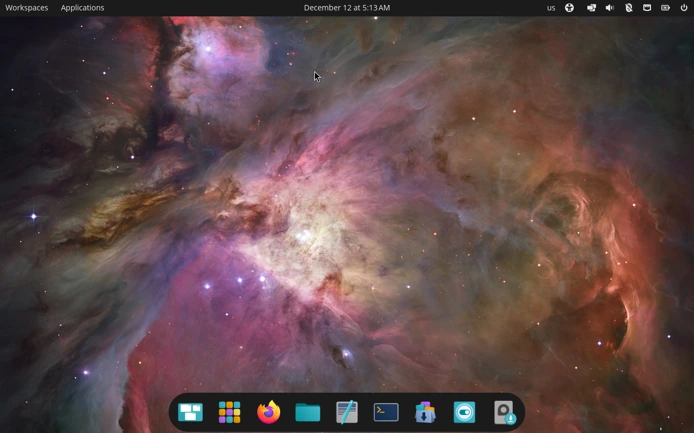
System76’s Pop!_OS has earned its reputation as the premier choice for NVIDIA graphics card owners. The distribution ships with NVIDIA-specific ISO images that include proprietary drivers from day one.
Key Features:
- Dedicated NVIDIA and AMD ISO variants
- Custom COSMIC desktop environment (replacing GNOME)
- Excellent hybrid graphics support for laptops
- Pre-configured Proton and Steam integration
- Built on stable Ubuntu LTS foundation
- Automatic background application management during gaming
Pop!_OS pioneered the concept of specialized gaming mode that automatically suspends background processes when launching games, freeing system resources for optimal performance. The COSMIC desktop environment, introduced in 2025, provides a clean, efficient interface that uses minimal system resources.
For American gamers balancing work and play on the same machine, Pop!_OS offers the stability needed for professional applications while maintaining strong gaming performance. The Ubuntu base ensures broad software compatibility and extensive community support.
Limitations: Newer releases moving to COSMIC may have compatibility issues with some specialized software expecting GNOME.
Nobara Linux: The Fedora Gaming Experience
Best For: Gamers who want bleeding-edge technology with gaming optimizations
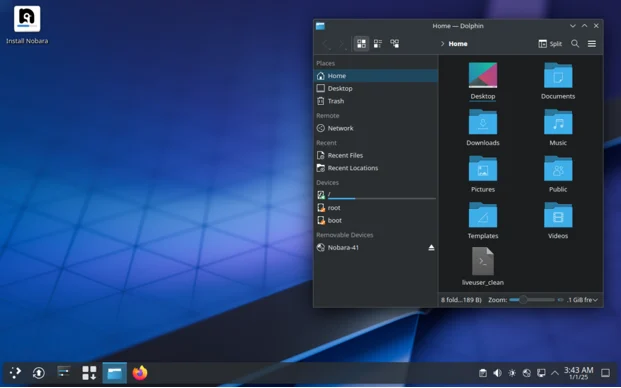
Nobara Linux, created by the developer behind Proton-GE, represents a gaming-focused spin of Fedora with extensive tweaks and proprietary codec support.
Key Features:
- Includes Proton-GE and Wine-GE by default
- Enhanced performance modifications for AMD and NVIDIA
- HDR and hardware-accelerated video decoding configured
- Custom gaming-oriented kernel patches
- Fedora’s cutting-edge software with gaming stability
- Comprehensive codec support for media playback
The distribution benefits from Fedora’s rapid update cycle while adding gaming-specific stability patches. Nobara consistently receives updates within days of new Proton releases, ensuring compatibility with the latest game launches.
Being maintained by a Proton developer means Nobara often includes experimental fixes for newly released games before they reach other distributions. The custom repositories provide gaming-related software unavailable in standard Fedora repos.
Limitations: Faster update cycle means occasional hiccups. Smaller community compared to mainstream distributions.
Ubuntu Desktop: Mainstream Stability
Best For: Complete Linux beginners, gamers wanting maximum compatibility
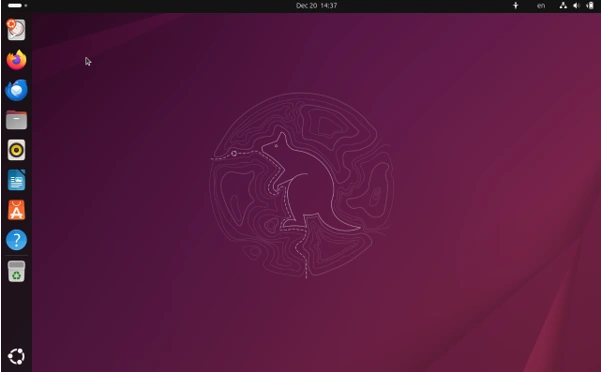
Ubuntu remains the most widely supported Linux distribution, and the latest Ubuntu Desktop (24.04 LTS) provides excellent gaming support on a rock-solid foundation.
Key Features:
- Steam and Lutris pre-installed
- Five years of standard support (until 2029)
- Extended support available through Ubuntu Pro (free for personal use)
- Snap Store includes gaming tools and emulators
- Massive community and documentation resources
- Broadest hardware compatibility
Ubuntu’s popularity means game developers testing Linux compatibility invariably test on Ubuntu first. This translates to fewer compatibility surprises and more reliable gaming experiences. The distribution receives LTS (Long Term Support) updates for five years, providing stability rarely found in gaming-focused distros.
For American gamers concerned about long-term support and extensive troubleshooting resources, Ubuntu’s massive community ensures that solutions exist for virtually any problem you might encounter.
Limitations: Conservative software versions mean waiting longer for latest features. Snap package system divides community opinion.
Garuda Linux: Beautiful and Fast
Best For: Users who want visual flair combined with performance
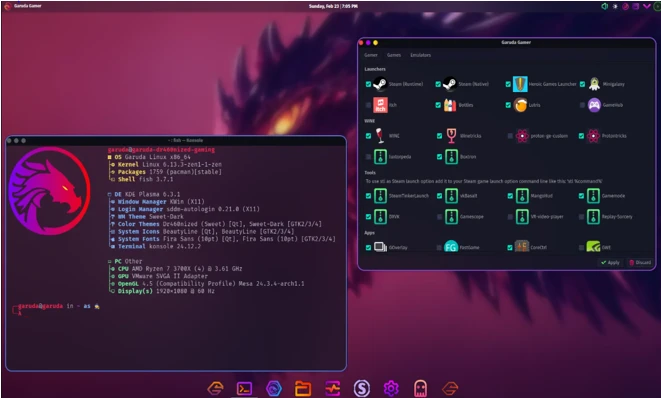
Garuda Linux combines stunning aesthetics with solid gaming performance, creating an Arch-based distribution that looks as good as it plays.
Key Features:
- Eye-catching “dragonized” gaming edition
- Btrfs snapshots for easy system recovery
- Performance-optimized kernels and schedulers
- Extensive gaming tools and emulators pre-installed
- Multiple desktop environment choices
- ZEN kernel optimized for responsiveness
Garuda’s approach prioritizes user experience without sacrificing performance. The distribution includes backup snapshots automatically, meaning you can experiment with system modifications knowing you can revert changes if problems arise.
Gaming benchmarks show Garuda performing competitively with CachyOS while providing a more visually polished experience out of the box. The included gaming assistant helps configure settings for optimal performance based on your hardware.
Limitations: Visual effects may impact performance on older hardware. Arch foundation requires occasional manual intervention.
Linux Gaming Performance: How It Compares to Windows
One of the most common questions from gamers considering Linux is: “How does performance actually compare to Windows?”
Benchmark Results from 2026
Recent independent testing using popular titles reveals surprising results:
Cyberpunk 2077 (1080p, RTX 4070):
- Windows 11: 127 FPS average
- Bazzite/CachyOS: 122-125 FPS average
- Performance difference: 2-4%
Counter-Strike 2:
- Linux often matches or exceeds Windows performance
- Vulkan API implementation provides competitive frame times
Elden Ring:
- Near-identical performance between platforms
- Some users report smoother frame pacing on Linux
The performance gap has narrowed dramatically thanks to Proton improvements, optimized drivers, and reduced system overhead. Many users report better frame consistency on Linux due to reduced background processes and telemetry.
Where Linux Excels
Linux demonstrates clear advantages in several areas:
System Resource Efficiency: Linux distributions typically use 30-50% less RAM at idle compared to Windows 11, leaving more memory available for games. This becomes particularly noticeable on systems with 16GB RAM or less.
Older Hardware Revival: Linux breathes new life into older gaming PCs that struggle with Windows 11’s hardware requirements. Distributions like Lubuntu or EndeavourOS can run respectably on hardware from 2015.
Customization Control: Linux gives you granular control over system resources, allowing you to disable unnecessary services and optimize for gaming workloads in ways Windows doesn’t permit.
Privacy and Security: No telemetry, forced updates during gaming sessions, or surprise reboots. You maintain complete control over when and what updates occur.
Choosing Your Distribution: Decision Framework
Selecting the best Linux distro for gaming in 2026 depends on several personal factors. Use this framework to identify your ideal choice.
Factor 1: Experience Level
Complete Beginner:
- Choose: Ubuntu Gaming Edition, Linux Mint, or Bazzite
- Why: Extensive documentation, large communities, minimal terminal usage required
Intermediate User:
- Choose: Pop!_OS, Nobara, or Fedora
- Why: Balance of user-friendliness and advanced features
Advanced/Enthusiast:
- Choose: CachyOS, Arch, or Garuda
- Why: Maximum customization and performance optimization opportunities
Factor 2: Hardware Configuration
NVIDIA Graphics Card:
- Choose: Pop!_OS or Nobara
- Why: Best proprietary driver support and hybrid graphics handling
AMD Graphics Card:
- Choose: Bazzite, Fedora, or CachyOS
- Why: Excellent open-source driver support, frequent updates
Older Hardware (Pre-2018):
- Choose: Linux Mint, Lubuntu, or EndeavourOS
- Why: Lightweight, efficient, longer hardware compatibility
Latest Hardware:
- Choose: Fedora, CachyOS, or Arch-based distros
- Why: Cutting-edge kernel versions with newest hardware support
Factor 3: Gaming Priorities
Handheld Gaming Device:
- Choose: Bazzite or SteamOS derivatives
- Why: Optimized for portable gaming experiences
Maximum FPS Competition:
- Choose: CachyOS or Garuda
- Why: Performance-tuned kernels and optimizations
Variety of Game Launchers:
- Choose: Pop!_OS or Nobara
- Why: Excellent compatibility with Epic Games Store, GOG, etc., through Lutris and Heroic
Stability Over Bleeding Edge:
- Choose: Ubuntu LTS or Debian-based options
- Why: Tested, stable releases with long support cycles
Comparison Table: Best Gaming Distros 2026
| Distribution | Base | Best For | Performance | Ease of Use | Update Model | NVIDIA Support |
|---|---|---|---|---|---|---|
| Bazzite | Fedora Atomic | Beginners, handhelds | Excellent | Very Easy | Atomic (Stable) | Very Good |
| CachyOS | Arch | Performance enthusiasts | Outstanding | Moderate | Rolling | Excellent |
| Pop!_OS | Ubuntu | NVIDIA users | Excellent | Very Easy | Fixed (LTS) | Outstanding |
| Nobara | Fedora | Bleeding-edge gamers | Excellent | Easy | Semi-rolling | Excellent |
| Ubuntu Gaming | Debian | Complete beginners | Very Good | Very Easy | Fixed (LTS) | Very Good |
| Garuda Linux | Arch | Visual + performance | Outstanding | Moderate | Rolling | Excellent |
| Manjaro | Arch | Balanced experience | Very Good | Easy | Rolling | Very Good |
Understanding Proton and Wine: The Windows Gaming Bridge
No discussion of Linux gaming would be complete without explaining Proton, the technology that makes running Windows games on Linux possible.
What Is Proton?
Proton is Valve’s compatibility layer that translates Windows API calls into Linux-compatible instructions. Built on Wine (Wine Is Not an Emulator), Proton adds gaming-specific optimizations including Direct3D-to-Vulkan translation through DXVK and VKD3D-Proton.
When you launch a Windows game through Steam on Linux, Proton automatically:
- Translates DirectX calls to Vulkan or OpenGL
- Handles Windows-specific dependencies and libraries
- Manages Windows registry operations
- Provides controller input translation
- Enables anti-cheat compatibility (where supported)
Proton 10 Improvements in 2026
The latest Proton 10 release brings significant enhancements:
- Improved anti-cheat compatibility with Easy Anti-Cheat and BattlEye
- Better frame time consistency in demanding titles
- Enhanced HDR support for compatible displays
- Improved controller haptic feedback support
- Faster shader compilation reducing stuttering
Checking Game Compatibility
Before switching to Linux, check your favorite games on ProtonDB (protondb.com). This community-driven database provides real-world compatibility reports from thousands of gamers.
ProtonDB Ratings:
- Platinum: Works perfectly out-of-the-box
- Gold: Runs perfectly after minor tweaks
- Silver: Runs with minor issues
- Bronze: Runs but has significant issues
- Borked: Doesn’t currently work
According to recent ProtonDB data, approximately 90% of tested Steam games achieve Silver rating or better, meaning they run acceptably or perfectly on Linux.
The Anti-Cheat Challenge: What You Need to Know
The most significant limitation for Linux gaming remains kernel-level anti-cheat systems used in competitive multiplayer games.
Current State of Anti-Cheat Support
Supported Anti-Cheat Solutions:
- Easy Anti-Cheat (EAC) – Supported when developers enable Linux compatibility
- BattlEye – Requires manual developer configuration for Proton support
- Valve Anti-Cheat (VAC) – Fully compatible
Problematic Anti-Cheat:
- Vanguard (Riot Games) – Currently incompatible
- Some proprietary kernel-level solutions
Games Affected
Popular titles with anti-cheat challenges include:
- Valorant (Vanguard anti-cheat)
- Rainbow Six Siege (BattlEye, not Linux-enabled by developer)
- Destiny 2 (BattlEye, not Linux-enabled)
- Apex Legends (Limited compatibility)
The Silver Lining
Most single-player games, co-op experiences, and many multiplayer titles work perfectly on Linux. Games like Elden Ring, Cyberpunk 2077, Baldur’s Gate 3, and thousands of others run excellently.
Valve continues working with anti-cheat developers to expand compatibility, and the growing Linux gaming market (now 3%+ of Steam users) provides developers increased motivation to enable Linux support.
Essential Gaming Tools for Linux
Maximize your Linux gaming experience with these essential tools that should be installed regardless of your chosen distribution.
Steam and Proton
The foundation of Linux gaming. Enable Steam Play for all titles in Settings > Compatibility to access Proton for Windows games.
Lutris
Open-source gaming platform that manages game installations from various sources including GOG, Epic Games Store, and Origin. Lutris handles dependencies, Wine versions, and game-specific optimizations automatically.
Heroic Games Launcher
Alternative launcher for Epic Games Store and GOG with native Linux support. Provides cleaner interface than running these stores through Wine, with integrated Proton support.
MangoHud
Performance overlay displaying FPS, GPU/CPU usage, temperatures, and frame times. Essential for monitoring performance and troubleshooting issues.
GameMode
Feral Interactive’s optimization daemon that temporarily adjusts system settings when gaming, prioritizing game processes and disabling unnecessary background services.
ProtonUp-Qt
Graphical tool for managing Proton versions, including community builds like Proton-GE (Glorious Eggroll) that often include fixes for newly released games before official Proton updates.
GOverlay User-friendly interface for MangoHud and vkBasalt, making performance monitoring and visual enhancement configuration accessible to beginners.
Step-by-Step: Setting Up Your Linux Gaming System
Follow this comprehensive setup guide to optimize your chosen distribution for gaming.
Phase 1: Installation and Initial Setup
Step 1: Download your chosen distribution’s ISO file from the official website. Verify the checksum to ensure download integrity.
Step 2: Create a bootable USB drive using tools like Rufus (Windows), Etcher (cross-platform), or dd command (Linux). Minimum 8GB USB recommended.
Step 3: Boot from the USB drive. Most distributions offer “Try before installing” option, allowing you to test hardware compatibility before committing.
Step 4: Follow the installation wizard. Key considerations:
- Enable encryption for laptop users
- Create separate home partition for easier future distribution swapping
- Select appropriate graphics driver during installation (if offered)
Phase 2: System Updates and Driver Installation
Step 5: After installation, immediately update the system:
# Debian / Ubuntu-based
sudo apt update && sudo apt upgrade

# Arch-based
sudo pacman -Syu

# Fedora
sudo dnf upgrade
Step 6: Install appropriate graphics drivers:
For NVIDIA:
- Pop!_OS: Drivers pre-installed
- Ubuntu: Install via Additional Drivers utility
- Arch-based: Install nvidia package and nvidia-utils
For AMD:
- Usually works out-of-box with open-source drivers
- Install vulkan-radeon and lib32-vulkan-radeon (for 32-bit games)
Phase 3: Gaming Platform Setup
Step 7: Install Steam through your distribution’s software center or terminal. Most gaming distros include Steam pre-installed.
Step 8: Enable Proton in Steam:
- Open Steam Settings
- Navigate to Compatibility tab
- Check “Enable Steam Play for all other titles”
- Select latest Proton version
- Restart Steam
Step 9: Install additional gaming tools:
# Install Lutris (Ubuntu/Debian)
sudo apt install lutris

# Install MangoHud
sudo apt install mangohud
Step 10: Install Heroic Games Launcher for Epic/GOG games:
- Available through Flatpak or distribution repositories
- Provides native Linux interface for non-Steam games
Phase 4: Optimization and Testing
Step 11: Enable GameMode:
sudo apt install gamemode
Games launched through Steam automatically use GameMode on supported distributions.
Step 12: Test your favorite games. Start with titles rated Platinum or Gold on ProtonDB. Configure game-specific settings as needed.
Step 13: Install performance monitoring:
# Enable MangoHud for all games by adding to Steam launch options
mangohud %command%
Troubleshooting Common Linux Gaming Issues
Even with modern Linux gaming’s improvements, occasional issues arise. Here are solutions to the most common problems American gamers encounter.
Issue 1: Game Won’t Launch
Solutions:
- Verify Proton is enabled in Steam settings
- Try different Proton versions (right-click game > Properties > Compatibility)
- Check ProtonDB for game-specific launch commands
- Verify all game files (right-click game > Properties > Local Files > Verify Integrity)
- Disable Steam overlay (known to cause issues with some titles)
Issue 2: Poor Performance Compared to Windows
Solutions:
- Update graphics drivers to latest version
- Enable GameMode for the problematic game
- Verify CPU governor is set to “performance” mode
- Disable desktop compositor during gaming (varies by desktop environment)
- Check if game is running on correct GPU (for laptops with hybrid graphics)
- Try Proton-GE instead of standard Proton
Issue 3: Controller Not Recognized
Solutions:
- Install Steam Input support (usually automatic)
- Enable PlayStation/Xbox controller support in Steam settings
- Check if controller works in Steam Big Picture mode
- Install additional controller drivers (xboxdrv for Xbox, ds4drv for PS4)
- Verify controller works in other applications to rule out hardware issues
Issue 4: Audio Problems or No Sound
Solutions:
- Check system audio settings, ensure correct output device selected
- Verify PulseAudio or PipeWire is running
- Try toggling audio output device in game settings
- Install additional audio codecs if needed
- Check if game audio is muted in system mixer
Issue 5: Graphics Glitches or Artifacting
Solutions:
- Update GPU drivers
- Try different Proton versions
- Disable DXVK if using Proton (add PROTON_USE_WINED3D=1 to launch options)
- Adjust in-game graphics settings, particularly shader cache options
- Verify VRAM not being exceeded (check with MangoHud)
Future of Linux Gaming: What’s Coming in 2026 and Beyond
The Linux gaming landscape continues evolving rapidly. Here’s what American gamers can expect in the near future.
Valve’s Steam Machine Release
Scheduled for early 2026, Valve’s new Steam Machine brings SteamOS to living room gaming PCs. This pre-built desktop solution runs SteamOS out-of-box, eliminating installation concerns and providing console-like gaming experiences on Linux.
Expected specifications include modern AMD processors, RDNA 3 graphics, and complete integration with Steam’s ecosystem. The Steam Frame handheld controller launching simultaneously suggests Valve’s commitment to expanding the Linux gaming ecosystem beyond the Steam Deck.
Improved Anti-Cheat Compatibility
Microsoft’s announced restrictions on kernel-level access in future Windows versions may level the playing field between Windows and Linux anti-cheat compatibility. As anti-cheat solutions adapt to user-space implementations, Linux support becomes more feasible.
Several major game developers have expressed increased interest in Linux support as the platform passes the 3% market share threshold, considered the minimum for dedicated development consideration.
Desktop Environment Innovations
GNOME 50’s introduction of new default applications and KDE Plasma’s continued Wayland refinement promise improved gaming experiences. Wayland’s superior handling of VRR, HDR, and multi-monitor setups benefits gamers significantly.
The emergence of specialized gaming desktop environments like COSMIC (Pop!_OS) demonstrates developers recognizing gaming as a primary Linux use case deserving dedicated optimization.
Immutable Distribution Growth
The rise of immutable distributions like Bazzite, Fedora Silverblue, and NixOS represents a significant shift in Linux philosophy. These systems offer Windows-like reliability—updates don’t break configurations—while maintaining Linux flexibility and performance.
Expect more gaming-focused immutable distributions as the model proves its worth for users who want stability without sacrificing game compatibility.
Conclusion: Making Your Linux Gaming Decision
Choosing the best Linux distro for gaming in 2026 ultimately depends on your specific needs, hardware, and experience level. The good news? You have more excellent options than ever before.
For most gamers, particularly those new to Linux, Bazzite offers the ideal combination of user-friendliness, stability, and gaming performance. Its immutable architecture prevents common mistakes while delivering console-like gaming experiences on both desktop and handheld hardware.
Performance enthusiasts seeking maximum FPS should consider CachyOS despite its slightly steeper learning curve. The measurable performance advantages make the additional complexity worthwhile for competitive gamers.
Pop!_OS remains the gold standard for NVIDIA GPU owners, providing out-of-box driver support that other distributions struggle to match. Its upcoming COSMIC desktop environment promises to maintain this position while reducing system resource usage.
The most important advice: start somewhere. Download a distribution, create a bootable USB drive, and test it without installing. Most Linux distributions offer live environments letting you explore without commitment. Your favorite Windows games might run better than you expect, and you’ll gain the privacy, control, and efficiency advantages that attracted millions to Linux in 2026.
The year of Linux gaming has arrived. The tools work, the performance matches Windows, and the community supports newcomers enthusiastically. Whether you’re escaping Windows 11’s requirements, seeking better performance on aging hardware, or simply tired of forced updates and telemetry, Linux gaming offers a viable alternative that respects your hardware, time, and preferences.
Disclaimer
Please Note: Gaming performance varies based on hardware configuration, specific games, and individual system configurations. While this guide provides general recommendations based on current data and user experiences, your results may differ. Always check ProtonDB for specific game compatibility before committing to Linux as your primary gaming platform. This article represents general guidance and should not replace testing your specific use case before fully transitioning to Linux.
Frequently Asked Questions
Can I play all my Steam games on Linux?
Approximately 90% of Steam games work on Linux through Proton, though some competitive multiplayer titles with kernel-level anti-cheat remain incompatible. Check ProtonDB for specific game compatibility.
Will my game performance be worse on Linux than Windows?
Modern Linux gaming performance typically matches Windows within 2-5%, with some titles actually running better on Linux due to reduced system overhead.
Do I need to know command line to game on Linux?
Not anymore. Modern gaming-focused distributions like Bazzite, Pop!_OS, and Ubuntu Gaming Edition provide graphical interfaces for all common gaming tasks.
Can I dual-boot Linux and Windows for gaming?
Yes, dual-booting allows you to keep Windows for incompatible games while using Linux as your primary gaming platform. This provides maximum flexibility during your transition.
What’s the difference between Proton and Wine?
Proton is Valve’s gaming-optimized version of Wine, adding DirectX-to-Vulkan translation, better controller support, and gaming-specific patches that Wine doesn’t include by default.
Also Read
Parrot OS 7.0 Echo: Revolutionizing Security with KDE and Wayland