Choosing your first Linux distribution can feel overwhelming, especially when you’re leaving the familiarity of Windows or macOS behind. If you’re looking for a distribution that balances cutting-edge software with user-friendly installation, installing Manjaro 26 Anh-Linh might be the perfect starting point for your Linux journey.
What is Manjaro 26 Anh-Linh
Manjaro 26 Anh-Linh represents the latest stable snapshot of Manjaro Linux, a popular distribution built on the powerful Arch Linux foundation. Unlike traditional Linux releases that arrive in fixed versions, Manjaro follows a rolling release model, meaning your system receives continuous updates without ever needing a complete reinstallation. The “Anh-Linh” designation follows Manjaro’s tradition of using Vietnamese names for its releases, honoring the project’s community-driven international spirit. Installing Manjaro 26 Anh-Linh gives you access to one of the most user-friendly Arch-based experiences available today.
What’s New in Manjaro 26
This latest release brings several meaningful improvements that make the installation process particularly appealing for newcomers. The updated Calamares installer now offers better disk encryption options and clearer partitioning guidance. Desktop environments have received their latest stable versions, with KDE Plasma 6.2 offering refined visual polish, GNOME 47 bringing improved performance, and XFCE 4.20 maintaining its reputation for lightweight efficiency. Kernel management has been simplified, hardware detection improved, and the default software selection refined based on community feedback.
Who This Guide Is For
This tutorial targets complete beginners taking their first steps into Linux territory, Windows users ready to make the switch but uncertain about the technical details, and anyone curious about Arch-based distributions but intimidated by Arch’s manual installation process. Whether you’re installing Manjaro 26 Anh-Linh on a dedicated machine or setting up a dual-boot system, you don’t need prior Linux experience. We’ll walk through every step with clear explanations and practical guidance.
What You’ll Learn in This Tutorial
By the end of this comprehensive guide on installing Manjaro 26 Anh-Linh, you’ll understand how to prepare your system for Linux installation, create bootable installation media using various tools, navigate the Manjaro installation process confidently from start to finish, perform essential post-installation configuration and updates, and troubleshoot common installation issues that beginners encounter. You’ll have a fully functional Manjaro 26 system ready for daily use, backed by the knowledge to maintain and customize it according to your needs.
What Is Manjaro Linux 26 Anh-Linh?
Manjaro as an Arch-Based Rolling Release
Manjaro stands apart from distributions like Ubuntu or Fedora through its relationship with Arch Linux. Arch enjoys a reputation as one of the most powerful and customizable Linux distributions, but its manual installation process intimidates beginners. Manjaro bridges this gap by providing the Arch foundation with a graphical installer and pre-configured desktop environments.
The rolling release model means your system evolves continuously rather than jumping between major versions. When you install Manjaro 26 today, updates will keep your system current indefinitely. You won’t face the disruption of upgrading from Manjaro 26 to Manjaro 27 because that distinction doesn’t exist in rolling releases. Instead, you’ll receive tested updates regularly that keep your software modern without the instability of bleeding-edge Arch.
Meaning of the Anh-Linh Release Name
Manjaro’s development team selects Vietnamese names for each stable release snapshot. Anh-Linh translates roughly to “bright spirit” or “intelligent soul” in Vietnamese, reflecting the project’s aim to bring intelligence and clarity to the Arch Linux experience. These names serve as reference points rather than version numbers, helping users identify when they installed their system and which stable snapshot they started from.
Supported Desktop Editions
Installing Manjaro 26 Anh-Linh gives you three official desktop environment options, each offering distinct advantages:
KDE Plasma provides the most visually impressive experience with extensive customization options. If you appreciate modern aesthetics, smooth animations, and the ability to tweak every interface element, KDE suits you perfectly. It runs surprisingly well on modest hardware despite its visual richness.
GNOME offers a clean, distraction-free workflow with a unique approach to desktop organization. Rather than traditional taskbars and system trays, GNOME emphasizes full-screen applications and workspace switching. It’s ideal for users who want simplicity and focus over customization.
XFCE maintains traditional desktop conventions while using minimal system resources. If you’re installing Manjaro on older hardware or simply prefer a straightforward, Windows-like layout, XFCE delivers reliability without bloat.
System Requirements
Minimum requirements for installing Manjaro 26 Anh-Linh include a 1 GHz dual-core processor, 2 GB RAM, 30 GB storage space, and a 1024×768 display resolution. These specifications will run Manjaro, particularly with XFCE, but expect modest performance.
Recommended requirements for a comfortable experience include a 2 GHz quad-core processor, 4 GB RAM (8 GB for KDE Plasma), 60 GB SSD storage, and a 1920×1080 display. These specifications ensure smooth multitasking and responsive performance across all desktop environments.
Things to Do Before Installing Manjaro 26
Backup Your Data
Before installing any operating system, protecting your existing data ranks as the most critical step. If you’re replacing an existing system or dual-booting, identify and back up documents, photos, videos, music, browser bookmarks and passwords, email archives, and application data you’ll need later.
Cloud services like Google Drive, Dropbox, or OneDrive offer convenient backup solutions, but external hard drives provide faster transfers for large file collections. Don’t assume you won’t need anything from your old installation. The files you forget often turn out to be the ones you need most.
Windows users should create a system restore point before proceeding. Open System Protection, select your Windows drive, click Create, and name the restore point clearly. This provides a safety net if dual-booting issues arise.
Download Manjaro 26 ISO
Visit the official Manjaro website at manjaro.org to download your ISO file. The homepage prominently displays download links for all three desktop editions. Third-party download sites may distribute outdated or modified ISOs, so always download directly from Manjaro’s official sources.
Choosing the right edition depends on your priorities. KDE Plasma offers the most features and visual appeal, GNOME provides the cleanest modern interface, and XFCE delivers the most familiar Windows-like experience with the lightest resource usage. If uncertain, KDE Plasma represents the flagship edition with the broadest appeal to new users.
Verifying ISO checksum provides confidence that your download completed without corruption. The download page lists SHA256 checksums for each ISO. On Windows, open PowerShell and run Get-FileHash manjaro-kde-26.iso -Algorithm SHA256. On Linux or macOS, use sha256sum manjaro-kde-26.iso. Compare the output to the published checksum. Matching values confirm file integrity.
Create a Bootable USB
You’ll need a USB drive with at least 4 GB capacity to create installation media. The process will erase everything on the drive, so ensure it contains no important files.
Using Ventoy offers the most flexible approach. Download Ventoy from ventoy.net, install it to your USB drive once, then simply copy ISO files directly to the drive. Ventoy creates a boot menu automatically, allowing you to store multiple Linux distributions on one drive. This proves especially valuable if you want to try several distributions before committing.
Using Rufus (Windows) provides a straightforward single-ISO solution. Download Rufus from rufus.ie, select your USB drive, choose the Manjaro ISO, leave other settings at defaults, and click Start. Rufus handles everything automatically, creating a bootable drive in minutes.
Using Balena Etcher (Linux/macOS) offers cross-platform simplicity. Download Etcher from balena.io/etcher, select your ISO file, choose your USB drive, and click Flash. The clean interface makes mistakes nearly impossible.
Booting Into the Manjaro 26 Live Environment
Accessing BIOS/UEFI Boot Menu
Insert your bootable USB drive before powering on your computer. As the system starts, press the boot menu key repeatedly. Common keys include F12, F2, F10, ESC, or DEL, depending on your manufacturer. The correct key usually appears briefly on screen during startup. Dell systems typically use F12, HP systems F9, Lenovo systems F12 or F1, and ASUS systems F8 or ESC.
If you miss the boot menu, restart and try again. Some systems require accessing UEFI settings first to enable USB booting or adjust boot priority.
Secure Boot: Enabled vs Disabled
Modern systems ship with Secure Boot enabled, which prevents unauthorized bootloaders from starting. Manjaro 26 includes signed bootloaders that work with Secure Boot enabled, but some users experience issues depending on their specific hardware.
If you encounter boot problems, enter UEFI settings and disable Secure Boot temporarily. You’ll find this option under Security or Boot settings. Manjaro runs perfectly fine without Secure Boot, though you can re-enable it after installation if desired.
Selecting Open-Source vs Proprietary Drivers
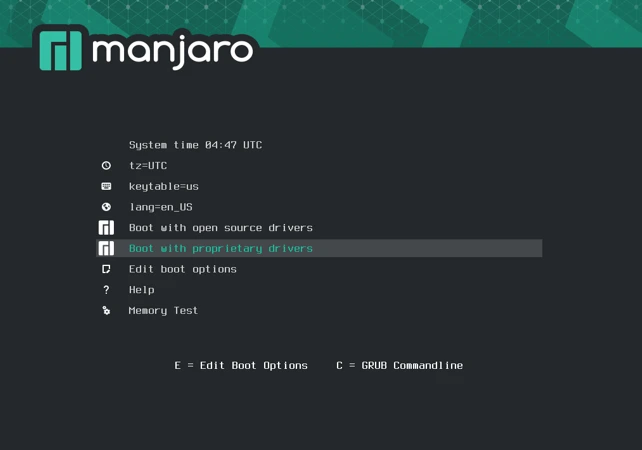
The Manjaro boot menu presents two boot options: boot with free drivers or boot with proprietary drivers. For most hardware, particularly NVIDIA graphics cards, select proprietary drivers for the best experience. Intel and AMD graphics work excellently with free drivers, but choosing proprietary drivers ensures maximum compatibility regardless of your hardware.
First Look at the Live Desktop
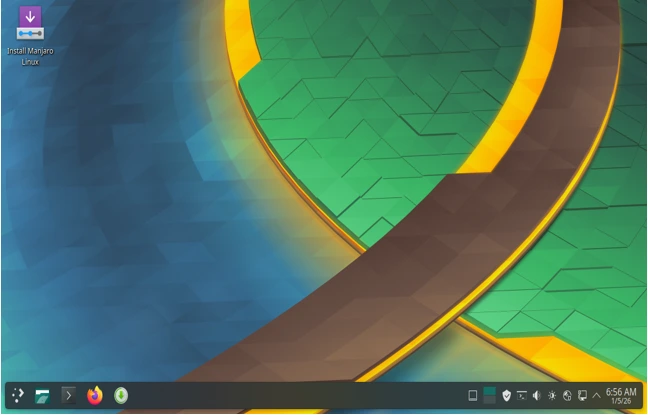
After a brief loading sequence, Manjaro presents its desktop environment running entirely from USB without touching your hard drive. This live environment lets you test Manjaro, browse the internet, and explore applications before committing to installation. Everything runs slower from USB than it will from an installed system, so don’t judge performance based on the live session alone.
Installing Manjaro 26 Step by Step (Calamares Installer)
Launching the Installer
The Manjaro desktop displays a “Welcome” application on first boot with an “Install Manjaro” button prominently featured. Click this button to launch Calamares, Manjaro’s graphical installer. You can also find the installer in the application menu under System if you close the welcome screen.
Language, Region & Keyboard
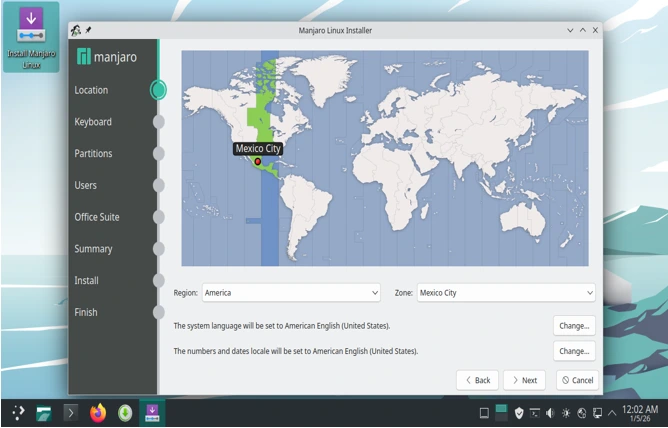
The installer opens with language selection. Choose your preferred language from the list, which will set system defaults for your installation. The next screen requests your timezone location, which Calamares attempts to detect automatically based on your IP address. Verify this selection matches your actual location to ensure correct time display.
Keyboard layout selection follows. The installer detects your keyboard layout based on your language choice, but verify this by typing in the test field provided. If characters don’t appear as expected when you press keys, search for the correct layout in the list.
Partitioning the Disk
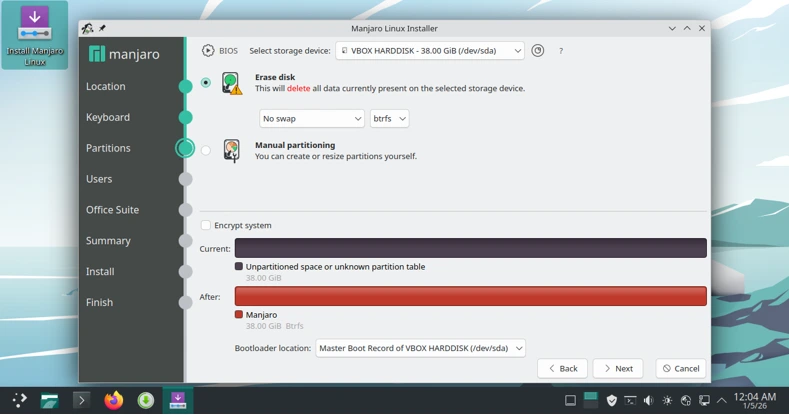
Disk partitioning represents the most critical decision when installing Manjaro 26 Anh-Linh. The installer presents several options designed for different scenarios.
Erase disk (recommended for beginners) provides the simplest path forward. This option erases your entire hard drive and creates appropriate partitions automatically. Manjaro creates an EFI system partition for bootloader files, a swap partition equal to your RAM size (up to 8 GB), and a root partition containing your entire system and home directory. This approach works perfectly for dedicated Linux machines or second computers.
Manual partitioning (advanced users) gives complete control over partition layout. Advanced users might prefer separate home partitions, multiple root partitions for different distributions, or custom swap configurations. Beginners should avoid manual partitioning unless dual-booting Windows, which receives separate coverage later in this guide.
Understanding partitions: The EFI System Partition (ESP) stores bootloader files that your computer reads during startup. UEFI systems require this 300 MB FAT32 partition. The swap partition provides overflow space when RAM fills completely and enables hibernation functionality. Modern systems with 8 GB or more RAM can function without swap, but including it provides flexibility. The root partition (mounted at /) contains your operating system, applications, and user files unless you create a separate home partition.
User Account & Password Setup
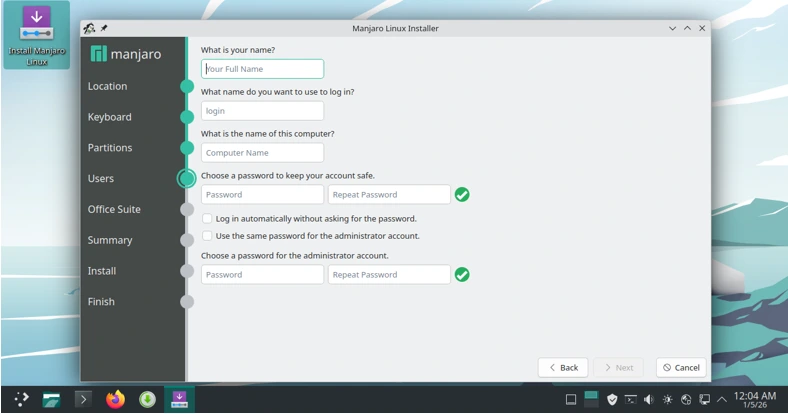
This screen creates your primary user account. Enter your full name or preferred display name, create a username (lowercase letters, numbers, and hyphens only), and choose a hostname identifying your computer on networks. Most users simply use their first name or a variation like “john-laptop.”
Password security matters even on personal computers. Create a password with at least 12 characters mixing letters, numbers, and symbols. The installer indicates password strength as you type. You can choose whether to require a password for login or automatically log in at startup. Automatic login provides convenience but removes a security layer protecting your data if someone accesses your computer physically.
The option to use the same password for administrator tasks simplifies management for single-user systems. Advanced users might prefer separate user and administrator passwords, but this adds complexity beginners rarely need.
Final Review & Installation
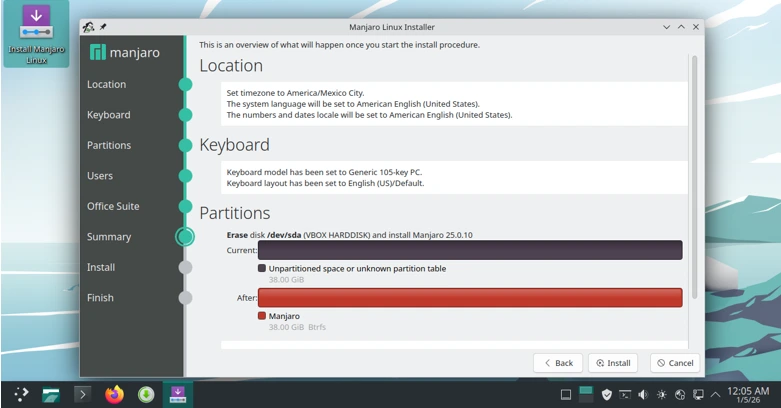
The summary screen displays all your choices before installation begins. Review your language settings, timezone, keyboard layout, partition plan, and user account details carefully. Once installation starts, reversing these decisions requires restarting the entire process.
Click “Install” when satisfied with your configuration. Manjaro displays a progress bar showing file copying, bootloader installation, and configuration steps. Installation typically completes in 10-20 minutes on modern systems with SSD storage, though older hardware with mechanical drives may require 30-45 minutes.
First Boot After Installation
Removing USB Drive
When installation completes, Calamares prompts you to restart. Remove the USB installation media before restarting to ensure your computer boots from the newly installed system rather than the live environment. Some systems automatically boot from the correct drive, but removing the USB eliminates any ambiguity.
Logging Into Manjaro 26
Your computer restarts and displays the GRUB bootloader menu briefly before starting Manjaro automatically. The login screen appears showing your username and a password field. Enter the password you created during installation and press Enter.
Welcome Screen Overview
Manjaro greets you with its Welcome application, offering quick access to common tasks like updating your system, installing applications, and accessing documentation. This application launches automatically on first login but can be reopened anytime from the application menu. The Welcome screen provides links to Manjaro’s forum, wiki, and social media channels where you can find help and connect with the community.
Post-Installation Setup (Recommended for Beginners)
Update the System
Your first task after installing Manjaro 26 Anh-Linh should be updating your system to receive the latest security patches and software versions released since the ISO was created.
Using Pamac (GUI): Open Pamac, Manjaro’s graphical package manager, from the application menu. Click the refresh button to check for updates. If updates are available, Pamac displays them in a list showing each package being updated. Click “Apply” to download and install updates. The process may take several minutes depending on how many updates exist and your internet speed.
Using terminal (pacman): Open a terminal and run sudo pacman -Syu. This command synchronizes package databases and upgrades all installed packages. Enter your password when prompted. Pacman displays packages requiring updates and asks for confirmation before proceeding. Type “Y” and press Enter to continue. Terminal updates often complete faster than GUI updates because they skip graphical interface overhead.
Install Drivers
Manjaro includes Manjaro Hardware Configuration tool that automatically detects and installs appropriate drivers for your system.
Graphics drivers significantly impact performance and power consumption. Manjaro Settings Manager (found in System settings) includes a Hardware Configuration section listing available driver options. Intel graphics work excellently with open-source drivers included by default. AMD graphics cards perform best with the open-source AMDGPU driver, also included by default. NVIDIA graphics cards benefit from proprietary drivers offering better performance and power management than open-source nouveau drivers. If you installed with proprietary drivers enabled, NVIDIA drivers should already be active.
Wi-Fi and Bluetooth tips: Most wireless hardware works automatically after installing Manjaro 26 Anh-Linh, but some devices require additional firmware packages. If wireless functionality doesn’t work, check Manjaro Settings Manager’s Hardware Configuration section, which often identifies and installs missing firmware automatically. Bluetooth requires the bluez and bluez-utils packages, which come preinstalled in official editions.
Enable AUR (Optional)
What is AUR: The Arch User Repository extends Manjaro’s official repositories with community-maintained packages covering nearly every Linux application imaginable. While official repositories contain thousands of packages, AUR provides tens of thousands more, including proprietary applications, niche tools, and the latest development versions of popular software.
When beginners should use it: New users should stick to official repositories for the first few weeks while learning Manjaro basics. Official packages receive more testing and support. Once comfortable with basic system management, enabling AUR access through Pamac (Preferences > Third Party > Enable AUR support) opens up the broader Arch ecosystem. Always review AUR package comments before installing to check for known issues or necessary dependencies.
Installing Manjaro 26 Alongside Windows (Dual Boot)
Shrinking Windows Partition Safely
Dual-booting preserves Windows while adding Manjaro on the same computer. Before installing Manjaro 26 Anh-Linh, shrink your Windows partition to free up space for Linux.
Boot into Windows and open Disk Management by searching for “Create and format hard disk partitions” in the Start menu. Right-click your Windows partition (usually C:) and select “Shrink Volume.” Windows calculates available shrink space, which depends on unmovable system files. Allocate at least 60 GB for Manjaro, though 100 GB or more provides comfortable long-term storage.
Run the Windows Disk Cleanup utility and disable hibernation temporarily (powercfg /h off in an administrator command prompt) if Windows reports less shrink space than expected. These steps clear temporary files and move hibernation data, potentially freeing significant space.
Common Dual-Boot Mistakes
The most frequent dual-boot error involves installing Manjaro on the wrong drive, erasing Windows accidentally. During Manjaro installation, carefully verify which drive contains your Windows installation before selecting partitioning options. The Calamares installer displays drive sizes and existing partitions clearly—double-check before proceeding.
Another common issue involves Windows Fast Startup interfering with Linux access to shared files. Disable Fast Startup in Windows Power Options (Control Panel > Power Options > Choose what the power buttons do > Change settings that are currently unavailable > Uncheck Turn on fast startup).
GRUB Boot Menu Explanation
After installing Manjaro alongside Windows, your computer displays the GRUB bootloader menu on startup, listing both operating systems. GRUB automatically boots Manjaro after five seconds unless you select Windows manually. You can change this default or adjust the timeout in /etc/default/grub after learning basic system administration.
Common Manjaro 26 Installation Problems & Fixes
Black Screen After Install
A black screen following installation usually indicates graphics driver issues. Restart your computer and press ‘E’ when the GRUB menu appears to edit boot parameters. Add nomodeset to the boot line (after quiet), then press F10 to boot with this temporary fix. Once logged in, install proper graphics drivers through Manjaro Settings Manager or Hardware Configuration tool.
For persistent issues, consider switching between proprietary and open-source drivers to identify which works better with your specific hardware.
Wi-Fi Not Working
Missing wireless connectivity after installing Manjaro 26 Anh-Linh typically results from missing firmware. Connect via ethernet cable temporarily and run sudo pacman -Syu to update your system, which often installs missing firmware automatically. Manjaro Settings Manager’s Hardware Configuration section can identify specific firmware packages your wireless card requires.
Some wireless cards require proprietary firmware from AUR. Enable AUR support in Pamac and search for your wireless card model to find appropriate packages.
Bootloader Not Showing Windows
If GRUB fails to display Windows after dual-boot installation, Windows likely resides on a different drive than Manjaro assumed. Boot into Manjaro and run sudo update-grub in a terminal. This command scans all connected drives for operating systems and updates the boot menu accordingly. Windows should appear after rebooting.
Alternatively, install the os-prober package if not already present and run sudo update-grub again.
Secure Boot Errors
Secure Boot blocks Manjaro from booting on some systems despite including signed bootloaders. Access your UEFI settings during startup and disable Secure Boot. Manjaro functions perfectly without Secure Boot, which primarily prevents rootkit installation—a negligible risk for typical desktop use.
Is Manjaro 26 Good for Beginners?
Pros of Manjaro 26 for New Users
Installing Manjaro 26 Anh-Linh offers beginners several compelling advantages. The Calamares installer rivals Ubuntu’s in simplicity while providing access to Arch’s massive software repository. You’ll receive the latest application versions without waiting for distribution release cycles, and Manjaro’s testing process prevents the instability sometimes associated with Arch.
The Manjaro community provides extensive documentation, active forums, and welcoming support for newcomers. Desktop environments come preconfigured with sensible defaults, eliminating the hours of customization Arch requires. Pamac’s graphical interface makes software management approachable, while the underlying pacman system remains available for users who prefer terminal workflows.
Rolling Release Risks Explained Simply
Rolling releases provide continuous updates rather than fixed versions, which carries both advantages and risks. Your system never becomes outdated like traditional distribution versions do, but updates occasionally introduce issues requiring troubleshooting. Manjaro mitigates this risk by testing packages for approximately two weeks before releasing them to users, catching most problems before they reach your system.
The practical risk remains minimal for most users. Update regularly rather than skipping updates for months, read Manjaro announcements before updating if major concerns exist, and maintain backups of important files. Following these practices makes rolling release issues exceedingly rare.
Who Should and Shouldn’t Use Manjaro
Manjaro suits users who want modern software without compilation or manual configuration, appreciate having extensive application selection readily available, enjoy learning about Linux without overwhelming complexity, and value community-driven development over corporate backing.
Manjaro might not suit users who require absolute stability for mission-critical work systems, prefer point-release distributions with fixed support periods, want commercial support contracts for enterprise deployments, or need specific software that requires Ubuntu-based distributions.
Frequently Asked Questions (FAQ)
Is Manjaro 26 stable?
Manjaro 26 Anh-Linh provides excellent stability for daily use. The development team tests packages for approximately two weeks before releasing them to stable repositories, catching most issues during this period. Occasional updates may require minor troubleshooting, but problems serious enough to prevent system use rarely occur. Thousands of users run Manjaro as their primary operating system without stability concerns.
Does Manjaro 26 support Secure Boot?
Manjaro 26 includes signed bootloaders that work with Secure Boot enabled on most hardware. Some systems experience compatibility issues depending on specific UEFI implementations. If you encounter boot problems with Secure Boot enabled, disabling it resolves the issue without compromising practical security for typical desktop use.
Which Manjaro 26 edition is best for beginners?
KDE Plasma offers the most polished experience with extensive customization options accessible through graphical interfaces. Its modern aesthetic and feature-rich environment make it the flagship edition that most beginners appreciate. XFCE suits users with older hardware or those who prefer traditional Windows-like layouts. GNOME appeals to users who want a minimalist, distraction-free workflow. Try each in the live environment before installing to determine which interface feels most comfortable.
How often should I update Manjaro?
Update weekly or biweekly to maintain security and stability. Manjaro’s rolling release model provides continuous updates, but you control when to apply them. Updating regularly prevents accumulation of changes that complicate troubleshooting if issues arise. Opening Pamac weekly and applying available updates takes just minutes and keeps your system current. Avoid skipping updates for months, which increases the likelihood of complications when you finally update.
Conclusion
Installing Manjaro 26 Anh-Linh opens the door to the Arch Linux ecosystem without requiring the technical expertise traditional Arch demands. This guide has walked you through every step from downloading the ISO to completing post-installation configuration, preparing you to confidently install and use Manjaro as your daily operating system.
The rolling release model ensures your system remains current with the latest software, while Manjaro’s testing process maintains stability beginners need. Whether you’re leaving Windows behind entirely, experimenting with Linux for the first time, or adding a capable distribution to your multi-boot setup, Manjaro 26 strikes an excellent balance between power and accessibility.
Recommendation based on use case: Choose Manjaro 26 Anh-Linh if you want modern software, extensive customization options, and don’t mind occasional troubleshooting. Stick with Ubuntu LTS if you prioritize absolute stability and commercial support, or need specific software requiring Ubuntu’s package ecosystem. Consider Linux Mint if you want the most Windows-like experience with minimal learning curve. Each distribution serves different needs—Manjaro excels at providing Arch’s power with beginner-friendly installation and management.
Take your time exploring Manjaro after installation. Join the Manjaro forums, experiment with different applications, and don’t hesitate to ask questions when you encounter confusion. The Linux community thrives on helping newcomers discover the freedom and capability open-source software provides. Welcome to Manjaro—your journey into the world of Arch-based Linux begins now.
Disclaimer
This installation guide is provided for educational purposes only. Installing operating systems involves risks including potential data loss. Always back up your data before proceeding. The author assumes no liability for any damage or issues arising from following this tutorial. Proceed at your own risk and refer to official Manjaro documentation for the most current information.
Also Read
Best KDE Plasma Linux Distros in 2026 (Plasma 6 Tested)