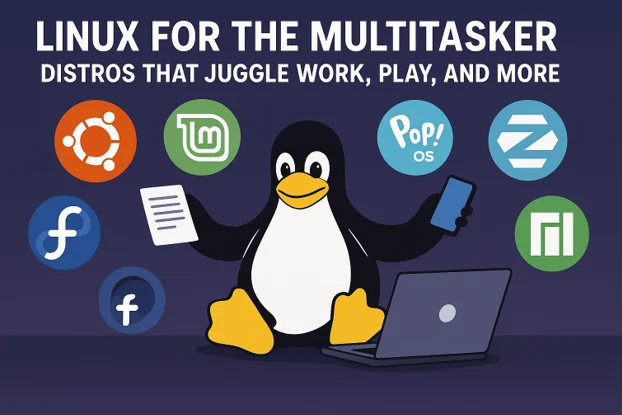
If you’re someone who thrives on juggling multiple tasks—coding on one screen, streaming music in the background, and sneaking in a quick gaming session during a break—Linux for the Multitasker is your ultimate ally. In today’s fast-paced digital world, your operating system needs to keep up with your dynamic lifestyle. Linux, with its open-source flexibility, robust performance, and vast ecosystem, is a multitasking powerhouse. But with over a thousand Linux distributions (distros) out there, how do you choose the one that seamlessly balances work, play, and everything in between?
In this detailed, human-written guide, we’ll explore the best Linux distros for multitasking in 2025, optimized for Linux for the Multitasker and packed with practical insights based on the latest official data and research. Let’s dive in and find the perfect distro for your multitasking needs!
Why Linux for Multitasking?
Before we explore the top distros, let’s talk about why Linux is a multitasker’s dream. Unlike proprietary operating systems, Linux offers unparalleled customization, lightweight performance, and stability, making it ideal for running multiple applications without breaking a sweat. Here’s why Linux stands out:
- Resource Efficiency: Linux distros are known for their low resource consumption, allowing you to run multiple apps without slowing down your system.
- Customizable Workspaces: Most Linux desktop environments (DEs) support virtual desktops, window tiling, and multitasking views, letting you organize tasks effortlessly.
- Open-Source Power: With access to a vast repository of free software, you can tailor your setup for productivity, gaming, or creative work.
- Community Support: Linux’s active communities provide quick solutions to issues, ensuring your multitasking setup stays smooth.
Whether you’re a professional juggling spreadsheets and video calls, a gamer streaming on Twitch, or a student managing research and social media, Linux has a distro for you. Let’s explore the best options for 2025, based on the latest official data from sources like DistroWatch, Reddit, and tech blogs.
Key Features to Look for in a Multitasking Distro
When choosing a Linux distro for multitasking, consider these factors:
- Desktop Environment: A DE like GNOME, KDE Plasma, or Cinnamon can make or break your multitasking experience. Look for features like virtual desktops, window snapping, and task switchers.
- Performance: A lightweight distro ensures smooth performance when running multiple apps.
- Software Availability: Access to productivity tools, gaming platforms like Steam, and creative software is crucial.
- Stability: Stable releases or Long-Term Support (LTS) versions minimize disruptions during updates.
- Hardware Compatibility: Ensure the distro supports your hardware, especially for resource-intensive tasks like gaming or video editing.
With these in mind, here are the top Linux distros for multitasking in 2025, each excelling in balancing work, play, and more.
1. Ubuntu: The All-Rounder for Beginners and Pros
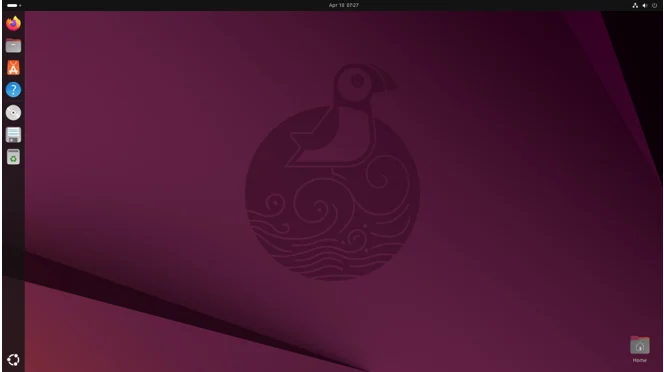
Ubuntu remains the gold standard for multitasking, thanks to its user-friendly interface, vast software ecosystem, and robust community support. Based on Debian, Ubuntu’s latest LTS release (25.04, as of 2025) offers a polished GNOME desktop environment with smooth animations and a multitasking view that makes switching between apps a breeze.
Why Ubuntu for Multitasking?
- GNOME Desktop: GNOME 46 (as of 2025) provides a clean, intuitive interface with a dynamic workspace system. You can create multiple virtual desktops for work, gaming, and personal tasks, and the Activities Overview lets you see all open windows at a glance.
- Software Support: Ubuntu’s repositories and Snap Store offer thousands of apps, from LibreOffice for productivity to Steam for gaming. Tools like Firefox, GIMP, and VLC come pre-installed, covering most multitasking needs.
- Performance: Ubuntu runs smoothly on modern hardware, and its optimized kernel handles resource-intensive tasks like video editing or running virtual machines.
- Community and Documentation: With a massive online community, including forums and subreddits, Ubuntu ensures you’ll find help for any multitasking setup.
Multitasking Features
- Window Tiling: Snap windows to the left or right for split-screen multitasking.
- Virtual Desktops: Easily switch between workspaces for coding, browsing, or gaming.
- GameMode: Ubuntu supports GameMode, which optimizes CPU and GPU performance for gaming while running background tasks.
Best For
Beginners, professionals, and gamers who want a stable, versatile distro. Ubuntu’s flavors, like Kubuntu (KDE Plasma) or Xubuntu (Xfce), cater to different multitasking preferences.
Drawbacks
Snap packages can be slower to load, which may frustrate users running multiple apps.
GNOME’s resource usage might be heavy on older hardware.
2. Linux Mint: The Windows-Like Multitasking Haven
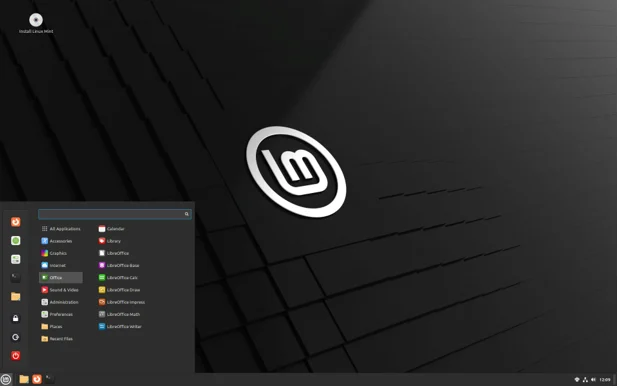
Linux Mint, built on Ubuntu, is a favorite for users transitioning from Windows. Its Cinnamon desktop environment mimics a familiar layout while offering powerful multitasking features. The latest release, Linux Mint 22.1 (as of 2025), is an LTS version supported until 2029, ensuring stability for multitaskers.
Why Linux Mint for Multitasking?
- Cinnamon Desktop: Cinnamon is lightweight yet feature-rich, with a taskbar, start menu, and system tray that feel like Windows. Its multitasking view lets you organize windows across multiple desktops.
- Lightweight Performance: Mint requires just 2GB of RAM (4GB recommended), making it ideal for older PCs or laptops juggling multiple apps.
- Multimedia Support: Pre-installed codecs mean you can play music or videos while working without extra setup.
- Timeshift: This system restore tool lets you roll back changes, ensuring stability during multitasking experiments.
Multitasking Features
- Desklets: Add widgets to your desktop for quick access to calendars, notes, or system monitors while working.
- Hot Corners: Configure corners to trigger actions like showing all windows or switching desktops.
- Flatpak Support: Unlike Ubuntu, Mint embraces Flatpaks for faster app installation, perfect for multitasking setups.
Best For
Windows users, students, and small businesses needing a familiar, lightweight distro for daily tasks and occasional gaming.
Drawbacks
Slightly behind Ubuntu in adopting new features.
Less cutting-edge than rolling-release distros like Arch.
3. Pop!_OS: The Developer and Gamer’s Dream
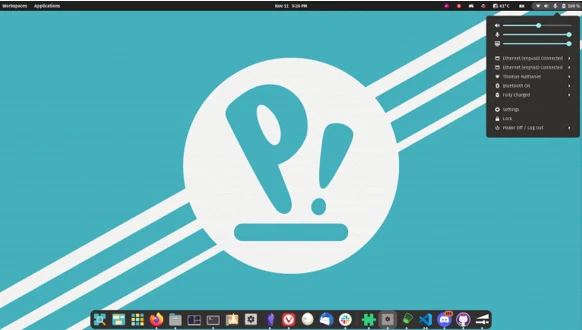
Pop!_OS, developed by System76, is an Ubuntu-based distro tailored for developers, gamers, and creative professionals. Its latest release, based on Ubuntu 24.04, introduces Pop Shell, a tiling window manager that takes multitasking to the next level.
Why Pop!_OS for Multitasking?
- Pop Shell: This auto-tiling feature organizes windows efficiently, ideal for coding on one screen while referencing docs on another. You can toggle between tiled and floating windows for flexibility.
- Gaming Performance: Pop!_OS supports NVIDIA and AMD GPUs out of the box, with pre-installed drivers and Steam compatibility. Over 73% of top Steam games are playable, thanks to Proton.
- Productivity Tools: Pre-installed tools like GNOME Tweaks, Docker, and Visual Studio Code make it a developer’s paradise.
- Hybrid Graphics: For laptops, Pop!_OS optimizes power usage, letting you switch between integrated and dedicated GPUs for gaming or work.
Multitasking Features
- Workspace Management: Pop Shell’s dynamic workspaces let you segregate tasks (e.g., coding, browsing, gaming) with smooth navigation.
- Touchpad Gestures: Swipe to switch workspaces or apps, enhancing laptop multitasking.
- GameMode: Boosts gaming performance while running background tasks like Discord or OBS.
Best For
Developers, gamers, and creative professionals who need a distro optimized for both productivity and play.
Drawbacks
- GNOME-based, so it may feel heavy on low-end hardware.
- Less beginner-friendly than Ubuntu or Mint.
4. Fedora Workstation: Cutting-Edge Stability
Sponsored by Red Hat, Fedora Workstation is known for its balance of cutting-edge software and stability. Fedora 42 (released in 2025) uses the GNOME 47 desktop, offering a sleek, modern interface for multitaskers.

Why Fedora for Multitasking?
- GNOME Desktop: Fedora’s polished GNOME implementation supports dynamic workspaces, window snapping, and a multitasking view for seamless app switching.
- Fast Release Cycle: Fedora delivers the latest software, making it ideal for developers needing up-to-date tools like Python, Rust, or Node.js.
- Modularity: Choose specific packages for your workflow, whether it’s coding, video editing, or gaming.
- Btrfs File System: Enhances system recovery, ensuring stability during heavy multitasking.
Multitasking Features
- Activities Overview: Quickly view and manage open apps and workspaces.
- Fedora Spins: Alternative DEs like KDE Plasma or Xfce cater to different multitasking styles.
- GameMode Support: Optimizes performance for gaming while running productivity apps.
Best For
Developers, tech enthusiasts, and professionals who want the latest software without sacrificing stability.
Drawbacks
- Frequent updates may require more maintenance.
- Not as beginner-friendly as Ubuntu or Mint.
5. Manjaro: The User-Friendly Arch Experience
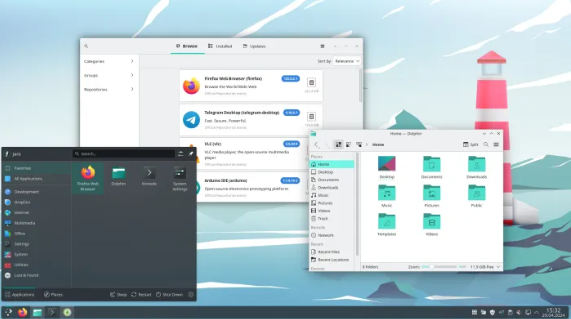
Manjaro, an Arch-based distro, simplifies the Arch experience while offering rolling-release updates. Its latest release in 2025 supports multiple DEs (KDE Plasma, GNOME, Xfce), making it versatile for multitasking.
Why Manjaro for Multitasking?
- KDE Plasma: The KDE edition offers a highly customizable desktop with virtual desktops, widgets, and a powerful task switcher.
- Rolling Release: Get the latest software without major upgrades, ideal for developers and gamers.
- Hardware Detection: Manjaro automatically installs drivers, ensuring compatibility for multitasking on laptops or desktops.
- AUR Access: The Arch User Repository provides a vast array of software for work and play.
Multitasking Features
- KWin Window Manager: Supports window tiling, effects, and multiple desktops for efficient multitasking.
- Gaming Support: Pre-installed tools like Steam and Lutris make gaming seamless alongside work tasks.
- Lightweight Options: The Xfce edition is perfect for older hardware, ensuring smooth multitasking.
Best For
Intermediate users, gamers, and developers who want Arch’s flexibility without the complex setup.
Drawbacks
- Rolling releases may introduce occasional instability.
- Requires some Linux knowledge for troubleshooting.
6. Zorin OS: The Windows Convert’s Multitasking Ally
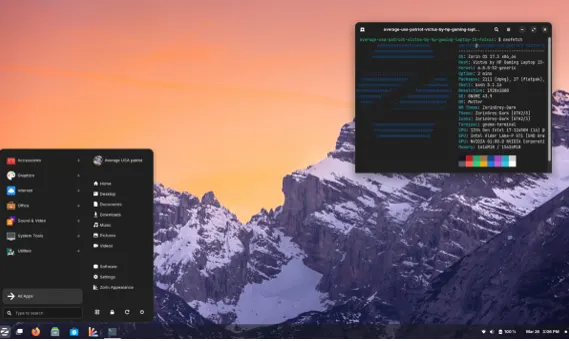
Zorin OS, based on Ubuntu, is designed for Windows users switching to Linux. Its latest release, Zorin OS 17.3 (2025), offers a polished interface with multitasking features tailored for productivity and ease of use.
Why Zorin OS for Multitasking?
- Zorin Desktop: Inspired by Windows and macOS, it offers a familiar layout with customizable themes and layouts.
- Privacy Focus: Built-in privacy features ensure secure multitasking, ideal for browsing or handling sensitive data.
- Zorin Connect: Sync your phone with your PC for seamless multitasking across devices.
- Lightweight Performance: Zorin OS Lite runs smoothly on older hardware, supporting multiple apps without lag.
Multitasking Features
- Multitasking View: Organize windows and workspaces with a swipe or click.
- Touchpad Gestures: Navigate apps and desktops effortlessly on laptops.
- AppCenter: Access a curated selection of apps for work, gaming, and creativity.
Best For
Windows users, students, and small businesses needing a user-friendly, secure distro for multitasking.
Drawbacks
- Some advanced features require the paid Pro edition.
- Less cutting-edge than Fedora or Manjaro.
Tips for Optimizing Your Linux Multitasking Setup
To get the most out of your chosen distro, follow these best practices:
- Use Virtual Desktops: Organize tasks (e.g., work, gaming, browsing) across multiple desktops for a clutter-free experience.
- Enable Window Tiling: Most DEs support snapping windows to split screens, perfect for coding while referencing docs.
- Install Timeshift: Back up your system to avoid disruptions during updates or experiments.
- Update Regularly: Keep your distro and apps updated for optimal performance and security.
- Monitor Resources: Use tools like htop or GNOME System Monitor to track CPU and RAM usage during heavy multitasking.
- Leverage Flatpaks or Snaps: These ensure compatibility for apps across distros, streamlining your workflow.
Conclusion: Find Your Perfect Multitasking Distro
Linux offers a wealth of options for multitaskers, from the beginner-friendly Ubuntu and Linux Mint to the developer-focused Pop!_OS and Fedora. Manjaro brings Arch’s power to the masses, while Zorin OS eases the transition for Windows users. Each distro excels in juggling work, play, and more, thanks to Linux’s flexibility and community-driven innovation.
For beginners, Ubuntu or Linux Mint are safe bets with their intuitive interfaces and vast support. Developers and gamers will love Pop!_OS or Manjaro for their performance and customization. Fedora offers cutting-edge tools for tech enthusiasts, while Zorin OS bridges the gap for Windows converts. No matter your needs, there’s a Linux distro ready to handle your multitasking demands in 2025.
So, what’s your pick? Try these distros via a live USB or virtual machine to find the one that fits your workflow. Share your favorite multitasking setup in the comments below, and let’s keep the Linux conversation going!
Disclaimer
The information provided in this blog post, “Linux for the Multitasker: Distros That Juggle Work, Play, and More,” is for general informational purposes only. While we strive to ensure the accuracy and relevance of the content based on the latest available data as of July 2025, the Linux ecosystem is constantly evolving, and software, features, or system requirements may change. The author and publisher are not responsible for any errors, omissions, or outcomes resulting from the use of this information.
The recommendations and opinions expressed in this post are based on official sources, community feedback, and general trends in the Linux community. Individual experiences with Linux distributions may vary depending on hardware, software configurations, and user expertise. Readers are encouraged to verify compatibility and performance with their specific systems before installing any Linux distribution.
This blog post does not constitute professional advice. Users should consult official documentation, community forums, or professional IT services for specific technical guidance. Links to external websites or resources are provided for convenience, and we do not endorse or guarantee the accuracy of third-party content.
Also Read
Why Edubuntu is the Ideal Linux Distro for Teachers and Students