
Hey there, tech newbie or curious Windows user! If you’ve ever wondered what it’s like to dive into the Linux world without abandoning your trusty Windows setup, you’re in the right place. Dual booting—running both Windows and Linux on the same PC, choosing which to use at startup—is like having a superpower. You keep Windows for gaming, work apps, or that one program that only runs on Microsoft’s turf, while Linux gives you a free, secure, and customizable playground to explore. In 2025, with Windows 11’s picky hardware requirements (like TPM 2.0) leaving some PCs behind, dual booting is a fantastic way to breathe new life into your machine.
I’ve been dual booting since my college days, fumbling through Ubuntu installs and now happily splitting time between Fedora and Windows 11. Trust me, picking the right Linux distro can make or break your experience, especially if you’re new to this. Some distros are like friendly guides, holding your hand through the setup with slick installers that play nice with Windows. Others might feel like assembling IKEA furniture without instructions—doable, but you’ll need patience.
In this guide, I’m going all-in on the best Linux distros for dual boot with Windows in 2025, tailored for beginners. We’ll cover why dual booting is awesome, how to pick a distro that won’t make you pull your hair out, and step-by-step setup instructions with extra tips to avoid common pitfalls. I’ve dug into the latest 2025 releases and community chatter to ensure you’re getting fresh, reliable picks. Plus, I’ll throw in a comparison table, troubleshooting hacks, and answers to questions you might not even know you have yet. No Linux experience? No problem—let’s make this fun and approachable!
Why Dual Boot Linux and Windows in 2025?
First, let’s talk about why dual booting is such a game-changer. Imagine your PC as a house with two rooms: one’s Windows, cozy and familiar, with all your favorite games and apps like Adobe Photoshop or Microsoft Office. The other’s Linux, a sleek, open-source space where you can code, customize, and surf the web without spending a dime. At startup, you choose which room to hang out in. No need to ditch Windows, and no heavy virtualization software eating up your RAM.
In 2025, dual booting is especially relevant. Windows 11’s 22H2 version hits end-of-life in October, and its hardware demands (like TPM 2.0 and Secure Boot) mean older PCs might not make the cut. Linux, on the other hand, runs like a dream on everything from ancient laptops to shiny new rigs. It’s secure, lightweight, and lets you tweak your system to your heart’s content. Plus, it’s free—your wallet will thank you.
What’s the Dual Boot Process Like?
Don’t worry, it’s not as scary as it sounds! Here’s the gist:
- Backup your data: Seriously, save your photos, documents, everything. Use an external drive or cloud storage.
- Shrink your Windows partition: Free up space for Linux using Windows’ built-in Disk Management tool.
- Create a Linux USB: Download your chosen distro’s ISO file and “burn” it to a USB stick with a tool like Rufus.
- Install Linux: Boot from the USB, follow the installer’s prompts to set up Linux alongside Windows, and let it configure a boot menu (usually GRUB) to choose your OS at startup.
Enjoy! Reboot, pick your OS, and switch whenever you want.
Pro tip: If you’re starting from scratch, install Windows first. Linux distros are pros at detecting Windows and setting up the boot menu, but Windows can be a bit of a diva if installed second. Ready to meet the distros? Let’s find the best Linux distros for dual boot with Windows for you!
1. Ubuntu 25.04: Your Friendly Linux Welcome Mat
If Linux had a mascot for beginners, it’d be Ubuntu. This distro is the gold standard for dual booting because its installer is like a warm hug—it guides you every step of the way. The latest release, Ubuntu 25.04 (dropped in April 2025), makes things even smoother with improved detection of Windows’ BitLocker encryption and support for setting up your own encrypted Linux partition. If you’re new to Linux, this is where I’d start—it’s forgiving, well-documented, and has a massive community to help you out.

Why Ubuntu Rocks for Dual Boot
- Super Easy Installer: The Subiquity installer spots your Windows partition and offers an “Install alongside Windows” option. No need to mess with manual partitioning unless you’re feeling adventurous.
- Hardware Love: Powered by Linux kernel 6.8, it supports modern laptops, desktops, and GPUs (NVIDIA, AMD, Intel) out of the box. Got a new Ryzen or RTX 5090? You’re covered.
- Beginner Perks: Access your Windows files from Ubuntu’s file manager (Nautilus), run some Windows apps with Wine or Proton, and enjoy long-term support (LTS) until 2030 for worry-free updates.
- Customization: GNOME desktop is sleek and modern, with extensions to make it your own.
Step-by-Step Dual Boot Setup
Here’s how to get Ubuntu 25.04 running alongside Windows:
- Download Ubuntu: Head to the official Ubuntu website and grab the 25.04 ISO. Save it somewhere easy to find.
- Make a Bootable USB: Use a tool like Rufus (Windows) or Etcher (cross-platform) to “burn” the ISO to a 4GB+ USB stick. Follow the tool’s instructions—it’s like copying a file but fancier.
- Backup First: Save your important files to an external drive or cloud (Google Drive, OneDrive, etc.).
- Shrink Windows Partition: In Windows, press Win + X, select Disk Management, right-click your C: drive, and choose “Shrink Volume.” Aim for 50-100GB for Linux (more if you plan to install lots of apps). This creates unallocated space.
- Enter BIOS: Restart your PC and press the key to enter BIOS (usually F2, Del, or F12—check your PC’s manual). Disable Secure Boot (it can complicate things for beginners) and set your USB as the first boot device.
- Boot Ubuntu USB: Plug in the USB, restart, and select “Try or Install Ubuntu” from the boot menu. If you don’t see a boot menu, re-enter BIOS and double-check settings.
- Install Ubuntu: Choose “Install Ubuntu alongside Windows 10/11.” The installer will show a slider to allocate space between Windows and Ubuntu—50GB is a safe minimum. Want encryption? Check the box for a secure Linux partition. Click “Install” and grab a coffee; it takes about 15 minutes.
- Reboot and Choose: After installation, reboot. You’ll see the GRUB menu, letting you pick Ubuntu or Windows. To make Windows boot by default, edit /etc/default/grub in Ubuntu (ask me for help if needed!).
Tips for Newbies
- Try Before You Install: Ubuntu’s live USB lets you test it without touching your hard drive. Play around to see if you like it!
- Storage Needs: 50GB is enough for basic use (web, documents), but 100GB+ is better for gaming, coding, or large apps.
- Stuck? The Ubuntu community forums and Ask Ubuntu site are goldmines for troubleshooting.
The only downside? GNOME can feel a bit heavy on older PCs with less than 4GB RAM. If your machine’s a bit dated, don’t worry—our next distro’s got you covered.
2. Linux Mint 22.2: Windows Comfort with a Linux Twist
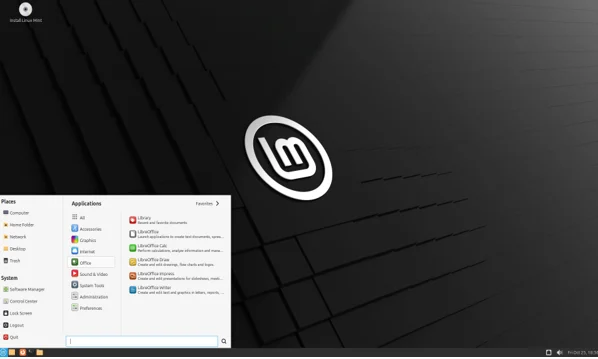
If the thought of a new interface makes you nervous, Linux Mint 22.2 “Zara” (released July 2025) is like slipping into your favorite hoodie. Built on Ubuntu 25.04, it uses the Cinnamon desktop, which feels like Windows 7 or 10 with a Start menu, taskbar, and familiar layout. It’s my top pick for anyone who wants Linux to feel like home from day one.
Why Mint Is a Dual Boot Winner
- Beginner-Friendly Installer: Like Ubuntu, Mint’s installer detects Windows and offers an “Install alongside” option. It also includes Timeshift, a backup tool that saves your system state in case something goes wrong.
- Lightweight: Runs smoothly on just 2GB RAM, making it ideal for older laptops or budget PCs.
- Windows-Like Vibes: Cinnamon’s interface is intuitive, and you can access your Windows files via the Nemo file manager. Plus, it supports Secure Boot without extra tweaks.
- Software Galore: Comes with pre-installed apps like Firefox, LibreOffice, and VLC, so you’re ready to go.
How to Set Up Mint
- Download Mint: Get the Linux Mint 22.2 ISO from the official site (choose Cinnamon edition for the classic feel).
- Create USB: Use Rufus or Etcher to make a bootable USB.
- Backup and Shrink: Back up your data, then shrink your Windows partition in Disk Management (50GB+ recommended).
- BIOS Tweaks: Disable Secure Boot, set USB as first boot device.
- Install Mint: Boot the USB, select “Install Linux Mint alongside Windows.” The installer handles partitioning and GRUB setup. Enable Timeshift during install for easy backups.
- Post-Install: Open the Update Manager (it’s in the menu) to grab the latest patches. Explore the Software Manager for free apps like GIMP or VS Code.
Newbie Tips
- Cinnamon Editions: Mint offers XFCE or MATE editions for even lighter performance on super-old PCs. Try them if Cinnamon feels sluggish.
- Timeshift Magic: Set up Timeshift snapshots to restore your system if an update goes wonky.
- Windows Files: Your Windows drive appears in Nemo—copy files to Linux for safety, as Linux can’t write to NTFS reliably without tweaks.
- Mint’s a crowd-pleaser, but its conservative updates mean very new hardware might need manual driver installs. Still, it’s a fantastic starting point.
3. Pop!_OS 22.04 (COSMIC Refresh): For Gamers and Creators
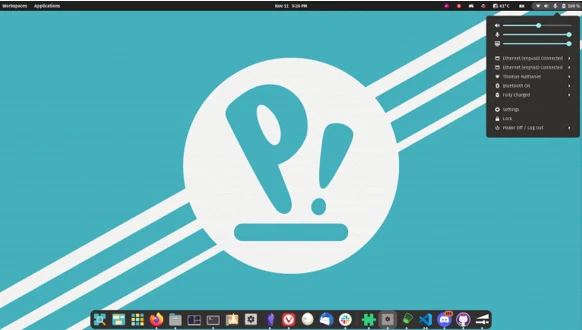
Pop!_OS, made by System76, is like Ubuntu’s cool sibling who’s into gaming and creative work. The 22.04 LTS release, refreshed with the COSMIC desktop in early 2025, is a dual-boot dream, especially if you have an NVIDIA GPU. It’s my pick for anyone who wants to game on Windows but code or create on Linux.
Why Pop!_OS Shines for Dual Boot
- NVIDIA Made Easy: Choose the NVIDIA ISO for pre-installed drivers—no terminal commands needed.
- Systemd-Boot: Instead of GRUB, it uses a simpler boot manager that auto-detects Windows. Fewer moving parts, less to break.
- Recovery Partition: Built-in for fixing boot issues if Windows updates mess things up.
- Productivity Boost: COSMIC’s tiling windows and hybrid graphics support make multitasking a breeze.
Dual Boot Setup Steps
- Download Pop!_OS: Grab the ISO from the System76 site (NVIDIA version if you have an NVIDIA GPU).
- Make USB: Use Rufus or Etcher.
- Prep Windows: Back up, shrink your C: drive by 50-100GB.
- BIOS Setup: Disable Secure Boot, boot from USB.
- Install: Choose “Custom” for partitioning, select “Install alongside Windows,” and allocate space. Encryption is enabled by default for extra security.
- Tweak Boot: Post-install, edit /boot/loader/entries/ to adjust the boot menu if you want Windows first.
Newbie Tips
- Gaming Ready: Pop!_OS integrates with Steam and Lutris for Linux gaming, complementing your Windows setup.
- Pop!_Shop: This app store is beginner-friendly for installing tools like Blender or OBS.
- Systemd-Boot Note: If you have multiple drives, double-check the boot order in BIOS to avoid confusion.
Pop!_OS is snappy and modern, but its systemd-boot can be tricky on complex setups. For most single-drive PCs, it’s a breeze.
4. Fedora Workstation 42: Cutting-Edge for Curious Devs
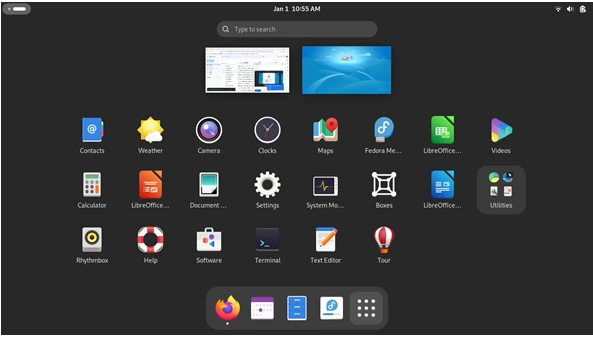
Fedora 42 (May 2025) is my recommendation for anyone who loves staying on the cutting edge—think developers or tech enthusiasts who want the latest software. Its Anaconda installer is polished and beginner-friendly, and the Wayland-based GNOME desktop is buttery smooth on modern hardware.
Why Fedora’s Great for Dual Boot
- Latest Tech: Runs Linux kernel 6.10 and PipeWire audio, supporting the newest laptops and GPUs.
- Flexible Spins: Don’t like GNOME? Try Fedora’s KDE or XFCE spins for a Windows-like feel.
- GRUB Done Right: Auto-detects Windows and sets up a clean boot menu.
- Community Support: Huge forums and wikis for help.
How to Install Fedora
- Download ISO: Get Fedora Workstation 42 from the official site. Use Fedora Media Writer for the USB.
- Backup and Shrink: Save your files, shrink your Windows partition.
- BIOS: Disable Secure Boot, boot from USB.
- Install: Select “Install to free space alongside Windows.” Anaconda partitions automatically. Choose encryption if desired.
- Post-Install: Update via the Software app. Tweak GRUB with sudo ostree admin if needed.
Newbie Tips
- Software Center: GNOME Software makes installing apps like Spotify or VS Code a click away.
- Short Support: Fedora updates every 6 months, with 13 months of support per release. Be ready to upgrade yearly.
- Learning Curve: Slightly steeper than Ubuntu, but the documentation is top-notch.
Fedora’s fresh, but its short support cycle means you’ll need to stay on top of updates.
5. Zorin OS 17.1: Windows’ Twin for Easy Switching
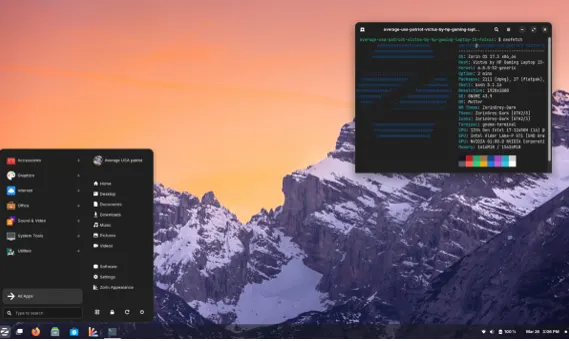
Zorin OS 17.1 (January 2025) is designed for Windows users jumping to Linux. Its desktop can mimic Windows XP, 7, 10, or 11 layouts, making the transition feel like a gentle hug. Built on Ubuntu, it’s as beginner-friendly as it gets.
Why Zorin Excels for Dual Boot
- Windows Mimicry: The Appearance app lets you switch layouts to match your favorite Windows version.
- App Support: Run some Windows .exe files with built-in Wine integration.
- Lite Edition: Perfect for low-spec PCs with 2GB RAM.
- Polished Installer: Detects Windows and sets up GRUB effortlessly.
Setup Steps
- Download Zorin: Grab the ISO from the Zorin site (Core is free; Pro is $39 for extra features).
- USB and Prep: Create a bootable USB, back up, shrink Windows partition.
- Install: Boot USB, select “Install alongside Windows.” Allocate 50GB+.
- Enjoy: GRUB is ready, and your Windows drive shows up in the file manager.
Newbie Tips
- Try Pro Features: The Pro version adds macOS-like layouts and premium support—worth it if you want polish.
- Software Store: Install apps like GIMP or Audacity with a click.
- Lightweight Option: Zorin Lite is great for ancient PCs.
Zorin’s a gem for easing you into Linux, though the free version misses some Pro-only themes.
Honorable Mentions: Manjaro and Debian
- Manjaro 24.0 “Bobcat” (Q2 2025): An Arch-based rolling release with the Calamares installer. It’s user-friendly but requires caution with Arch’s package manager (AUR). Great for those who want to tinker.
- Debian 13.1 “Trixie” (October 2025): Super stable, but the text-based installer means manual partitioning. Best for minimalists or server setups, less ideal for beginners.
Comparison Table: Best Linux Distros for Dual Boot with Windows
Here’s a quick guide to pick your distro:
| Distro | Base | Desktop | Ease of Dual Boot (1-10) | Min RAM | Support Length | Best For |
|---|---|---|---|---|---|---|
| Ubuntu 25.04 | Debian | GNOME | 10 | 4GB | 5 years LTS | Beginners |
| Linux Mint 22.2 | Ubuntu | Cinnamon | 9 | 2GB | 5 years | Windows Fans |
| Pop!_OS 22.04 | Ubuntu | COSMIC | 9 | 4GB | 5 years LTS | Gamers/Creators |
| Fedora 42 | RPM | GNOME | 8 | 4GB | 13 months | Developers |
| Zorin OS 17.1 | Ubuntu | GNOME | 9 | 2GB | 6 months | UI Mimicry |
| Manjaro 24.0 | Arch | KDE/etc | 7 | 4GB | Rolling | Advanced Users |
| Debian 13.1 | – | GNOME | 6 | 1GB | 3 years | Stability |
Troubleshooting: Fixing Common Dual Boot Hiccups
- New to Linux? Don’t panic if things go sideways—here’s how to fix common issues:
- No GRUB Menu? Boot from your Linux USB, select “Try,” open a terminal, and run sudo update-grub after mounting your Linux partition (search “chroot Linux” for details).
- Windows Won’t Boot? Use Boot-Repair from a live USB or EasyBCD in Windows to fix the bootloader.
- Clock Out of Sync? Windows and Linux handle time differently. In Linux, run timedatectl set-local-rtc 1 to match Windows’ clock, or set Windows to UTC (Google “Windows UTC registry”).
- BitLocker Blocking? If Windows uses BitLocker, suspend it in Windows (Settings > System > BitLocker) before installing Linux, then re-enable it.
- Slow Boot? Check BIOS for “Fast Boot” and disable it—it can confuse GRUB.
Final Thoughts: Your Dual Boot Journey Starts Here
Dual booting in 2025 is easier than ever, and the best Linux distros for dual boot with Windows cater to every beginner’s needs: Ubuntu for its hand-holding installer, Linux Mint for Windows-like comfort, Pop!_OS for gaming flair, Fedora for cutting-edge tech, and Zorin for seamless transition. If you’re just starting, go with Ubuntu 25.04—it’s the most forgiving, and the community has answers for everything. Once you’re flipping between Windows and Linux at the GRUB menu, you’ll feel like a tech rockstar.
FAQ for Linux Newbies
Will dual booting erase my Windows data?
Nope, as long as you back up and follow the installer’s “alongside Windows” option. The installer resizes your Windows partition without deleting files.
Can I access Windows files from Linux?
Yes! Your Windows drive appears in the Linux file manager. Copy files to Linux for editing, as writing to NTFS can be finicky.
What if I hate Linux?
Boot into Windows, use Disk Management to delete the Linux partition, and run bootrec /fixmbr in Windows Recovery to restore the Windows bootloader.
How much space for Linux?
50GB is enough for basic use (web, documents). 100GB+ is better for gaming, coding, or large apps.
Disclaimer
Dual booting Linux with Windows involves modifying your system’s partitions and bootloader, which carries a small risk of data loss. Always back up your important files before proceeding. The information in this guide is based on the latest 2025 releases, but hardware and software variations may affect results. Proceed with caution and consult official documentation or community forums if you encounter issues. I’m not responsible for any data loss or system issues—dual boot at your own risk!
Also Read
Top 5 Anime-Inspired Linux Distros That Bring Style to Your Desktop