
Best Lightweight Linux Apps for 2GB RAM PCs
If you’re running an older machine with just 2GB of RAM, you already know the frustration — the spinning loading wheel, the frozen browser tab, the thirty-second wait just to open a PDF. But here’s the thing: Linux was practically built for situations like yours. And if you pair it with the right software, that modest hardware can feel genuinely snappy again.
There are still hundreds of millions of PCs worldwide running with 2GB or less. In the US alone, a huge chunk of school computers, hand-me-down laptops, and small business machines fall into this category. Windows 10 reached end of life in October 2025, which means a massive wave of older hardware is now looking for a new operating system — and Linux is the obvious answer. But switching to Linux is only half the equation. The apps you run on it matter just as much as the OS itself.
This guide covers the best lightweight Linux apps for 2GB RAM PCs — tools that are actively maintained as of early 2026, won’t chew through your memory, and actually get the job done. No outdated picks from 2018. No bloatware dressed up as “efficient.” Just honest, useful apps worth installing today.
Why App Choice Matters More Than Distro Choice
A lot of people obsess over picking the “right lightweight distro” — Puppy Linux, antiX, LXLE — and while the distro does matter, your application stack is often what determines how smooth your daily experience actually feels. A lean distro running Firefox and LibreOffice Writer can still bring a 2GB machine to its knees. Meanwhile, the right combination of lightweight apps on a mid-tier distro like Linux Mint XFCE or MX Linux can feel genuinely comfortable.
Think about it this way: your desktop environment and core system might only use 200–300 MB at idle on a good lightweight setup. That leaves you roughly 1.7GB for actual apps. Open a browser with five tabs, fire up an email client, and have a document open — and you’ve already eaten through that headroom if you’re not careful about what you install.
The apps below were chosen based on three criteria:
- RAM footprint (real-world conditions, not just what the developer claims on their homepage)
- Active development — no abandoned projects collecting dust
- Actual usability — lightweight doesn’t mean stripped-down to the point of being frustrating
Web Browsing
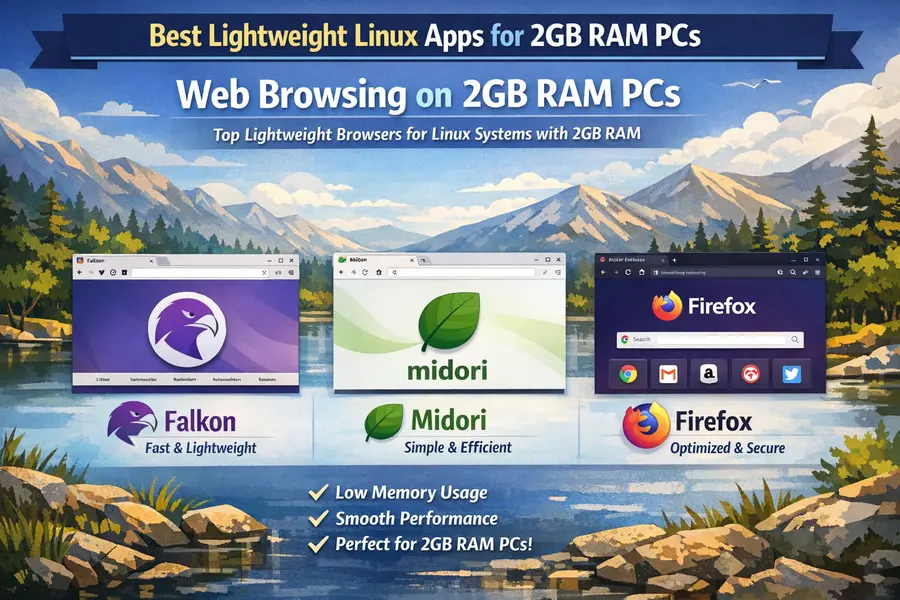
The browser is almost always the biggest memory offender on any system. Getting this one right makes everything else easier.
1. Falkon
Falkon is a Qt-based browser built on the QtWebEngine rendering engine. It ships with KDE but works well across any desktop environment. In practical use on a 2GB system, Falkon typically idles around 150–220 MB with a few tabs open — significantly less than Chromium or even Firefox in most configurations.
It handles modern websites well since it uses the same Blink engine that powers Chromium, but without the process-per-tab memory overhead Chrome-family browsers are notorious for. Extension support is limited compared to Firefox, but for everyday browsing — news, YouTube, banking, email — Falkon holds up fine.
2. Midori
Midori made a real comeback after being rewritten from scratch. It’s now based on WebKitGTK and is considerably more stable than its older versions. Memory usage sits comfortably under 200 MB for light browsing sessions. It’s not going to handle heavy multitasking across a dozen open tabs, but for reading articles, checking email via web, or casual daily use — it’s a solid pick.
3. Firefox with tweaks
If you need full browser compatibility and extension support, Firefox is still workable on 2GB RAM — but only if you put in a little effort to tune it. Disabling hardware acceleration, setting browser.tabs.unloadOnLowMemory to true in about:config, and being disciplined about tab count can keep Firefox under 400 MB for moderate usage. Not ideal, but it’s still better than Chromium which routinely pushes past 700 MB on any real browsing session.
Text Editors & Word Processing
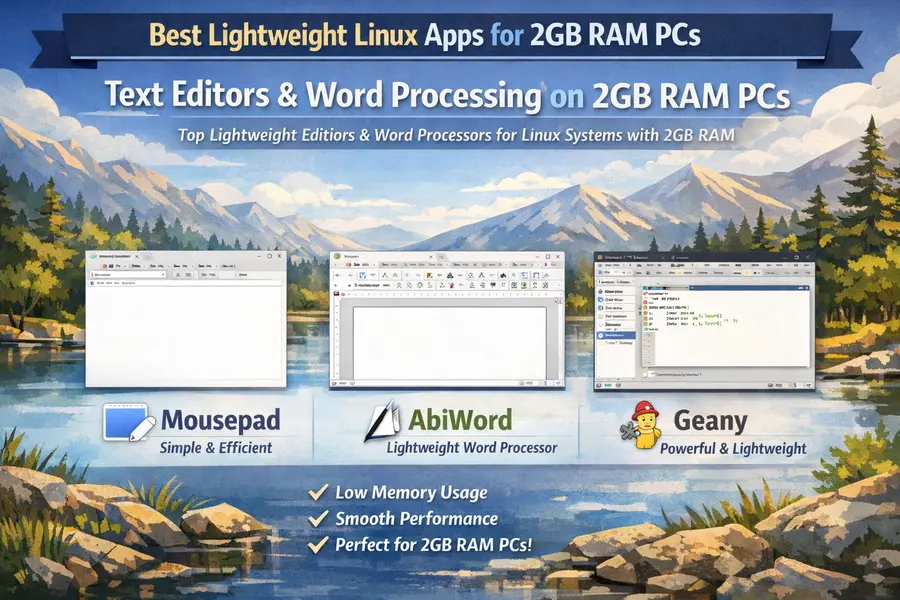
4. Mousepad
Mousepad is XFCE’s default text editor, and it’s one of the most underrated lightweight editors in the Linux ecosystem. It opens in under a second, uses roughly 15–25 MB of RAM, and has syntax highlighting, plugin support, and a genuinely clean interface. For code editing, note-taking, config file editing, or plain text work — it covers the bases without any fuss.
5. AbiWord
AbiWord is a dedicated word processor that loads in about 2 seconds and uses around 30–50 MB at idle — compare that to LibreOffice Writer which can balloon past 300 MB depending on the document and system. If your workflow is mostly writing letters, blog drafts, reports, or basic documents, AbiWord handles .docx and .odt files reasonably well.
That said, AbiWord has some quirks with complex formatting. If you’re regularly working with heavily formatted Word documents — nested tables, advanced styles, tracked changes — you might hit frustrating walls. For straightforward document work, though, it’s genuinely fast and doesn’t waste your RAM.
6. Geany
Geany sits comfortably between a text editor and a lightweight IDE. It’s fantastic for developers on low-RAM machines — code completion, syntax highlighting for 50+ languages, a built-in terminal panel, a project manager, and symbol browsing, all while using just 40–70 MB at runtime. If you do any kind of scripting, web development, or programming on a constrained machine, Geany is probably the single most useful app on this entire list.
A lot of developers on high-spec machines still use Geany because it launches fast and stays out of the way. On a 2GB machine, it’s basically essential.
Office & Productivity
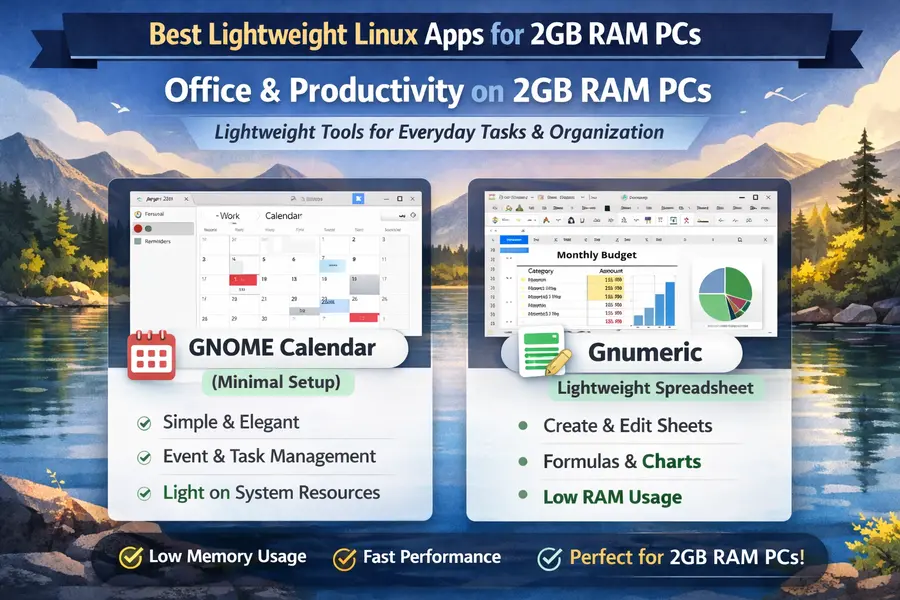
7. GNOME Calendar (minimal setup)
Rather than loading a full PIM suite that pulls in a dozen dependencies, pairing GNOME Calendar with a lightweight email client gives you the core productivity stack without the overhead. GNOME Calendar stays under 50 MB and integrates cleanly with online accounts (Google Calendar, Nextcloud, etc.) if you’re on a GNOME-adjacent desktop.
It won’t replace Outlook-style calendar management, but for keeping track of appointments and syncing with your phone’s calendar — it does the job cleanly.
8. Gnumeric
For spreadsheets, Gnumeric is the right call. It loads significantly faster than LibreOffice Calc and uses around 60–90 MB even with reasonably large spreadsheets open. The formula engine is mature, well-tested, and supports most Excel-compatible functions. If you’re doing financial tracking, budget planning, data analysis, or regular spreadsheet work, Gnumeric is a reliable workhorse.
It doesn’t do everything Calc does — pivot table support is limited and macro capabilities are minimal — but honestly, most people doing day-to-day spreadsheet work never need those features anyway.
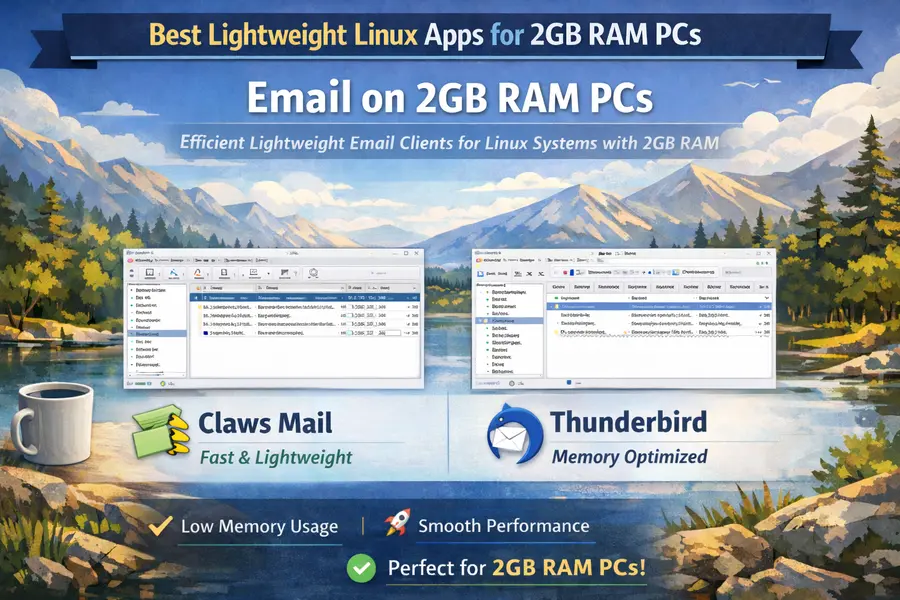
9. Claws Mail
Claws Mail has been around for decades, is still actively maintained, and remains one of the best email clients available for limited hardware. It uses 30–60 MB of RAM, handles multiple accounts, IMAP and POP3, has a decent plugin system, and is snappy even on older hardware. The interface looks a bit dated if you’re used to modern email clients, but it’s functional, stable, and fast.
One underrated thing about Claws: its search is fast. On systems where everything is slow, having a mail client that finds a three-year-old email in half a second is genuinely refreshing.
10. Thunderbird (with memory optimizations)
Mozilla Thunderbird, while heavier than Claws, has improved its memory footprint considerably in the recent release cycle. With a few config tweaks — disabling the calendar integration if you don’t use it, limiting the message cache size — and running one or two accounts, it can stay around 150–200 MB. If you need better HTML email rendering, calendar integration, or a more polished interface, Thunderbird is the more well-rounded option.
Media Players
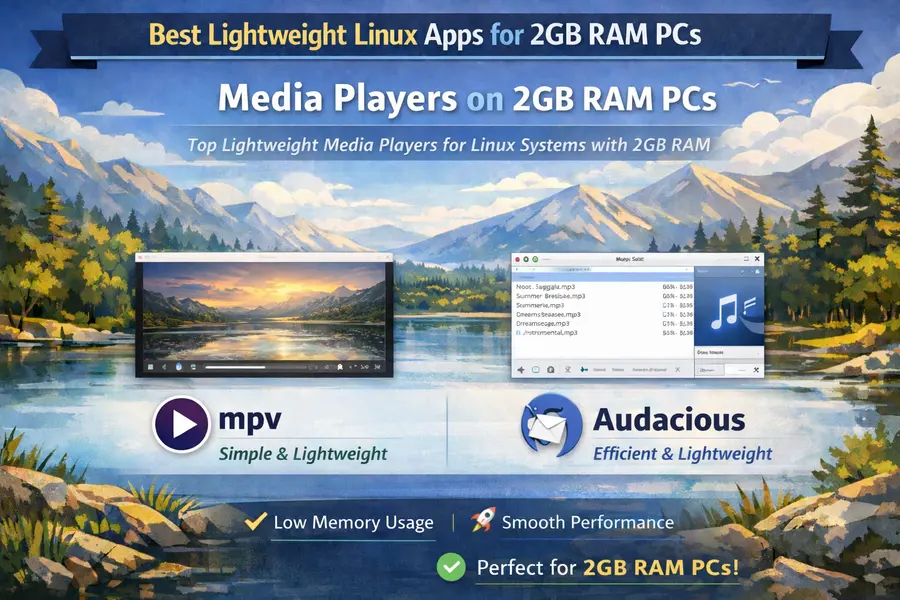
11. mpv
mpv might be the best all-around media player on Linux, period — regardless of system specs. It leverages hardware acceleration to offload video decoding to your GPU rather than burning through the CPU, which makes a massive difference on older hardware. RAM usage sits around 50–100 MB even during 1080p playback. It handles MKV, MP4, AVI, WebM, FLV, and just about every other format you’ll encounter.
The default interface is minimal to the point of being almost invisible, but that’s part of the appeal. If you prefer a proper GUI around it, Celluloid (formerly GNOME MPV) wraps mpv in a clean GTK interface without adding significant overhead.
12. Audacious
For music playback, Audacious is the go-to. It follows in the tradition of XMMS and classic Winamp, supports virtually every audio format including FLAC, MP3, OGG, and AAC, uses under 30 MB at runtime, and has a solid plugin ecosystem covering equalizers, lyrics fetching, visualization, and more. You can even load Winamp skins if you want that nostalgic feel.
File Management
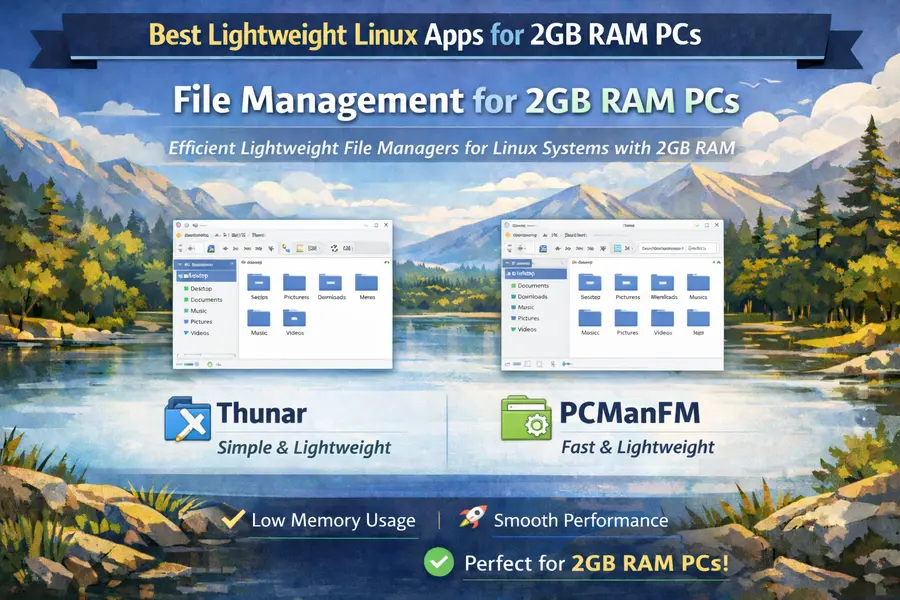
13. Thunar
Thunar is XFCE’s file manager and consistently ranks among the fastest GTK file managers available. It loads almost instantly, sits around 20–40 MB, supports configurable custom actions (extremely useful for power users), bulk file renaming, and integrates cleanly with most desktop environments — not just XFCE. If your current file manager feels sluggish, swapping to Thunar is one of the easiest quick wins on this list.
14. PCManFM
If you’re running LXDE or LXQt, PCManFM is the native choice and it’s excellent. It doubles as a desktop manager, handles network mounts and remote filesystems, offers tabbed browsing, and stays under 35 MB. For anything LXDE-based, it’s the better fit over Thunar simply because of how tightly integrated it is with the desktop environment.
Image Viewing & Editing
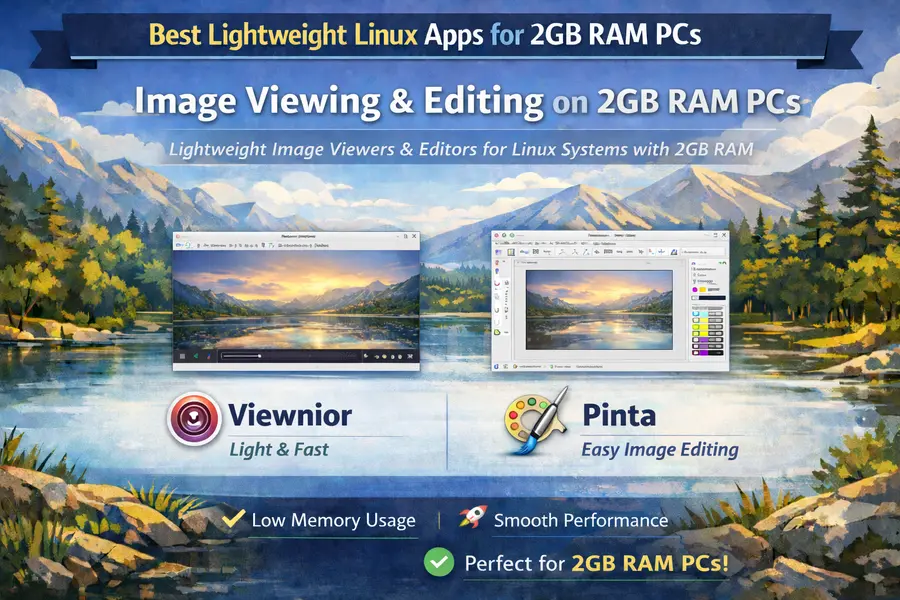
15. Viewnior
For viewing images, Viewnior is clean, minimal, and fast. It opens JPEGs, PNGs, GIFs, and most common formats almost instantly, typically using around 15–25 MB. Full-screen mode works well, basic slideshow support is built in, and it doesn’t try to be a photo manager or organizer — it just shows you images quickly. Sometimes that’s all you need.
16. Pinta (or GIMP for serious work)
For image editing, Pinta is the practical lightweight choice — it’s essentially a Paint.NET-style editor for Linux, loads fast, and uses around 60–100 MB. For resizing, cropping, adding text, annotating screenshots, or basic touch-ups, Pinta covers it well.
GIMP is also available if you need serious editing capabilities, but be realistic: GIMP can push 200–400 MB on complex projects and takes a minute to load cold. On a 2GB machine, it’s usable but not comfortable for extended sessions. For casual editing, Pinta is the smarter default.
PDF & Document Viewing
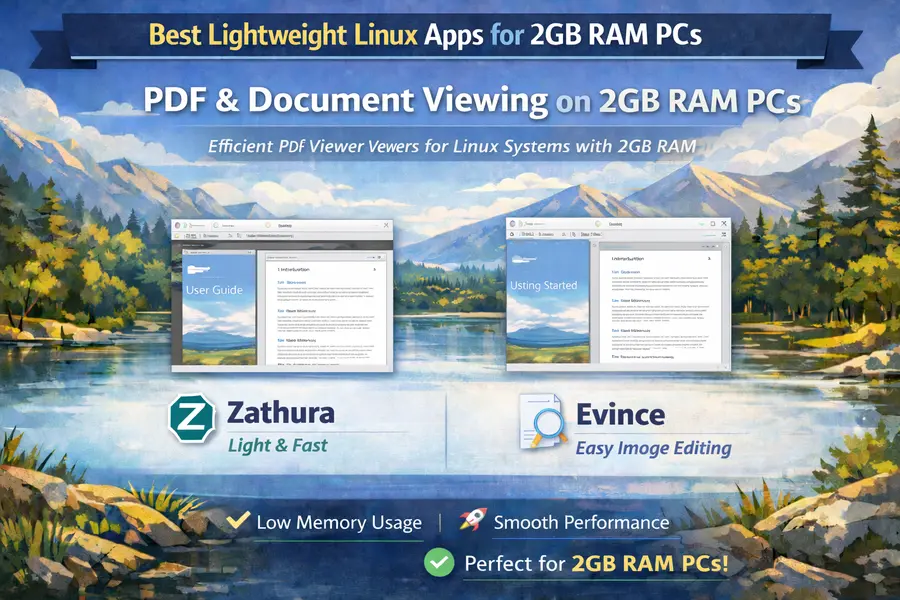
17. Zathura
Zathura is a keyboard-driven document viewer supporting PDF, EPUB, DjVu, and PostScript. It uses well under 30 MB for most documents and navigates instantly. If you spend a lot of time reading documentation, technical papers, or ebooks in PDF format, Zathura feels almost comically fast compared to heavier viewers like Okular.
The learning curve is real — it’s keyboard-first, Vim-style navigation — but it takes about fifteen minutes to get comfortable with. After that, you won’t want anything else.
18. Evince
If keyboard-driven navigation isn’t your thing, Evince is the GNOME document viewer and a perfectly good alternative. It uses around 50–80 MB, handles annotations, form filling, and most standard PDF features without issue. More approachable for users coming from Windows who are used to a traditional point-and-click interface.
Terminal & System Tools
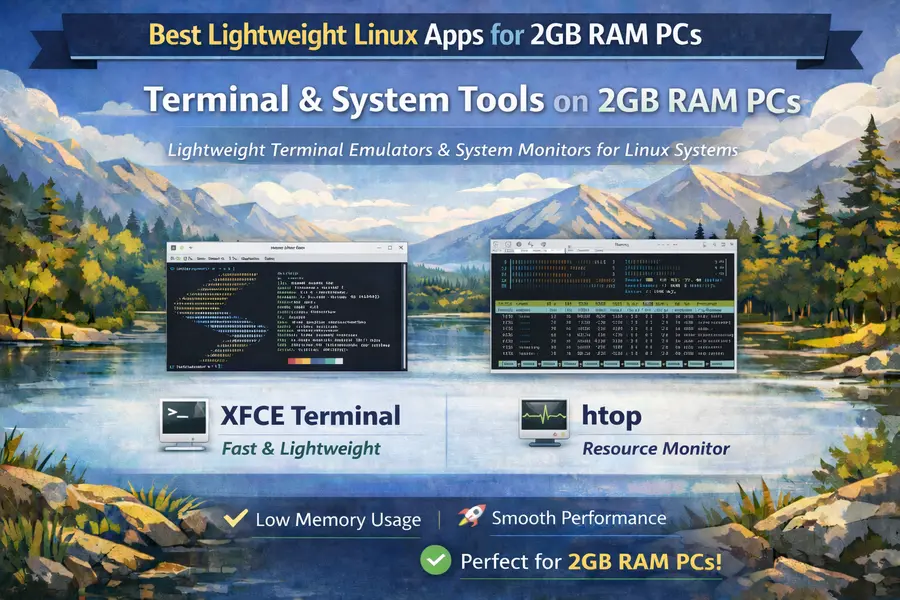
19. XFCE Terminal or Sakura
Your choice of terminal emulator matters more than it might seem — some popular options like GNOME Terminal or Konsole pull in significant GTK or Qt library overhead. XFCE Terminal is clean, capable, uses around 20–35 MB, and supports tabs, custom profiles, and keyboard shortcuts. Sakura is another solid option with similar resource use and a slightly more minimal profile.
20. htop
If you’re running a 2GB machine, htop isn’t optional — it’s essential. Under 5 MB, works entirely in the terminal, gives you real-time CPU and memory usage broken down by process, and lets you kill rogue processes that are eating your RAM. Running htop in a spare terminal window tells you immediately when something is misbehaving, which on a memory-constrained system can be the difference between a smooth session and a crash.
Quick Reference: RAM Usage at a Glance
Here’s a rough summary of what you can expect from these apps under normal use:
Lightweight Linux Apps – Typical RAM Usage Guide (2026)
Below is a quick comparison table showing the typical RAM usage of popular lightweight Linux applications. This guide helps you choose low memory apps for old PCs, low-RAM laptops, and minimal Linux setups.
| App Name | Typical RAM Usage | Category |
|---|---|---|
| Falkon | 150–220 MB | Web Browser |
| Midori | ~180 MB | Web Browser |
| Mousepad | 15–25 MB | Text Editor |
| Geany | 40–70 MB | Code Editor / IDE |
| AbiWord | 30–50 MB | Word Processor |
| Gnumeric | 60–90 MB | Spreadsheet |
| Claws Mail | 30–60 MB | Email Client |
| mpv | 50–100 MB | Media Player |
| Audacious | ~30 MB | Music Player |
| Thunar | 20–40 MB | File Manager |
| Zathura | ~25 MB | PDF Viewer |
| htop | ~5 MB | System Monitor |
*RAM usage may vary depending on Linux distribution, desktop environment, and background services.
A full working desktop with these apps — browser, file manager, text editor, email — can realistically sit well under 800 MB total, leaving meaningful headroom on a 2GB system.
Tips for Squeezing More Out of 2GB RAM on Linux
Beyond picking the right apps, a few system-level habits make a noticeable difference:
Enable zram or zswap. These kernel features compress RAM contents instead of immediately writing them to disk. zram creates a compressed block device in RAM that acts as swap — effectively giving you more usable memory at the cost of some CPU cycles. On modern processors this trade-off is very favorable. Most lightweight distros have an option to enable it during setup, and it’s worth turning on.
Keep a traditional swap file too. A 2–4 GB swap partition or file on an SSD acts as a safety net when RAM fills up completely. It’s slow compared to actual RAM, but it prevents crashes and kernel OOM kills during memory spikes.
Choose XFCE, LXQt, or a window manager. A full GNOME or KDE Plasma desktop can idle at 600–800 MB on its own. XFCE typically idles at 200–300 MB, LXQt even lower. A tiling window manager like i3 or Openbox can drop idle usage below 150 MB. The desktop environment you choose effectively sets your floor.
Audit startup applications. Many distros enable background services you don’t actually use — Bluetooth daemons, print managers, update notifiers. Using systemctl list-units –type=service or your distro’s startup manager to disable unnecessary services can free up 50–150 MB just at login.
Use a lightweight notification daemon. Dunst, for example, uses a fraction of the memory that desktop-integrated notification systems consume. Small savings add up across a whole system.
Frequently Asked Questions
Can Linux really run well on 2GB RAM in 2026?
Yes — genuinely well, not just “technically possible.” With a lightweight desktop environment and the apps in this guide, a 2GB machine running Linux can handle web browsing, document work, email, media playback, and even light development work without constant freezing or slowdowns. The key is discipline: avoid installing heavy apps like Slack’s desktop client, VS Code with extensions, or Chromium, and you’ll be fine.
What’s the best Linux distro for 2GB RAM?
For most people, MX Linux with XFCE or Linux Mint XFCE are the most balanced options — they have good hardware support, active communities, and don’t require a lot of post-install tweaking to work well. If you want something more aggressive with memory, antiX is worth trying. It’s built specifically for older hardware and can run comfortably in under 300 MB at the desktop.
Is LibreOffice usable on 2GB RAM?
It’s usable but not ideal. LibreOffice Writer and Calc both run on 2GB systems — they’re just slow to load and can feel heavy during use. If your work revolves around office documents all day, you’ll be more comfortable pairing AbiWord and Gnumeric. But if you occasionally need full LibreOffice compatibility for complex documents or presentations, installing it and being patient with load times is a reasonable compromise.
Final Thoughts
Running Linux on a 2GB RAM machine in 2026 isn’t a compromise — with the right setup, it’s a genuinely capable desktop experience. The apps in this guide aren’t leftovers from a simpler era; most of them are actively developed, widely used, and chosen by power users on fast machines precisely because they’re efficient and reliable.
The practical takeaway: start lean, add only what you actually use, and resist the temptation to install familiar-but-heavy apps out of habit. Pair Thunar or PCManFM with Falkon for browsing, Geany for any coding or writing, mpv for media, Claws Mail for email, and Gnumeric for spreadsheets — and you’ll have a full working desktop comfortably under 1GB of total RAM usage in normal operation.
That’s not just manageable. That’s fast.
Disclaimer
This blog post is for informational purposes only. RAM usage figures mentioned are approximate, based on community-reported benchmarks and publicly available documentation as of March 2026. Actual performance may vary depending on your specific hardware, Linux distribution, desktop environment, and system configuration. We do not claim any official affiliation with the apps or projects mentioned. App names and logos are the property of their respective developers and organizations.
Also Read
Xiaomi 17 Ultra Unleashed at MWC 2026 – Is This the New Camera King?
About the Author