Best Linux Distros for Daily Use in 2026
The landscape of Linux distributions has matured remarkably over the past few years. What was once considered the domain of developers and tech enthusiasts has transformed into a viable option for anyone seeking a reliable, secure, and efficient operating system. Finding the best Linux distros for daily use in 2026 means looking beyond just technical specifications—it’s about discovering systems that balance performance with usability, stability with modern features, and power with simplicity.
Whether you’re finally making the switch from Windows or macOS, or you’re a seasoned Linux user looking for something fresh, this guide cuts through the noise. We’ll explore distributions that have proven themselves in real-world daily use, from morning coffee to late-night projects.
What Makes a Linux Distro Perfect for Daily Use?
Before diving into specific distributions, let’s establish what actually matters when you’re using an operating system day in and day out.
Stability tops the list. Your system needs to work when you need it, without unexpected crashes or broken updates. This doesn’t mean using outdated software—it means having a distribution that tests updates properly before pushing them to your machine.
Performance comes next. A fast boot time, responsive applications, and efficient resource usage make the difference between enjoying your computer and tolerating it. In 2026, even budget hardware should provide a smooth experience with the right distribution.
Hardware compatibility can make or break your experience. Modern Linux distros have come far in supporting everything from Wi-Fi adapters to graphics cards, but some still do it better than others.
Software availability matters more than people admit. You need access to the applications you actually use, whether that’s through official repositories, Flatpak, Snap, or AppImage formats.
Community support becomes crucial when things go wrong. Active forums, updated documentation, and helpful users can turn a frustrating problem into a five-minute fix.
With these criteria in mind, let’s explore the distributions that excel at daily use in 2026.
Quick Comparison at a Glance
Before diving deep into each distribution, here’s a quick overview to help you identify which ones match your needs:
| Distribution | Best For | Release Model | Difficulty | Hardware Requirements | Unique Strength |
|---|---|---|---|---|---|
| Linux Mint | Windows switchers, beginners | Stable (2 years) | Easy | Low to Medium | Familiar interface, rock-solid stability |
| Ubuntu | General use, broad compatibility | LTS + 6-month | Easy | Medium | Best hardware support, largest community |
| Fedora Workstation | Developers, latest features | 6-month releases | Moderate | Medium to High | Cutting-edge tech, RHEL foundation |
| Pop!_OS | Productivity, NVIDIA users | Ubuntu-based stable | Easy | Medium | Auto-tiling, excellent NVIDIA support |
| Manjaro | Gamers, AUR access | Rolling release | Moderate | Medium | Always current, massive software library |
| Zorin OS | Windows refugees | Stable (2+ years) | Very Easy | Low to Medium | Windows-like layouts, transition friendly |
| elementary OS | Design lovers, Mac users | Ubuntu LTS-based | Easy | Medium | Beautiful design, cohesive experience |
System Requirements Overview
| Distribution | RAM (Minimum) | RAM (Recommended) | Storage | Processor |
|---|---|---|---|---|
| Linux Mint | 2GB | 4GB+ | 20GB | Any dual-core |
| Ubuntu | 4GB | 8GB+ | 25GB | 2GHz dual-core |
| Fedora | 2GB | 4GB+ | 20GB | 2GHz dual-core |
| Pop!_OS | 4GB | 8GB+ | 20GB | Recent dual-core |
| Manjaro | 2GB | 4GB+ | 30GB | Any dual-core |
| Zorin OS | 2GB (Lite: 1GB) | 4GB+ | 15GB | 1GHz processor |
| elementary OS | 4GB | 8GB+ | 15GB | Recent dual-core |
Now let’s explore each distribution in detail.
Linux Mint: The Gold Standard for Newcomers
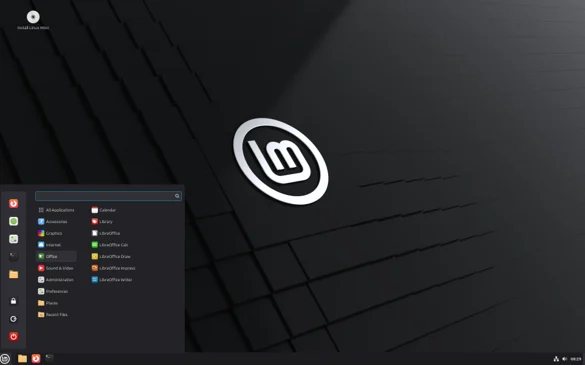
I’ll be honest—Linux Mint is the distribution I recommend to literally every friend who asks about switching from Windows. Not because it’s flashy or cutting-edge, but because it just works without drama.
The Cinnamon desktop environment feels like coming home if you’ve spent years with Windows. The taskbar sits where you expect it. The system tray makes sense. The application menu doesn’t require a PhD to navigate. When my neighbor switched last year, she was checking email and browsing within five minutes. No tutorial needed.
Here’s what really sold me on Mint: the Update Manager doesn’t just throw updates at you. It actually explains what level of risk each update carries. Level 1 updates? Safe as houses. Level 5? Maybe wait a few days and see if anyone reports issues. This transparency is refreshing after years of Windows forcing restarts at the worst possible moments.
I’ve installed Mint on everything from a 2015 laptop that was gathering dust to my dad’s desktop that he uses for genealogy research. Both machines run beautifully. The old laptop boots faster with Mint than it ever did with Windows 10, which honestly shocked me. My dad hasn’t called me for tech support in six months—that alone is worth the switch.
The Mint team doesn’t chase trends, and that’s their superpower. They won’t shove the latest experimental feature down your throat, but they also won’t leave you running software from 2019. It’s this “boring stability” that makes Mint perfect for people who just want their computer to work so they can get actual stuff done.
For writing, spreadsheets, browsing Reddit at 2 AM, or watching Netflix, Mint disappears into the background. And that’s the highest compliment I can give an operating system.
Ubuntu: The Complete Package
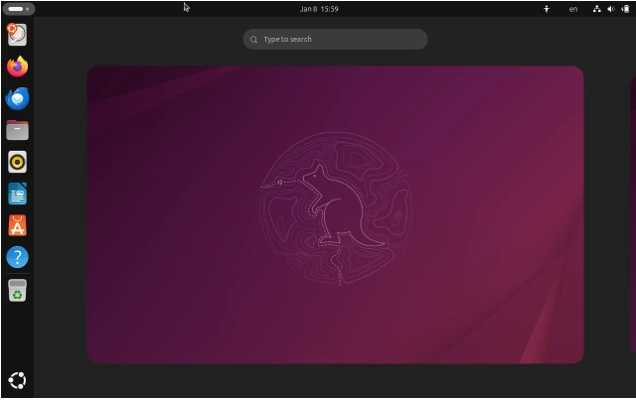
Ubuntu remains the most recognized Linux distribution for good reason. Canonical has built an ecosystem that extends from desktop to server to IoT devices, and that breadth of focus translates into exceptional polish and support.
The current Ubuntu release ships with GNOME as its default desktop environment, though Canonical has customized it thoughtfully. The dock on the left side provides quick access to favorite applications, while the activities overview gives you a bird’s-eye view of open windows and workspaces. The interface prioritizes keyboard navigation and multitasking, which becomes second nature after a few days.
Ubuntu’s greatest strength lies in its comprehensive hardware support. If a piece of hardware works on Linux, it almost certainly works on Ubuntu. The distribution includes proprietary drivers for NVIDIA graphics cards, Broadcom Wi-Fi chips, and other hardware that causes headaches on other distributions. This attention to real-world compatibility makes Ubuntu an excellent choice for laptops and varied hardware configurations.
The six-month release cycle with LTS (Long Term Support) versions every two years gives users flexibility. If you want the latest features and don’t mind occasional rough edges, the regular releases deliver. If stability matters more, the LTS versions receive five years of support and updates—perfect for a work machine you can’t afford to have break.
Ubuntu’s Snap package format remains controversial in the Linux community, but from a daily use perspective, it solves real problems. Applications in Snap format are sandboxed for security and always use the latest version regardless of your system version. The Ubuntu Software application seamlessly integrates traditional packages, Snaps, and other formats, making installation straightforward.
The commercial backing from Canonical means Ubuntu receives consistent development and support. The official documentation is comprehensive, and the community is large enough that solutions to most problems are a quick search away.
For professionals who need reliability, students who want broad software availability, or anyone who values comprehensive out-of-the-box functionality, Ubuntu delivers consistently.
Fedora Workstation: Innovation Meets Stability
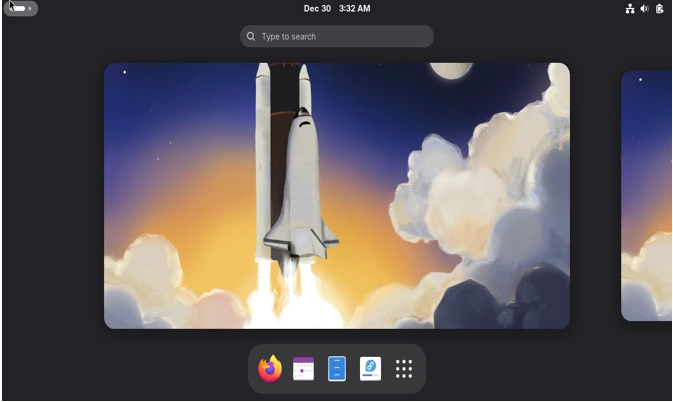
Fedora occupies a fascinating middle ground in the Linux world. Sponsored by Red Hat, it serves as a proving ground for technologies that eventually make their way into Red Hat Enterprise Linux. This means Fedora users get access to cutting-edge features while benefiting from the rigorous testing required for enterprise deployment.
The distribution embraces GNOME in its purest form, without heavy customization. This creates an interface that feels modern and distinctive. The workflow centers on switching between fullscreen or nearly fullscreen applications using workspaces and the activities overview. It takes adjustment if you’re used to Windows-style window management, but many users find it more focused and less cluttered once they adapt.
Fedora’s approach to updates strikes an interesting balance. The six-month release cycle means you get new features regularly, but each release receives 13 months of support, giving you time to upgrade when convenient. Unlike rolling release distributions, you won’t face constant updates, but unlike conservative distros, you won’t wait years for new capabilities.
One of Fedora’s standout characteristics is its commitment to free and open-source software. The default installation includes only free software, though installing proprietary drivers and codecs is straightforward through third-party repositories. This philosophy appeals to users who prefer open-source solutions while remaining practical about necessary exceptions.
Performance on Fedora feels crisp. The distribution uses current kernel versions and contemporary software stacks, which translates to excellent hardware support and performance. Modern laptops benefit particularly from up-to-date power management and driver support.
Fedora Workstation includes thoughtful touches for daily productivity. GNOME Boxes provides easy virtual machine management. The Software application makes discovering and installing applications simple. Flatpak integration comes standard, giving access to a vast library of applications that work across distributions.
The distribution attracts developers and technical professionals, which shapes its community. Solutions to problems tend to be detailed and well-explained, though you might need slightly more technical comfort than with Mint or Ubuntu.
For users who want modern features without excessive risk, who appreciate clean design and efficient workflows, and who don’t mind a bit more hands-on management, Fedora Workstation is an excellent daily driver.
Pop!_OS: Purpose-Built for Productivity
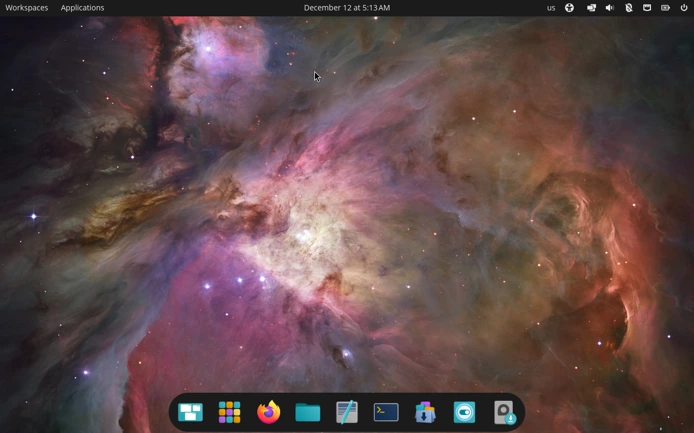
Here’s a confession: I switched to Pop!_OS after getting frustrated with my laptop’s NVIDIA graphics card throwing tantrums on other distros. System76 built this specifically for their hardware, but anyone can use it—and the NVIDIA version saved me probably ten hours of driver wrestling.
The automatic tiling feature changed how I work. Hit a keyboard shortcut, and windows snap into perfect arrangements without me manually dragging edges around like some kind of caveman. When I’m writing with research papers open on one side and notes on the other, it’s stupidly efficient. Took me about a week to get the muscle memory down, now I can’t live without it.
I tested this on three different machines: my main laptop with NVIDIA graphics, an older desktop with AMD, and my partner’s Intel-based ultrabook. Pop!_OS recognized everything instantly. The Wi-Fi that gave me grief on Fedora? Worked immediately. The printer that Windows somehow forgot existed every three weeks? Connected in thirty seconds.
The recovery partition is one of those features you don’t appreciate until you need it. Last month I borked my system trying to customize something I shouldn’t have touched (don’t judge). Booted into recovery, refreshed the OS while keeping all my files, and was back to work in twenty minutes. On Windows, I’d still be reinstalling applications.
Pop!_Shop actually loads fast—which sounds like low bar, but you’d be surprised how many software centers feel like they’re running through molasses. Finding and installing stuff is quick enough that I don’t dread it.
The one quirk: Pop!_OS follows Ubuntu’s release schedule since it’s based on it, so don’t expect groundbreaking new features every few months. But honestly? After years of dealing with Windows updates breaking things, boring and stable sounds pretty good to me.
Manjaro: Rolling Release Made Accessible
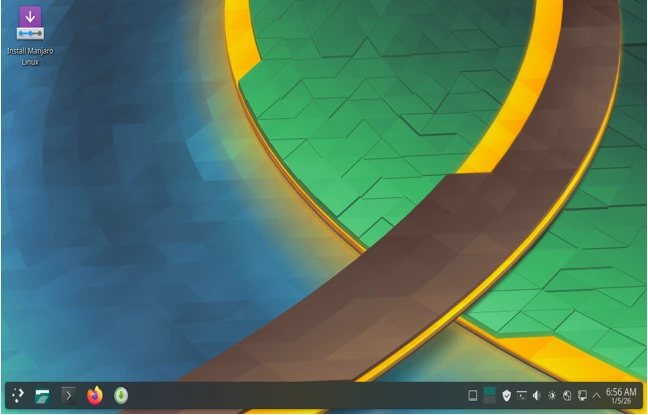
I avoided Manjaro for years because everyone said rolling release distributions were for masochists who enjoy fixing broken systems. Turns out, that’s mostly nonsense.
The beauty of rolling release is never doing those massive version upgrades that eat your entire Saturday. Remember spending four hours upgrading Ubuntu 22.04 to 24.04 and praying nothing broke? Yeah, Manjaro doesn’t do that. You just update regularly, and you’re always on the latest version. It’s like Windows Update, except it actually works.
I run the KDE Plasma version on my gaming rig, and the level of customization is almost overwhelming at first. Want your taskbar on top? Sure. Bottom? Fine. Vertical on the side like some kind of anarchist? Go for it. After years of Windows treating me like a child who can’t be trusted with settings, this freedom feels great.
The Arch User Repository deserves its own paragraph. Need obscure software that’s not in normal repositories? It’s probably in the AUR. I found a niche music production tool there that’s not available anywhere else. The Pamac package manager makes installing AUR packages nearly as easy as regular software—just tick a box and go.
Here’s the real talk though: about twice a year, an update will cause something weird. Maybe your theme looks off, or an application needs reinstalling. It’s annoying, but Timeshift snapshots mean you can roll back to before the update in minutes. I’ve had to do this exactly three times in two years. Still way better than Windows “updates” that brick your machine.
Hardware support is genuinely excellent. My AMD graphics card performs better on Manjaro than it ever did on Windows, probably because I’m always running the newest drivers. The keyboard backlight that never worked right in Ubuntu? Works perfectly here.
If you’re the type who gets annoyed waiting months for new features, or you want access to basically any software that exists for Linux, Manjaro makes a lot of sense. Just set up those Timeshift snapshots first.
Zorin OS: Windows Users Welcome
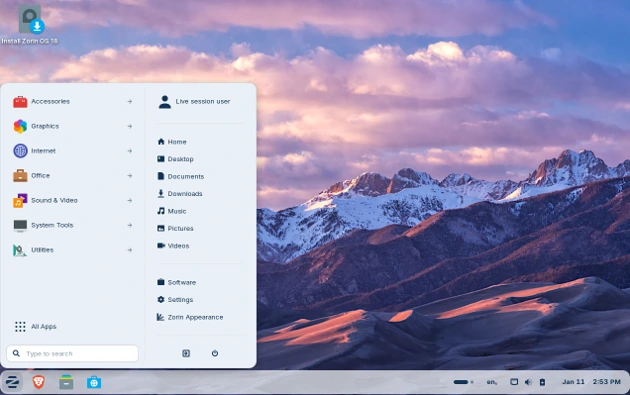
Zorin OS explicitly targets users making the switch from Windows or macOS. This focused mission results in a distribution that anticipates questions and friction points that trip up newcomers.
The Zorin Desktop provides layout options that mimic Windows 11, Windows 7, macOS, or Ubuntu’s interface. This flexibility lets new users choose something familiar while exploring alternatives as they gain comfort. The transition doesn’t demand learning entirely new patterns on day one.
The distribution includes several pre-installed applications specifically chosen to replace common Windows programs. LibreOffice covers Microsoft Office needs. GIMP handles image editing. Rhythmbox manages music. These aren’t just random selections—they’re applications that provide genuine alternatives to what users already know.
Zorin’s Windows application compatibility sets it apart. The distribution includes Wine and PlayOnLinux pre-configured, making it easier to run Windows programs when Linux alternatives don’t meet your needs. While native Linux applications generally perform better, this compatibility layer provides a safety net during transition.
The Zorin Appearance application deserves special mention. It controls themes, desktop layouts, and visual customization through a clean, intuitive interface. New users can experiment with different looks without editing configuration files or installing command-line tools.
Based on Ubuntu LTS, Zorin OS prioritizes stability and long-term support. Updates are tested carefully before release, and the distribution maintains support for several years per version. This conservative approach means fewer surprises and more reliability.
Zorin comes in multiple editions. The free Core edition provides everything most users need. The Pro version adds additional desktop layouts, creative applications, and support for the developers. The Lite edition runs on older hardware by using the lightweight XFCE desktop environment. This range ensures appropriate options for different needs and budgets.
Software installation uses both Ubuntu’s repositories and Flatpak, providing access to thousands of applications. The Zorin Software application organizes programs by category and highlights popular choices, making discovery easier for users unfamiliar with Linux software ecosystem.
Performance on Zorin impresses, particularly given its visual polish. The distribution feels responsive on modern hardware while remaining usable on older machines when using the Lite edition. The developers have optimized the experience rather than simply piling on features.
The main limitation is the long gap between releases. Zorin follows Ubuntu LTS versions, which appear every two years, and sometimes adds additional refinement time. Users comfortable with their system won’t mind, but those wanting the latest features might feel the wait.
Zorin OS excels for Windows refugees, for users who prioritize aesthetic customization, or for anyone who wants a distribution that holds their hand during the Linux learning curve.
elementary OS: Mac-Inspired Elegance
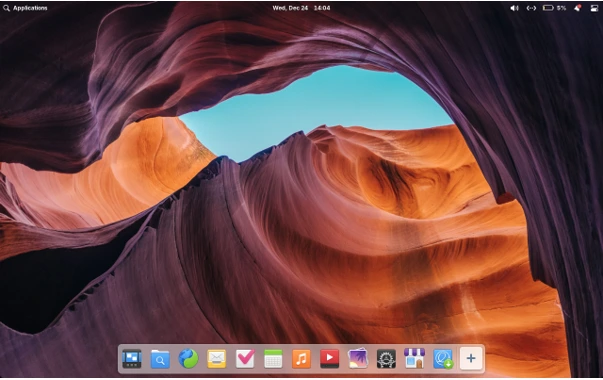
elementary OS pursues a singular vision: creating a cohesive, beautiful, and thoughtful computing experience. The distribution draws inspiration from macOS but isn’t simply a copy—it develops its own design language that prioritizes clarity and consistency.
The Pantheon desktop environment feels different from typical Linux interfaces. Applications integrate deeply with the system, sharing visual elements and behaviors. This consistency means you spend less energy adapting to each application’s quirks and more time actually working.
elementary OS curates its AppCenter carefully. Applications go through a review process that ensures quality and design consistency. Many are built specifically for elementary OS using its design guidelines. While this means fewer total applications than distributions with open repositories, it ensures what’s available works well and looks cohesive.
The pay-what-you-want model for both the operating system and AppCenter applications is unique in the Linux world. While you can enter zero and download for free, the model supports developers creating applications specifically for the platform. This creates an ecosystem with sustainable incentives for quality software.
Multitasking gestures and keyboard shortcuts receive particular attention. The multitasking view shows all open windows and workspaces clearly. Keyboard shortcuts follow logical patterns that become second nature quickly. The Picture-in-Picture mode lets you watch videos while working in other applications—a small feature that becomes indispensable once you use it.
Based on Ubuntu LTS, elementary OS inherits solid foundations and hardware compatibility. The team customizes Ubuntu’s base carefully rather than accepting defaults, resulting in an experience that feels distinctly different from standard Ubuntu.
Performance on elementary OS is good though not exceptional. The focus on visual polish requires reasonable hardware—don’t expect miracles on ancient machines. However, on any computer from the last five years, the system runs smoothly and responsively.
Privacy and security receive thoughtful implementation. The distribution includes minimal tracking and defaults to secure options. The AppCenter clearly shows what permissions each application requests, letting you make informed decisions about what you install.
The main consideration with elementary OS is its opinionated nature. The developers have clear ideas about how computing should work, and they’re not interested in providing every possible option. If their vision aligns with your preferences, the experience feels refined and cohesive. If you want extensive customization or different workflows, you might find it restrictive.
elementary OS suits users who appreciate thoughtful design, who want a calm and focused computing environment, or who are willing to trade customization options for a cohesive experience.
Making Your Choice
Selecting the best Linux distros for daily use in 2026 depends ultimately on your specific situation, preferences, and requirements. Let’s break down some scenarios to clarify which distribution might fit best.
If you’re new to Linux and coming from Windows, start with Linux Mint or Zorin OS. Both distributions anticipate your questions and smooth the transition. Mint offers a more traditional interface and massive community support. Zorin provides more visual polish and better Windows compatibility.
If you’re a Mac user exploring Linux, elementary OS provides the most familiar aesthetic and workflow philosophy. The attention to design details and consistent interface will feel more comfortable than the variety of approaches in other distributions.
If you need absolutely bulletproof stability for work where downtime isn’t acceptable, choose Ubuntu LTS or Linux Mint. Both prioritize tested updates over bleeding-edge features, and both offer long support periods without forced upgrades.
If you want current software and don’t mind occasional update hiccups, Fedora Workstation or Manjaro deliver recent applications and features without requiring constant tinkering. Fedora offers point releases with an upgrade path, while Manjaro’s rolling model eliminates major upgrades entirely.
If you’re a developer or technical professional, Pop!_OS or Fedora Workstation provide excellent foundations. Pop!_OS includes developer tools and optimizations out of the box, while Fedora gives you technologies that are shaping the future of enterprise Linux.
If you’re running older hardware, Linux Mint with XFCE, Manjaro XFCE, or Zorin OS Lite will breathe new life into machines that struggle with modern Windows or macOS. All three balance lightweight performance with full-featured capability.
If you game on Linux, Pop!_OS or Manjaro make the best starting points. Pop!_OS handles NVIDIA hardware particularly well, while Manjaro’s rolling release ensures current drivers and gaming-related software.
Tips for Success
Whichever distribution you choose, a few practices will improve your daily experience significantly.
Create a separate home partition if your distribution doesn’t do this automatically. This separation lets you experiment with different distributions or reinstall your system without losing your personal files and settings.
Set up automatic backups from day one. Timeshift (included in Mint, Manjaro, and Pop!_OS, easily installed elsewhere) can save hours of frustration when updates go wrong or you accidentally delete something important.
Learn a few basic terminal commands, even if you plan to use graphical interfaces for everything. Understanding how to update your system, install packages, and check system information from the command line helps when troubleshooting becomes necessary.
Install Flatpak and Flathub if your distribution doesn’t include them by default. This gives you access to a vast library of applications that work across distributions, often with more recent versions than distribution repositories provide.
Join your distribution’s community, whether through forums, Reddit, or Discord. These communities are generally friendly and helpful, and you’ll learn solutions to common issues much faster with community knowledge.
Give yourself time to adjust. Switching operating systems involves learning new patterns and approaches. What feels awkward on day one often becomes natural by week two. Resist the urge to declare failure after a few hours—genuine adaptation takes a bit longer.
The Linux Advantage in 2026
Beyond specific distributions, daily Linux use in 2026 offers advantages that Windows and macOS can’t match.
Privacy stands out immediately. Linux distributions don’t include telemetry, advertising, or data collection by default. Your computer works for you rather than treating you as a product to monetize.
Longevity means you’re not forced to buy new hardware every few years. Linux runs excellently on older machines, extending their useful life and reducing waste. The computer that struggles with Windows 11 might run Linux beautifully.
Control over your computing environment means you can customize nearly everything. Don’t like your desktop environment? Install a different one. Want to know exactly what your computer is doing? The transparency is built in.
Security benefits from open-source code review and rapid patching. While no operating system is immune to security issues, Linux’s architecture and rapid response to vulnerabilities provide solid protection.
Cost matters too. Every distribution discussed here is completely free, including updates and support. The money saved on licensing can go toward better hardware, backup solutions, or coffee.
Conclusion
The best Linux distros for daily use in 2026 have evolved into systems that respect your time, your hardware, and your privacy while delivering genuine capability. Whether you prioritize stability, performance, aesthetics, or cutting-edge features, there’s a distribution that matches your needs.
Linux Mint and Ubuntu provide solid, reliable foundations with extensive support. Fedora and Pop!_OS deliver modern features and excellent performance. Manjaro gives you rolling updates with practical stability. Zorin and elementary OS emphasize beauty and thoughtful design.
The real revelation of daily Linux use isn’t any single feature—it’s the cumulative experience of working with an operating system that treats you as a user rather than a revenue source. Your computer becomes genuinely yours, running what you want, how you want, without artificial limitations or forced updates at inconvenient times.
For anyone considering the switch, 2026 is an excellent time to explore Linux. The distributions have matured, hardware support has improved dramatically, and the software ecosystem provides genuine alternatives to proprietary applications. Download a live USB, test drive a few distributions, and discover what computing can be when it’s built for you.
The barrier to entry has never been lower, and the rewards of making the switch—whether fully or alongside your current system—might surprise you. Welcome to a computing experience that respects your choices and empowers your daily work.
Frequently Asked Questions
Can I try Linux without deleting Windows?
Absolutely! Every distribution mentioned here offers a “live USB” mode where you can test-drive Linux directly from a USB stick without touching your hard drive. If you like it, you can dual-boot alongside Windows or even run Linux in a virtual machine using VirtualBox or VMware.
Will my Microsoft Office files work on Linux?
Yes, LibreOffice (included in all these distributions) opens and edits Word, Excel, and PowerPoint files with excellent compatibility. For 100% perfect formatting, you can also use Microsoft Office online through your web browser, or install WPS Office which handles Microsoft formats flawlessly.
Is Linux really more secure than Windows?
Linux has inherent security advantages: no system-wide viruses in the wild, immediate security patches, and a permission system that prevents accidental damage. You don’t need antivirus software. That said, no system is completely immune—practicing good security habits (strong passwords, keeping software updated) matters on any platform.
What about gaming on Linux?
Gaming on Linux has improved dramatically. Steam’s Proton compatibility layer runs thousands of Windows games seamlessly. Popular titles like Cyberpunk 2077, Elden Ring, and most Steam games work great. Competitive multiplayer games with aggressive anti-cheat (Valorant, some Call of Duty titles) still have issues, but the library grows constantly.
How do I get help if something breaks?
Each distribution has active forums, Reddit communities, and Discord servers filled with helpful people. Most problems you’ll encounter have been solved before—a quick web search usually finds the solution. The Linux community genuinely enjoys helping newcomers, and documentation has improved massively in recent years.
Disclaimer
This article represents personal experiences and opinions based on testing various Linux distributions in real-world scenarios. Your experience may vary depending on your specific hardware, software needs, and technical comfort level. All distributions mentioned are actively maintained as of January 2026, but features and performance can change with updates. Always back up important data before installing any new operating system, and test distributions via live USB before committing to installation. The author is not affiliated with any of the mentioned Linux distributions or their parent organizations.
Also Read
ArchBang Linux Gets Multiple Updates in January 2026
About the Author