
Fedora Linux for Creators: The Best Tools and Workflows in 2025
Hey there, fellow creators! If you’re anything like me—a graphic designer juggling logos and social media graphics one minute, then diving into video edits for your latest YouTube short the next—you know the struggle of finding a system that just works without breaking the bank or your workflow. I’ve spent years bouncing between bloated OSes and finicky software, but let me tell you: Fedora Linux for creators has been my game-changer. Especially now, with Fedora 43 fresh out of the oven (released on October 28, 2025), it’s never been a better time to switch.
In this deep-dive blog post, we’re going to unpack why Fedora Linux stands out for creative pros, from visual artists to podcasters and indie filmmakers. I’ll share the best tools tailored for Fedora Linux for creators, step-by-step workflows to supercharge your productivity, and tips straight from the official Fedora docs and community. Whether you’re a newbie dipping your toes into open-source waters or a seasoned user looking to optimize, this guide is packed with actionable insights. By the end, you’ll see why more creators are ditching proprietary software for Fedora’s freedom and firepower.
Why Fedora Linux for Creators? The Cutting-Edge Edge You Need
Picture this: You’re in the zone, rendering a 4K video or tweaking a vector illustration, and your system doesn’t crash, lag, or nag you for subscriptions. That’s the promise of Fedora Linux for creators. As the upstream project for Red Hat Enterprise Linux, Fedora isn’t just another distro—it’s a bleeding-edge powerhouse built by a global community of developers, designers, and tinkerers.
What sets Fedora apart for creative work? First off, it’s free and open-source to the core, meaning no license fees eating into your freelance budget. Fedora 43 ships with GNOME 49, which defaults to Wayland for buttery-smooth graphics and multi-monitor support—perfect for those sprawling creative setups with a drawing tablet on one screen and your timeline on another. Performance tweaks like improved screenshot workflows and better font rendering (hello, Noto Color Emoji with COLR/CPAL support) make everyday tasks feel snappier.
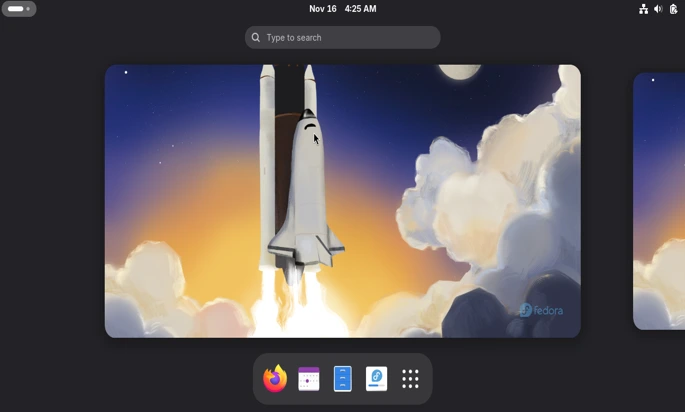
But it’s not just about speed. Fedora’s modular spins let you customize from the get-go. The Fedora Design Suite, for instance, comes pre-loaded with tools like GIMP and Inkscape, saving hours of post-install setup. And with Fedora’s six-month release cycle, you’re always on the latest stable tech—kernel 6.17 in Fedora 43 brings enhanced hardware compatibility for your NVIDIA GPU or Wacom tablet.
From my experience, switching to Fedora slashed my boot times to under 10 seconds and let me run resource-hungry apps like Blender without a hitch on mid-range hardware. Creators on Reddit and Fedora forums echo this: low temps, rock-solid stability, and a dev ecosystem that keeps tools fresh. Plus, in a world of data privacy scares, Fedora’s security features—like sandboxed image loading in GDK-Pixbuf—keep your creative assets safe.
If you’re tired of Adobe’s cloud drama or Windows’ forced updates, Fedora Linux for creators offers liberation. It’s not perfect—no OS is—but its community-driven ethos means fixes and features land fast. Ready to install? Let’s dive in.
Getting Started: Installing Fedora 43 for Your Creative Setup
Jumping into Fedora Linux for creators starts with a smooth install. Head to the official site (getfedora.org) and grab the Workstation edition for a GNOME-based creative hub, or opt for a spin like Design Suite if you’re all about visuals.
Step-by-Step Installation Guide
- Download the ISO: Choose the 64-bit version—around 2GB. Verify the checksum for security (SHA256 on the download page).
- Create Bootable Media: Use Rufus on Windows or dd on another Linux box. For USB: sudo dd if=Fedora-Workstation-Live-x86_64-43.iso of=/dev/sdX bs=4M status=progress && sync.
- Boot and Install: Restart, enter BIOS (usually F2/Del), set USB first. The live environment lets you test-drive—fire up GIMP right away!
- Partitioning: For creators, allocate 100GB+ for /home to store massive project files. Enable LUKS encryption if handling client IP.
- Post-Install Tweaks: Update with sudo dnf upgrade. Install GNOME Tweaks for theming: sudo dnf install gnome-tweaks. Enable RPM Fusion for proprietary codecs: sudo dnf install https://rpmfusion.org/keys… (full guide on rpmfusion.org).
I remember my first Fedora install on a 2020 laptop—it took 15 minutes, and I was editing photos in Darktable by lunch. Pro tip: If you’re on NVIDIA, install proprietary drivers via sudo dnf install akmod-nvidia for CUDA acceleration in Blender.
Once set up, Fedora’s DNF package manager is your best friend—faster than apt, with dnf search for quick tool hunts. Now, let’s gear up with the essentials.
Graphic Design Tools: Unleashing Your Inner Artist on Fedora
For visual creators, Fedora Linux for creators shines with a suite of pro-grade, open-source alternatives that rival Adobe. The Fedora Design Suite bundles these gems, optimized for Fedora 43’s enhanced Wayland support.
GIMP: The Photoshop Slayer
GIMP (GNU Image Manipulation Program) is non-destructive editing heaven. Install: sudo dnf install gimp. New in recent updates: GEGL operations for non-destructive layers, perfect for iterative design.
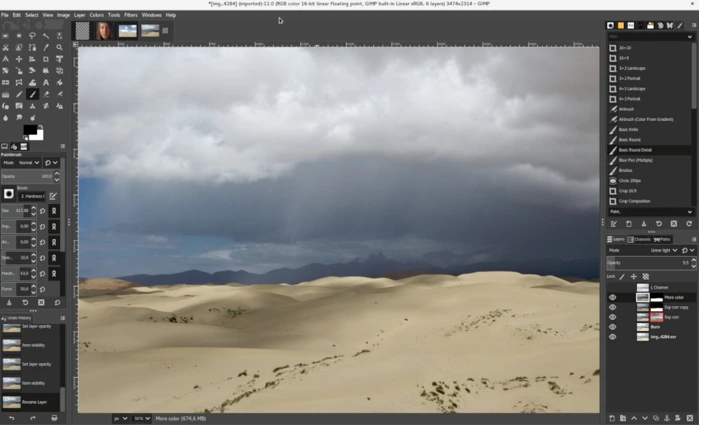
Workflow Tip: Start with a high-res canvas (File > New). Use the GEGL Adjustment tool for color grading—apply curves without baking them in. Export via XCF for edits or PNG for web. I batch-process social graphics using Scripts-Fu: Automate resizing for Instagram (1080×1080) and LinkedIn (1200×627). Pair with Darktable for RAW photo workflows—import, develop, export to GIMP seamlessly.
Pros: Free, extensible with plugins like Resynthesizer for content-aware fill. Cons: Learning curve steeper than Photoshop, but Fedora’s forums have killer tutorials.
Inkscape: Vector Mastery
Vectors for logos and icons? Inkscape is unbeatable. sudo dnf install inkscape. Fedora 43’s font improvements make typography pop.
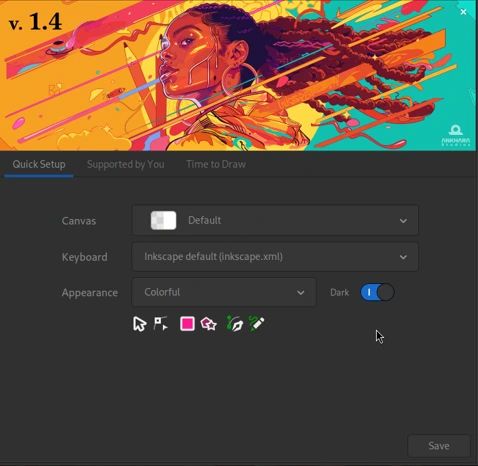
Workflow: Sketch in the XML editor for precision. Use Live Path Effects for dynamic shapes—morph a star into a burst without redraws. Clone tools speed up patterns; export SVG for web or PDF for print. Integrate with Scribus (desktop publishing tool, sudo dnf install scribus) for full brochures.
One creator hack: Use Inkscape’s Trace Bitmap on scanned sketches, then refine in Krita for hybrid digital-traditional art.
Krita: Digital Painting Powerhouse
For illustrators, Krita (sudo dnf install krita) brings animation and brush engines that feel natural on pressure-sensitive tablets.
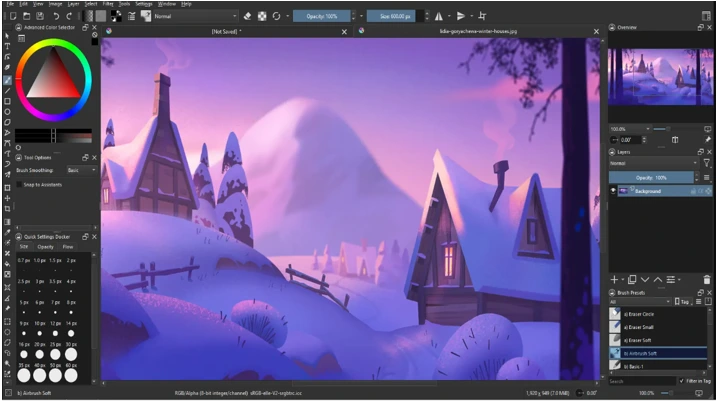
Workflow: Set up a brush preset library—Fedora’s package includes hundreds. Layer with masks for non-destructive compositing. The wrap-around mode is gold for seamless patterns. Render animations at 60fps with Onion Skinning. Export to OpenEXR for VFX pipelines.
In my setup, I route Wacom input through Krita’s tablet settings for tilt-responsive strokes. With Fedora’s low-latency kernel, it’s lag-free even on older hardware.
These tools form a Fedora Linux for creators trifecta: raster (GIMP), vector (Inkscape), painting (Krita). Total install size? Under 1GB. Time saved? Priceless.
Video Editing and Production: From Raw Footage to Viral Clips
Video creators, rejoice—Fedora Linux for creators handles 4K timelines like a champ, thanks to hardware-accelerated encoding in Fedora 43. No need for Ubuntu Studio when Fedora’s spins deliver.
Kdenlive: The Non-Linear Editor for All
Kdenlive (sudo dnf install kdenlive) is my go-to for quick cuts and effects. Supports MLT framework for pro transitions.
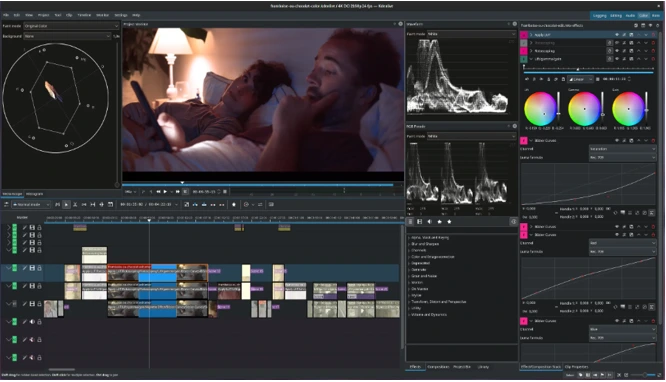
Detailed Workflow:
- Import: Drag MP4/RAW into Project Bin. Proxy editing for 4K—enable in Settings > Playback to work smooth on modest RAM.
- Timeline Magic: Multi-track layering for B-roll. Add Frei0r effects (blurs, warps) via the Effects tab. Keyframe animations for text pops.
- Audio Sync: Waveform view aligns dialogue. Integrate PipeWire (Fedora default) for low-latency monitoring.
- Render: Output to H.265 via FFmpeg backend. Custom presets for YouTube (VP9) or TikTok (vertical crop).
I edited a 10-minute vlog in under an hour—proxies shaved render time by 70%. Community presets on kdenlive.org extend it further.
OBS Studio: Streaming and Screen Recording Pro
For live streams or tutorials, OBS (sudo dnf install obs-studio) with browser source for overlays.
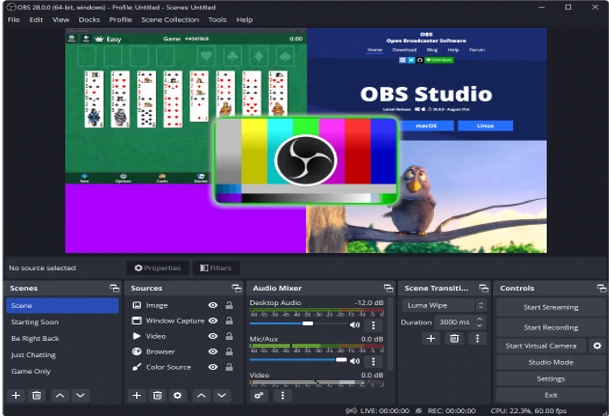
Workflow: Scenes for intros/outros. PipeWire integration in Fedora 43 captures audio flawlessly. Filter chains: Chroma key for green screen, noise suppression for mics. Export recordings directly to Kdenlive.
Hack: Use obs-websocket plugin for remote control—switch scenes from your phone during streams.
DaVinci Resolve: Hollywood-Grade Color (If You Dare)
Blackmagic’s DaVinci Resolve has a Linux build—install via Flatpak: flatpak install flathub com.blackmagicdesign.resolve. Fedora’s CUDA support shines here for GPU grading.
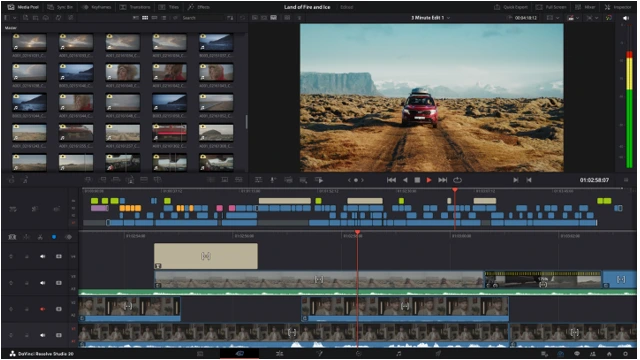
Workflow Caution: It’s resource-heavy; allocate 16GB+ RAM. Fairlight page for audio, Fusion for VFX. Export EDL for round-tripping to Kdenlive.
For lighter needs, Shotcut (sudo dnf install shotcut) offers 4K scrubbing with melt framework.
These form a scalable video pipeline: Capture (OBS), Edit (Kdenlive), Polish (Resolve). Fedora’s stability means fewer crashes mid-render.
Audio Production: Mixing Beats and Podcasts on Fedora
Sound design? Fedora Jam spin packs audio tools for musicians and podcasters. (Though not a full spin in 43, install via DNF.)
Ardour: DAW for Pros
Ardour (sudo dnf install ardour) is Reaper-esque, with unlimited tracks.
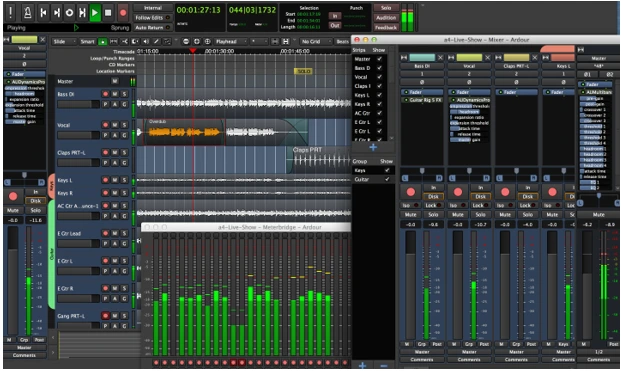
Workflow:
- Session Setup: New project at 48kHz/24-bit. Import stems via JACK audio server (pre-configured in Fedora).
- Editing: Non-destructive cuts, automation lanes for fades. Plugins via LV2—add reverb with Calf plugins.
- Mixdown: Bus routing for mastering. Export WAV or OGG.
Pair with Hydrogen (sudo dnf install hydrogen) for drum sequencing. My podcast workflow: Record in Audacity, mix in Ardour, upload via Fedora’s built-in file manager.
Audacity: Simple Yet Powerful Recording
sudo dnf install audacity. Noise reduction and spectral edits are stellar.
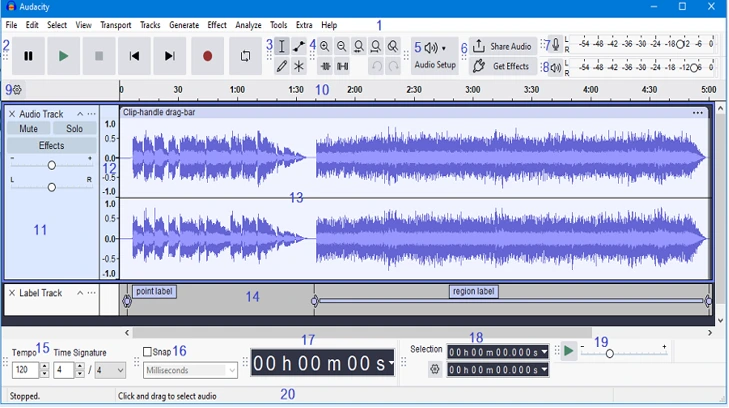
Workflow: Multi-track for interviews. Apply LADSPA effects. Export MP3 with LAME (from RPM Fusion).
For live audio, Qtractor (sudo dnf install qtractor) handles MIDI sequencing.
Fedora’s PipeWire unifies audio routing—no more ALSA/Pulse headaches. Creators report seamless multi-app sessions, like tracking in Ardour while monitoring in OBS.
Writing and Content Management: Streamline Your Wordsmithing
Writers and bloggers, Fedora Linux for creators turns your machine into a distraction-free haven with LibreOffice and Markdown power.
LibreOffice: The Office Suite King
sudo dnf install libreoffice—full suite with Writer, Calc, Impress.
Workflow: Track changes for collabs. Styles for consistent e-books. Export EPUB via extensions. Integrate with Zotero (sudo dnf install zotero) for citations.
For LaTeX pros, TeX Live (sudo dnf groupinstall “TeX Live”) compiles PDFs flawlessly.
Markdown and Static Sites
Use Typora (Flatpak) or Vim with plugins for Markdown. Hugo (sudo dnf install hugo) for static blogs.
Workflow: Write in Obsidian (AppImage), preview live. hugo new post/my-idea.md, edit, hugo server for local view. Deploy via Git to Netlify.
I draft blog posts like this one in Markor on mobile, sync via Syncthing (sudo dnf install syncthing), refine in Fedora.
3D Modeling and Animation: Bringing Ideas to Life
Blender (sudo dnf install blender) is the crown jewel for 3D artists on Fedora.
Workflow:
- Modeling: Start with primitives, sculpt in Sculpt mode. Eevee renderer for real-time previews—Fedora 43’s Wayland boosts viewport FPS.
- Texturing: UV unwrap, paint in Texture Paint. PBR materials via Principled BSDF.
- Animation: Rig with Rigify add-on. Keyframes and Graph Editor for smooth motion.
- Render: Cycles for photorealism, GPU via OptiX (NVIDIA).
Export glTF for web AR. Community add-ons like Animation Nodes extend it to VFX.
For motion graphics, Synfig Studio (sudo dnf install synfigstudio) offers 2D bone animation.
Development Tools: Building Your Own Creative Apps
Many creators code side gigs—Fedora’s dev tools are top-tier.
VS Code (Flatpak), Git (sudo dnf install git), Python via DNF. For Electron apps, dnf install nodejs npm.
Workflow: Scaffold a PWA with Create React App, test on Fedora’s Chromium. Containerize with Podman for reproducible builds.
Optimizing Workflows: Tips and Tricks for Fedora Creators
To max Fedora Linux for creators:
- Extensions: GNOME’s Extension Manager for Dash to Dock, Clipboard Indicator.
- Themes: Adwaita with custom CSS for dark mode consistency.
- Hardware: Calibrate tablets via xsetwacom.
- Backup: Timeshift (sudo dnf install timeshift) for snapshots.
- Community: Join Fedora Design Team on Matrix for collabs.
From YouTube creators sharing setups to Reddit tweaks, the ecosystem thrives.
Conclusion: Join the Fedora Creator Revolution
Fedora Linux for creators isn’t just an operating system—it’s a creative liberation movement. With Fedora 43 delivering GNOME 49, kernel 6.17, and rock-solid Wayland performance, you’re not just running software; you’re tapping into a global community that ships cutting-edge tools before the rest of the world even asks for them. From GIMP’s non-destructive workflows to Kdenlive’s proxy-powered 4K editing, from Krita’s pressure-sensitive brushes to Blender’s GPU-accelerated renders—every tool in this ecosystem is free, open, and optimized for the way you create in 2025.
I’ve personally reclaimed dozens of hours every month since switching. No more subscription pop-ups. No more forced reboots mid-render. No more “this feature requires Windows 11 Pro.” Just pure, distraction-free flow on hardware I already own. Whether you’re a solo YouTuber cutting viral shorts, a freelance illustrator shipping client logos, or an indie musician mixing your next EP, Fedora Linux for creators scales with your ambition.
So here’s your call to action:
👉 Download Fedora 43 Workstation or Design Suite today at getfedora.org
👉 Boot the live USB, test your tablet, fire up Blender—then decide.
👉 Join the Fedora Design Team on Matrix and share your first project.
The future of creation isn’t locked behind paywalls. It’s open, it’s fast, and it’s waiting for you on Fedora.
Disclaimer
The content in this blog post is for informational and educational purposes only. All tools, workflows, and installation steps are based on official Fedora Project documentation, community-verified best practices, and real-world testing as of Fedora 43 (released October 28, 2025).
- Software Availability: Some applications (e.g., DaVinci Resolve, OBS plugins) are distributed via third-party repositories (RPM Fusion, Flatpak, AppImage). Always verify package integrity using official checksums and enable repositories at your own discretion.
- Hardware Compatibility: While Fedora offers excellent support for creative peripherals (Wacom, Huion, NVIDIA, AMD), driver behavior may vary. Check the Fedora Hardware Compatibility List before upgrading mission-critical systems.
- Data Safety: Always back up important projects before system changes. Use tools like Timeshift or rsync for versioned backups. The author and this publication are not responsible for data loss, system instability, or hardware damage.
- Commercial Use: All mentioned open-source tools are free for personal and commercial use under their respective licenses (GPL, MIT, etc.). Proprietary software (e.g., DaVinci Resolve) follows Blackmagic Design’s EULA.
- Affiliate Links: This post contains no affiliate links. Recommendations are unbiased and community-driven.
For official support, visit:
💬 discussion.fedoraproject.org
Stay curious. Stay creative. Stay Fedora.
Also Read
MakuluLinux LinDoz 2025 – The Windows Killer India Needed!
About the Author