Getting Started with PrismLinux: Beauty Meets Power
If you’ve been hunting for a Linux distro that doesn’t make you choose between aesthetics and raw performance, PrismLinux might be exactly what you’ve been looking for. Born in Ukraine and built on the rock-solid foundation of Arch Linux, this rolling-release distribution has been quietly gaining a dedicated following among Linux enthusiasts who want speed, visual polish, and flexibility — all without the typical Arch setup headache.
This guide walks you through Getting Started with PrismLinux from the ground up: what it is, why it’s worth your attention, what you need to run it, how to install it, and how to make it feel like home. Whether you’re a long-time Linux user tired of bloated distros or someone jumping over from Windows for the first time, there’s something here for you.
What Is PrismLinux?
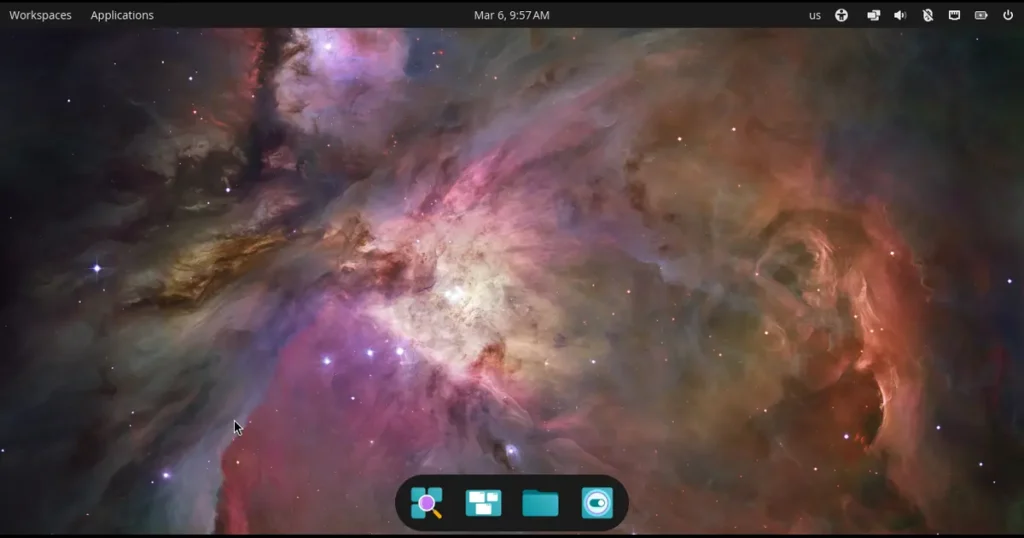
PrismLinux is a minimalist, performance-focused Linux distribution based on Arch Linux. Unlike vanilla Arch — which famously requires you to build your system from the command line, piece by piece — PrismLinux ships with a graphical installer, a live environment, and multiple pre-configured desktop environment options. Think of it as Arch Linux with the rough edges smoothed out, but none of the power stripped away.
The distro boots into the River Wayland compositor in its live session and launches a custom system installer from there. It ships with pre-configured optimized kernels, including Liquorix (lqx) and Zen, both of which are known for their low-latency, desktop-oriented performance tuning. This gives PrismLinux a noticeable edge over standard kernel builds, especially for gamers, content creators, and power users who run demanding workloads.
The project follows a rolling-release model, meaning you install it once and keep it updated indefinitely — no major version upgrades, no reinstalling the OS every few years. As of March 2026, the latest release is PrismLinux 2026.03.05, a substantial update that brought a completely redesigned installer, full NVIDIA support on the LiveCD, new language support, and several performance improvements under the hood.
Why PrismLinux Stands Out in 2026
The Linux desktop space is crowded. There are hundreds of distributions out there, so the fair question is: why PrismLinux specifically?
Here’s the honest answer — most Arch-based distros either overcomplicate things (vanilla Arch, Gentoo-adjacent builds) or go too far in the opposite direction and strip out the customization that makes Arch appealing in the first place. PrismLinux finds a genuinely useful middle ground.
A few things that set it apart:
Optimized kernels out of the box. The Liquorix and Zen kernels are not an afterthought here — they’re a core part of the experience. These kernels are tuned specifically for desktop responsiveness. If you’ve ever noticed your standard Ubuntu or Fedora system feeling sluggish under load, a kernel like Liquorix can make a real, measurable difference.
Multiple desktop environments supported. You’re not locked into one look. PrismLinux’s installer lets you choose from several popular desktop environments at install time, including KDE Plasma, GNOME, COSMIC, and others. Each gets a clean, thoughtfully configured setup.
Lightweight by design. The ISO for the 2026.03.05 release weighs in at 1.76 GB — compact for what it delivers. The team actively curates the package selection to keep the system fast and lean out of the box.
Gaming-ready. The recent 2026 releases introduced ananicy-cpp for improved gaming performance, and full NVIDIA support now ships in the LiveCD itself. For Linux gamers, this kind of out-of-the-box readiness matters.
A growing community. With over 13,000 weekly downloads as of early 2026 and an active Discord server, PrismLinux has moved well past “passion project” territory into something with genuine momentum behind it.
System Requirements
Before you download anything, check that your hardware can handle it. PrismLinux is designed to run well on modest machines, but there are still minimum thresholds to keep in mind.
| Component | Minimum Requirement | Recommended Requirement |
|---|---|---|
| Architecture | 64-bit (x86_64) | 64-bit (x86_64) |
| RAM | 2 GB | 8 GB |
| Storage | 30 GB | 60 GB+ (SSD preferred) |
| GPU | Any GPU with basic display output | Dedicated GPU (NVIDIA / AMD) |
| Internet | Optional for installation | Recommended for post-install updates |
| Boot Mode | UEFI or Legacy BIOS | UEFI |
| USB Drive | 2 GB+ for live USB | 4 GB+ |
Worth noting: PrismLinux is exclusively 64-bit. If you’re running older 32-bit hardware, this isn’t the distro for you. But on any reasonably modern machine from the last decade, it should run comfortably — and on a machine with an SSD and 8+ GB of RAM, it genuinely flies.
How to Download PrismLinux
Head to the official website at prismlinux.org and navigate to the download page. The ISO is hosted on SourceForge for reliability. As of March 2026, you’re looking for the PrismLinux-2026.03.05-x86_64.iso file.
Once the download is complete, you’ll also want to download the accompanying .sha256 checksum file. Always verify your ISO before writing it to a USB drive — a corrupted download can lead to a broken install that’s hard to diagnose.
To verify on Linux or macOS, open a terminal and run:
sha256sum PrismLinux-2026.03.05-x86_64.isoCompare the output against the contents of the .sha256 file. If they match, you’re good to go.
Creating a Bootable USB Drive
You need to write the ISO to a USB drive to boot it as a live environment. A few tools that work well:
On Windows: Use Rufus (free, open source). Select your USB drive, point it to the ISO, choose GPT partition scheme for UEFI systems, and write. The whole process takes a few minutes.
On Linux: Ventoy is an excellent option — it lets you store multiple ISOs on a single drive and boot any of them from a menu. Alternatively, the dd command works perfectly:
sudo dd if=PrismLinux-2026.03.05-x86_64.iso of=/dev/sdX bs=4M status=progress && syncReplace /dev/sdX with your actual USB device (double-check with lsblk first — writing to the wrong drive will wipe it).
On macOS: balenaEtcher is straightforward and reliable. Download it, select the ISO, select your USB drive, and flash.
Booting Into the Live Environment
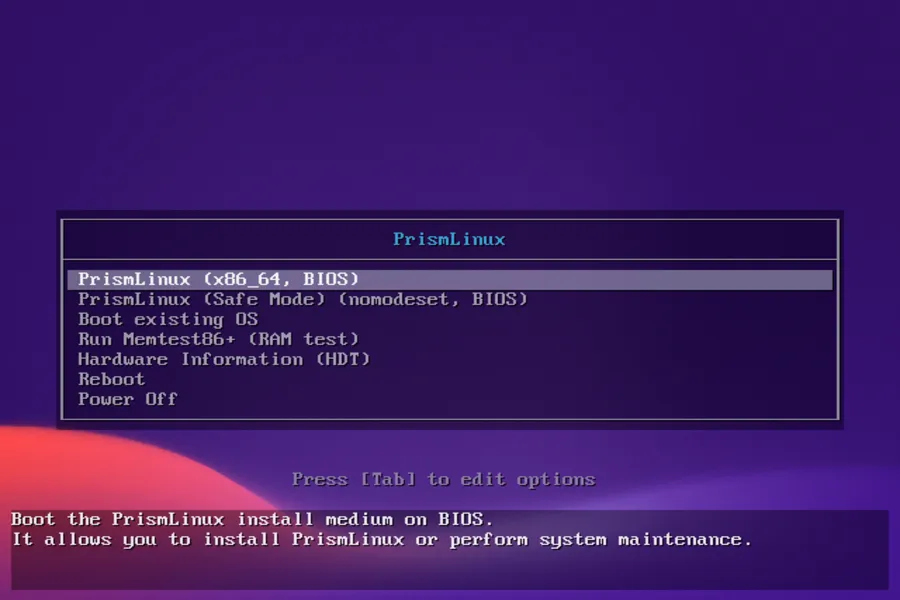
Insert your USB drive, restart your machine, and enter your boot menu (usually F12, F10, F2, or Del depending on your motherboard — check your BIOS documentation if you’re unsure). Select the USB drive from the list.
PrismLinux will boot into a live session running the River Wayland compositor. This is your chance to test hardware compatibility before committing to an install. Check that your Wi-Fi works, that your display output looks correct, and that peripherals respond normally.
If you’re running an NVIDIA GPU, the 2026.03.05 release ships with full NVIDIA support on the LiveCD itself — a significant quality-of-life improvement over older versions that required manual intervention.
Installing PrismLinux: Step by Step
Once you’re satisfied with the live environment, launch the installer. It’ll either open automatically or you’ll find a shortcut on the desktop.
The installer received a complete overhaul in the 2026.03.05 release, migrating to Electrobun for a cleaner, faster experience. Here’s what to expect:
Step 1 — Language Selection
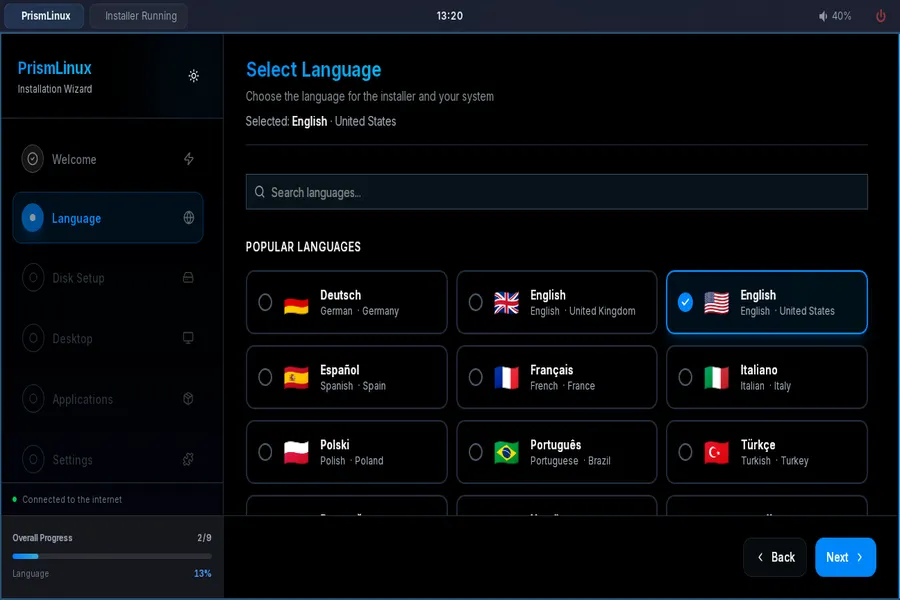
Choose your installation language. As of the latest release, German and Russian have been added alongside English, with more languages expected in future updates.
Step 2 — Keyboard Layout
Pick the keyboard layout that matches your hardware. If you’re unsure, the default US layout works for most English-language setups.
Step 3 — Disk Partitioning
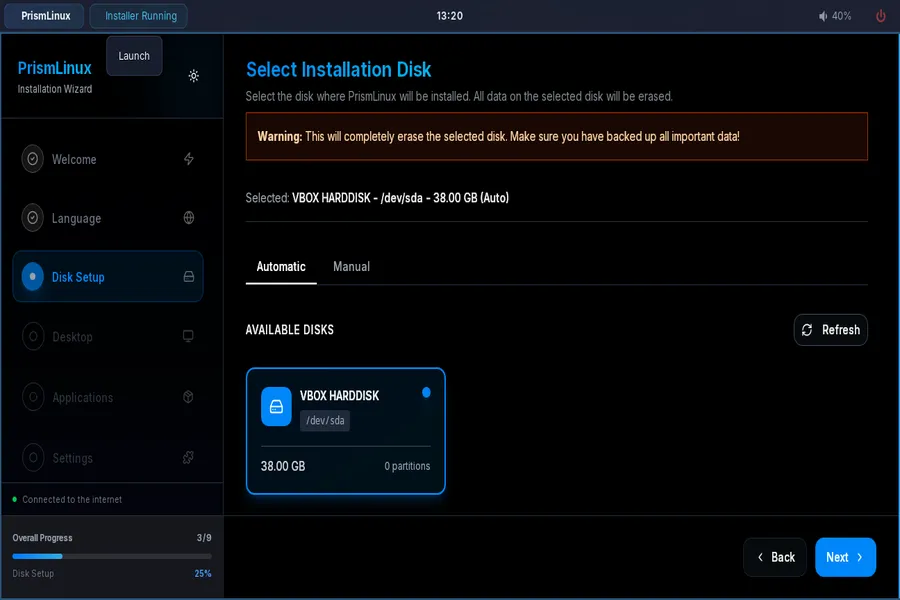
This is where most new users hesitate, and for good reason — getting this wrong can cause problems. For a straightforward single-boot setup, the automatic partitioning option will handle everything for you. It creates an EFI partition, a swap partition, and a root partition automatically.
If you want dual-booting (running PrismLinux alongside Windows), manual partitioning is necessary. Make sure Windows is already installed and that you’ve shrunk the Windows partition to free up space using Windows Disk Management before starting the installer.
Step 4 — Desktop Environment
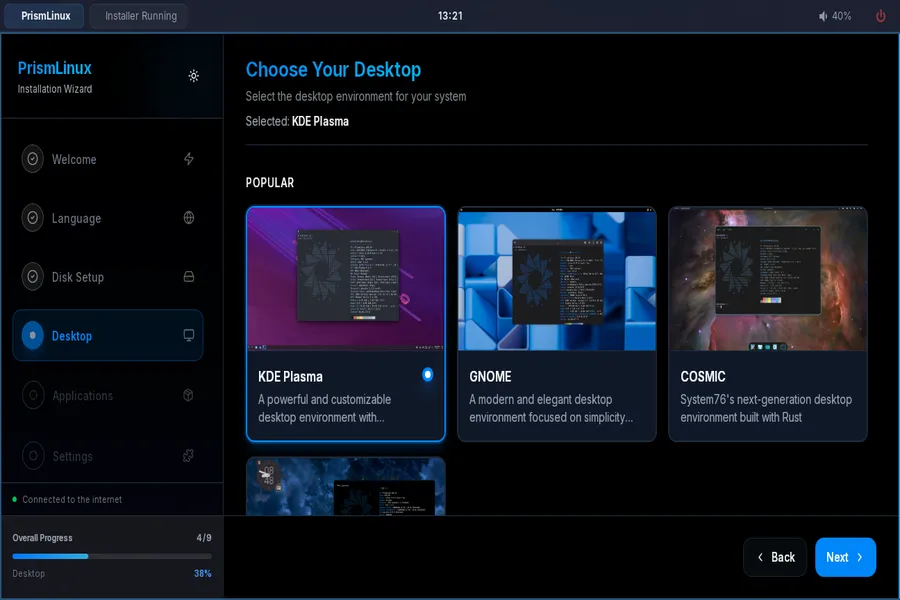
This is one of PrismLinux’s strongest selling points. You’ll be presented with several desktop environment options. A few notes to help you choose:
- KDE Plasma — Feature-rich, highly customizable, excellent for power users. Best-looking out of the box for most people.
- GNOME — Clean and modern, workflow-focused, fewer configuration options by default.
- COSMIC — System76’s in-development Rust-based DE. Still maturing, but already impressive. Ships with Kvantum and updated applets in the latest release.
- Others — Check the installer for the current full list; it grows with each release.
Step 5 — User Account Setup
Create your username and password. As of the latest release, password handling has been improved to properly support special characters (!, @, #, $, %, *, etc.) — an issue that caught some users in earlier versions.
Step 6 — Install
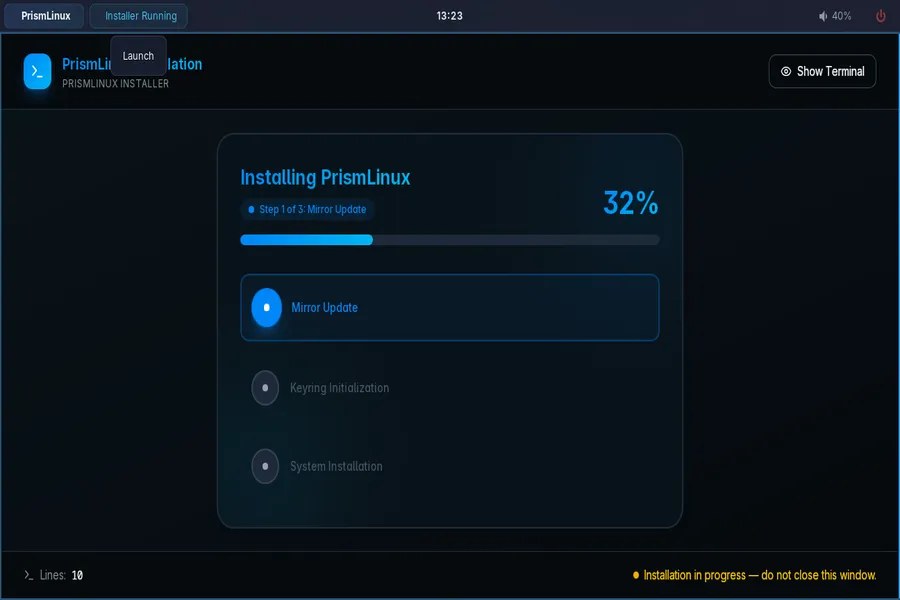
Review your selections and hit install. Depending on your hardware, the process typically completes in 5 to 15 minutes. Once finished, remove the USB drive and reboot.
First Steps After Installation
You’ve rebooted into your fresh PrismLinux installation. Here’s what to do next:
Update the system. Before anything else, pull the latest updates. Open a terminal and run:
sudo pacman -SyuSince PrismLinux is rolling release, this keeps your entire system current — kernel, desktop environment, applications, all of it.
Explore PrismLinux Hello. In the 2026.03.05 release, the old “PrismLinux About” app was redesigned and renamed to PrismLinux Hello. It serves as a welcome screen and quick-start guide, pointing you toward useful post-install tasks. Worth spending a few minutes here.
Set up the AUR. One of the biggest advantages of any Arch-based distro is access to the Arch User Repository — a community-maintained collection of thousands of packages not found in the standard repos. Install yay or paru as your AUR helper:
# Install yay

git clone https://aur.archlinux.org/yay.git

cd yay

makepkg -si
From there, installing AUR packages is as simple as yay -S package-name.
Install your preferred apps. Firefox ships as the default browser across all desktop environments in the 2026 releases. Beyond that, the package selection is intentionally lean — you add what you need. A few essentials worth considering:
- LibreOffice for office productivity
- VLC or mpv for media playback (mpv is now the default in Plasma settings)
- Timeshift for system snapshots and easy rollback
- Steam or Heroic Games Launcher if gaming is on your agenda
Enable gaming features. PrismLinux 2026 ships with ananicy-cpp for improved process priority management during gaming. If you’re a gamer, also consider enabling GameMode and installing Proton through Steam for Windows game compatibility.
Package Management on PrismLinux
PrismLinux uses pacman, Arch Linux’s native package manager. It’s fast, straightforward, and powerful. Here are the commands you’ll use most often:
sudo pacman -Syu          # Full system update

sudo pacman -S package    # Install a package

sudo pacman -R package    # Remove a package

sudo pacman -Ss keyword   # Search for a package

sudo pacman -Qi package   # Show package info
The team is also currently developing a custom package manager for PrismLinux. Details are sparse as of March 2026, but the project page suggests more information will surface in the coming months. When it arrives, it should offer a more tailored experience for PrismLinux’s specific repository structure.
PrismLinux vs. Other Arch-Based Distros
A common question from people exploring Arch-based options is how PrismLinux compares to established names like Manjaro, EndeavourOS, or CachyOS.
vs. Manjaro: Manjaro holds packages back for stability testing, which delays updates. PrismLinux is closer to pure Arch in terms of package freshness. Manjaro also tends toward heavier default installations.
vs. EndeavourOS: EndeavourOS is a strong alternative and very minimal. PrismLinux differentiates itself with the optimized kernel options baked in and a somewhat more opinionated default configuration.
vs. CachyOS: CachyOS is arguably PrismLinux’s closest competitor in the performance-focused Arch space. CachyOS focuses heavily on micro-architecture optimizations (x86_64-v3/v4 packages). PrismLinux leans more toward kernel-level optimization and a cleaner, lighter default system.
None of these is objectively better — they serve slightly different philosophies. PrismLinux appeals most to users who want Arch’s power, a genuinely lightweight footprint, and the freedom to build out exactly what they need.
Common Issues and Quick Fixes
Black screen on NVIDIA hardware: Make sure you’re using the 2026.03.05 or later ISO, which includes full NVIDIA LiveCD support. Post-install, run sudo pacman -S nvidia nvidia-utils if you encounter display issues.
Wi-Fi not connecting: Check if your adapter is recognized with ip link. For Broadcom adapters, you may need broadcom-wl from the AUR.
System feels sluggish: Verify you’re running the lqx or zen kernel with uname -r. If you’re on a generic kernel, switch to one of the optimized options via pacman.
Pacman key errors after a long gap between updates: Run sudo pacman-key –refresh-keys followed by sudo pacman -Syu.
Final Thoughts
Getting started with PrismLinux is genuinely one of the more enjoyable Linux setup experiences available right now. The project has found a clear identity: Arch Linux’s power and rolling freshness, wrapped in a thoughtfully configured, visually appealing package that doesn’t punish you for wanting things to work without spending a weekend in config files.
The March 2026 release marks a significant step forward for the project, particularly around installer quality, NVIDIA support, and gaming performance. With a custom package manager on the horizon and an active development pace, PrismLinux looks set to keep improving throughout 2026.
If you’ve been on the fence about trying an Arch-based distro, this is a very reasonable place to start. The community is welcoming, the documentation is growing, and the system — once up and running — genuinely does feel fast.
Give it a try. Your USB drive is probably not doing anything important right now anyway.
PrismLinux is free and open source. Download the latest ISO from the official site at prismlinux.org. Join the community on Discord at discord.gg/hMrWsTpdqw.
Disclaimer
This article is intended for informational purposes only. While every effort has been made to ensure accuracy based on information available as of March 2026, software features, system requirements, and project details may change over time. Always refer to the official PrismLinux website for the most up-to-date information. We are not affiliated with or endorsed by the PrismLinux project or its developers. Follow all installation steps at your own discretion — always back up your data before making changes to your system.
Also Read
Is Nitrux 6.0 actually good for daily use?
About the Author