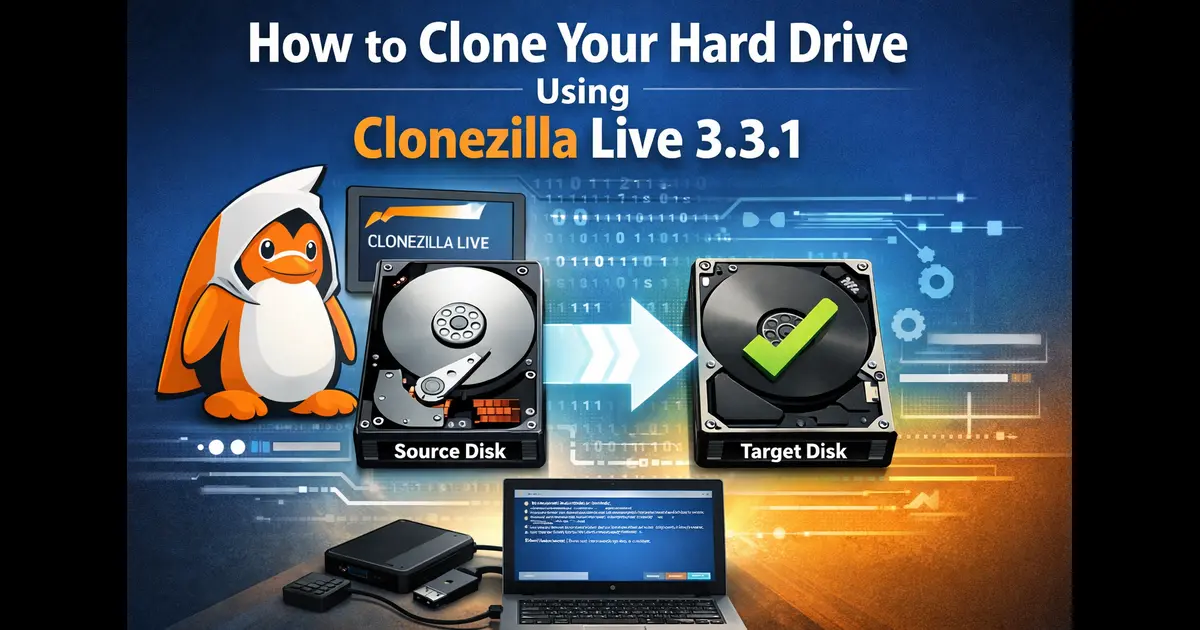
How to Clone Your Hard Drive Using Clonezilla Live 3.3.1
Whether you’re upgrading to a bigger SSD, replacing a failing drive, or just want a full system backup you can actually boot from — cloning is almost always the smarter move over a fresh install. And if you want a free, reliable, battle-tested tool to do it, Clonezilla Live 3.3.1 is hard to beat.
This guide walks you through exactly how to clone your hard drive using Clonezilla Live 3.3.1 — from downloading the ISO to successfully booting from your cloned drive. No fluff, no filler. Just a clean, step-by-step process that works whether you’re on Windows 10, Windows 11, or a Linux system.
What Is Clonezilla Live 3.3.1?
Clonezilla is a free, open-source disk cloning and imaging tool maintained by Steven Shiau and the NCHC Free Software Labs in Taiwan. It’s been around for years and is widely trusted by IT professionals, sysadmins, and power users all over the world — including across the US where home lab setups, small businesses, and enterprise deployments all rely on it regularly.
Clonezilla Live 3.3.1 is the latest stable release, powered by Linux kernel 6.18.9 and based on the Debian Sid repository as of February 20, 2026. It also updates Partclone to version 0.3.45.
The “Live” in the name means it runs as a bootable environment — you boot into it from a USB drive or CD, and it clones your disk without touching your running operating system. That’s important because you can’t reliably clone a disk that’s actively in use.
Clonezilla Live 3.3.1 adds new mechanisms for cloning between 4kn and 512n/e disks, which is a big deal if you’re migrating from an older drive with 512-byte sectors to a modern 4K native drive, or vice versa. This version also brings improved BitLocker support, enhanced LUKS encryption handling, and several major bug fixes.
Clonezilla Live 3.3.1 — Key Specs at a Glance
Clonezilla 3.3.1-35 Features, Version Details & System Support (2026 Update)
Below is a complete overview of Clonezilla 3.3.1-35, released on February 24, 2026. This version is based on Debian Sid and includes Linux Kernel 6.18.9-1 (LTS) with improved BitLocker support and 4Kn ↔ 512n/e cloning capability.
| Feature | Details |
|---|---|
| Version | 3.3.1-35 |
| Release Date | February 24, 2026 |
| Base OS | Debian Sid |
| Linux Kernel | 6.18.9-1 (LTS) |
| Partclone Version | 0.3.45 |
| Architecture Support | amd64 (x86-64), arm64 |
| Supported File Systems | ext2/3/4, NTFS, FAT12/16/32, HFS+, XFS, JFS, Btrfs, UFS, ReiserFS, VMFS |
| BitLocker Support | Yes (Improved in this version) |
| LUKS Encryption | Yes (Master key change supported) |
| 4Kn ↔ 512n/e Cloning | Yes (New in 3.3.1) |
| Download | clonezilla.org (SourceForge mirror) |
| License | GPL (Free & Open Source) |
What You’ll Need Before You Start
Before you even think about booting into Clonezilla, get these things ready:
Hardware requirements:
- A source drive (the one you want to clone FROM)
- A destination drive (the one you want to clone TO — must be same size or larger)
- A USB flash drive, minimum 1 GB, to create your Clonezilla boot media
- A second USB drive or external storage (if saving an image instead of direct disk-to-disk)
Software you’ll need:
- Rufus (Windows) or Balena Etcher (cross-platform) to write the ISO to USB
- The Clonezilla Live 3.3.1 ISO file
Back up any critical data on your destination drive before you begin. Disk cloning will completely overwrite everything on the target drive. Once the process starts, existing files, partitions, and data cannot be recovered.
Step 1: Download Clonezilla Live 3.3.1
Go to the official Clonezilla website at clonezilla.org and navigate to the Downloads section. Select the stable release. At the time of writing, the current stable version is 3.3.1-35.
You’ll want the amd64 ISO for most modern computers (64-bit systems). The file will be around 450 MB. You can download it through SourceForge, which is the official mirror Clonezilla uses.
Double-check the filename: it should read clonezilla-live-3.3.1-35-amd64.iso.
Don’t download it from random third-party sites — always go to the official source. There’s no reason to risk a tampered ISO.
Step 2: Create a Bootable USB Drive
Once the ISO is downloaded, you need to write it to a USB drive.
Using Rufus (Windows — recommended):
- Download Rufus from rufus.ie
- Insert your USB drive (1 GB or larger)
- Open Rufus, and it should auto-detect the USB
- Click the “SELECT” button and choose your Clonezilla ISO
- Leave the partition scheme as MBR for older BIOS, or GPT for UEFI systems
- Click START and confirm when prompted (this will erase the USB)
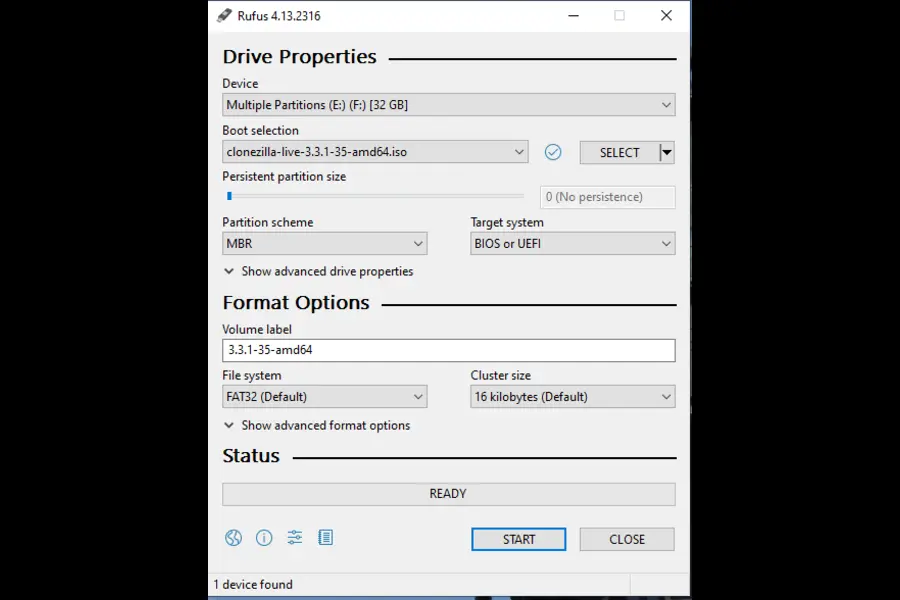
The whole process takes about a minute or two. Once done, your USB is ready to boot.
On Linux or macOS, you can also use dd from the terminal or Balena Etcher if you prefer a GUI.
Step 3: Connect Both Drives and Boot from USB
Shut down your computer. Connect your destination drive — whether that’s a SATA SSD, NVMe drive, or external USB drive. Make sure both the source and destination are physically connected and detectable.
Now boot from the USB:
- Power on the machine and tap the boot menu key (usually F12, F10, F2, or DEL — check your motherboard brand)
- Select your USB drive from the boot menu
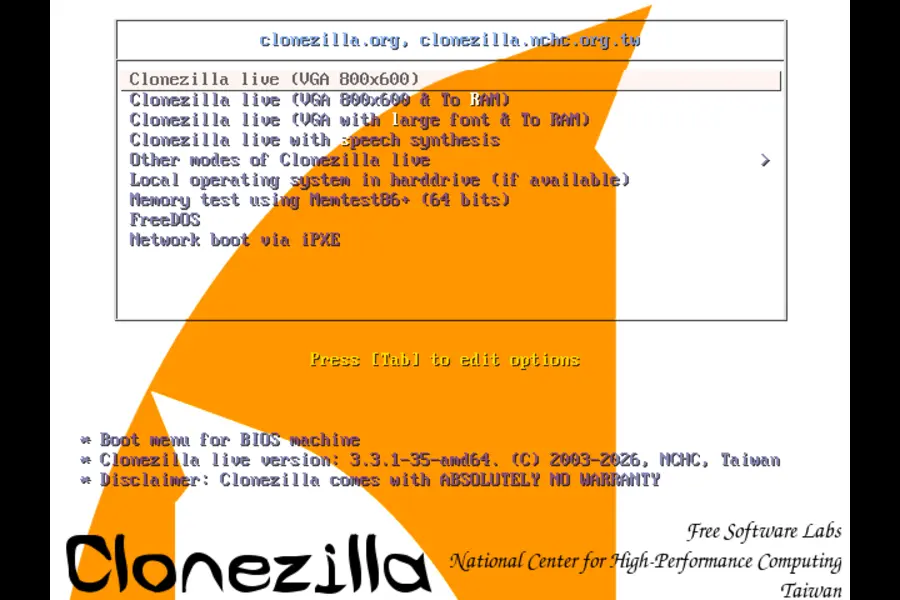
- You’ll land on the Clonezilla boot screen
At the Clonezilla boot screen, select “Clonezilla live (VGA 800×600)” or the default option. If your screen resolution is giving you trouble, there are safe mode options as well.
Step 4: Navigate the Clonezilla Setup Wizard
Once Clonezilla boots, it walks you through a text-based setup wizard. It sounds intimidating if you haven’t seen it before, but it’s more straightforward than it looks.
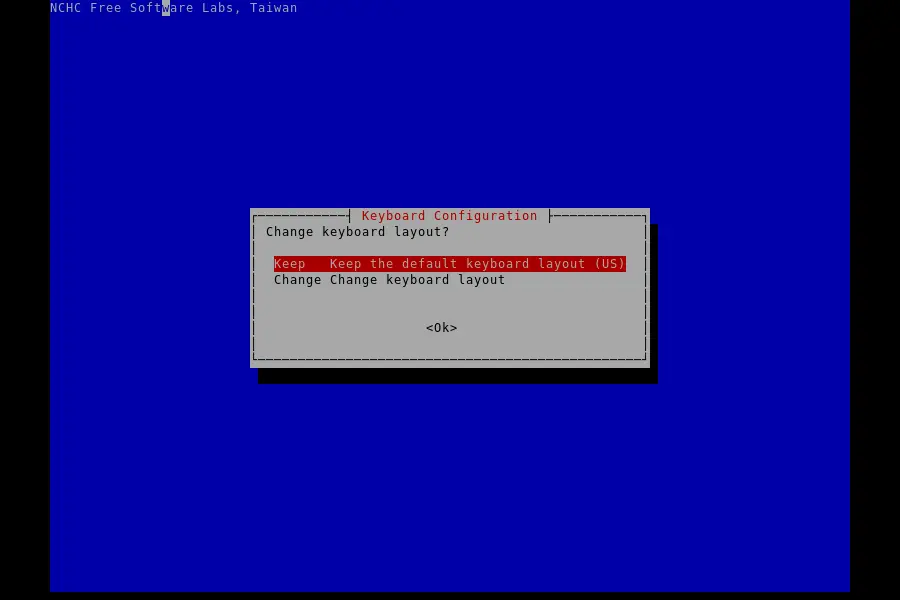
Language and keyboard layout:
Select your preferred language (English is default) and keyboard layout. For most US users, just hit Enter to confirm the defaults.
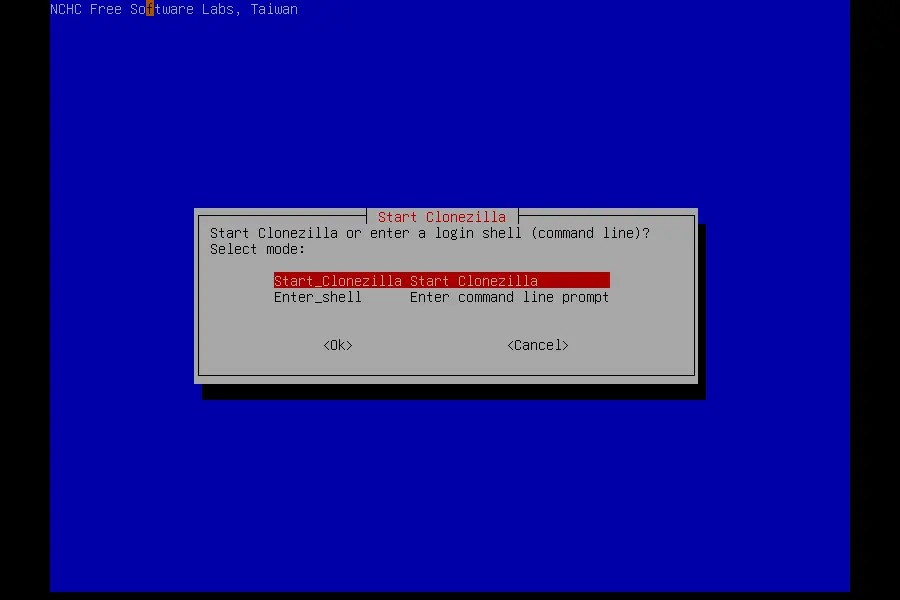
Start Clonezilla:
You’ll be asked how to start Clonezilla. Choose “Start_Clonezilla” — not the shell option unless you specifically need command-line access.
Step 5: Choose Your Cloning Mode
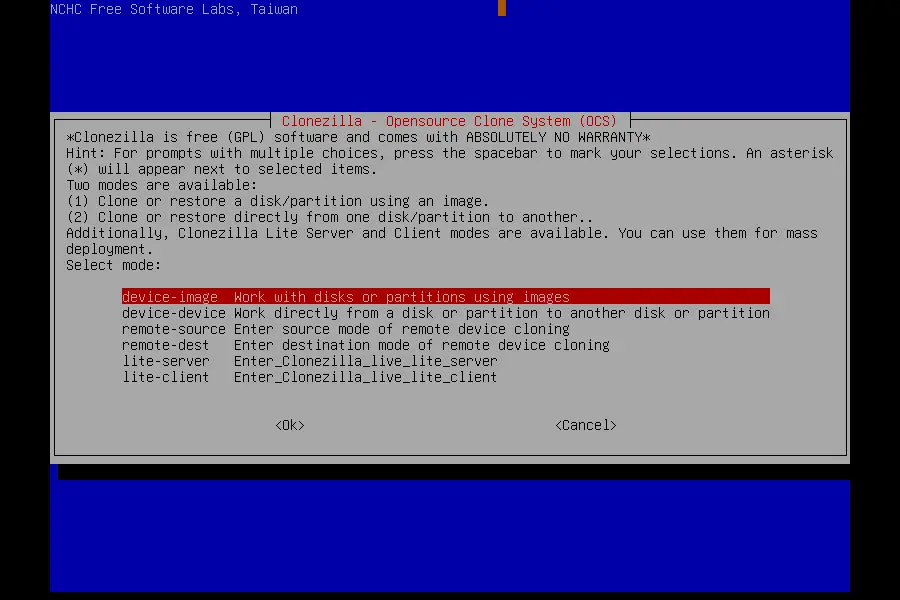
This is where you pick what kind of operation you want to do. Clonezilla offers two primary modes:
device-image — saves your disk or partition as an image file to an external drive or network location. Useful for backups.
device-device — clones directly from one drive to another. This is what most people want for a direct disk upgrade.
For this guide, select “device-device” to do a direct disk-to-disk clone.
Step 6: Select Disk-to-Disk Clone
After choosing device-device, you’ll see another set of options:
- disk_to_local_disk — clones an entire disk to another local disk (most common choice)
- part_to_local_part — clones individual partitions
- disk_to_remote_disk — clones over a network
- recovery_iso_in_grub — creates a recovery ISO
Choose “disk_to_local_disk” for a full drive clone.
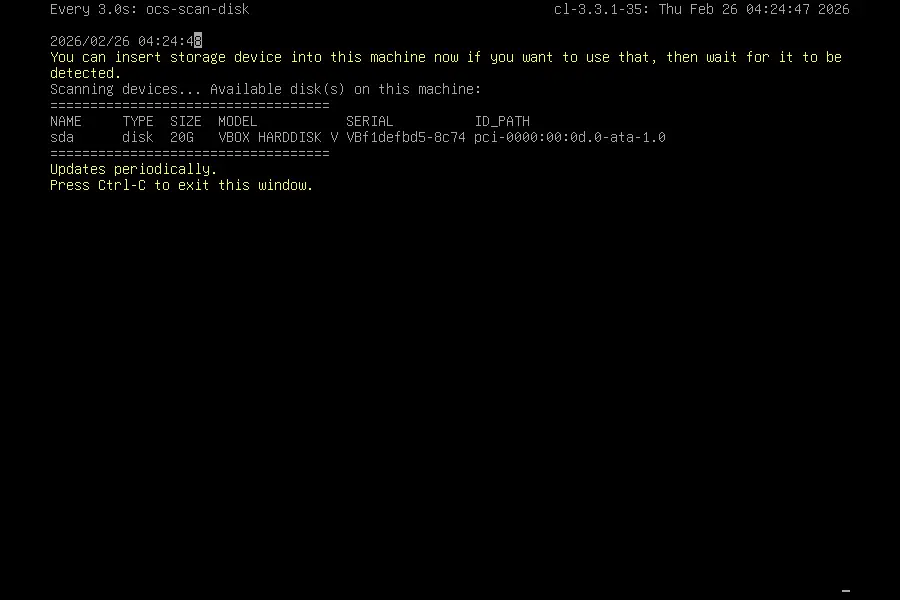
Step 7: Select Your Source and Destination Drives
Clonezilla will now list all the drives it detects. This is where you need to be careful.
Selecting the source disk (the drive you’re cloning FROM):
Look at the drive names and sizes. In Linux-style naming, drives show up as sda, sdb, nvme0n1, etc. Cross-reference the sizes with what you know about your drives to make sure you’re picking the right one.
Select the source disk and press Enter.
Selecting the destination disk (the drive you’re cloning TO):
Now select your destination. This will be completely overwritten. Double-check the name and size before confirming.
One thing worth mentioning: Clonezilla 3.3.1 now supports cloning between mismatched sector formats — so if you’re going from a legacy 512n drive to a modern 4Kn drive (or the other way around), this version handles it without you needing to do anything special. That’s genuinely useful if you’re upgrading to a newer NVMe.
Step 8: Configure Cloning Options
Clonezilla will ask about a few more settings before it starts:
-sfsck: Whether to skip checking and repairing the source file system. For most cases, leaving the default (skip) is fine if you know your source drive is healthy.
-senc: Whether to skip encrypting the image. Not relevant for direct disk-to-disk cloning.
Action after cloning: You’ll be asked what to do when the clone finishes — options are to reboot, shut down, or drop to a command prompt. Choosing “reboot” is typically the most convenient.
When everything looks right, Clonezilla will show you a summary and ask for a final confirmation. You’ll typically need to type “y” and press Enter to confirm you’re okay with overwriting the destination.
Step 9: Let the Clone Run
Hit Enter and let Clonezilla do its thing. The time it takes depends entirely on the size of your drive and the speed of your drives/connections. A 500 GB drive might take 20–40 minutes. A 2 TB drive could take 2 hours or more.
A few things to note while it’s running:
- Don’t interrupt the process once it starts
- The progress bar shows both partition-by-partition progress and overall status
- Clonezilla saves and restores only the used blocks on your drive, which makes the process faster and more efficient than a pure sector-by-sector copy — so if your 1 TB drive only has 200 GB of data, the clone is closer to a 200 GB job than a 1 TB one
When it finishes, you’ll see a confirmation that the clone completed successfully (or an error message if something went wrong).
Step 10: Boot From Your Cloned Drive
Shut down your machine, remove the Clonezilla USB, and disconnect (or remove) the original source drive if you’re doing a full replacement. Then power back on and enter your BIOS/UEFI to make sure the new drive is set as the first boot device.
If everything went correctly, your system should boot exactly as it was before — same OS, same installed programs, same files. The only difference is it’s now running from the new drive.
If it doesn’t boot right away, don’t panic. Here are a few common fixes:
- Check boot order in BIOS — make sure your cloned drive is first in the boot sequence
- If using UEFI/GPT — the EFI partition should have cloned over correctly, but occasionally you may need to repair the boot loader using your OS installation media
- If destination drive is larger than source — the cloned partition won’t automatically expand to fill the new space. You’ll need to use a partition tool (like Windows Disk Management or GParted) to extend the partition after cloning
When to Use “device-image” Instead
The direct disk-to-disk approach is great for upgrades. But if your goal is ongoing backups or archiving a system state, the device-image option is worth knowing about.
With device-image mode, Clonezilla saves a compressed image of your disk to a folder on an external drive or network share. You can keep multiple versions and restore any of them later. It’s the closer equivalent to what tools like Acronis or Macrium Reflect do in their backup modes.
For most home users doing a one-time drive upgrade, device-device is simpler and faster. For sysadmins managing multiple machines, device-image gives you much more flexibility.
Common Clonezilla 3.3.1 FAQs
Can I clone a larger drive to a smaller drive?
Only if the used data on the source fits within the destination’s capacity. Clonezilla will warn you if the destination is smaller than the source partition layout, and in most cases it won’t allow it unless you use expert mode with specific flags.
Does Clonezilla work with BitLocker-encrypted drives?
Clonezilla Live 3.3.1 includes improved BitLocker support, with better functionality for the clone server and improved password retry handling. For a standard disk-to-disk clone, you can clone a BitLocker drive without decrypting it first — but keep in mind the destination drive will also be encrypted with the same key.
What about NVMe drives?
Yes, NVMe drives are supported. They show up as nvme0n1, nvme1n1, etc. in the drive selection screen. Just treat them like any other drive in the wizard.
Is there a GUI version?
Clonezilla Live itself is text/menu-based, not a graphical interface. If you need a full GUI experience, you’d want to look at something like Macrium Reflect or Acronis True Image — though those are paid (or freemium) tools.
What if my source drive is failing?
Clonezilla has a rescue mode (the –rescue flag) that attempts to recover data from bad sectors rather than stopping outright. Version 3.3.1 appends the –rescue argument to partclone options to bypass mtdblock read errors, which improves the chances of a successful clone from a marginally damaged drive.
Final Thoughts
Learning how to clone your hard drive using Clonezilla Live 3.3.1 takes a bit of a learning curve the first time — mostly just getting used to the text interface. But once you’ve done it once, the whole process takes maybe 10–15 minutes of your actual hands-on time, with the rest just being the copy running in the background.
Version 3.3.1 is a genuinely solid release. The expanded 4Kn/512n disk support removes a major headache for people migrating to newer drives, and the kernel update to 6.18.9 means it’ll work correctly on newer hardware that older Clonezilla versions sometimes struggled with.
Best of all, it’s completely free. For a tool that does this job this well, that’s hard to argue with.
Download Clonezilla Live 3.3.1 from the official site at clonezilla.org and give it a shot. Your drives — and your future self — will thank you.
Disclaimer
The information provided in this post is for educational purposes only. While we’ve done our best to ensure accuracy based on official Clonezilla documentation and release notes, we make no guarantees regarding the completeness or suitability of this information for your specific situation.
Cloning a hard drive involves risk. Always back up your important data before starting any disk cloning operation. We are not responsible for any data loss, hardware damage, or system issues that may result from following this guide.
This site is not affiliated with, endorsed by, or officially connected to the Clonezilla project or NCHC Free Software Labs in any way. All product names and trademarks mentioned are the property of their respective owners.
Also Read
Beyond Google: The Three Hidden Layers of the Internet
About the Author