
Kdenlive Video Editor Explained: A Complete Beginner's Guide for 2026
If you’ve been searching for a powerful yet free video editing solution that doesn’t compromise on features, you’ve likely come across Kdenlive. In this comprehensive guide, we’ll dive deep into what makes Kdenlive Video Editor explained so essential for content creators, YouTubers, and video enthusiasts who want professional results without breaking the bank.
What is Kdenlive Video Editor?
Kdenlive—which stands for KDE Non-Linear Video Editor—is a free, open-source video editing software that has been empowering creators since 2002. Originally started by Jason Wood, this powerful editing suite is now maintained by a dedicated team of developers and is part of the official KDE Projects suite.
What sets Kdenlive apart is its commitment to being completely free and open-source, distributed under the GNU Public License 3.0. This means you get access to professional-grade video editing capabilities without any subscription fees, watermarks, or feature limitations that plague many “free” alternatives.
The latest version, Kdenlive 25.08.3 (with version 25.12 in release candidate stage as of late 2025), continues to evolve with regular updates that bring stability improvements, bug fixes, and new features to keep pace with modern video editing demands.
Platform Availability: Edit Anywhere You Work
One of Kdenlive’s strongest advantages is its cross-platform compatibility. The software runs smoothly on:
- Linux: The native platform where Kdenlive shines brightest, with excellent optimization
- Windows: Requires Windows 10 (version 1809) or newer, running exclusively on 64-bit systems
- macOS: Supports macOS 11 (Big Sur) or newer versions
- FreeBSD: For those running this Unix-like operating system
Unfortunately, Kdenlive isn’t available on mobile platforms like Android or iOS yet, so you’ll need a desktop or laptop to harness its full power.
System Requirements: What You Need to Run Kdenlive
Before diving into Kdenlive Video Editor explained further, let’s ensure your system meets the necessary requirements. Understanding these specifications will help you determine if your computer can handle smooth video editing workflows.
Minimum Hardware Requirements
- CPU: x86 Intel or AMD processor, at least 2 GHz (dual-core minimum)
- RAM: 4 GB minimum for standard definition (SD) video
- GPU: OpenGL 2.0 compatible graphics (DirectX 9 or 11 on Windows)
- Storage: At least 500 MB for installation
- Operating System: 64-bit architecture required
Recommended Specifications for Better Performance
- CPU: Quad-core processor (4 cores) for HD editing, 8 cores for 4K video editing
- RAM: 8 GB for HD video, 16 GB or more for 4K editing
- GPU: Modern graphics card with hardware acceleration support
- Storage: SSD recommended for faster project loading and timeline performance
If your computer sits at the lower end of these specifications, don’t worry. Kdenlive includes smart features like Preview Resolution, Proxy Editing, and Timeline Preview Rendering to help reduce lag and maintain smooth playback even on modest hardware.
Core Features That Make Kdenlive Stand Out
Now that we’ve covered the basics, let’s explore Kdenlive Video Editor explained through its remarkable feature set that rivals even paid professional software.
1. Multi-Track Video Editing
At the heart of Kdenlive lies its powerful multi-track editing system. You can work with an unlimited number of video and audio tracks simultaneously. Each track can be independently:
- Locked or muted as needed
- Adjusted in height for better visibility
- Collapsed individually or all at once
- Named for easy identification in complex projects
This flexibility is invaluable when working on projects with multiple video layers, sound effects, background music, and voiceovers all happening simultaneously.
2. Wide Format Support
Kdenlive supports virtually every video format you can think of, thanks to its foundation on the powerful FFmpeg libraries. You can work directly with:
- QuickTime (MOV)
- AVI
- WMV
- MPEG
- Flash Video
- MP4
- MKV
- And many more
The software also supports multiple aspect ratios including 4:3 and 16:9 for PAL, NTSC, and various HD standards including HDV and AVCHD. This means you won’t waste time converting files before you start editing—just import and begin creating.
3. Built-in Effects and Transitions
Kdenlive boasts an impressive collection of effects and transitions supplied by the MLT Framework, avfilter, frei0r, and ladspa libraries. These range from:
- Artistic effects: Give your videos creative flair
- Color correction: Adjust colors, brightness, and contrast
- Blur and sharpen: Control focus and clarity
- Audio adjustments: Normalize, equalize, and enhance sound
- Transformations: Rotate, scale, and position clips precisely
Most effects can be keyframed, allowing you to animate parameters over time using linear or smooth curves. This opens up possibilities for dynamic zoom effects, gradual color shifts, and complex motion graphics.
4. Keyframe Animation
Speaking of keyframes, this feature deserves special attention. Keyframe support allows you to create smooth animations by defining start and end points for any effect parameter. Want a clip to gradually zoom in while fading? Set keyframes at the beginning and end, and Kdenlive handles the smooth transition between them.
This functionality is essential for creating professional-looking motion graphics, animated titles, and dynamic visual effects without needing separate animation software.
5. Proxy Editing Workflow
One of Kdenlive’s most practical features is proxy editing. When working with high-resolution 4K footage or resource-intensive clips, your computer might struggle with real-time playback. Proxy editing solves this by:
- Creating lower-resolution copies of your original files
- Allowing smooth editing on less powerful hardware
- Automatically switching back to original files during export
- Maintaining full quality in your final render
This feature significantly enhances workflow efficiency, especially for editors working on laptops or older computers.
6. Professional Title Editor
Kdenlive includes a built-in 2D title editor for creating all types of text overlays, from simple captions to elaborate scrolling credits. You can:
- Use any fonts installed on your system
- Adjust line and character spacing
- Apply standard text formatting, coloring, and alignment
- Create typewriter effects (character-by-character, word-by-word, or line-by-line)
- Add scrolling text in any direction
For more advanced vector graphics and animations, Kdenlive integrates seamlessly with Glaxnimate, allowing you to create animated routes on maps, infographics, and dynamic call-outs.
7. Comprehensive Audio Tools
Video is only half the story—great audio makes the difference between amateur and professional content. Kdenlive’s audio capabilities include:
- Detailed visual waveforms in the timeline
- Real-time volume adjustments
- Built-in effects: normalization, phase and pitch shifting, limiting, reverb, and equalization
- Track-level and clip-level effects
- Multi-channel audio mixing
The enhanced audio display in the clip monitor (introduced in version 25.12 RC) provides waveform overview for faster navigation and precise audio editing.
8. Automatic Backup System
We’ve all experienced that heart-stopping moment when software crashes during an important project. Kdenlive helps prevent disaster with its automatic backup feature:
- Project files backed up every few minutes
- Older versions kept for rollback capability
- Peace of mind during long editing sessions
While Kdenlive has become increasingly stable with recent updates, this safety net ensures you won’t lose hours of work due to unexpected crashes.
9. Timeline Preview and Rendering
Sometimes complex effects or high-resolution footage make real-time playback impossible. Kdenlive’s timeline preview feature lets you pre-render sections of your timeline for perfectly smooth playback. This is particularly useful when:
- Working with multiple layered effects
- Editing 4K or higher resolution footage
- Using complex color grading
- Previewing the final look before full render
Recent Updates and Improvements in 2025
Kdenlive continues to evolve rapidly. Here’s what the development team has delivered in recent versions:
Version 25.08 Series Highlights
Released in summer 2025, the 25.08 series focused primarily on stability and polish, including:
- Over 300 commits worth of improvements
- Fixed more than 15 crashes
- Enhanced subtitle functionality
- Improved image sequence handling
- Better disk space checking for archiving
- SVG file replacement support
Version 25.12 Release Candidate (Latest)
The upcoming 25.12 version, currently in release candidate stage, brings exciting UI improvements:
- New widget docking system: Rearrange panels more easily and powerfully
- Enhanced audio display: Waveform overview in clip monitor for faster navigation
- Startup and welcome screen: Easily configure options when launching
- Vertical format support: Editing layout and safe areas for social media content
- Menu reorganization: More logical structure for better workflow
- Time-span markers: New marker system allowing markers with duration (Google Summer of Code 2025 contribution)
These updates show Kdenlive’s commitment to staying relevant for modern content creators, especially those producing content for vertical platforms like TikTok, Instagram Reels, and YouTube Shorts.
Interface and Workflow: What to Expect
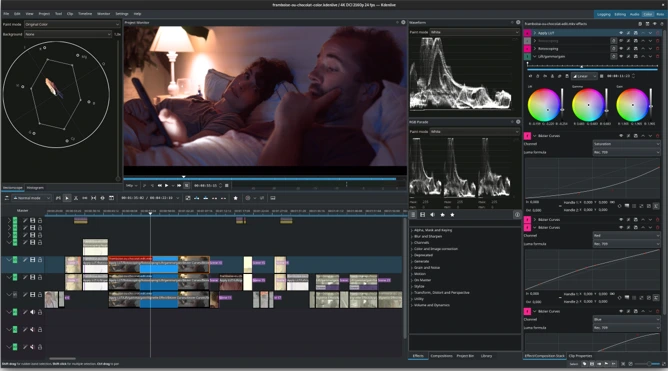
When you first launch Kdenlive, you’ll find a clean, customizable interface that adapts to your workflow preferences. The main workspace includes:
- Project Bin: Where all your media assets are organized
- Timeline: The main editing area with multiple tracks
- Clip Monitor: Preview source clips before adding them to timeline
- Project Monitor: See your edited sequence in real-time
- Effects Panel: Browse and apply effects and transitions
The themable interface supports various light and dark themes, letting you work comfortably in any lighting condition. You can rearrange, resize, and dock panels to create a workspace that suits your editing style.
How to Install Kdenlive on Linux
One of Kdenlive’s biggest advantages for Linux users is the variety of installation methods available. Since Linux is Kdenlive’s native platform, you’ll find excellent performance and stability. Here’s a complete guide to installing Kdenlive on various Linux distributions.
Method 1: Installing via Flatpak (Recommended for Most Users)
Flatpak is a universal package format that works across all Linux distributions and provides the latest stable version. This is the easiest method for most users.
Step 1: Ensure Flatpak is installed on your system. Most modern distributions have it pre-installed. If not, visit flathub.org/setup for distribution-specific instructions.
Step 2: Install Kdenlive using this single command:
flatpak install flathub org.kde.kdenlive
Step 3: Launch Kdenlive from your application menu or run:
flatpak run org.kde.kdenlive
Advantages: Always up-to-date, sandboxed for security, works on any distribution.
Method 2: Installing via Snap
Snap is another universal package format, particularly popular on Ubuntu-based systems.
Step 1: If snap isn’t installed, set it up first:
sudo apt install snapd # For Ubuntu/Debian
sudo dnf install snapd # For Fedora
Step 2: Install Kdenlive:
sudo snap install kdenlive
Step 3: Launch from your application menu or terminal.
Note: After installation on Fedora, you may need to log out and back in for snap paths to update correctly.
Method 3: AppImage (Portable Version)
AppImage files are self-contained executables that require no installation—perfect for portable use or testing.
Step 1: Download the latest AppImage from the official Kdenlive website at kdenlive.org/download or from files.kde.org/kdenlive/release/
Step 2: Make it executable:
chmod +x kdenlive-25.08.3-x86_64.appimage
Step 3: Run the AppImage:
./kdenlive-25.08.3-x86_64.appimage
Optional: Create a desktop entry for easier access. Create a file named kdenlive.desktop in ~/.local/share/applications/ with this content:
[Desktop Entry]
Type=Application
Name=Kdenlive
GenericName=Video Editor
Comment=KDE Video Editor
Categories=AudioVideo;Video;AudioVideoEditing;
Exec=/path/to/your/kdenlive-25.08.3-x86_64.appimage
Icon=kdenlive
Terminal=false
Advantages: No installation needed, portable, won’t interfere with system packages.
Method 4: Distribution-Specific Package Managers
Each Linux distribution maintains its own Kdenlive packages. While these may not always be the latest version, they integrate seamlessly with your system.
Ubuntu, Linux Mint, and Debian-based Systems
For the latest stable version, use the official PPA:
sudo add-apt-repository ppa:kdenlive/kdenlive-stable
sudo apt update
sudo apt install kdenlive
For the cutting-edge development version (not recommended for production work):
sudo add-apt-repository ppa:kdenlive/kdenlive-master
sudo apt update
sudo apt install kdenlive
Fedora
Kdenlive is available in Fedora repositories:
sudo dnf install kdenlive
For the very latest version, enable RPM Fusion repository first:
sudo dnf install https://download1.rpmfusion.org/free/fedora/rpmfusion-free-release-$(rpm -E %fedora).noarch.rpm
sudo dnf install kdenlive
Arch Linux and Manjaro
Arch users can install from the official repositories:
sudo pacman -S kdenlive
For the latest development version, use the AUR:
yay -S kdenlive-git
openSUSE
sudo zypper install kdenlive
CentOS, RHEL, and Rocky Linux
First, enable the EPEL repository:
For RHEL 9:
sudo subscription-manager repos –enable codeready-builder-for-rhel-9-$(arch)-rpms
sudo dnf install https://dl.fedoraproject.org/pub/epel/epel-release-latest-9.noarch.rpm
For CentOS Stream 9:
sudo dnf config-manager –set-enabled crb
sudo dnf install https://dl.fedoraproject.org/pub/epel/epel-release-latest-9.noarch.rpm
Then install Kdenlive:
sudo dnf install kdenlive
Gentoo
sudo emerge –ask kde-apps/kdenlive
Method 5: Installing from Software Centers
Most Linux distributions include graphical software centers that make installation even easier:
- Ubuntu Software (Ubuntu)
- GNOME Software (Fedora, Debian)
- Discover (KDE-based distributions)
- Pamac (Manjaro)
Simply search for “Kdenlive” in your software center and click Install. The software center will handle dependencies automatically.
Which Installation Method Should You Choose?
Choose Flatpak if: You want the latest stable version with automatic updates and maximum compatibility across distributions.
Choose Snap if: You’re on Ubuntu or prefer Canonical’s ecosystem.
Choose AppImage if: You want portability, need to test different versions, or don’t have admin rights.
Choose Native Package Manager if: You prefer tight system integration and don’t need the absolute latest version.
Post-Installation: Verifying Your Installation
After installation, verify Kdenlive works correctly:
- Launch Kdenlive from your application menu
- Check the version under Help → About Kdenlive
- Test creating a new project
- Import a test video file to ensure format support works
If you encounter any issues, the Kdenlive forum and documentation provide excellent troubleshooting resources.
Updating Kdenlive on Linux
Flatpak: flatpak update org.kde.kdenlive
Snap: Updates automatically, or manually with sudo snap refresh kdenlive
AppImage: Download the new version and replace the old file
Native packages: Use your distribution’s standard update process (sudo apt update && sudo apt upgrade for Ubuntu, sudo dnf update for Fedora, etc.)
Getting Started: Your First Kdenlive Project
Let’s walk through creating your first project in Kdenlive:
- Launch Kdenlive: Open the application and you’ll see the new startup screen
- Create a new project: Choose your project name and location
- Set project settings: Select resolution, frame rate, and aspect ratio
- Import media: Drag and drop video, audio, and image files into the project bin
- Add to timeline: Drag clips from the bin to the timeline tracks
- Edit your clips: Trim, cut, and arrange clips using the razor tool and selection tools
- Add effects: Browse the effects panel and drag effects onto clips
- Include transitions: Add smooth transitions between clips
- Fine-tune audio: Adjust volume levels and apply audio effects
- Render your project: Choose your output format and export settings
The learning curve is reasonable for beginners, with a logical layout that doesn’t overwhelm new users while still providing depth for advanced editing techniques.
Strengths of Kdenlive Video Editor
After thoroughly exploring Kdenlive Video Editor explained, here are its most compelling advantages:
Completely Free and Open Source
Zero cost, no subscriptions, no hidden fees, and no watermarks on exports. You get full access to all features from day one.
Regular Updates and Active Development
The Kdenlive team consistently releases updates with bug fixes, stability improvements, and new features. The active development cycle means the software continues improving.
Strong Community Support
As an open-source project, Kdenlive benefits from a vibrant community. You’ll find:
- Extensive forums with helpful members
- Step-by-step tutorials on YouTube
- Detailed official documentation
- Active user feedback that influences development
Professional Features Without the Price Tag
Kdenlive includes capabilities typically found in expensive software like Adobe Premiere Pro or Final Cut Pro, including multi-cam editing support, advanced color correction, and professional export options.
Cross-Platform Consistency
Whether you work on Linux, Windows, or macOS, Kdenlive maintains a consistent interface and feature set across all platforms.
Limitations to Consider
In the spirit of providing a balanced Kdenlive Video Editor explained guide, let’s acknowledge some limitations:
Occasional Stability Issues
While significantly improved in 2025, some users still experience crashes during longer editing sessions or when working with very large projects and numerous effects. The auto-save feature mitigates this, but it’s something to be aware of.
Render Times
Kdenlive doesn’t offer the absolute fastest rendering compared to professional suites with optimized export engines. However, it strikes a reasonable balance for free software, and render times depend heavily on your hardware specifications.
Learning Curve for Advanced Features
While basic editing is straightforward, mastering advanced features like motion tracking, advanced compositing, or complex keyframe animations requires time and practice. The documentation and community tutorials help, but expect some trial and error.
Limited GPU Acceleration
While Kdenlive has render profiles with GPU support, timeline playback primarily uses CPU. More comprehensive GPU support is on the development roadmap, but currently, CPU power matters more for smooth editing performance.
Kdenlive vs. Competitors: How Does It Compare?
Understanding where Kdenlive fits in the video editing landscape helps you make informed decisions.
Kdenlive vs. DaVinci Resolve
DaVinci Resolve offers industry-leading color correction and professional-grade features in its free version. However, it has a steeper learning curve and requires more powerful hardware. Kdenlive provides a more accessible entry point with solid features for most users’ needs.
Kdenlive vs. OpenShot
OpenShot is simpler and more beginner-friendly but lacks some of Kdenlive’s advanced capabilities like robust keyframing and extensive effects libraries. Kdenlive offers more depth for those wanting to grow their skills.
Kdenlive vs. Shotcut
Shotcut sits somewhere between OpenShot and Kdenlive in terms of complexity and features. Both are excellent open-source options, but Kdenlive generally offers more professional features and better project organization for complex edits.
Kdenlive vs. Adobe Premiere Pro
Adobe Premiere Pro is the industry standard with unmatched integration with other Adobe apps, superior stability, and optimized performance. However, it requires an expensive subscription. Kdenlive delivers remarkable value as a free alternative for independent creators and those learning video editing.
Who Should Use Kdenlive?
Kdenlive Video Editor explained wouldn’t be complete without identifying its ideal users:
Perfect For:
- Budget-conscious creators: Anyone wanting professional features without ongoing costs
- YouTube content creators: Producing videos for online platforms
- Students and educators: Learning or teaching video editing fundamentals
- Linux users: Native optimization makes it the go-to choice
- Hobbyists and enthusiasts: Creating family videos or personal projects
- Small businesses: Producing marketing content and social media videos
- Open-source advocates: Supporting free and transparent software
Less Ideal For:
- High-end professional studios: Where industry-standard tools and workflows matter
- Editors needing maximum stability: Mission-critical projects with tight deadlines
- Users wanting mobile editing: No mobile app versions available
Teams requiring collaborative features: Limited cloud-based collaboration tools
Tips for Getting the Most from Kdenlive
Based on extensive community experience, here are practical tips for optimizing your Kdenlive workflow:
1. Use Proxy Files for Large Projects
Always enable proxy editing when working with 4K footage or complex projects. This single step dramatically improves editing responsiveness.
2. Organize Your Project Bin
Create folders within your project bin to organize footage, audio, graphics, and other assets. Good organization saves time and reduces confusion in complex projects.
3. Save Regularly and Use Versioning
Despite auto-save, manually save frequently using Ctrl+S (Cmd+S on Mac). Consider saving new versions at major project milestones.
4. Learn Keyboard Shortcuts
Memorizing common shortcuts speeds up editing significantly. Start with basics like:
- Spacebar: Play/pause
- I and O: Set in and out points
- C: Razor tool
- S: Selection tool
5. Leverage Online Resources
When stuck, the Kdenlive manual, YouTube tutorials, and community forums provide excellent learning resources. Don’t hesitate to ask questions—the community is generally very helpful.
6. Adjust Settings for Your Hardware
Configure Kdenlive’s settings based on your system specs. Lower preview resolution if playback is choppy, and adjust cache settings for optimal performance.
7. Export Test Renders
Before rendering your entire project, export a small section to verify settings and quality. This saves time if you need to adjust export parameters.
The Future of Kdenlive
With active development and regular releases, Kdenlive’s future looks bright. The development team has indicated several areas of focus:
- Enhanced GPU acceleration for better timeline performance
- Improved stability and crash prevention
- More advanced color grading tools
- Better hardware acceleration support
- Continued UI/UX improvements
- Expanded format support for emerging codecs like AV1
The community-driven nature means user feedback directly influences development priorities, ensuring Kdenlive evolves to meet real-world editing needs.
Conclusion: Is Kdenlive Right for You?
After this comprehensive Kdenlive Video Editor explained guide, you should have a clear picture of what this powerful software offers. Kdenlive stands as a testament to what open-source development can achieve—a feature-rich, capable video editor that costs nothing yet delivers professional results.
For beginners learning video editing, intermediate users producing content for YouTube or social media, or anyone wanting to avoid expensive subscriptions, Kdenlive represents an excellent choice. Yes, it has some limitations compared to industry giants, but the value proposition is undeniable: zero cost for genuinely professional capabilities.
The software’s consistent updates, active community support, and cross-platform availability make it a reliable tool for 2026 and beyond. Whether you’re creating your first YouTube video, editing a family vacation montage, or producing marketing content for a small business, Kdenlive provides the tools you need to bring your creative vision to life.
Ready to get started? Download Kdenlive from the official website at kdenlive.org, and join the thousands of creators worldwide who’ve discovered that professional video editing doesn’t require a professional budget.
Disclaimer
This guide is based on information available as of December 2025 and reflects the latest stable release (Kdenlive 25.08.3) and release candidate version (25.12 RC). Software features, system requirements, and installation procedures may change with future updates. Always refer to the official Kdenlive website (kdenlive.org) for the most current information. While we strive for accuracy, this article is for informational purposes only and does not constitute professional advice. Individual user experiences may vary based on hardware configurations and operating systems.
Also Read
Sailfish OS Rises Again: Inside Jolla’s Next-Gen Phone and Its Open-Source Ambitions
About the Author