
Linux Bluetooth Troubleshooting is much easier when you first identify whether the problem is with the adapter, the Bluetooth service, pairing, or the device itself. A missing Bluetooth toggle, failed pairing request, random disconnects, or a headset that connects without working properly can all come from different parts of the Linux Bluetooth stack.
On most Linux systems, the kernel handles the hardware while BlueZ provides the core Bluetooth services. Desktop settings and tools such as bluetoothctl sit on top of that. Because each layer can fail differently, the fastest approach is to check them in order instead of repeatedly removing devices or reinstalling packages.
This guide walks through the most useful checks for missing adapters, blocked radios, pairing failures, disconnecting devices, Bluetooth headphones, controllers, and problems that appear after kernel or firmware updates.
Before installing a Bluetooth driver: identify the adapter first. Many Bluetooth devices share a Wi-Fi/Bluetooth combo card, and the correct firmware or kernel support depends on the exact chipset.
Quick Diagnosis: Match the Symptom to the Right Check
| Symptom | Check first |
|---|---|
| No Bluetooth option at all | Adapter detection, rfkill, BlueZ |
| Bluetooth toggle is present but finds nothing | Adapter power, scan, driver/firmware |
| Device appears but will not pair | Old pairing, authentication, device mode |
| Device pairs but will not connect | Saved device state, service/profile |
| Device disconnects repeatedly | Signal, power, firmware, interference |
| Headphones connect but sound bad | Bluetooth audio profile |
| Controller pairs but games do not see it | Input stack/application/Steam mapping |
| Bluetooth broke after kernel update | Driver/firmware regression |
| Wi-Fi becomes unstable with Bluetooth | 2.4 GHz coexistence/interference |
| USB Bluetooth adapter disappears | USB connection/power/driver |
If every Bluetooth device fails, investigate the adapter and system service. If only one device fails while others work, focus on that device’s pairing/profile.
1. Check Whether Linux Detects the Bluetooth Adapter
Start with:
bluetoothctl listYou can also check USB devices:
lsusbMany internal Bluetooth adapters are connected internally over USB even when Wi-Fi is PCIe.
Check kernel messages:
dmesg | grep -iE 'bluetooth|btusb|firmware'If the adapter does not appear in bluetoothctl list but is visible in lsusb, investigate the kernel driver, firmware, and Bluetooth service.
If it is absent from both, check hardware, BIOS/UEFI settings, or whether the device has been disabled.
2. Check rfkill and Make Sure Bluetooth Is Not Blocked
Run:
rfkill listLook for Bluetooth.
If it says:
Soft blocked: yesyou can normally unblock it with:
sudo rfkill unblock bluetoothIf it says:
Hard blocked: yescheck:
- airplane mode;
- laptop function keys;
- a hardware radio switch;
- BIOS/UEFI wireless settings.
Software cannot usually override a genuine hard block.
3. Check the Bluetooth Service
On systemd-based distributions using BlueZ:
systemctl status bluetoothLook for an active/running state.
If the service is installed but stuck:
sudo systemctl restart bluetoothThen reopen Bluetooth settings or start:
bluetoothctlIf the service fails repeatedly, inspect:
journalctl -u bluetooth --since todayDo not keep restarting it indefinitely. Repeated failure usually leaves useful evidence in the logs.
4. Use bluetoothctl to Separate Desktop UI Problems
Start the command-line tool:
bluetoothctlAt its prompt, check the controller:
showIf needed, enable power:
power onStart scanning:
scan onNearby devices should begin to appear.
When finished:
scan offIf bluetoothctl can see and operate the controller while the desktop Bluetooth panel cannot, the core Bluetooth stack is probably working and the problem may be in the desktop interface.
5. Remove an Old Pairing and Pair Again
A stale pairing is a common reason one device refuses to reconnect.
Inside bluetoothctl, list devices:
devicesRemove the problematic one:
remove MAC_ADDRESSThen put the headphones, keyboard, mouse, or controller into pairing mode again.
Scan:
scan onWhen the device appears:
pair MAC_ADDRESSYou may also use:
trust MAC_ADDRESSand:
connect MAC_ADDRESSUse the actual Bluetooth MAC address shown for your device.
If a device is not in pairing mode, Linux cannot force it to accept a new pairing.
6. Device Pairs but Will Not Reconnect Automatically
If pairing succeeds but reconnecting fails after reboot, check whether the device is trusted:
bluetoothctlThen:
info MAC_ADDRESSLook for the trusted state.
You can mark it trusted:
trust MAC_ADDRESSAlso confirm the device is not simultaneously connecting to another phone, tablet, console, or laptop.
Some headphones and controllers automatically reconnect to the last active host, which can make Linux look unreliable when another device is actually taking the connection.
7. Bluetooth Headphones Connect but There Is No Sound
If Bluetooth pairing works but audio does not, the Bluetooth stack itself may be fine.
Check your desktop Sound settings and make sure the Bluetooth headphones are selected as the output.
On PipeWire systems:
wpctl statusLook for the Bluetooth audio sink.
If the device is connected in Bluetooth settings but does not appear as an audio output, check:
- PipeWire/WirePlumber;
- the Bluetooth audio profile;
- whether the headset fully connected;
- audio-service logs.
For broader sound diagnostics, use the Linux Audio Troubleshooting guide.
8. Bluetooth Audio Sounds Bad When the Microphone Is Used
Bluetooth headsets can offer different audio profiles.
A high-quality playback profile and a headset/microphone profile have different bandwidth and codec requirements. If sound quality drops when joining a call, check whether the system switched profiles because the microphone became active.
Close applications using the microphone and test playback again.
Also check the active profile in your desktop sound controls.
This behavior is different from random crackling or disconnections, so troubleshoot the profile before changing the Bluetooth driver.
9. Bluetooth Device Keeps Disconnecting
Intermittent Bluetooth needs a pattern.
Ask:
- Does it happen only at a distance?
- Only on battery?
- Only while Wi-Fi is busy?
- Only with one device?
- After suspend?
- With a USB Bluetooth dongle?
Watch the Bluetooth service log:
journalctl -u bluetooth -fPress Ctrl+C to stop following it.
Also inspect kernel messages:
dmesg | grep -iE 'bluetooth|btusb'If a USB adapter disappears from the USB bus, investigate the physical adapter, port, power behavior, or driver before changing pairing settings.
10. Bluetooth and Wi-Fi Interfere With Each Other
Bluetooth and 2.4 GHz Wi-Fi share nearby spectrum.
If Wi-Fi becomes unstable only while using a Bluetooth headset or controller, test the Wi-Fi connection on 5 GHz where supported.
Also compare:
- Bluetooth off versus on;
- distance from the router;
- different Wi-Fi channels;
- updated kernel/firmware.
Good modern adapters are designed for coexistence, so repeatable interference on one machine can also point to driver or firmware behavior.
11. Bluetooth Broke After Suspend
If Bluetooth works after a fresh boot but fails after suspend/resume, check:
systemctl status bluetoothand kernel logs from the current boot:
journalctl -b | grep -i bluetoothA quick service restart can be used as a test:
sudo systemctl restart bluetoothIf that consistently restores Bluetooth, investigate power-management, kernel, driver, or firmware issues rather than treating the restart as the permanent solution.
12. Bluetooth Broke After a Kernel Update
Bluetooth support includes kernel drivers such as btusb, along with firmware for many chipsets.
If the problem began immediately after a kernel update:
- identify the adapter;
- check kernel messages;
- compare with a previously working kernel if available;
- check your distribution’s updates and bug reports.
If Bluetooth returns under the older kernel, you have stronger evidence of a regression.
Do not install unrelated third-party drivers before making that comparison.
13. Missing Bluetooth Firmware
Firmware problems often show up clearly in kernel logs.
Run:
dmesg | grep -iE 'bluetooth|firmware|btusb'If a firmware filename cannot be loaded, use your distribution’s supported firmware packages.
Package names differ by distribution.
Avoid downloading unknown firmware binaries from random mirrors. Prefer:
- distribution repositories;
- Linux firmware packages;
- hardware/vendor documentation.
14. Bluetooth Keyboard or Mouse Pairs but Stops Working
If pairing succeeds but input stops:
- check whether the device remains connected;
- replace or recharge batteries;
- test close to the computer;
- remove and pair again;
- check whether another host is reconnecting to it.
Inside bluetoothctl:
info MAC_ADDRESSshows connection and trust information.
If the Bluetooth connection stays active but the desktop receives no input, inspect the input subsystem and application/session rather than only BlueZ.
15. PS5 DualSense or Other Controller Problems
Controllers add another layer beyond Bluetooth pairing.
First confirm the controller actually connects through Bluetooth.
Then check whether Linux creates an input device and whether Steam or the game sees it.
For a detailed DualSense walkthrough, TechRefreshing already has:
How to Connect a PlayStation 5 Controller to Linux
If the controller works over USB but not Bluetooth, focus on pairing, firmware, and the Bluetooth connection.
If it works in the operating system but not in one game, check Steam Input or the game’s controller support.
16. USB Bluetooth Adapter Is Not Reliable
For a USB Bluetooth dongle:
lsusbCheck that it stays present.
Try:
- another USB port;
- avoiding an unpowered hub;
- testing on another machine;
- checking recent kernel messages.
For recent messages:
dmesg | tail -n 80If the USB device disconnects electrically or disappears from the bus, BlueZ cannot maintain the Bluetooth connection.
17. Check BlueZ Information for One Device
Inside:
bluetoothctlrun:
info MAC_ADDRESSThis can show whether the device is:
- paired;
- bonded;
- trusted;
- connected.
That is useful when the desktop UI simply says “connection failed” without explaining which step succeeded.
18. Do Not Delete Bluetooth State Too Early
Many guides recommend deleting Bluetooth configuration or pairing data globally.
That can remove working pairings and create more work.
Start by removing only the one problematic device through bluetoothctl or your desktop settings.
Reset broader Bluetooth state only when you have evidence that the system-wide state is damaged and you understand what will be lost.
A Practical Linux Bluetooth Troubleshooting Order
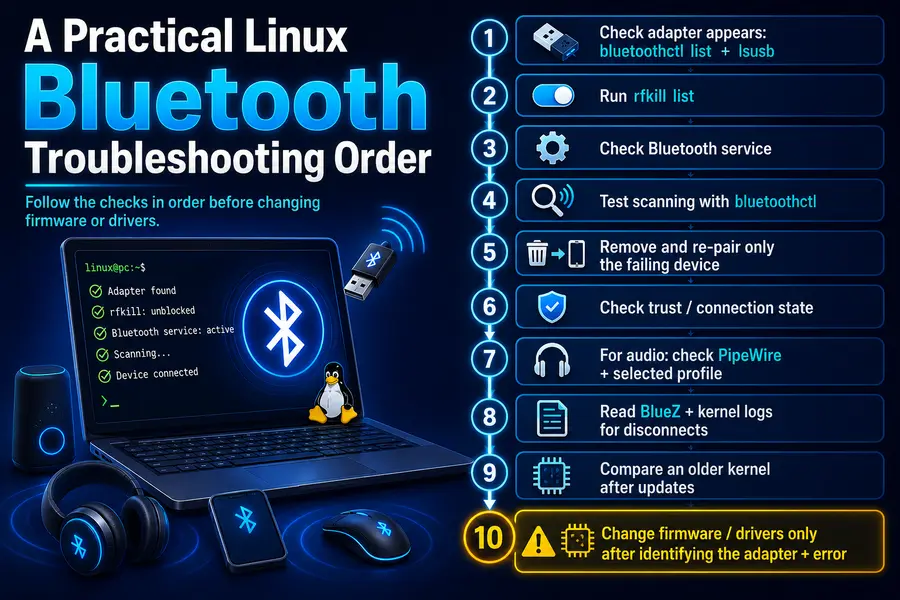
Use this order:
- Check whether the adapter appears with
bluetoothctl listandlsusb. - Run
rfkill list. - Check the Bluetooth service.
- Test scanning with
bluetoothctl. - Remove and re-pair only the failing device.
- Check trust/connection state.
- For audio, check PipeWire and the selected profile.
- Read BlueZ and kernel logs for repeated disconnects.
- Compare an older kernel if the problem began after an update.
- Change firmware or drivers only after identifying the adapter and error.
That separates hardware, radio state, BlueZ, pairing, and device profiles instead of treating them as one problem.
BlueZ, bluetoothctl and PipeWire: What Each One Does
BlueZ is the official Linux Bluetooth protocol stack.
bluetoothctl is a command-line interface used to interact with BlueZ controllers and devices.
PipeWire/WirePlumber become relevant when the Bluetooth device is used for audio.
A headset that pairs correctly but produces no sound may therefore need audio troubleshooting, while a missing controller requires a lower-level Bluetooth check.
Official References Worth Checking
Useful primary documentation includes:
- BlueZ
- BlueZ documentation
- Linux kernel Bluetooth documentation
- your Linux distribution’s Bluetooth and firmware documentation.
Bluetooth troubleshooting becomes much easier when you first decide whether the adapter is missing, the radio is blocked, pairing is failing, or a connected device is misbehaving. Fix that layer instead of resetting everything.