

Linux Audio Troubleshooting guide steps are easier to follow when you first work out where the sound problem actually starts. No sound, missing microphones, HDMI audio, Bluetooth issues, and PipeWire failures can look similar at first, but they often have completely different causes.
You might have working speakers but silent headphones, a microphone that appears in settings but does nothing in one app, or a sound device that suddenly disappears after an update or suspend. In other cases, PipeWire is working fine and the problem is lower down with ALSA, the kernel, or the hardware itself.
The best approach is to check the audio stack one layer at a time and stop when you find the first place where the expected device is missing or behaving incorrectly.
Before changing anything: do not start by deleting configuration folders, reinstalling ALSA, or replacing PipeWire with another audio server. If sound worked recently, first identify what changed and where the device stops appearing.
Quick Diagnosis: Match the Symptom to the Right Check
A few minutes spent identifying the symptom can save a lot of unnecessary changes.
| What is happening? | Check first |
|---|---|
| No sound from any application | Output device, mute state, PipeWire/WirePlumber |
| Headphones work but speakers do not | Output profile and ALSA mixer |
| Speakers work but HDMI has no sound | HDMI output and profile |
| Microphone is missing | Input source and ALSA capture device |
| Microphone works in settings but not one app | Application device selection or permissions |
| Sound disappears after suspend | PipeWire/WirePlumber user services |
| Bluetooth audio suddenly sounds poor | Bluetooth profile and microphone use |
| Audio crackles or drops out | Bluetooth/USB path, system load, kernel or driver |
| Only “Dummy Output” is available | Hardware → ALSA → PipeWire detection |
| Only one application has no sound | Per-application routing and volume |
If music, browser audio and system sounds all work but one program is silent, the Linux audio stack is probably fine. Troubleshoot that application before making system-wide changes.
1. Check the Selected Output, Volume and Mute State
Open your desktop environment’s Sound settings before reaching for the terminal.
Confirm that:
- the master output is not muted;
- the application you are testing is not muted;
- the correct output device is selected;
- the correct microphone is selected under input devices;
- external speakers or headphones are connected properly;
- your monitor or TV actually supports audio over HDMI or DisplayPort;
- Bluetooth headphones are connected as an audio device, not merely paired.
A laptop can expose built-in speakers, headphones, HDMI, a USB headset, a dock and Bluetooth at the same time. Connecting a monitor or dock can quietly change the preferred output. If the problem started after connecting new hardware, disconnect it briefly and test again. Also try more than one application so you know whether the problem is system-wide.
2. See What PipeWire and WirePlumber Can Actually Detect
On systems using PipeWire, one of the most useful first commands is:
wpctl statusRun it as your normal user. Do not add sudo.
Look under Devices, Sinks, Sources and Streams. A sink is normally an output, a source is an input, and a stream belongs to an application. Find the device you expect to use.
If your speakers, USB interface or microphone appears in wpctl status, Linux has already detected it far enough for PipeWire to work with it. The remaining problem is more likely to be routing, a profile, mute state or application settings.
If the expected device is completely absent, do not keep changing volume controls. Move down the stack and check whether ALSA and the kernel can see the hardware.
You can also change the default output from the terminal. Note the device ID from wpctl status, then use:
wpctl set-default IDReplace ID with the number shown on your machine.
To make sure the current default output is not muted:
wpctl set-mute @DEFAULT_AUDIO_SINK@ 0To set its volume to a reasonable test level:
wpctl set-volume @DEFAULT_AUDIO_SINK@ 70%Avoid setting extremely high software amplification while troubleshooting. It can turn a simple routing problem into a very loud surprise when the correct device comes back.
3. Check Whether PipeWire and WirePlumber Are Running
If all audio disappears at once, or devices vanish after suspend, docking or reconnecting hardware, check the user services.
systemctl --user status pipewireThen:
systemctl --user status wireplumberOn many distributions you may also have the PulseAudio compatibility service:
systemctl --user status pipewire-pulseLook for an active (running) state. If PipeWire or WirePlumber is present but clearly stuck, a user-session restart is a reasonable test:
systemctl --user restart pipewire wireplumberIf your system provides pipewire-pulse, restart it as well:
systemctl --user restart pipewire-pulseThis can help after suspend/resume, reconnecting a USB interface, switching docks or changing Bluetooth devices. If it is required after every boot, treat that as a symptom and check the logs later in this guide.
4. Check Whether ALSA and the Kernel Can See the Hardware
When a device is missing from PipeWire, move closer to the hardware.
For PCI or PCIe audio devices:
lspci -k | grep -A3 -i audioFor USB audio hardware:
lsusbThen ask ALSA which playback devices it sees:
aplay -lFor capture devices such as microphones:
arecord -lThe result helps narrow the problem quickly.
| What you find | What it suggests |
|---|---|
Hardware appears in lspci/lsusb and aplay -l | Kernel and ALSA probably see it; check PipeWire/profile/routing |
Hardware appears in lspci but not aplay -l | Driver, firmware or device initialization issue |
ALSA sees the device but wpctl does not | PipeWire/WirePlumber or user configuration |
| Neither hardware tools nor ALSA see it | BIOS/UEFI, physical hardware, firmware or kernel-level issue |
Reinstalling PipeWire will not fix an audio controller the kernel never detected.
5. Check ALSA Mixer When the GUI Looks Fine
Desktop volume controls do not expose every hardware mixer channel.
Open ALSA’s mixer:
alsamixerIf the machine has several sound cards, press F6 and choose the one you want to inspect.
Look for channels such as:
- Master
- Speaker
- Headphone
- PCM
- Front
- Auto-Mute
A channel displaying MM is usually muted. Highlight it and press M to toggle mute.
This is especially useful when headphones work but built-in speakers do not. Change only the controls that make sense for the affected output and test after each change.
6. Check the Audio Profile, Not Just the Device Name
One physical audio device can expose several profiles. Depending on the hardware, you might see options such as:
- Analog Stereo Output
- Analog Stereo Duplex
- Digital Stereo HDMI
- Pro Audio
- High Fidelity Playback
- Headset or hands-free profiles
The wrong profile can make a working device look broken. An output-only profile may hide the microphone, while HDMI or Bluetooth profiles can change which ports are available. Check the profile in your desktop Sound settings first; pavucontrol can also make these choices easier to see.
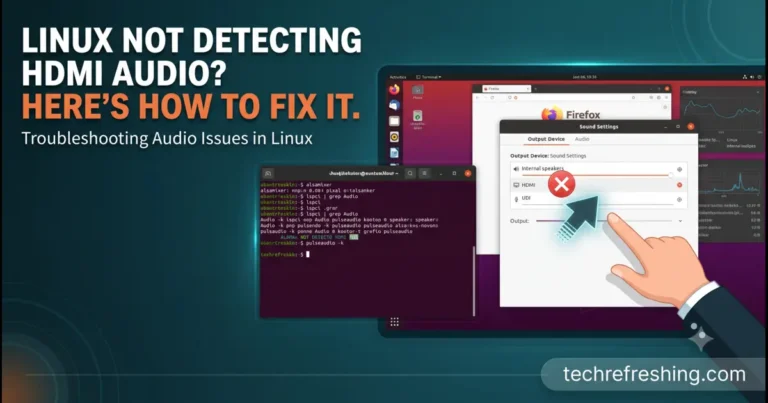
7. Fix HDMI or DisplayPort Audio That Is Missing
HDMI audio is often tied to the graphics device, so it can behave differently from the laptop’s internal sound card.
Start with:
wpctl statusLook for an HDMI or DisplayPort sink. Then compare it with:
aplay -lIf ALSA sees HDMI audio but your desktop does not offer it as a usable output, check the selected audio profile.
Also confirm that:
- the display is powered on;
- the monitor or TV actually has speakers or audio output;
- the correct HDMI/DisplayPort port is selected;
- the monitor itself is not muted;
- the correct digital audio profile is active;
- the graphics driver loaded normally.
With several display connectors, try the available HDMI outputs rather than assuming the first one belongs to the connected screen.
8. Fix a Linux Microphone That Is Missing or Silent
First check whether PipeWire lists the microphone:
wpctl statusLook under Sources.
Make sure the current default source is not muted:
wpctl set-mute @DEFAULT_AUDIO_SOURCE@ 0Then open your desktop’s input settings and speak into the microphone.
If the input meter moves there but not inside the application, the microphone hardware and most of the Linux audio path are already working. Check the application’s microphone selection and permissions instead.
Browsers, conferencing apps, Flatpak applications and recording software can all have their own input choices.
If the desktop meter does not move, run arecord -l. If ALSA does not list the microphone either, the problem is lower in the stack than a browser permission.
Test recording outside the affected application
On PipeWire systems where the tools are installed, record a short sample:
pw-record test.wavSpeak for a few seconds, stop with Ctrl+C, then play it:
pw-play test.wavIf the recording sounds normal, focus on the application rather than rebuilding the audio stack.
9. Bluetooth Headphones Sound Bad or Keep Switching Quality
Bluetooth audio can change profiles depending on what an application is doing.
If headphones sound good while listening to music but suddenly become noticeably worse during a call, check whether an application has activated the headset microphone and caused a profile change.
Also try the simple checks:
- disconnect and reconnect the headset;
- close applications that may be holding the microphone open;
- check the headset battery;
- remove and pair the device again if the saved pairing is unreliable;
- test closer to the computer;
- reduce heavy 2.4 GHz interference when possible.
If wired playback is clean and only Bluetooth crackles, troubleshoot Bluetooth first rather than changing global PipeWire settings.
10. Fix Crackling, Popping or Audio Dropouts
Crackling can come from several places, so identify the pattern before changing settings.
Ask yourself:
- Does it happen through both speakers and headphones?
- Is it limited to Bluetooth?
- Does it affect only a USB interface?
- Does it appear under heavy CPU or GPU load?
- Did it start after a kernel update?
- Does only one application trigger it?
A quick audio-session restart is a useful comparison test:
systemctl --user restart pipewire wireplumberThen check system load:
topor, if installed:
htopFor USB interfaces, try another port and test without an unreliable unpowered hub. If the issue started immediately after a kernel update, booting a previously working kernel can help confirm whether you are dealing with a regression.
Change one thing at a time so you can tell which change actually affected the problem.
11. What “Dummy Output” Usually Means
Seeing only Dummy Output is different from simply having the wrong speakers selected. It normally means the desktop audio layer does not currently have a normal playback device available.
Work through the stack in this order:
lspci -k | grep -A3 -i audioaplay -lwpctl statussystemctl --user status pipewiresystemctl --user status wireplumberUse the first point of failure to decide what to investigate next.
| Result | Likely area |
|---|---|
| Audio controller missing from hardware tools | Hardware, BIOS/UEFI, firmware or kernel |
| Controller exists but ALSA has no playback device | Kernel driver or firmware |
| ALSA sees the card but PipeWire does not | PipeWire/WirePlumber configuration or service |
| PipeWire sees the device but desktop does not | Profile, routing or desktop session |
| Everything sees the device but one app fails | Application configuration |
That is more reliable than using a list of fixes written for a different distribution and audio stack.
12. Read the Logs Before Reinstalling Packages
When the basic checks do not explain the problem, look for actual errors.
For PipeWire:
journalctl --user -u pipewire --since todayFor WirePlumber:
journalctl --user -u wireplumber --since todayFor kernel-level audio messages:
dmesg | grep -iE 'audio|snd|hda'Permissions for kernel logs vary by distribution. Look for service crashes, missing firmware, codec failures, repeated disconnects or driver errors. One specific error is more useful than many unrelated repair commands.
13. If Audio Broke After a Kernel or Distribution Update
Linux audio drivers live largely in the kernel, while PipeWire, WirePlumber, firmware and desktop components can change during a distribution upgrade.
If the timing is obvious, use it as evidence.
After a kernel update:
- confirm which device is failing;
- check whether it still appears in
lspci,aplay -landwpctl status; - read the kernel log;
- if your distribution keeps an older kernel, boot it once for comparison.
If audio works under the previous kernel, investigate a regression. After a full distribution upgrade, also revisit old custom PipeWire, WirePlumber or PulseAudio-era configuration.
14. Do Not Reinstall the Entire Audio Stack Too Early
Reinstalling audio packages is sometimes justified, but it should come after diagnosis, not before it.
Avoid making these your first move:
- deleting every PipeWire configuration directory;
- replacing PipeWire with PulseAudio;
- removing ALSA packages;
- installing random kernel modules from forum posts;
- copying configuration written for a much older distribution;
- running a large repair script you have not read.
If sound worked yesterday, ask what changed: a dock, display, Bluetooth headset, kernel, firmware package or desktop update can be the best clue.
A Practical Linux Audio Troubleshooting Order
When you are unsure where to begin, follow this sequence:
- Check volume, mute and the selected input/output.
- Test more than one application.
- Run
wpctl status. - Check PipeWire and WirePlumber services.
- Check the device profile.
- Run
aplay -landarecord -l. - Check hardware with
lspci -korlsusb. - Inspect
alsamixer. - Test recording or playback outside the affected application.
- Read PipeWire, WirePlumber and kernel logs.
- Only then consider driver, kernel or configuration changes.
The goal is to find the first layer where the expected device stops appearing or behaving normally.
PipeWire, PulseAudio and ALSA: What Each One Does
ALSA sits close to the kernel and the audio hardware. If ALSA cannot see the sound card, a desktop volume control is unlikely to fix the underlying problem.
PipeWire manages audio and other media streams on many current Linux desktops.
WirePlumber handles session and policy management for PipeWire, including how devices and streams are connected.
PulseAudio was the standard desktop audio server on many distributions for years. PipeWire systems commonly provide PulseAudio compatibility so applications that expect those interfaces continue to work.
For a deeper comparison, see PipeWire vs PulseAudio. Replacing one with the other should not be the first response to a muted speaker, missing HDMI output or incorrect microphone selection.
Official References Worth Keeping Handy
Useful primary references include:
A Linux sound problem is much easier to solve once you know which layer is failing. Start with the output you can see, work down toward the hardware, and make the smallest change that actually addresses the evidence in front of you.