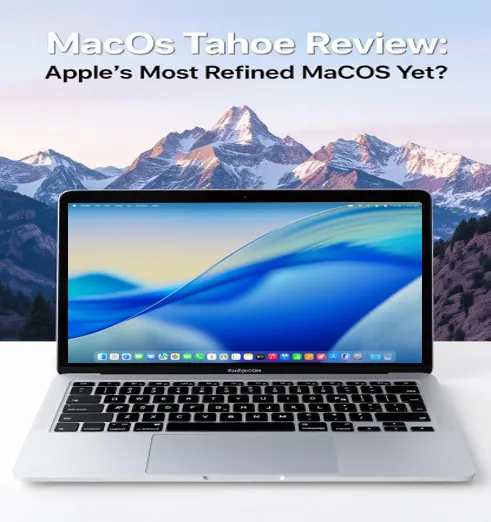
macOS Tahoe Review Apple’s Most Refined macOS Yet (1)
Apple’s macOS Tahoe (version 26) has officially landed, and it’s making waves with its sleek new design, enhanced productivity features, and deeper integration with the Apple ecosystem. Announced at WWDC 2025 on June 9 and released on September 15, 2025, macOS Tahoe introduces a visually striking Liquid Glass design, a revamped Spotlight, and a host of intelligent features powered by Apple Intelligence. But does it live up to the hype?
In this detailed macOS Tahoe Review, I’ll dive into everything that’s new, what works, what doesn’t, and whether this is truly Apple’s most refined macOS yet. Buckle up for a comprehensive look at macOS Tahoe, optimized for anyone searching for a macOS Tahoe Review to decide if it’s worth the upgrade.
A Fresh Look with Liquid Glass: Aesthetic Overhaul or Subtle Refresh?
The first thing you’ll notice when firing up macOS Tahoe is its bold new aesthetic, dubbed Liquid Glass. Apple describes this as a “translucent material that reacts to its surroundings,” and it’s a unifying design language across iOS 26, iPadOS 26, and macOS 26. The macOS Tahoe Review wouldn’t be complete without dissecting this visual overhaul, as it’s the most immediate change for users.
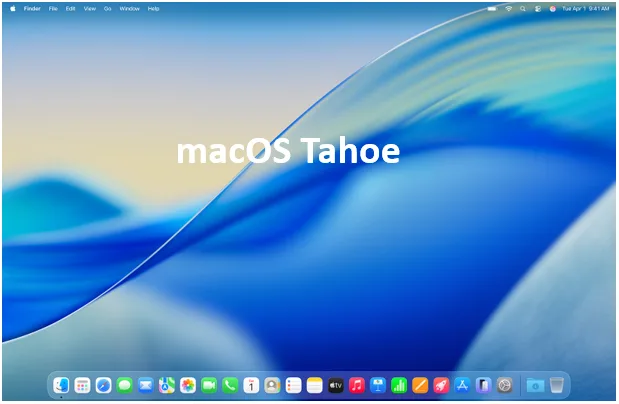
Liquid Glass brings a glossy, semi-transparent look to elements like the Dock, app icons, sidebars, toolbars, and the menu bar. The menu bar, in particular, is fully transparent by default, making your desktop feel larger and more immersive. Toolbars in apps like Finder and Pages now float with a frosted-glass effect, reflecting and refracting content in real time. It’s visually stunning at first glance, with rounded corners and vibrant colors that echo the design cues of Apple’s Vision Pro headset. However, after spending some time with it, I found the transparency can be a double-edged sword.
While the aesthetic is fresh and modern, some users might find the transparent Dock icons confusing. I struggled to distinguish between apps at a glance, especially when they’re set to the “clear” look. Thankfully, Apple lets you toggle off the transparency in System Settings under Appearance, which I ended up doing after a week. The macOS Tahoe Review consensus from early adopters on platforms like Reddit suggests I’m not alone—some love the glossy vibe, while others find it distracting. If you’re someone who prioritizes function over form, you might prefer to tone down the Liquid Glass effects.
Beyond aesthetics, Liquid Glass isn’t just a pretty face. It’s designed to draw focus to your content by making controls less obtrusive. For example, buttons in apps now float over windows, and sidebars have a nested, drop-shadowed look that adds depth. It’s a subtle shift, but it makes your workspace feel more cohesive and less cluttered—once you get used to it.
Customization Options Galore
One of the standout features in this macOS Tahoe Review is the unprecedented level of personalization. Apple has finally given Mac users the tools to make their system their own. You can now customize folder icons with unique colors, emojis, or symbols, making it easier to spot the right folder at a glance. App icons can be set to light, dark, tinted, or clear modes, and you can choose a distinct accent color for buttons and highlights separate from your text highlight color. The Control Center and menu bar are also fully customizable, letting you add or remove controls, including third-party ones. Want a Shazam button in your menu bar? Now you can have it.
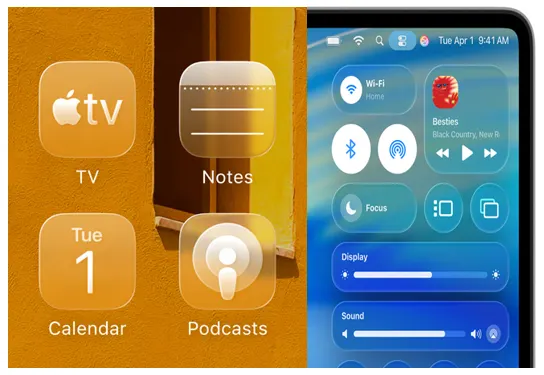
This level of flexibility is a first for macOS, reminiscent of the old Mac OS Appearance Manager. It’s a welcome change for power users who want their Mac to reflect their style and workflow. However, the tinted icon option, borrowed from iOS, has received mixed feedback. Some reviewers, including those at WIRED, called it “tacky,” and I tend to agree—it can look out of place on a professional desktop setup.
Spotlight: The Powerhouse of Productivity
If Liquid Glass is the face of macOS Tahoe, Spotlight is its brain. In this macOS Tahoe Review, Spotlight’s overhaul deserves a spotlight of its own (pun intended). Apple has supercharged its search tool, making it smarter, faster, and more actionable than ever. For anyone searching for a macOS Tahoe Review to understand its productivity boosts, Spotlight is a game-changer.
Hitting Command + Space now brings up a revamped Spotlight interface that groups results by relevance and offers new filters like PDF, Folders, and Notes. It supports natural language queries, so you can type “photos from last week” or “email from John” and get accurate results. Spotlight also searches across more areas, including browser tabs, text messages, screenshots, and even your iPhone if it’s connected. As a longtime Windows user, I found this reminiscent of the Windows 11 Start menu search but arguably more intuitive.
The real magic lies in Spotlight’s new Quick Actions. You can now perform tasks like sending an email, creating a calendar event, or adding a reminder without opening the respective app. For example, typing “send email to Sarah” in Spotlight pulls up a compose window instantly. You can assign custom shortcuts to these actions, like “anr” for “add new reminder,” making repetitive tasks a breeze. The macOS Tahoe Review community on X has been buzzing about this feature, with users praising its Alfred-like functionality without the need for third-party apps.
Another gem is the Clipboard History, accessible via Command + 4 in Spotlight. It stores up to eight hours of copied text, files, and screenshots, letting you paste any item from the recent past. As someone who’s accidentally overwritten a copied link, this feature is a lifesaver. However, it’s not perfect—after eight hours, the history wipes, unlike third-party clipboard managers that store items indefinitely. Also, on shared Macs, there’s a slight privacy risk if sensitive data is copied, so use it wisely.
Apple Intelligence: Smarter, Not Overwhelming
Apple Intelligence is deeply woven into macOS Tahoe, and this macOS Tahoe Review wouldn’t be complete without exploring its AI enhancements. Unlike some AI integrations that feel tacked on, Apple’s approach is subtle yet powerful. Most features run on-device for privacy, with heavier tasks offloaded to Apple’s Private Cloud Compute. You can also opt to use ChatGPT for certain tasks, though this sends data to OpenAI (without being used for training).
One of the standout AI features is in the Notes app, which now supports live call transcription. As a journalist, I can’t overstate how useful this is. Dropping an audio file into Notes or opening the app during a FaceTime call transcribes the conversation in real time, saving hours of manual work. The transcription quality is impressive, rivaling dedicated apps.
Reminders also gets an AI boost. Apple Intelligence can scan emails, websites, or notes to suggest action items and categorize them automatically. For example, if an email mentions a deadline, Tahoe can prompt you to create a Reminder for it. This feature is a productivity win for anyone juggling multiple tasks.
The Shortcuts app now integrates with Apple Intelligence, allowing you to create automations that tap AI models. You can set triggers like time of day, receiving an email, or adding a file to a folder to run AI-driven actions, such as generating images in Image Playground or adjusting text tone. While I’m not a Shortcuts expert, the possibilities here are exciting, though some actions (like Safari Tab Group switching) are still buggy.
Phone App and Continuity: Your iPhone on Your Mac
One of the most practical additions in macOS Tahoe is the new Phone app, which brings iPhone calling features to the Mac. This macOS Tahoe Review highlights how Continuity has reached new heights. You can access Recents, Contacts, and Voicemails directly on your Mac, make calls via Wi-Fi, and use features like Call Screening (which transcribes unknown callers’ messages) and Hold Assist (which notifies you when a live agent picks up). These are lifesavers for anyone stuck in customer service queues.
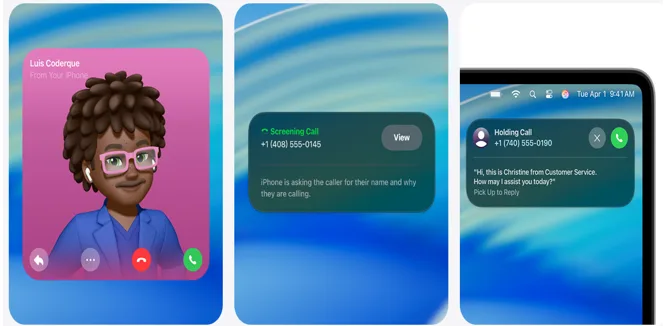
Live Activities from your iPhone now sync to the Mac’s menu bar, showing real-time updates like flight statuses or Uber ETAs. This reduces the need to check your phone, keeping you focused. However, the macOS Tahoe Review community has raised concerns about the expanded attack surface—hacking one device could potentially access data across the ecosystem. Apple’s Zero Trust approach and on-device processing mitigate this, but it’s worth keeping in mind.
Other Notable Features
- Messages: New polls, customizable chat backgrounds, and live translation for multilingual conversations make Messages more versatile. Spam and Unknown Senders are filtered into separate categories, reducing notification clutter.
- Apple Games App: A new hub for gaming with editorial content and cloud saves. It’s a nice addition for casual gamers, though not a game-changer.
- Journal App: Finally on macOS, with map views and multiple journal management. It’s great for long-form typing on a MacBook.
- Accessibility: Features like Vehicle Motion Cues, a system-wide Accessibility Reader, and Braille display support make Tahoe more inclusive.
- Terminal: Now supports 24-bit color and Powerline fonts, a boon for developers.
Compatibility and Performance
macOS Tahoe runs on all Apple Silicon Macs (M1 and later) and select Intel-based models, including the 2019 MacBook Pro (16-inch), 2020 MacBook Pro (13-inch, four Thunderbolt 3 ports), 2020 iMac, and 2019 Mac Pro. This is the last macOS to support Intel Macs, with limited features like Apple Intelligence unavailable on these models. If you’re on an older Intel Mac, you might want to stick with macOS Sequoia for now, as security updates will continue until 2028.
Performance-wise, Tahoe feels snappy on my M4 MacBook Air. Apple’s benchmarks show improved page load times in Safari 26.0 and better disk read/write speeds with the new Apple Sparse Image Format (ASIF), making Windows emulation in Parallels Desktop faster than on native Intel PCs.
The Downsides: Bugs and Missing Features
No macOS Tahoe Review would be honest without addressing the rough edges. The removal of Launchpad in favor of an iOS-style Applications interface has sparked debate. While the new interface organizes apps by category, some users miss the simplicity of Launchpad.
During the beta phase, I encountered occasional bugs, like Shortcuts timing out or Safari Tab Group automations failing. These issues persist in the final release for some users, so if you rely heavily on these features, consider waiting for macOS 26.1.
The macOS Tahoe Review community on Reddit also notes stability concerns, with some enterprise users recommending a wait for a point release to avoid workflow disruptions. If you depend on mission-critical apps, check compatibility before upgrading.
Should You Upgrade? The Verdict
So, is macOS Tahoe Apple’s most refined macOS yet? In many ways, yes. The Liquid Glass design, while polarizing, brings a fresh look that’s both functional and visually appealing. Spotlight’s overhaul and Apple Intelligence integrations make Tahoe a productivity powerhouse, and the Phone app’s Continuity features blur the line between Mac and iPhone in a seamless way. The customization options are a long-overdue nod to power users, and accessibility improvements show Apple’s commitment to inclusivity.
However, the macOS Tahoe Review reveals it’s not perfect. The transparency effects can be distracting, some features are buggy, and the loss of Launchpad might annoy longtime Mac users. If you’re on an Intel Mac, the limited feature set and impending end of support are worth considering.
For most users, I recommend installing macOS Tahoe but waiting a few weeks to let Apple iron out initial bugs. Back up your Mac, check app compatibility, and dive in. If you’re a productivity nerd or love tinkering with automations, Tahoe’s Spotlight and Shortcuts upgrades alone make it worth the free update. For a deeper dive, check Apple’s official macOS Tahoe page or 9to5Mac’s roundup for more details.
How to Install macOS Tahoe
Ready to try it? Here’s how to upgrade:
- Open System Settings > Software Update.
- If macOS Tahoe is available, click Upgrade Now. Ensure you have 10.74 GB of free storage.
- Back up your Mac using Time Machine to avoid data loss.
- Expect the download and installation to take about 30 minutes, depending on your connection.
For beta testers, the public release should be a smooth transition. If you’re cautious, test Tahoe on a separate APFS volume to preserve your current setup.
Final Thoughts
In this macOS Tahoe Review, I’ve explored how Apple has balanced aesthetics, productivity, and ecosystem integration to create a compelling update. While not as revolutionary as iOS 26, macOS Tahoe feels like a love letter to Mac users who want both style and substance. It’s not flawless, but it’s a significant step forward. Have you upgraded yet? Share your thoughts in the comments —I’d love to hear how Tahoe’s working for you!
Disclaimer
This macOS Tahoe Review is based on personal experiences, official Apple documentation, and publicly available information as of September 16, 2025. The opinions expressed are my own and are intended for informational purposes only. While I strive to provide accurate and up-to-date details, features, performance, and compatibility may vary depending on your device, configuration, or software version. Always back up your data and verify app compatibility before upgrading to macOS Tahoe.
For the latest information, refer to Apple’s official website or support channels. I am not affiliated with Apple, and this review does not constitute professional advice. Use macOS Tahoe at your own discretion.
Also Read
iOS 26 Review: Stunning New Features & Performance Unveiled!
About the Author