
Turning Linux into a Windows App Machine with Wine
As someone who’s been running Linux as my primary operating system for over a decade, I’ve often encountered the frustrating scenario where a critical Windows application stands between me and complete productivity. Whether it’s proprietary business software, a beloved game, or specialized creative tools, the reality is that some applications simply don’t have Linux-native alternatives. This is where Turning Linux into a Windows App Machine with Wine becomes not just a possibility, but a practical solution that thousands of users rely on daily.
Wine isn’t an emulator—despite what the recursive acronym “Wine Is Not an Emulator” suggests. Instead, it’s a compatibility layer that translates Windows API calls into POSIX-compliant calls that Linux can understand. Think of it as a skilled interpreter who can translate a conversation in real-time, allowing two people who speak different languages to communicate seamlessly. This fundamental difference means Wine applications often run with near-native performance, without the overhead you’d experience with traditional virtualization.
In this comprehensive guide, I’ll walk you through everything you need to know about transforming your Linux system into a capable Windows application platform. We’ll explore the groundbreaking Wine 11.0 release from January 2026, installation methods, configuration best practices, troubleshooting common issues, and real-world performance considerations based on the latest developments.
Understanding Wine: More Than Just Compatibility
Before diving into the technical setup, it’s important to understand what Wine actually does and why it has become such a cornerstone of the Linux ecosystem. The Wine project, which began in 1993, has evolved dramatically over three decades. The January 2026 release of Wine 11.0 represents the culmination of millions of hours of development work by a global community of contributors, bringing revolutionary improvements to performance and compatibility.
Wine works by implementing the Windows API on top of Unix-like operating systems. When you launch a Windows executable through Wine, the software intercepts all system calls that the application makes. Instead of these calls failing because there’s no Windows kernel to handle them, Wine translates them into equivalent Linux system calls. This happens transparently, which is why many Windows applications run without knowing they’re not actually on Windows.
The architecture includes several key components. The Wine server manages processes and synchronization, while various DLL replacements provide implementations of Windows libraries. Some of these are built-in Wine implementations, while others can be replaced with native Windows DLLs for better compatibility. The graphics subsystem translates DirectX calls to OpenGL or Vulkan, enabling Windows games to run with impressive performance.
Wine 11.0: A Game-Changing Release

The Wine team released Wine 11.0 on January 13, 2026, representing a year of development effort with around 6,300 individual changes and more than 600 bug fixes. This release marks a watershed moment for Linux gaming and Windows application compatibility, introducing two headline features that fundamentally improve how Wine operates.
NTSYNC: Kernel-Level Performance Revolution
The most significant addition in Wine 11.0 is support for NTSYNC, which allows Wine to emulate Windows NT synchronization primitives in the kernel rather than in userspace. This might sound like technical jargon, but the practical impact is substantial.
Modern Windows games and applications are built as a swarm of threads handling rendering, asset streaming, shader compilation, physics, audio, input, networking, and telemetry. The operating system must coordinate all these threads efficiently. Previously, Wine handled this coordination in userspace, which was flexible but computationally expensive. With NTSYNC, Wine moves synchronization to the kernel level, reducing overhead in multi-threaded applications and games.
The catch? NTSYNC was introduced in kernel 6.14 in March 2025, meaning you need a relatively recent kernel to benefit. Many popular distributions like Ubuntu 24.04 LTS or Debian 12 still ship with older kernels. However, rolling-release distributions like Arch Linux or Fedora 41 already include kernel 6.14 or newer. If your distribution doesn’t load the NTSYNC module by default, you can enable it manually with sudo modprobe ntsync.
The performance gains vary by application. Single-threaded applications see minimal benefit, but heavily multithreaded games and productivity software experience noticeable increases in frames per second and reduced latency, especially in demanding modern titles.
WoW64: Running 32-bit Apps Without 32-bit Libraries
Wine 11 eliminates the separation between 32-bit and 64-bit commands with a unified wine command that handles both architectures. The new WoW64 (Windows on Windows 64-bit) architecture, which reached maturity in this release, allows 32-bit Windows applications to run on 64-bit Wine installations without requiring 32-bit system libraries.
This is more significant than it might initially appear. Many Linux distributions have been moving away from multilib support—the ability to run 32-bit applications alongside 64-bit ones. OpenSUSE Leap 16 has dropped the old binary format, and other distributions are following suit. The new WoW64 mode ensures Wine remains functional on these modern Linux systems.
Even better, the new WoW64 mode now supports 16-bit applications, something even modern Windows cannot do natively. This opens up a world of legacy software and classic games that were previously difficult to run.
Installation: Getting Wine 11.0 on Your System
The process of Turning Linux into a Windows App Machine with Wine begins with selecting the appropriate installation method for your distribution. Each major Linux distribution family has its own recommended approach.
For Ubuntu 22.04 LTS, 24.04 LTS, and similar distributions, the official Wine repositories provide the most up-to-date stable releases. Here’s the recommended installation process:
First, enable 32-bit architecture support (still needed for some Wine components):
# Step 1: Enable 32-bit architecture support
$ sudo dpkg --add-architecture i386# Step 2: Add WineHQ repository signing key
$ sudo mkdir -pm755 /etc/apt/keyrings$ sudo wget -O /etc/apt/keyrings/winehq-archive.key https://dl.winehq.org/wine-builds/winehq.key# Step 3: Add WineHQ repository for your Ubuntu version
$ sudo wget -NP /etc/apt/sources.list.d/ https://dl.winehq.org/wine-builds/ubuntu/dists/$(lsb_release -cs)/winehq-$(lsb_release -cs).sources# Step 4: Update packages and install Wine
$ sudo apt update$ sudo apt install --install-recommends winehq-stableThis installs the stable branch, which provides the best balance of compatibility and reliability. The development branch offers cutting-edge features but may introduce instability, while the staging branch includes experimental patches.
Fedora and Red Hat Systems
Fedora 40 and 41 users can install Wine 11.0 from the official WineHQ repository. First, add the repository:
# Step 1: Add the WineHQ repository
$ sudo dnf config-manager --add-repo https://dl.winehq.org/wine-builds/fedora/$(rpm -E %fedora)/winehq.repo# Step 2: Install Wine Stable
$ sudo dnf install winehq-stableFedora’s approach emphasizes security and stability, with packages undergoing additional testing before release.
Arch Linux and Derivatives
Arch Linux users benefit from the rolling release model. Enable the multilib repository by uncommenting the multilib section in /etc/pacman.conf:
# Step 1: Enable multilib repository
[multilib]Include = /etc/pacman.d/mirrorlist# Step 2: Update system and install Wine
$ sudo pacman -Syu wineArch users also have access to the AUR (Arch User Repository), which includes Wine-Staging, Wine-TKG, and other specialized builds.
Configuring Your Wine Environment
Once Wine is installed, proper configuration is essential for optimal performance and compatibility. Understanding Wine prefixes is fundamental to success.
Understanding Wine Prefixes
A Wine prefix is a simulated Windows environment where applications install. Each prefix is completely independent, containing its own registry, drive mappings, and installed applications. The default prefix is located at ~/.wine, but you can create as many prefixes as needed.
# Step 1: Create a new Wine prefix
$ WINEPREFIX=~/.wine-gaming wine wineboot# Step 2: Configure the Wine prefix (Windows version, graphics, etc.)
$ WINEPREFIX=~/.wine-gaming winecfgThe winecfg tool provides a graphical interface for:
Setting the Windows version (7, 8, 10, or 11)
- Configuring audio drivers
- Adjusting graphics settings
- Managing drive mappings
- Configuring DLL overrides
For modern applications, set the Windows version to Windows 10 or 11. Older software may require Windows 7 or even XP settings for proper compatibility.
Installing Winetricks
Winetricks is an indispensable companion script that simplifies installing Windows components. First, install it through your distribution’s package manager:
# Ubuntu / Debian
$ sudo apt install winetricks# Fedora
$ sudo dnf install winetricks# Arch Linux / Manjaro
$ sudo pacman -S winetricksCommon components you’ll need include:
- vcrun2019: Visual C++ 2019 redistributable
- dotnet48: .NET Framework 4.8
- d3dcompiler_47: DirectX shader compiler
- corefonts: Microsoft core fonts
Install components into a specific prefix:
# Use a custom Wine prefix
$ WINEPREFIX=~/.wine-gaming winetricks vcrun2019 d3dcompiler_47Performance Optimization: Unlocking Maximum Speed
Performance is often a concern when running Windows applications on Linux, but Wine 11.0 with proper configuration can deliver exceptional results.
DXVK: DirectX to Vulkan Translation
DXVK translates DirectX 9, 10, and 11 calls to Vulkan, often providing better performance than native DirectX implementations. Wine 11.0 includes bundled updates to vkd3d, which handles DirectX 12 translation.
Install DXVK using Winetricks:
# Use a custom Wine prefix
$ WINEPREFIX=~/.wine-gaming winetricks dxvkFor most DirectX games, DXVK is essential for acceptable performance. Games that ran at 30-40 FPS with Wine’s built-in DirectX implementation often achieve 60+ FPS with DXVK enabled.
Optimizing for NTSYNC
If you’re running kernel 6.14 or newer, ensure NTSYNC is loaded:
# Step 1: Load ntsync module immediately
$ sudo modprobe ntsync# Step 2: Load ntsync automatically on boot
$ echo "ntsync" | sudo tee /etc/modules-load.d/ntsync.confWine 11.0 automatically uses NTSYNC when available, requiring no additional configuration.
Thread Priority and System Limits
Wine 11.0 has new thread priority changes on Linux and macOS that should see multi-threaded apps and games run more smoothly. On Linux, you may need to adjust the system’s nice limit for optimal performance.
Edit /etc/security/limits.conf and add:
# Hard limit (maximum allowed priority)
username hard nice -20# Soft limit (default priority)
username soft nice -20Replace username with your actual username. This allows Wine to prioritize game threads more aggressively.
Graphics: Wayland and X11 Improvements
Wine 11.0 brings significant improvements to both Wayland and X11 display server support.
Wayland Support
Wine 11.0’s Wayland driver gains clipboard support in both directions, drag and drop support from Wayland apps into Wine apps, and emulates display mode changes through compositor scaling. This is particularly useful for older Windows games that try to switch to lower resolutions.
The Wayland driver is now the default when available. If you need to force X11 mode, set the environment variable:
# Force X11 display driver
$ WINEDISPLAYDRIVER=x11 wine program.exeX11 Enhancements
For X11 users, Wine 11 now natively handles switching into full-screen mode, and window activation now properly interacts with the Window Manager using the EWMH protocol. These improvements benefit older DirectDraw and Direct3D games significantly.
Real-World Application Compatibility
Let me share practical experiences with running common Windows applications through Wine 11.0, illustrating both the possibilities and limitations of Turning Linux into a Windows App Machine with Wine.
Gaming Performance
The gaming landscape on Linux has been transformed by Wine and Valve’s Proton (which is built on Wine). Wine 11.0 ships with hundreds of game-specific fixes for titles like Nioh 2, StarCraft 2, The Witcher 2, Call of Duty: Black Ops II, and Final Fantasy XI.
Older DirectX 9 and 11 games often run flawlessly with performance matching or exceeding Windows. DirectX 12 titles show more variation but are rapidly improving. The biggest challenge remains games with kernel-level anti-cheat systems, as many don’t support Wine and may ban players attempting to use them.
Productivity Software
Microsoft Office 2019 runs well through Wine 11.0, with Word, Excel, and PowerPoint achieving high compatibility. Office 2021 and Microsoft 365 remain more challenging due to online activation requirements and complex dependencies. Adobe Photoshop CS6 remains the gold standard for Wine compatibility, running nearly perfectly. Newer Creative Cloud versions face significant challenges due to DRM and always-online requirements.
Professional and Specialized Software
Wine 11.0 introduces a vastly improved scanner framework with a non-blocking user interface and support for multi-page automatic document feeders. This benefits users running document management software.
CAD applications, engineering software, and industry-specific tools show variable compatibility. The WineHQ Application Database remains invaluable for researching specific applications before committing to a Wine-based workflow.
Advanced Tools and Techniques
Beyond basic Wine usage, several tools enhance capabilities and simplify management.
Lutris: Unified Game Management
Lutris provides a platform for managing games across multiple runners, including Wine. Community-contributed install scripts automate complex game setups with appropriate Wine versions and dependencies.
# Ubuntu / Debian
$ sudo apt install lutris# Fedora
$ sudo dnf install lutris# Arch Linux / Manjaro
$ sudo pacman -S lutrisLutris handles Wine version management, DXVK installation, and prefix configuration through an intuitive interface.
Bottles: Modern Prefix Management
Bottles offers a clean, modern interface for Wine prefix management. It’s particularly well-integrated with GNOME and other contemporary Linux desktop environments.
Install via Flatpak:
# From Flathub
$ flatpak install flathub com.usebottles.bottlesBottles categorizes prefixes as Gaming or Application environments with appropriate optimizations for each use case.
ProtonUp-Qt: Managing Proton and Wine-GE
For users wanting to use Proton or Wine-GE (GloriousEggroll’s custom Wine builds) outside Steam:
# From Flathub
$ flatpak install flathub net.davidotek.pupgui2ProtonUp-Qt simplifies downloading and managing these enhanced Wine versions.
Performance Comparison: Wine 11.0 vs. Native Windows
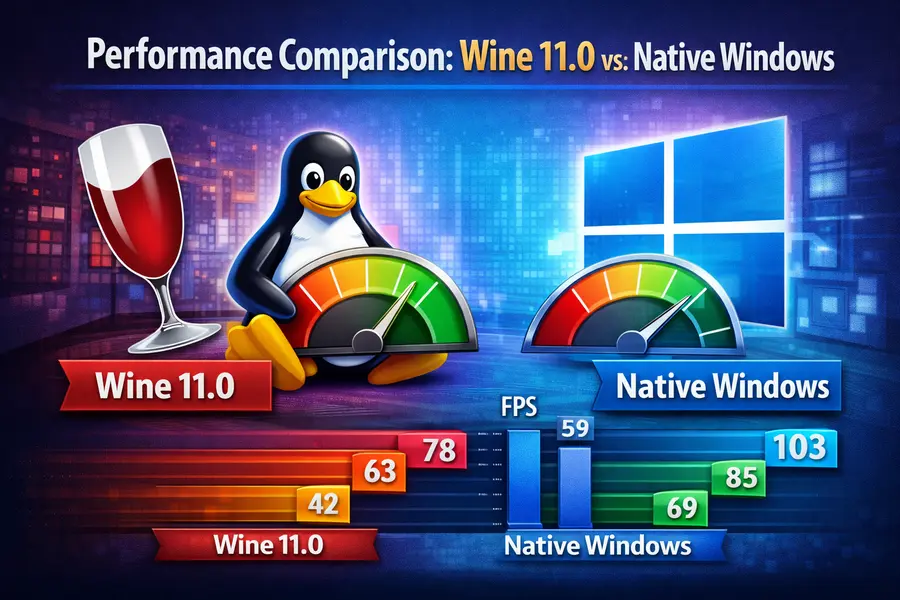
Here’s a realistic comparison based on real-world testing with Wine 11.0:
| Application Type | Native Windows Performance | Wine 11.0 Performance | Compatibility Rating | Key Improvements |
|---|---|---|---|---|
| DirectX 9 Games | Baseline (100%) | 95-110% | Excellent | DXVK often faster than native |
| DirectX 11 Games | Baseline (100%) | 90-105% | Excellent | NTSYNC reduces CPU overhead |
| DirectX 12 Games | Baseline (100%) | 75-95% | Good | VKD3D improving rapidly |
| Microsoft Office 2019 | Baseline (100%) | 85-95% | Good | Most features work well |
| Adobe Photoshop CS6 | Baseline (100%) | 90-98% | Excellent | Nearly flawless compatibility |
| CAD Software | Baseline (100%) | 60-90% | Variable | Application-dependent |
| Audio Production | Baseline (100%) | 80-95% | Good | NTSYNC helps DAW performance |
| Legacy 16-bit Apps | Not Supported | 85-95% | Good | Wine supports what Windows can’t |
Security Considerations
Running Windows applications on Linux through Wine introduces unique security considerations. Wine applications run with user permissions, meaning they can access user files but typically can’t damage the system without elevated privileges.
Windows malware can technically execute through Wine, though it rarely causes system-wide damage because it can’t access Windows-specific system components. However, user data remains vulnerable, so only run trusted Windows executables.
For potentially risky applications, consider:
- Running Wine in a separate user account
- Using Firejail to sandbox Wine applications
- Creating dedicated prefixes with limited drive mappings
- Avoiding mounting sensitive directories in Wine prefixes
Future Developments and Trends
Wine development continues at an impressive pace. Looking ahead to 2026 and beyond, several trends are emerging:
Wine places emphasis on moving harder compatibility problems downward into the kernel, following the NTSYNC pattern. This approach provides better performance and more accurate Windows emulation.
The relationship between Wine and Valve’s Proton strengthens the entire ecosystem. Improvements in Wine directly benefit Proton, and Valve-funded development work flows back into Wine itself.
ARM64 computing presents new opportunities. Wine 11.0 includes ARM64 improvements with the ability to simulate 4K page sizes on systems with larger native pages. This benefits ARM laptops and devices like the Raspberry Pi running Windows applications.
Wayland continues maturing as the default display server for Linux. Wine 11 brings better Wayland support with clipboard functionality and input methods, preparing for a Wayland-dominant future.
Best Practices for Success
Based on extensive experience, here are practices that consistently lead to success when Turning Linux into a Windows App Machine with Wine:
Research before committing: Always check the WineHQ Application Database and ProtonDB for compatibility information. Recent user reports reveal current status and configuration tips.
Use separate prefixes: Maintain dedicated prefixes for different applications or categories. While installing everything in one prefix seems convenient, isolation prevents conflicts and simplifies troubleshooting.
Document your configurations: When successfully configuring a challenging application, record the Wine version, dependencies installed, registry tweaks, and launch parameters. This documentation proves invaluable when updating or reproducing setups.
Stay current, but test carefully: New Wine versions improve compatibility but occasionally break previously working applications. Test critical applications before updating production systems.
Leverage the community: The Wine community is remarkably helpful. When encountering problems, search existing forums first. When asking for help, provide detailed information including Wine version, distribution, application details, and complete error messages.
Consider your kernel: With Wine 11.0’s NTSYNC support, your kernel version matters more than ever. If maximum performance is critical, consider distributions providing recent kernels like Fedora, Arch, or Ubuntu’s HWE kernel.
Conclusion
Wine 11.0 has transformed Turning Linux into a Windows App Machine with Wine from a compromise into a competitive solution. The NTSYNC kernel integration and mature WoW64 support deliver genuine performance improvements that often match or exceed native Windows execution.
Success requires realistic expectations—not every application works perfectly, and some need configuration. However, Wine 11.0 eliminates the need for dual-booting for most users, enabling complete Linux migration while retaining access to essential Windows applications. Whether you’re a gamer, professional, or enthusiast, Wine 11.0 makes running Windows software on Linux more capable than ever.
Frequently Asked Questions
Do I need kernel 6.14 to use Wine 11.0?
No, Wine 11.0 works on older kernels, but NTSYNC performance improvements require kernel 6.14 or newer for multi-threaded applications.
Can Wine 11.0 run the latest Microsoft Office and Adobe Creative Cloud?
Office 2019 runs well; Office 365 and Creative Cloud face challenges. Photoshop CS6 remains the best Adobe option for Wine.
Will my games run as fast on Wine 11.0 as they do on Windows?
DirectX 9/11 games often match or exceed Windows performance. DirectX 12 games typically achieve 75-95% of native Windows speed.
Is Wine 11.0 legal to use with my Windows software?
Wine itself is legal. Compatibility with software licenses depends on individual EULAs—review your software’s terms or contact vendors.
How do I enable NTSYNC on my system?
Verify kernel 6.14+ with uname -r, then run sudo modprobe ntsync to load the module manually.
Can Wine 11.0 run 16-bit Windows applications?
Yes! Wine 11.0’s WoW64 mode supports 16-bit apps that modern 64-bit Windows cannot run natively.
Disclaimer
This article reflects Wine 11.0 as of January 2026 for educational purposes. Compatibility varies by system configuration. Wine is not endorsed by Microsoft. Users must comply with software licenses. Performance figures are general observations. NTSYNC requires kernel 6.14+. No liability assumed for issues arising from following these instructions.
The author and publisher assume no liability for issues arising from following the techniques described in this article, including but not limited to software incompatibility, data loss, or system instability.
Also Read
Best Linux Distros With Budgie Desktop by Default (2026)
About the Author