
Slax Linux Returns After 3 Years, and the comeback is bigger than a routine update. On November 8, 2026, creator Tomáš Matějíček announced Slax 2026.11. It’s a Debian-based live distribution that fits in a 512 MiB ISO and is designed to run from a USB stick. The previous release was the October 2023 update, so the gap is just over three years.
In his announcement, the author says he honestly thought another Slax release might never come. This one brings a rebuilt desktop, a graphical installer for Windows and Linux, Secure Boot support, named USB sessions, and an optional AI assistant.
What Is Slax, and Who Is It For?
Slax is a “pocket operating system.” You write it to a USB drive, plug it into a computer, and boot straight into a Linux desktop without touching the internal disk. This is called a live system: it runs from the USB drive and memory, so the computer’s own operating system stays as it was.
The project has changed direction several times. It was originally Slackware-based, and DistroWatch notes it was later rebuilt on Debian’s stable branch. In a 2022 post, the author wrote that Slax was no longer a KDE-based distro with full applications. That is why it’s now a small, fast live system and not a full desktop suite.
Three situations suit it best:
- Trying Linux safely. Boot it on a spare or family PC and shut down when you’re done.
- Carrying your desktop. Keep your apps and files on the stick and use them on different computers.
- Rescuing a problem PC. Check a drive or copy files when the installed system won’t start.
Slax 2026.11 at a Glance
| Detail | Slax 2026.11 |
|---|---|
| Announced | November 8, 2026 |
| Base | Debian 13 “Trixie” |
| Kernel | Linux 6.12 LTS series (signed) |
| ISO size | 512 MiB |
| Download listed | 64-bit ISO |
| Versioning | New year.month scheme |
| Previous release | October 2023 |
The base, kernel, and version scheme are confirmed by 9to5Linux and the official site. The download page lists only a 64-bit ISO, and I found no 32-bit build. If you have an older 32-bit machine, check the official download page first.
A Rebuilt Desktop
DistroWatch describes Slax as using a customised Fluxbox window manager, a lightweight desktop component. The 2026.11 changes sit on top of that.
The Launcher and Panel
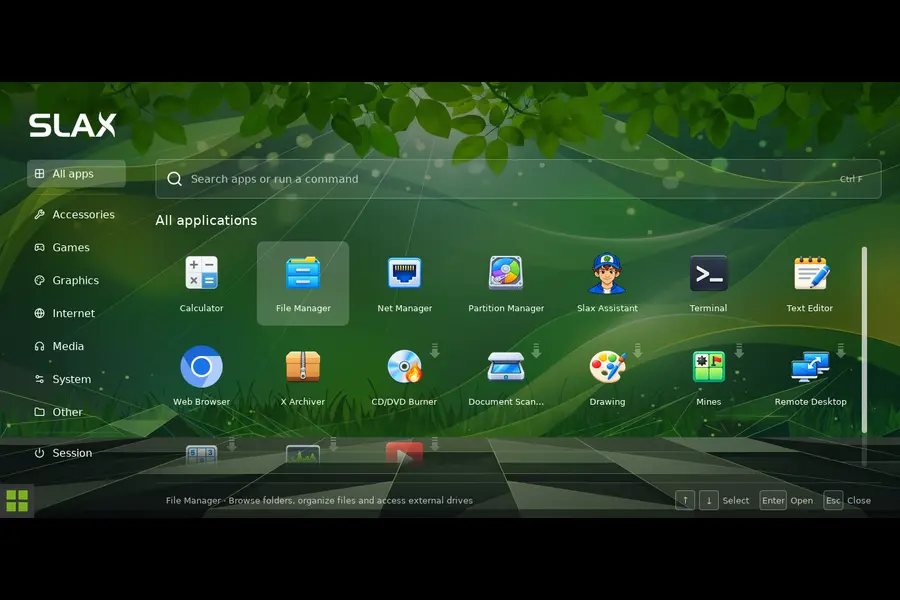
The launcher, opened with the green button, the left Super key, or Alt+F2, now organizes apps into categories with an integrated search and run bar. According to 9to5Linux, the panel was also redesigned with window previews and quick access to network management and keyboard layouts. Session management has moved into the launcher’s categories too.
Window Previews and Workspaces
The official changelog lists these window-handling features:
- Alt+Tab previews. Hold Alt and tap Tab to see windows on your current workspace. Release Alt to switch, or add Shift to go back.
- Taskbar previews. Windows from one app share an icon. Hover over it for live previews.
- Four workspaces. Alt+F3 shows all four at once. Ctrl+F1 to F4 jumps directly.
Workspaces are separate virtual screens. You might keep a browser on one and a text editor on another so a small display never gets cluttered.
Everyday Comforts
You can keep files and folders on the desktop and pick a keyboard layout from the taskbar. Scrolling over the speaker icon adjusts the volume. Slax also includes fonts for Chinese and Japanese text and color emoji.
The author says apps now share a consistent look so older and newer utilities seem to belong together. That’s his description, so judge it once you see it.
One-Click Apps and apt
Some launcher apps carry a small download arrow. Click one and Slax downloads, installs, and opens it, provided you have an internet connection. The core apps come included, such as the browser, text editor, video player, and archive manager.
The Debian package manager still works from a terminal:
apt update
apt install package-name
apt update refreshes the package list, and apt install installs the software you name. Replace package-name with the real package. Installing needs administrator rights, so add sudo if your session isn’t running as root. Installed packages are lost at shutdown unless you boot into a saved session.
The Slax AI Assistant
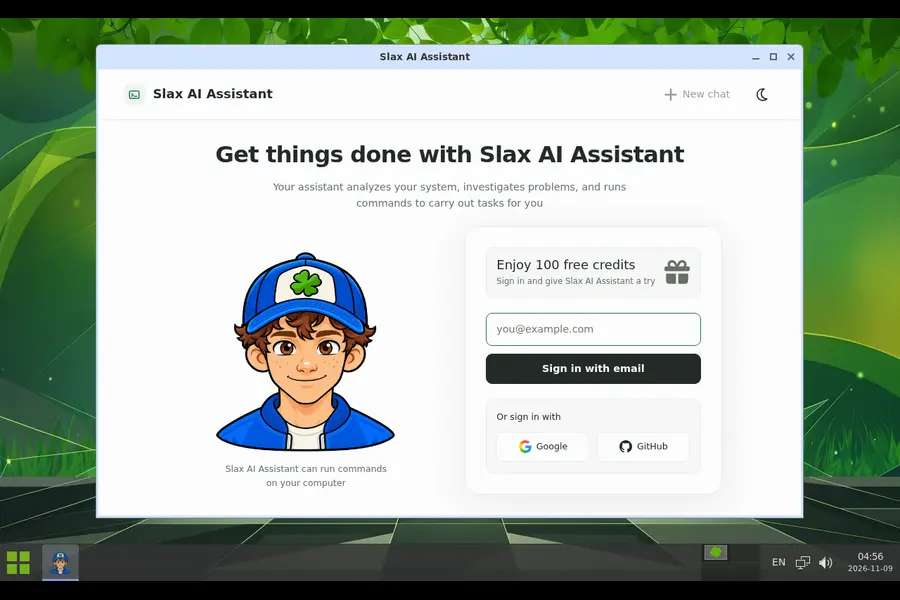
The new Slax AI Assistant is the most talked-about feature. The author describes the idea this way: Linux is a great place to explore, and sometimes it helps to have someone to ask. You describe a task in plain language, and the assistant can inspect your system, investigate problems, and run commands. Sign-in and internet access are required.
For beginners, describing a problem in everyday words beats guessing commands. Keep three cautions in mind:
- It can run commands. Read what it proposes before approving anything, especially anything touching disks or files.
- It needs an account and connection. I couldn’t verify how the assistant handles your data, so read the Slax privacy page before sharing anything sensitive.
- It’s optional. Nothing indicates it’s required.
Named Sessions on Your USB Stick
Slax’s selling point is persistence, meaning your apps, files, and settings survive a reboot and come back even on another PC. You can keep as many sessions as you like, say one for daily use and one for experiments.
At boot, the session chooser shows each saved session’s name, drive, date, and size. With one highlighted:
- F4 duplicates it. Do this before trying something risky.
- F6 renames it.
Two points from the boot guide are easy to miss:
- A writable USB isn’t enough. You must choose a session boot option such as “Resume previous session automatically” or “Choose session during startup.” Otherwise changes stay in memory and disappear at shutdown.
- Storage depends on the filesystem. On a Linux filesystem such as ext4, changed files are stored directly. On FAT drives, which many USB sticks use, Slax uses DynFileFS, a virtual disk made of ordinary files. The default limit is 16,000 MiB, which you can raise with a boot parameter like
perchsize=32G.
Boot parameters, called cheatcodes, are added by pressing Esc during the countdown, selecting a GRUB entry, pressing e, and appending the parameter to the line starting with linux. The edit applies to that boot only.
To back up a session, copy the whole numbered session directory while it isn’t running, keeping all changes.dat* parts together. changes.dat alone isn’t enough.
Secure Boot Support
Secure Boot helps a PC start only trusted software, and many modern machines ship with it on. Booting a Linux USB often meant entering the BIOS to turn it off first. Slax 2026.11 ships a signed bootloader and kernel, so it can start with Secure Boot enabled on compatible PCs. Behavior on every vendor’s firmware can’t be guaranteed.
A Graphical Installer for Windows and Linux
Making a bootable USB used to trip up newcomers. The ISO now includes a graphical installer that prepares a USB drive or adds Slax alongside an existing operating system on supported disks.
On Windows: double-click the ISO to open it in File Explorer, open the slax folder, and run slax-install.exe as administrator.
On Linux: mount the ISO and run slax-install-linux as root. One way to do that:
sudo mount -o loop,ro slax-2026.11-64bit.iso /mnt
sudo /mnt/slax/slax-install-linux
The first command mounts the ISO read-only at /mnt, and the second starts the installer as root. Use a different empty folder if /mnt is already in use, and run the commands from the folder containing the ISO.
The installer shows a plan to review before it changes anything. Be careful with “Erase entire selected disk.” The guide says to leave it unchecked to preserve data. Turned on, it deletes all partitions and files on that physical disk, including other drive letters on it.
Recovery Tools and Virtual Machines
Slax also works as a repair stick. A new Partition Manager, described by 9to5Linux as a native GTK3 tool using sfdisk, lets you view disk space and create, resize, or format partitions offline, with a review step before applying changes.
The release also includes LVM, LUKS encryption, and filesystem tools, including XFS support. If a drive misbehaves, you can boot Slax from the stick to check it, back up, or try to recover files, even if the usual operating system won’t start. Disk tools can destroy data, so back up first and confirm which drive you’re touching.
Inside virtual machines, VirtualBox, VMware, and SPICE integration provide automatic resizing, clipboard sharing, and shared folders, depending on your host.
The Trade-Off: Live Module Loading Is Gone
The changelog includes a note for long-time users. Slax 2026.11 uses a signed Linux 6.12 kernel and OverlayFS. Consequently:
- You can still include
.sbmodules before boot. - Loading and unloading modules in a running session with
slax activateandslax deactivateis unavailable, since that required AUFS, which isn’t in this build. - Installing with
aptand keeping changes in a persistent session still works.
If your workflow depends on live-loading modules, read the customization guide before upgrading.
Before You Boot: A Short Checklist
- Use a spare USB stick (not one holding files you need). Check your computer’s boot menu key, often F11, F9, F12, or Esc.
- Try it in a virtual machine first if you can. The VM tools are built in.
- Choose a session option at startup if you want changes saved.
- Leave “Erase entire selected disk” unchecked unless you truly mean it.
- Back up anything important before using the Partition Manager.
- Hold off on the AI assistant for sensitive work until you’ve read the privacy page.
Is Slax 2026.11 Right for You?
It fits if you’re a beginner who wants to try Linux without installing it, you want a portable desktop, or you want a rescue stick.
It fits less if you rely on live module loading, you need a 32-bit build, or you want an offline-only workflow with every feature, since the assistant and one-click installs need internet.
Wait a bit if you need stability. The release is days old, and the author’s 2023 post-release blog shows early fixes happen.
Also, the 512 MiB ISO size isn’t a RAM requirement. The guide notes a browser needs extra memory, and running from RAM needs space for the full image plus your apps.
Conclusion
Slax Linux Returns After 3 Years with a Debian 13 base, a rebuilt desktop, Secure Boot, a friendlier installer, named sessions, and an optional AI assistant, all in a 512 MiB ISO. It gives up live module loading, so existing users should read the notes first. For beginners who want a small, portable way into Linux, it’s worth trying, ideally in a VM or on a spare stick first. You can download Slax 2026.11 and read the full changelog on the official site.
Frequently Asked Questions
When was Slax 2026.11 released?
The author announced it on November 8, 2026, and DistroWatch covered it on November 9, 2026.
What is Slax 2026.11 based on?
It’s based on Debian 13 “Trixie” and uses a signed Linux 6.12 LTS-series kernel.
How big is the Slax 2026.11 ISO?
The ISO is 512 MiB. That’s the download size, not the minimum RAM requirement.
Does Slax 2026.11 work with Secure Boot?
Yes, on compatible PCs. It includes a signed bootloader and kernel, so you don’t need to disable Secure Boot.
Will my changes be saved when I boot Slax from USB?
Only if you choose a session boot option, such as resuming a previous session or choosing a session at startup. A writable USB alone isn’t enough, and otherwise changes disappear at shutdown.
Disclaimer: This article is for informational purposes only and is based on the official Slax project pages and published news coverage available at the time of writing. Features, download details, and system behavior may change in later updates, so check the official Slax website for the latest information. Disk and partition tools can permanently erase data, so back up important files and double-check your selections before following any steps. Use the commands and software described here at your own risk.