

You close the lid, walk away, and come back two days later to a dead battery and no open session. That’s the problem Linux Mint Is Bringing Hibernation Back to fix.
Mint’s October 2026 monthly update, published October 31 by project lead Clem, confirmed a new Sleep Modes page in the System Administration tool. It’s planned for Linux Mint 27, codenamed “Adrien,” which is targeted for around Christmas 2026.
This is a bigger deal than it sounds. Hibernation has been awkward on Ubuntu-based systems for well over a decade, and most distributions in that family quietly stopped caring. Mint has decided to deal with it directly.
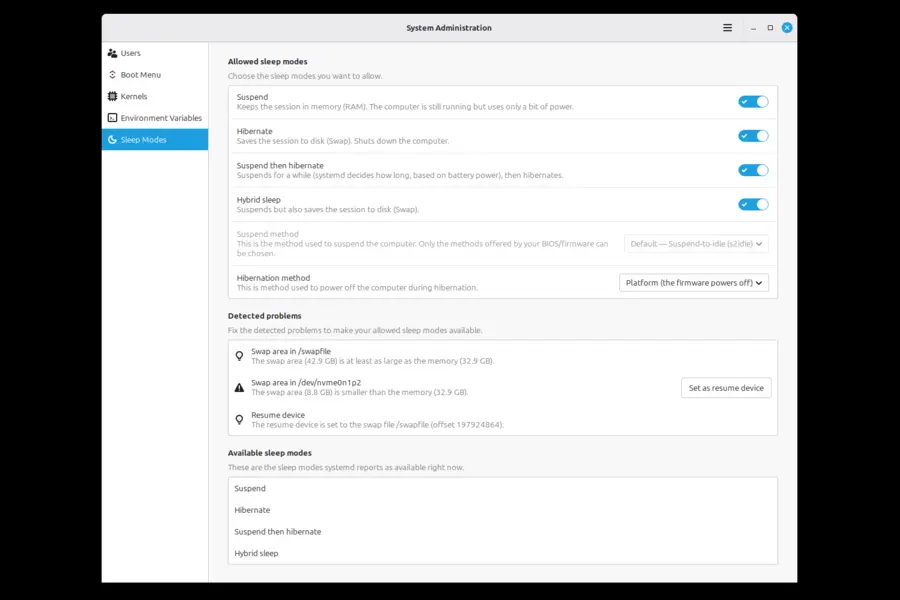
Below I cover what was announced, how the three new sleep modes differ, what you’ll need on your machine, and where the catches are.
What Linux Mint Actually Announced
The details come from the official Linux Mint blog’s “Monthly News – October 2026” post. Here’s what it says, minus the noise.
- Mint is adding a dedicated Sleep Modes page to the System Administration tool.
- The page is meant to make hibernation easy to enable and to set up correctly.
- Two extra modes ship alongside it: Hybrid Sleep and Suspend-then-Hibernate.
- Everything is described as a preview of work still in progress, planned for the next Mint release.
The team’s reasoning is blunt. Hibernation is hard to set up, doesn’t work out of the box, and needs a large amount of swap on disk. Ubuntu removed it from the available sleep modes, so Mint users usually didn’t have it. Clem’s line in the post is simply: “We’re bringing it back.”
The release timing also changed. Mint has moved from a roughly six-month rhythm to a yearly cycle, which was laid out in the team’s September 2026 monthly update. That’s why Mint 27 is a Christmas release rather than a mid-year one. Press coverage from Linuxiac, OMG! Ubuntu, It’s FOSS and Phoronix all points to the same schedule.
Why Hibernation Disappeared in the First Place
Hibernation isn’t a new idea. Per It’s FOSS’s reporting, Ubuntu disabled it by default back in the 12.04 era, because it was slow and unreliable on a lot of hardware. Every Ubuntu-based distribution inherited that decision, Mint included.
The reasons it’s tricky are still real:
- Swap requirements. The hibernation image lives in swap, so you need enough of it.
- Resume configuration. The system has to know where to find that image at boot.
- Secure Boot. It can block hibernation, because the saved disk image isn’t signed.
- Hardware quirks. Some laptops and drivers don’t resume cleanly.
For years, enabling it on Mint meant editing GRUB, setting resume parameters, rebuilding the initramfs, and sometimes adding Polkit rules to make the menu button appear. The Mint community wiki team even wrote an extensive manual and has said the new tool trivializes much of it.
So Mint hasn’t invented a new kind of hibernation. As It’s FOSS put it, Mint hasn’t magically fixed the problems that made Ubuntu drop it. It has made the setup safe and visible, so you can choose.
Suspend vs. Hibernate: The Difference That Matters
Right now, closing the lid on a Mint laptop triggers Suspend. It’s fast and reliable, but it keeps your session alive in RAM, and RAM needs power.
Clem’s post says a good laptop with a full battery can sleep for two or three days. After that, the battery dies and the session is gone. His words: the outcome is worse than a normal shutdown, because you lose the session and end up with an empty battery.
That scenario is common because of how people behave. Closing the lid is quick, finding the charger isn’t, and a sleeping laptop looks switched off, so you forget it’s still drawing power.
Hibernate works differently. It writes your session from RAM to disk and powers off completely. No battery drain, and when you return, your windows and apps are back where you left them. The cost is speed. Mint openly says hibernating and resuming can take longer than a reboot.
The Three New Sleep Modes Compared
Here’s how the modes stack up, based on the descriptions in Mint’s announcement and the reporting around it.
| Sleep mode | What it does | Power drain while away | Resume speed | If the battery dies | Best for |
|---|---|---|---|---|---|
| Suspend (current default) | Keeps session in RAM, low-power state | Low but constant | Very fast | Session lost | Short breaks, desk work |
| Hibernate | Saves session to disk, full power-off | None | Slowest, can exceed a reboot | Session safe | Overnight, long trips, low-battery situations |
| Hybrid Sleep | Suspends and saves session to disk | Low but constant | Fast while power lasts | Session recoverable from disk after plugging in | Anyone worried about losing work |
| Suspend-then-Hibernate | Suspends first, hibernates when battery hits a critical level | Low, then none | Fast at first, slower after hibernating | Avoided by design | Laptop users who close the lid and forget |
A few things stand out.
Hybrid Sleep is insurance. It behaves like Suspend day to day, but if the battery runs out you can plug in, power on, and resume from disk. You don’t get zero drain, but you don’t lose the session either.
Suspend-then-Hibernate is the best fit for most laptop users. You get instant wake-ups for the first stretch, and the machine protects itself when the battery gets low. It matches the habit Mint described: people close the lid and walk away.
Plain Hibernate is best when you know you’re leaving. Flights, overnight, a long weekend. You accept the slow resume in exchange for zero drain.
What You’ll Need Before Using Hibernation
Mint’s tool is designed to detect and fix problems, but it can’t create hardware that isn’t there. Based on Clem’s replies in the official post’s comments, the tool looks for common blockers such as Secure Boot and missing swap, then lets you fix them.
1. Enough Swap Space
Hibernation needs room to store your session. The practical guidance reported by It’s FOSS is swap at least as large as the RAM you’re using. If you want to avoid surprises, matching your total RAM is the safe choice. The community-maintained Linux Mint wiki page on memory management is a useful reference if you want to understand swap in more depth.
You can check what you have today:
free -h
swapon --show
If swap is small or missing, the Sleep Modes page is meant to flag that.
2. Secure Boot Considerations
Secure Boot blocks hibernation because the saved disk image isn’t signed. Clem confirmed in the comments that Secure Boot shows up under Detected Problems when it’s enabled. The same wiki page documents a manual workaround, but I’d treat this as a trade-off to weigh. Turning off a security feature just to hibernate isn’t free.
3. A Resume Device
The system must know where to find the saved session at boot. Clem says the tool assists with setting the resume device, and you can revert it from the Boot Menu page.
4. A Reversible Setup
One reader asked whether the changes can be undone. Clem answered that enabling or disabling sleep modes writes to its own systemd file, so it’s reversible, and the app confirms which modes are available through systemd. That’s reassuring for anyone nervous about touching boot settings.
Mint’s Approach vs. the DIY Method
Until now, the standard route was a manual one. Here’s how the two compare.
| Aspect | Manual setup (Mint 22.x and earlier) | Sleep Modes page (Mint 27, planned) |
|---|---|---|
| Swap check | You calculate and create it yourself | Tool detects missing or small swap |
| Resume device | Edit GRUB and initramfs by hand | Tool helps set it, revertible from Boot Menu page |
| Secure Boot | You discover the problem when hibernation fails | Shown under Detected Problems |
| Menu button | May need extra Polkit rules | Mode availability confirmed through systemd |
| Hybrid modes | Possible, but separate config work | Built into the same page |
| Reversibility | Depends on how carefully you documented it | Writes to its own systemd file |
The point isn’t that the old route was impossible. It’s that every step was a place to make a mistake, and a bad resume setting can leave you with a machine that boots into a fresh session instead of your saved one.
Who Benefits Most
Laptop users who forget about the lid. Suspend-then-Hibernate was practically written for you.
Travelers. A laptop in a bag for eight hours can’t be allowed to drain itself. Hibernate means you can pack and go.
People with long-running sessions. If you keep dozens of tabs, an IDE, and a terminal layout open, restoring them is worth waiting a minute for.
Dual-battery or older laptops. Machines with weaker batteries tend to lose charge faster in Suspend, so a mode that cuts power completely helps more.
Desktop users. It’s less obvious, but a desktop can use Hibernate to power off fully while keeping a session, which is handy during storms or travel. There’s no battery to protect, so the benefit is smaller.
Pros and Cons
Pros
- No more lost sessions from a battery dying during suspend.
- Guided setup replaces hand-edited GRUB and initramfs files.
- Problem detection for Secure Boot and missing swap, according to Clem.
- Reversible changes, since the settings live in their own systemd file.
- Three options instead of one, so you can pick the trade-off that suits your habits.
- Near-zero power use when fully hibernated.
Cons
- Slow. Mint itself says hibernating and resuming can take longer than a reboot.
- Disk cost. You need a large swap area, which matters on small SSDs.
- Secure Boot conflict. Users who rely on it may have to choose between it and hibernation.
- Hardware variability. The underlying reasons Ubuntu dropped the feature haven’t vanished, so some machines may still resume badly.
- Not available yet. Mint 27 is unreleased, and Mint stresses these are previews.
- Slower wear on storage. Writing a large image to disk on each hibernate adds some write activity, though for occasional use it’s minor.
How to Prepare Before Mint 27 Arrives
You don’t have to wait for December to get ready. These steps will save you time.
- Check your RAM and swap with
free -handswapon --show. - Back up your system. Do this before any major release upgrade, which is good practice anyway.
- Find out if Secure Boot is on. Run
mokutil --sb-statein a terminal. - Decide which mode suits you. If you’re a lid-closer, plan to try Suspend-then-Hibernate first.
- Watch the official blog. Beta timing hasn’t been given. Clem said in the comments that projects are being tagged and frozen, but offered no dates.
One more note for LMDE users. Clem said you can’t upgrade from standard Mint to LMDE and need a fresh install. The new features will be ported to LMDE in late December or early January.
What Else Is Coming in Mint 27
Hibernation shares the October announcement with several other additions, so it’s worth knowing the context.
- Superlight, a system monitor covering CPU, RAM, swap, GPU, network, disk I/O, temperature, fan speed and battery history. Clem confirmed it will replace Baobab, gnome-power-manager and gnome-system-monitor.
- Velocitty, a new terminal with tab overview, color palettes and detachable tabs.
- Unfold, a simple archive manager using 7zip.
- A Nemo preview pane for audio, pictures and video, toggled with F7.
- A Clocks app and calendar, from earlier monthly updates.
Superlight’s battery view pairs nicely with the new sleep modes. You’ll be able to see charge history and power draw, which helps you judge how much a suspended laptop is really losing.
My Take
I haven’t been able to test the Sleep Modes page, since it hasn’t shipped, so I’m not going to pretend to know how it behaves on every laptop. What I can say is that the design choices look sensible.
Detecting problems instead of silently failing is the right call, because hibernation failures are usually quiet ones. Keeping changes in a separate systemd file keeps them reversible. And offering Suspend-then-Hibernate acknowledges how people really use laptops.
The honest caveat is hardware. Mint has made the feature accessible, but it hasn’t promised every machine will resume flawlessly. Treat the first week as a testing period. Try each mode with a harmless session open before you trust it with real work.
Conclusion
Linux Mint Is Bringing Hibernation Back, and it’s doing it in a way that respects both beginners and people who like control. The Sleep Modes page in Mint 27 offers plain Hibernate, Hybrid Sleep and Suspend-then-Hibernate, backed by detection of swap and Secure Boot problems.
It won’t be perfect on every machine, and hibernating will always be slower than suspending. But for anyone who has lost a session to a drained battery, having a supported, reversible option is a real improvement.
Mint 27 is due around Christmas 2026. Until then, check your swap, note your Secure Boot status, and keep an eye on the official Linux Mint blog for beta news.
Frequently Asked Questions
When is Linux Mint 27 coming out?
The Linux Mint team has targeted around Christmas 2026 for Mint 27 “Adrien,” though no firm beta date has been announced.
What are the new sleep modes in Linux Mint 27?
The new Sleep Modes page offers Hibernate, Hybrid Sleep and Suspend-then-Hibernate alongside regular Suspend.
What is the difference between Hybrid Sleep and Suspend-then-Hibernate?
Hybrid Sleep suspends the computer and saves the session to disk at the same time. Suspend-then-Hibernate suspends first and only hibernates once the battery reaches a critical level.
Why was hibernation missing from Linux Mint?
Ubuntu removed hibernation from its available sleep modes, and Mint, being Ubuntu-based, inherited that gap.
How much swap do I need to hibernate?
Reports on the announcement say you need swap at least as large as the RAM in use, so matching your total RAM is the safest option.
Does Secure Boot block hibernation?
Yes, Secure Boot can block hibernation because the saved disk image isn’t signed, and Mint’s tool lists it under Detected Problems when it’s enabled.
Can I undo the hibernation setup?
Yes, according to Clem, the settings are stored in their own systemd file and the resume device can be reverted from the Boot Menu page.
Disclaimer: This article is for informational purposes only and is based on publicly available information from the Linux Mint blog and news outlets as of November 5, 2026. The features described are previews and may change before Linux Mint 27 is released. Always back up your data before changing boot or power settings, and check official Linux Mint sources for final details.