The Linux desktop landscape is evolving, and Bluefin Linux represents a fresh approach to how we think about operating systems. If you’ve ever wanted the simplicity of a Chromebook combined with the raw power of a full Linux distribution, Bluefin might just be what you’ve been looking for.
Built on Fedora’s atomic desktop technology and part of the Universal Blue project, Bluefin Linux offers something different from traditional Linux distributions. It’s designed around reliability, performance, and sustainability—three pillars that matter whether you’re a complete Linux newcomer or a seasoned developer managing containerized workloads.
What Makes Bluefin Linux Different?
Most Linux distributions follow a familiar pattern: install the base system, update packages regularly, hope nothing breaks. Bluefin throws this playbook out the window. Instead of managing thousands of individual packages that can conflict with each other, Bluefin delivers your entire operating system as a single atomic image.
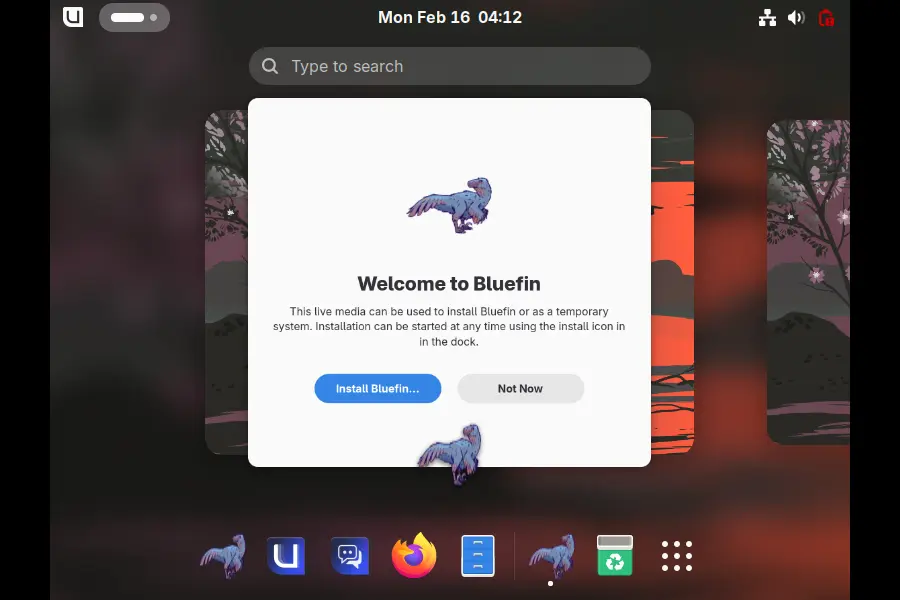
Think of it like your phone’s OS updates—the whole system gets replaced as one unit, tested and verified before it reaches your machine. If something goes wrong, you simply reboot and roll back to the previous working version. No recovery mode, no reinstalling, no panic.
This immutable design means the core system files never change during normal use. Your applications run in isolated containers through Flatpak, keeping them separate from the operating system itself. This architecture isn’t just clever engineering—it’s a fundamental rethink of desktop Linux stability.
The project officially describes itself as providing “a system as reliable as a Chromebook with near-zero maintenance” for everyday users, while offering developers “a kickass cloud-native developer workflow with integrated container tools.” That’s not marketing speak—it’s exactly what the system delivers.
The Architecture Behind Bluefin
Bluefin is built on Fedora Atomic Desktop technology, specifically leveraging Fedora Silverblue as its foundation. The project uses rpm-ostree and bootc to deliver atomic updates, ensuring that your system upgrades happen as complete, tested units rather than piecemeal package changes.
The Universal Blue project, which maintains Bluefin, enhances the base Fedora images with additional hardware support, driver packages, and usability improvements. This means GPU drivers (including NVIDIA), Xbox controller support, and other hardware compatibility layers come pre-configured.
Under the hood, Bluefin ships with containerd and Docker support, making it genuinely container-native. About 60% of Bluefin users enable Developer Mode, which transforms the system into a powerful development workstation with VS Code, Homebrew, Kubernetes tools, Podman Desktop, and more.
Current State: February 2026 Updates
As of February 2026, Bluefin is undergoing significant organizational changes that will improve the user experience. The project recently announced that Bluefin GTS (their more stable variant) will merge with the main Bluefin release on March 1, 2026. This consolidation simplifies the release structure and improves the testing pipeline.
The current release structure includes:
- bluefin:next – bleeding edge, daily builds where all changes land first
- bluefin:testing – changes that have been vetted by at least one person, sitting for a week or two
- bluefin:stable – the main release, based on current Fedora versions with thorough testing
- Bluefin LTS – long-term support edition based on CentOS Stream 10, offering 3-5 years of stability
The latest stable releases from February 2026 include updated packages like Docker 29.2.0, Incus 6.19.1, and kernel 6.18.6, with automatic updates delivered daily to the testing branch before promotion to stable.
One significant development for 2026 is the consolidation of the developer experience. Previously, Bluefin offered a separate bluefin-dx image for developers. Moving forward, developer tools will be available through Homebrew rather than baked into the image, giving users more flexibility to choose their own IDEs and tooling.
Key Features That Stand Out
Atomic Updates and Easy Rollbacks
Every system update is atomic—it either completes successfully or doesn’t apply at all. You never end up with a half-updated system in a broken state. Each deployment is versioned, so rolling back to any previous version takes a single reboot.
Flatpak-First Application Model
Applications come from Flathub through Flatpak, which sandboxes each app for better security and stability. The system includes Warehouse for managing Flatpak apps and Flatseal for controlling app permissions. This model prevents application updates from breaking your system.
Developer Mode
Run ujust devmode and your system transforms. You get access to containerized development environments, integrated CI/CD tools, and cloud-native workflows. The system maintains container consistency while keeping your base OS untouched.
Hardware Compatibility
Bluefin ships with NVIDIA drivers, Intel/AMD GPU support, Xbox controller drivers, WiFi drivers (wl), v4l2loopback, and OpenZFS out of the box. Secure Boot works by default with the Universal Blue signing key.
GNOME Desktop with Sensible Defaults
Bluefin uses GNOME with an Ubuntu-inspired layout that feels immediately familiar. It includes extensions like Search Light (similar to macOS Spotlight, bound to Super+Space) and a well-curated set of default applications including Firefox, Thunderbird, and essential GNOME utilities.
Maintenance-Free Updates
System updates happen automatically in the background. The ujust utility provides simple commands for common tasks:
- ujust update – manually trigger system updates
- ujust changelogs – view incoming changes from Fedora
- ujust bios – reboot into BIOS/UEFI settings
Hardware and System Requirements
Bluefin runs on modern 64-bit x86 hardware and also supports ARM (aarch64) virtual machines, optimized for Apple Silicon Macs via UTM.
| Component | Minimum Requirements | Recommended |
|---|---|---|
| Processor | 64-bit Intel/AMD CPU | Recent multi-core CPU |
| Memory | 16 GB RAM | 32 GB RAM or more |
| Storage | 128 GB available space | 256 GB or more |
| Graphics | Any modern Intel/AMD GPU | Modern GPU (NVIDIA Maxwell or newer) |
| Firmware | UEFI with Secure Boot support | UEFI with Secure Boot enabled |
| Disk Space (OS) | 11 GB (standard) / 19 GB (with Developer Mode) | – |
Important Notes:
- The high RAM requirement (16 GB minimum) stems from Bluefin’s container-focused development stack. If you plan to run containerized clusters, development environments, or heavy workloads, the 32 GB recommendation is genuinely useful.
- Older NVIDIA Maxwell GPUs and earlier are not officially supported due to driver compatibility challenges with newer kernels.
- The system is designed for desktop and laptop use, not for extremely old hardware.
Real-world users report that Bluefin can run adequately on 8 GB RAM for basic tasks, though the system may experience freezes when running many applications simultaneously. The 16 GB requirement ensures smooth operation of the integrated development workflow.
How to Install Bluefin Linux
Installing Bluefin follows a straightforward process similar to other Linux distributions, but with a few specific considerations.
Step 1: Download the ISO
Visit the official Bluefin website at projectbluefin.io and download the latest ISO image. The download is approximately 5.3 GB. Choose the variant that matches your needs:
- Standard Bluefin for everyday desktop use
- Bluefin with NVIDIA drivers if you have NVIDIA graphics
- Bluefin LTS if you prefer long-term stability
Step 2: Create a Bootable USB Drive
Use a tool like Rufus (Windows), balenaEtcher (cross-platform), or dd (Linux/macOS) to write the ISO to a USB drive. This process will erase all data on the USB drive, so ensure you’ve backed up anything important.
For Linux users, the command looks like:
sudo dd if=bluefin.iso of=/dev/sdX bs=4M status=progress
Replace /dev/sdX with your USB drive (e.g., /dev/sdb). Be careful—this command will erase the drive.
Step 3: Boot from USB
Restart your computer and enter the boot menu (typically by pressing F12, ESC, or DEL during startup—this varies by manufacturer). Select your USB drive from the boot options.
Step 4: Install Bluefin
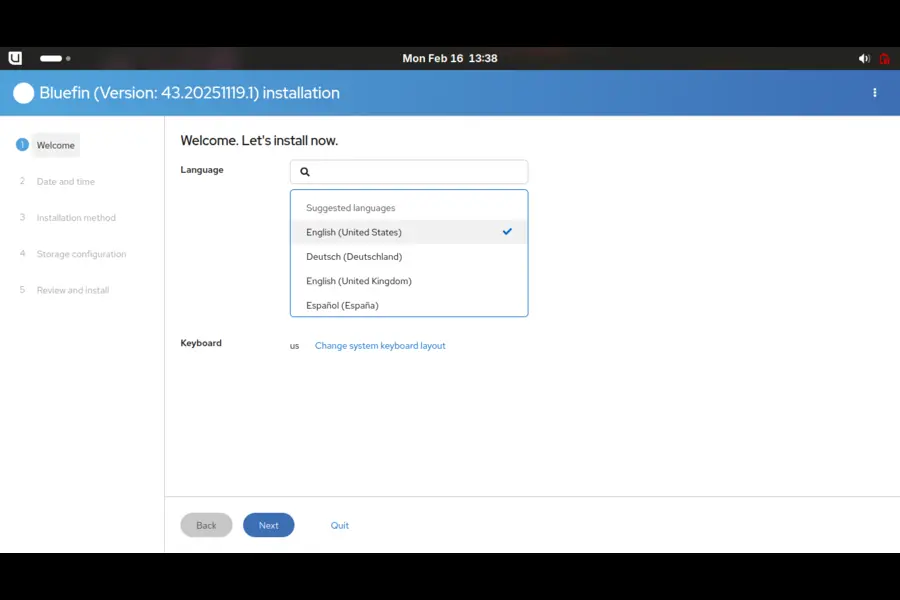
Once the live environment loads, you’ll see the Bluefin desktop. Launch the installer (Anaconda) from the applications menu or desktop icon.
The installation wizard will guide you through:
1. Language Selection: Choose your preferred language
2. Keyboard Layout: Select your keyboard configuration
3. Installation Destination:
- For beginners: Choose automatic partitioning—Bluefin handles everything safely
- For advanced users: Manual partitioning is available, though automatic is strongly recommended for atomic systems
4. Network Configuration: Connect to WiFi if needed
5. User Account: Create your username and password
6. Time Zone: Set your location
Installation Tips:
- Bluefin strongly recommends automatic partitioning over manual partitioning
- The system supports installation on external drives if you want to test on bare metal
- A standard installation takes 11 GB; with Developer Mode enabled, it requires 19 GB
- Multi-disk systems may require manual partitioning, but single-disk setups work best with automatic
Step 5: First Boot Configuration
After installation completes, remove the USB drive and reboot. On first boot:
1. Secure Boot Enrollment: If you have Secure Boot enabled, you’ll be prompted to enroll the Universal Blue MOK (Machine Owner Key). Enter the password universalblue when prompted.
2. Initial Setup: Complete the GNOME initial setup wizard, which includes:
- Online accounts (optional)
- Privacy settings
- Enabling location services (optional)
3. System Updates: Run your first update with:
ujust update
Runs the Bluefin update process using the built-in ujust command.
Step 6: Post-Installation Setup
Now that Bluefin is running, consider these immediate next steps:
Set Up Backups: Your user data in /home still needs backing up. Bluefin includes Pika Backup and Déjà Dup as Flatpak apps, or you can use the preinstalled rclone and restic command-line tools.
Install Applications: Use GNOME Software to browse Flathub and install applications. All apps come sandboxed and won’t affect system stability.
Enable Developer Mode (Optional): If you’re a developer, activate developer mode with:
ujust devmode
Reboot your system after running this command.
ujust dx-group
Log out and log back in to complete the setup.
Configure VPN (Optional): Import WireGuard configurations or use the Network Manager GUI for VPN setup.
Who Should Use Bluefin Linux?
Perfect For:
Linux Newcomers: The Chromebook-like reliability and automatic updates mean you won’t spend weekends troubleshooting broken systems. The familiar GNOME interface and sensible defaults make it approachable.
Developers: The container-native architecture, integrated development tools, and cloud-native workflows make it exceptional for modern software development. The system stays consistent underneath while you work in isolated environments.
System Administrators: Those who want to manage machines with minimal maintenance overhead will appreciate the atomic updates and easy rollback capabilities.
People Switching from macOS: The GNOME layout, Homebrew support, and spotlight-like search feel familiar to Mac users making the transition.
Not Ideal For:
Tinkerers Who Customize Everything: The immutable system design limits deep system customization. If you enjoy recompiling kernels and tweaking every system component, traditional distributions suit you better.
Users Requiring Niche Software: If your workflow depends on software that requires system-level modifications or out-of-tree kernel modules, you might face challenges.
Gamers: While Bluefin can handle games, Bazzite (another Universal Blue project) is specifically optimized for gaming. Consider Bazzite if gaming is your primary use case.
Very Old Hardware: The modern system requirements (16 GB RAM, recent CPU) mean Bluefin isn’t suitable for reviving ancient machines.
The Bluefin Philosophy
Bluefin represents a shift in thinking about desktop Linux. Instead of treating users as system administrators who must maintain their machines, it treats the OS as infrastructure—something that should just work while you focus on actual tasks.
This cloud-native approach applies patterns from server infrastructure to desktop computing. The result is a system where updates are tested before delivery, failures are recoverable, and the base system stays consistent and reliable.
The project’s mascot is Bluefin, a Deinonychus antirrhopus dinosaur—a theropod whose name means “terrible claw.” Before this dinosaur’s discovery in the 1960s, dinosaurs were seen as slow and dim-witted. The Deinonychus shattered this misconception. Similarly, Bluefin aims to show that Linux desktops can be nimble, powerful, and reliable all at once.
Real-World Performance
In everyday use, Bluefin feels fast and responsive. Boot times are quick, applications launch promptly, and the system handles common tasks—web browsing, document editing, video playback, light development work—without friction.
The atomic update system means you’re never interrupted by update dialogs or forced reboots at inconvenient times. Updates download in the background and apply at the next reboot, which you control.
Users report that the system remains stable over months of use, with the rollback capability providing peace of mind. The Flatpak application model means app updates never break the system, though occasionally apps may need permissions adjustments through Flatseal.
Community and Support
Bluefin is part of the Universal Blue project, which maintains several images including Aurora (for general users) and Bazzite (for gamers). The project follows the Universal Blue Community Guidelines and maintains active documentation at docs.projectbluefin.io.
The community can be found on the Universal Blue forums, GitHub discussions, and various Linux communities. The project welcomes contributions and maintains clear documentation for those who want to build custom images or contribute improvements.
Looking Forward: 2026 and Beyond
The Bluefin project continues evolving. The planned consolidation in March 2026 will streamline releases and improve the testing pipeline. The shift toward Homebrew for developer tooling provides more flexibility for users to configure their development environments.
The project is also approaching the point where it feels ready to market more broadly, having spent years refining the experience under the radar. The team emphasizes that Bluefin is mostly feature-complete, focusing now on sustainability and polish rather than major new features.
Final Thoughts
Bluefin Linux represents a mature, thoughtful approach to desktop Linux. It’s not trying to be everything to everyone—it has clear opinions about how a desktop OS should work. But for those who align with its philosophy of reliability over customization, of cloud-native workflows over traditional package management, it delivers an excellent experience.
Whether you’re new to Linux and want something that “just works,” or you’re a developer tired of spending time on system maintenance rather than building software, Bluefin deserves serious consideration. It proves that Linux desktops can be as reliable as they are powerful.
The atomic, container-based approach isn’t just a technical curiosity—it’s a genuine improvement in how we interact with desktop operating systems. Bluefin might not be the distribution for everyone, but for those it fits, it fits remarkably well.
Disclaimer
This blog post is written based on publicly available information about Bluefin Linux as of February 2026. While we strive for accuracy, Linux distributions evolve rapidly. Always consult the official Bluefin documentation at docs.projectbluefin.io and the project website at projectbluefin.io for the most current information before installation.
System requirements and hardware compatibility may vary based on your specific hardware configuration. The minimum RAM requirement of 16 GB is officially recommended by the Bluefin project, though some users report adequate performance with less memory for non-development workloads.
Bluefin is a community-driven project under the Universal Blue umbrella. It is not officially affiliated with or endorsed by Red Hat, Fedora, or other mentioned organizations. Users should ensure their hardware is compatible and maintain regular backups of important data regardless of the operating system used.
The author is not responsible for any data loss, hardware incompatibility issues, or other problems that may arise from installing or using Bluefin Linux. Always back up your data before making changes to your system.
Also Read
How to Install Vim 9.2 on Windows, Mac, and Linux [Complete Guide]