Debian 13 “Trixie” is one of the calmest, most predictable Linux releases you can run. It still breaks in small, irritating ways, though. The usual culprits are a missing firmware package, an old GRUB habit, or a boot chain that no longer trusts what it used to.
This Debian 13 Troubleshooting Guide collects the problems that come up most often and the fixes that actually work, rather than the ones that merely look plausible on a forum. Everything is checked against Debian’s own documentation and the latest point release.
Debian 13.7, the seventh point release, came out on September 12, 2026. If your system is current, cat /etc/debian_version should show 13.7.
Debian 13 at a Glance (October 2026)
Knowing what you’re running makes troubleshooting faster. Here are the facts that matter.
| Item | Debian 13 “Trixie” detail |
|---|---|
| Initial release | August 9, 2025 |
| Latest point release | 13.7 (September 12, 2026) |
| Kernel line | Linux 6.12 LTS (installer ABI 6.12.94 as of 13.6) |
| Desktops (live images) | GNOME 48, KDE Plasma 6.3, Xfce 4.20, Cinnamon 6.4, LXQt 2.1, MATE 1.26 |
| Key stacks | Python 3.13, PHP 8.4, PostgreSQL 17 |
| Official architectures | amd64, arm64, armhf, ppc64el, riscv64, s390x |
| Regular security support | Until August 2028, with LTS planned after that |
Default /tmp | tmpfs (lives in RAM) |
The desktop versions come from the Debian 13.6 live images. One more thing worth knowing: 32-bit PCs are no longer an installable target. Only a limited set of i386 libraries remains, for running old 32-bit apps.
First Steps Before You Fix Anything
Whatever is wrong, spend two minutes on these checks. They solve a surprising share of cases.
1. Update first. Many bugs are already fixed in a point release.
sudo apt update && sudo apt full-upgrade2. Read the logs for the current boot.
journalctl -b -p err3. List failed services.
systemctl --failed4. Check the errata page. The official Debian 13 errata lists known problems and every point release.
Note that Debian no longer installs rsyslog by default. Don’t go hunting for /var/log/syslog, because journalctl is your main log reader now.
1. Boot Failures After the Secure Boot Certificate Expiry
This is the headline issue of 2026, and the one most likely to catch people off guard.
What’s happening
The 2013 UEFI Secure Boot CA, which most PCs trust by default for signing bootloaders, has now expired. Debian warns that future shim-signed updates could leave some systems unable to boot with Secure Boot enabled. Debian 13.6 added tooling to handle the transition, including a newer fwupd that can update the CA, KEK and DBX databases.
How to fix it
Check your Secure Boot state:
mokutil --sb-stateRefresh and apply firmware updates:
sudo fwupdmgr refresh
sudo fwupdmgr get-updates
sudo fwupdmgr update
Then install the latest BIOS/UEFI update from your laptop or motherboard maker, since their updates often carry the newer certificates. Debian’s Secure Boot CA changes wiki page has the official steps.
If the machine already won’t boot
Enter firmware setup and temporarily disable Secure Boot. Boot Debian, install the updates above, then switch it back on. Treat that as a short-term workaround, not a permanent setting.
2. Windows Missing from the GRUB Menu
Dual-boot users hit this all the time. You install Debian next to Windows, and GRUB only lists Debian.
Why it happens
Debian’s GRUB keeps os-prober switched off by default for security reasons.
Fix
Install the tool:
sudo apt install os-proberEdit /etc/default/grub and add or change this line:
GRUB_DISABLE_OS_PROBER=falseRebuild the menu:
sudo update-grubYou should see a “Found Windows Boot Manager” line in the output. If you don’t, mount the Windows EFI partition and run update-grub again.
Reinstalling GRUB from a live USB
If GRUB itself is damaged, boot a Debian live image, mount your root and EFI partitions, and chroot in:
sudo mount /dev/nvme0n1p2 /mnt
sudo mount /dev/nvme0n1p1 /mnt/boot/efi
for i in dev dev/pts proc sys run; do sudo mount --bind /$i /mnt/$i; done
sudo chroot /mnt
grub-install --target=x86_64-efi --efi-directory=/boot/efi
update-grub
Swap the device names for your own. Check them with lsblk before running anything.
3. APT Errors, Broken Packages and the New Sources Format
Package management is where most Debian problems start.
“Unable to locate package” or missing firmware
Debian 13 uses the newer deb822 sources format. After a fresh install or an upgrade, you may find contrib, non-free or non-free-firmware missing, so packages you expect simply don’t appear.
Open /etc/apt/sources.list.d/debian.sources and make sure the components line reads:
Components: main contrib non-free non-free-firmwareThen run sudo apt update. If you still have an old-style sources.list, APT 3.0 can convert it:
sudo apt modernize-sourcesInterrupted installs and dependency tangles
Work through these in order and stop when the problem clears:
sudo dpkg --configure -a
sudo apt --fix-broken install
sudo apt full-upgrade
sudo apt autoremove
“Could not get lock” errors
Another process is using the package database. Wait a minute, since an unattended update may be running. Check with ps aux | grep -E 'apt|dpkg'. Only remove lock files if you’re certain nothing is running.
4. Upgrading from Debian 12 Without Pain
Debian 12 has now passed its regular support window, so a lot of people are upgrading this year. Most failed upgrades come from skipping the preparation.
Before you start:
- Back up
/etc, your home directory and any databases. - Bring Debian 12 fully up to date first.
- Read the Debian 13 release notes, especially the upgrade chapter.
- Skip no releases. Debian 11 must go to 12 first, then to 13.
The core steps:
- Replace
bookwormwithtrixiein your APT sources, including security and updates entries. - Run
sudo apt update. - Run a minimal upgrade first:
sudo apt upgrade --without-new-pkgs. - Finish with
sudo apt full-upgrade, then reboot. - Clean up with
sudo apt autoremoveand check for leftovers usingapt list '?obsolete'.
Third-party repositories are the usual cause of trouble. Disable them before the upgrade and re-enable them one at a time afterwards.
5. Wi-Fi, Ethernet and Missing Firmware
A fresh install with no Wi-Fi is the classic “now what?” moment.
Wi-Fi adapter not detected
Check whether the kernel complained about firmware:
sudo dmesg | grep -i firmwareIf you see a missing-file message, install the matching package. Common ones:
firmware-iwlwififor Intel adaptersfirmware-realtekfor Realtek chipsfirmware-atherosfor Atherosfirmware-brcm80211for many Broadcom chips
Debian’s installer images include non-free-firmware support, so this is usually a one-line fix once you have a wired connection or a phone tethered by USB.
NetworkManager says the device is “unmanaged”
This happens when /etc/network/interfaces still defines the interface. Comment out those lines (keep only the loopback entry), then restart:
sudo systemctl restart NetworkManager
nmcli device status
Where did ifconfig go?
It’s part of net-tools, which isn’t installed by default. Use ip a and ip route instead, or install the package if you rely on old scripts.
6. NVIDIA Graphics Problems
NVIDIA cards are the biggest source of “my screen is black” posts. Most of them come down to the open Nouveau driver clashing with the proprietary one, or missing kernel headers.
Reliable setup
First, enable contrib and non-free in your sources, as shown earlier. Then install the headers and driver:
sudo apt install linux-headers-amd64 nvidia-driver firmware-misc-nonfreeIf Secure Boot is on, follow the prompt to enrol the DKMS signing key (MOK). Skipping this is the number one reason the driver installs but never loads. Reboot, then check with nvidia-smi.
Run apt show nvidia-driver to see which driver branch Debian packages for your release. For anything unusual, the Debian Wiki’s NVIDIA page is the authoritative reference.
Wayland session problems
GNOME 48 and Plasma 6.3 both default to Wayland. If screen sharing, a particular app or an older GPU misbehaves, pick the Xorg session from the gear icon on the login screen. It’s a quick way to tell whether the problem is the session or the driver.
7. No Sound or Broken Audio
Debian’s desktop audio runs on PipeWire. When sound vanishes after an update or a suspend cycle, restarting the user services often fixes it:
systemctl --user restart pipewire pipewire-pulse wireplumberThen inspect the devices:
wpctl statusIf your output device shows as “Dummy Output”, the kernel isn’t seeing the sound card. That points to missing firmware (firmware-sof-signed for many newer Intel laptops) rather than a PipeWire problem. Install it, reboot, and test again.
8. /tmp Filling Up or Apps Crashing on Large Files
Debian 13 mounts /tmp as tmpfs, which means it lives in RAM and defaults to half of your memory. On a small machine, extracting a large archive or exporting video can fill it quickly and trigger odd “no space left” errors even though your disk is nearly empty.
Diagnose it:
df -h /tmp
findmnt /tmp
Fix options:
- Point the app at another folder, for example by setting
TMPDIR=$HOME/tmp. - Add more RAM or swap.
- Move
/tmpback onto disk:
sudo systemctl mask tmp.mount
sudo reboot
Disk-backed /tmp is slower, but on low-memory machines it’s the saner choice.
9. “I Can’t Use sudo”
If you set a root password during installation, Debian doesn’t install sudo or add your user to it. It feels like a bug, but it’s by design.
su -
apt install sudo
usermod -aG sudo yourusername
Log out and back in so the group change applies. If you’d rather not use root at all, leave the root password blank during installation and the installer sets up sudo for the first user.
10. Disk Space Disappearing
When /var creeps toward 100%, the cause is usually journal logs or old kernels.
journalctl --disk-usage
sudo journalctl --vacuum-size=500M
sudo apt autoremove --purge
sudo apt clean
To find the heaviest folders quickly, run sudo du -xh / --max-depth=1 | sort -h.
11. A Bad Kernel Update
Rare, but stressful. If the system won’t boot after a kernel update, restart and pick Advanced options for Debian GNU/Linux in GRUB, then choose the previous kernel. Once you’re in, remove or hold the faulty one, and check the Debian security pages or the errata page to see whether the issue is known.
Recent point releases have moved the kernel forward steadily. Debian 13.5 alone folded in about 100 security advisories, covering the kernel, OpenSSH, sudo, systemd, glibc and more. Staying on current point-release packages is usually the best defence.
Quick Reference: Symptom, Cause and Fix
| Symptom | Likely cause | First fix | Difficulty |
|---|---|---|---|
| Won’t boot with Secure Boot on | Expired 2013 UEFI CA | fwupdmgr update plus OEM firmware | Medium |
| Windows missing in GRUB | os-prober disabled | Set GRUB_DISABLE_OS_PROBER=false, update-grub | Easy |
| “Unable to locate package” | Missing components in sources | Add non-free-firmware, apt update | Easy |
| No Wi-Fi after install | Missing firmware | Install firmware-* package | Easy |
| Wi-Fi shown as unmanaged | Legacy /etc/network/interfaces entry | Remove entries, restart NetworkManager | Easy |
| Black screen with NVIDIA | Nouveau conflict or unsigned DKMS | Install nvidia-driver, enrol MOK | Medium |
| No sound | PipeWire hung or missing SOF firmware | Restart user services, install firmware | Easy |
| “No space left” with free disk | Full tmpfs /tmp | Set TMPDIR or mask tmp.mount | Easy |
sudo: command not found | Root password set at install | su -, install sudo, add to group | Easy |
| Boot fails after update | Faulty kernel or initramfs | Boot older kernel from GRUB | Medium |
Debian 13 for Troubleshooting: Pros and Cons
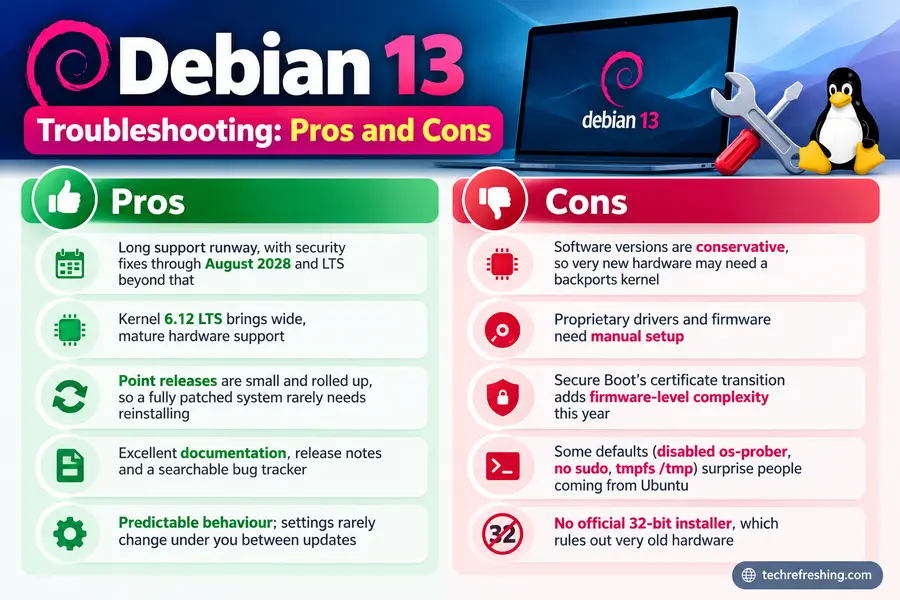
Pros
- Long support runway, with security fixes through August 2028 and LTS beyond that
- Kernel 6.12 LTS brings wide, mature hardware support
- Point releases are small and rolled up, so a fully patched system rarely needs reinstalling
- Excellent documentation, release notes and a searchable bug tracker
- Predictable behaviour; settings rarely change under you between updates
Cons
- Software versions are conservative, so very new hardware may need a backports kernel
- Proprietary drivers and firmware need manual setup
- Secure Boot’s certificate transition adds firmware-level complexity this year
- Some defaults (disabled
os-prober, no sudo, tmpfs/tmp) surprise people coming from Ubuntu - No official 32-bit installer, which rules out very old hardware
What Recent Point Releases Fixed
Reading changelogs tells you which problems are already solved. A few highlights from this year:
- 13.4 (March 2026): roughly 111 bug fixes and 67 security updates.
- 13.5 (May 2026): patched a sudo privilege escalation flaw and several systemd issues.
- 13.6 (July 2026): 124 bug fixes and 120 security updates, plus the Secure Boot tooling and shim updates covered above. It also reverted
geoip-databaseto an older, licence-compatible snapshot. If your scripts rely on GeoIP lookups, get a GeoLite licence directly. - 13.7 (September 2026): continues the roll-up of fixes. Check the full ChangeLog for details.
FAQ
What is the latest Debian 13 version in October 2026?
Debian 13.7 “Trixie” is the latest point release, published on September 12, 2026.
How do I check which Debian version I’m running?
Run cat /etc/debian_version for the exact point release, or hostnamectl for a fuller summary.
Why does my Debian 13 system not boot with Secure Boot enabled?
The 2013 UEFI Secure Boot CA has expired, so newer boot components may not be trusted by older firmware. Update your firmware with fwupdmgr and your OEM’s BIOS update, or temporarily disable Secure Boot to recover.
How do I fix “Unable to locate package” in Debian 13?
Make sure your APT sources include main contrib non-free non-free-firmware and run sudo apt update. Use sudo apt modernize-sources if you still have an old-style sources file.
Can I upgrade from Debian 11 straight to Debian 13?
No, Debian only supports upgrading one release at a time. Move from 11 to 12 first, then from 12 to 13.
Conclusion
Most problems on Debian are logical, not mysterious. Start with the logs, update to the latest point release, and check whether the issue is firmware, sources or boot-chain related before you reach for anything drastic. If you remember only one thing from this Debian 13 Troubleshooting Guide, make it this: change one thing at a time and write down what you changed.
Keep the errata page and the release notes bookmarked, and revisit this Debian 13 Troubleshooting Guide whenever a new point release lands. Debian is a system you can trust, and it’s easy to keep healthy once you know where to look.
Disclaimer: This guide is for general informational purposes. Commands that modify bootloaders, partitions or system packages can cause data loss if used incorrectly, so back up important data first and test on a non-critical machine where possible. Version details reflect Debian’s official announcements as of October 2026 and may change; always confirm against the official Debian documentation.