
If you booted into your Linux distro and found there’s simply no Wi-Fi option in Linux anywhere on your system tray or settings menu, you’re not alone. This is one of the most common headaches new (and even experienced) Linux users run into, especially right after a fresh install or a kernel update. The good news is that this problem almost always comes down to one of a handful of causes, and most of them are fixable without reinstalling anything.
I’ve dealt with this exact issue across Ubuntu, Fedora, Arch, and a couple of Debian-based distros on different laptops over the years — from old ThinkPads to newer machines with Wi-Fi 6E cards. In nearly every case, the missing Wi-Fi option traced back to a driver that wasn’t loaded, a disabled radio switch, or a network manager that wasn’t running properly. This guide walks through the real troubleshooting steps in the order that actually finds the problem fastest, not just a generic checklist.
Why Linux Sometimes Shows No Wi-Fi Option at All
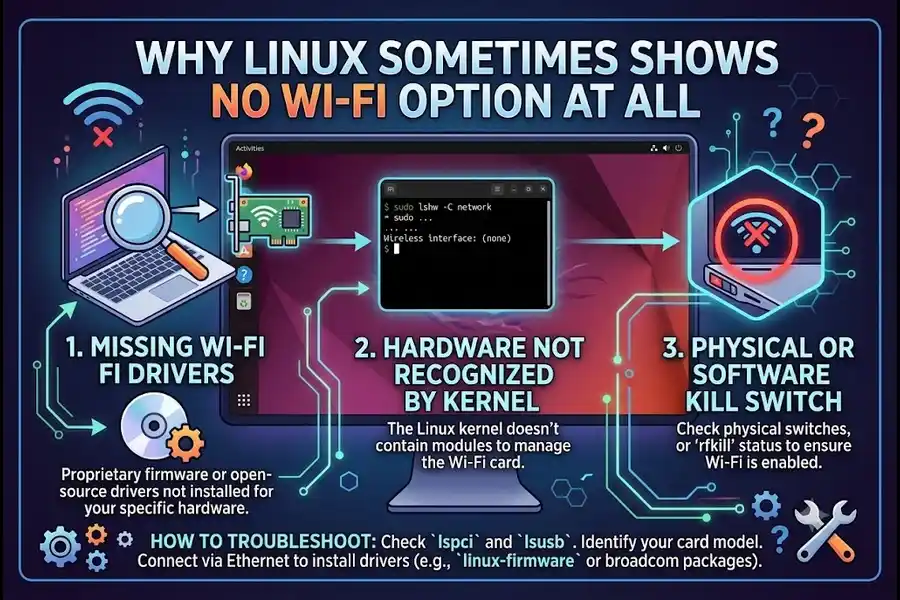
Before diving into fixes, it helps to understand why this happens in the first place. Unlike Windows or macOS, Linux doesn’t ship with universal Wi-Fi drivers baked into every install image. Many laptop and USB Wi-Fi adapters use chipsets (Broadcom, Realtek, and some Intel models) that require proprietary firmware or out-of-tree kernel modules that aren’t included by default, particularly on lighter distros or minimal installs.
So when you see no Wi-Fi option in Linux, it’s rarely a broken system — it’s usually one of these:
- The wireless card’s driver or firmware isn’t installed
- The Wi-Fi hardware is being blocked (soft or hard rfkill)
- NetworkManager or a similar service isn’t running
- The kernel doesn’t recognize the hardware yet
- A recent kernel update dropped or changed a driver module
Let’s go through each of these systematically.
Step 1: Confirm the Wi-Fi Hardware Is Even Detected
The very first thing to check is whether Linux sees the wireless card at all. Open a terminal and run:
lspci | grep -i networkIf your device uses a USB Wi-Fi adapter instead of an internal card, use this instead:
lsusbIf your wireless card shows up in this list (even with an unfamiliar name like “RTL8821CE” or “BCM4360”), the hardware is detected — your issue is almost certainly a driver or software problem, not a dead card. If nothing shows up related to networking, it’s worth double-checking in your BIOS/UEFI settings that the wireless card hasn’t been physically disabled, which happens more often than people expect on business laptops like Dell Latitudes and Lenovo ThinkPads.
Step 2: Check for a Blocked Radio (rfkill)
This is genuinely the single most common cause of a missing Wi-Fi option, and it’s often overlooked. Linux uses something called rfkill to manage wireless radios, and sometimes a soft block gets triggered — often by a BIOS setting, an airplane mode toggle, or even a leftover state from dual-booting with Windows.
Run this command:
rfkill listYou’ll see output like this:
0: phy0: Wireless LAN
    Soft blocked: yes
    Hard blocked: no
If “Soft blocked” says yes, unblock it with:
sudo rfkill unblock wifiA hard block usually means there’s a physical switch or function key (often Fn + F2 or a dedicated Wi-Fi key) that’s toggled off. Some laptops, particularly older Lenovo and HP models, have a physical slider switch on the side of the chassis — it’s easy to forget it exists.
Step 3: Check If the Driver Module Is Loaded
If rfkill checks out fine, the next suspect is the driver. Run:
lsmod | grep -i wifiOr, more usefully, check what driver your card is supposed to use based on the earlier lspci output. For example, if you’re running a Broadcom chipset, you’d typically be looking for wl or b43. For Realtek cards, common modules include rtl8821ce, rtl8188eu, or rtl8192eu depending on the exact chip.
To see if the module is loaded:
lsmod | grep rtlIf it’s missing, you’ll need to install it. On Ubuntu-based systems, this often means installing proprietary drivers:
sudo apt update
sudo apt install linux-firmware
For Realtek cards specifically that aren’t in the mainline kernel, you may need to build the driver from source using DKMS so it survives kernel updates. This is a well-documented process, and the driver repositories on GitHub for chips like the RTL8821CE are actively maintained by the community.
Step 4: Make Sure NetworkManager Is Actually Running
Sometimes the hardware and drivers are perfectly fine, but the service responsible for showing the Wi-Fi option in your desktop environment simply isn’t running. This is especially common after a botched update or on minimal installs like Arch or Debian netinst.
Check the status with:
systemctl status NetworkManagerIf it’s inactive or failed, start and enable it:
sudo systemctl enable --now NetworkManagerIf you’re on a distro that uses systemd-networkd or iwd instead, the same logic applies — check the relevant service and make sure it’s enabled and running, not just installed.
Step 5: Check dmesg for Hardware Errors
If none of the above turns up anything obvious, dmesg is your best friend. This shows kernel-level messages, including anything related to your wireless card failing to initialize.
dmesg | grep -i wlanor
dmesg | grep -i firmwareLook for lines mentioning “firmware failed to load” or “failed to request firmware.” This is a strong sign that the correct firmware package isn’t installed. Many distros separate the driver from the firmware blob, so you can have the module loaded but still fail to bring the interface up because the firmware file is missing.
Step 6: Try a Different Kernel Version
This one surprises people, but it happens more than you’d think. Wi-Fi drivers, especially for newer chipsets, sometimes regress between kernel versions. If your Wi-Fi worked before a system update and disappeared afterward, it’s worth booting into an older kernel from the GRUB menu to confirm.
On Ubuntu and Debian-based systems, older kernels are usually still installed and selectable under “Advanced options” in GRUB. If Wi-Fi comes back on the older kernel, you’ve confirmed it’s a regression, and you can either pin that kernel temporarily or look for a backported fix.
Comparison: Common Causes and How Fast They’re Usually Fixed
| Cause | How Common | Typical Fix Time | Fix Difficulty |
|---|---|---|---|
| Soft-blocked radio (rfkill) | Very common | Under 1 minute | Easy |
| Hard-blocked radio (physical switch) | Common on older laptops | Under 1 minute | Easy |
| Missing/unloaded driver module | Very common on Realtek/Broadcom | 10–30 minutes | Moderate |
| NetworkManager not running | Occasional, mostly minimal installs | 2–5 minutes | Easy |
| Missing firmware blob | Common on fresh installs | 5–15 minutes | Easy to Moderate |
| Kernel regression | Less common but frustrating | 15–30 minutes | Moderate |
| Dead or faulty hardware | Rare | N/A | Requires replacement |
Distro-Specific Notes Worth Knowing
Different distros handle wireless drivers differently, and that changes where you should start looking.
Ubuntu and Linux Mint bundle a broader set of firmware by default and offer an “Additional Drivers” tab inside the Software & Updates app (search for “drivers” in your app menu to find it quickly), which is often the fastest fix for proprietary Broadcom or Nvidia-adjacent hardware issues.
Fedora ships with a more conservative, fully open-source driver set out of the box. If your card needs proprietary firmware, you’ll often need to enable the RPM Fusion repository before the driver becomes available.
Arch Linux and Manjaro give you the most control but also the most manual work. Nothing is installed unless you explicitly add it, so a missing Wi-Fi option right after installation is often just a missing firmware package that needs to be pulled in through pacman.
Debian (stable branch) used to be notoriously strict about proprietary firmware, but this changed with Debian 12 “Bookworm.” Following a 2022 General Resolution, official Debian ISO images now include non-free firmware by default through a dedicated non-free-firmware repository, so you no longer need to hunt down a separate “unofficial” image just to get your Wi-Fi card working out of the box. If you’re upgrading from an older Debian release, you may still need to manually add non-free-firmware to your APT sources list.
If you want a deeper technical reference on how Linux wireless drivers and firmware interact at the kernel level, the Arch Wiki’s wireless networking page is one of the most thorough and accurate community-maintained resources available, regardless of which distro you actually run.
When It’s Actually a Hardware Problem
If you’ve gone through drivers, firmware, rfkill, and NetworkManager and the card still doesn’t show up under lspci or lsusb at all, it’s worth considering that the card itself may have failed or is not seated properly (common with laptops that have had the back panel opened for RAM or SSD upgrades). Reseating an M.2 Wi-Fi card is a five-minute job on most laptops and has solved this exact issue for me twice after doing storage upgrades.
A Quick Troubleshooting Order That Actually Works
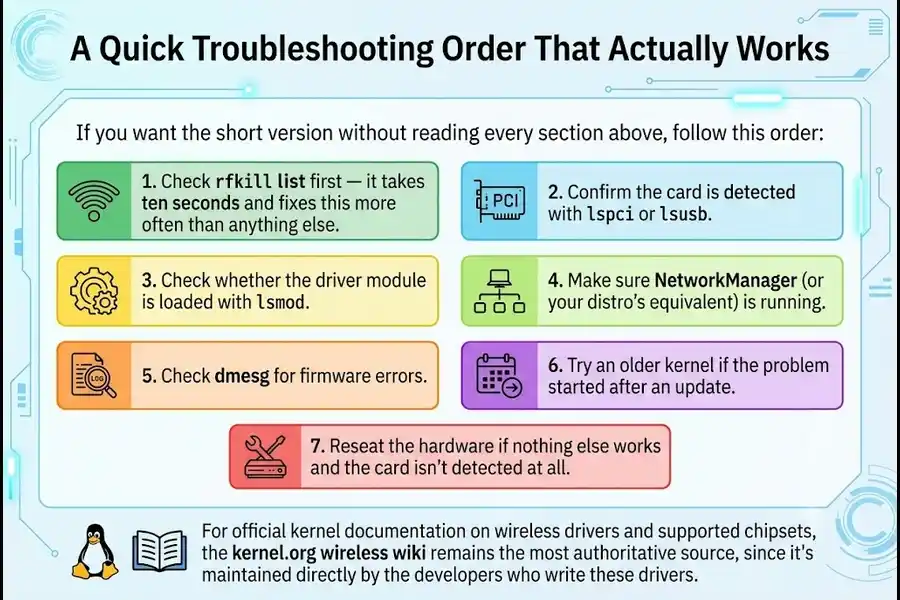
If you want the short version without reading every section above, follow this order:
- Check
rfkill listfirst — it takes ten seconds and fixes this more often than anything else. - Confirm the card is detected with
lspciorlsusb. - Check whether the driver module is loaded with
lsmod. - Make sure NetworkManager (or your distro’s equivalent) is running.
- Check
dmesgfor firmware errors. - Try an older kernel if the problem started after an update.
- Reseat the hardware if nothing else works and the card isn’t detected at all.
For official kernel documentation on wireless drivers and supported chipsets, the kernel.org wireless wiki remains the most authoritative source, since it’s maintained directly by the developers who write these drivers.
Frequently Asked Questions
Why does my laptop show no Wi-Fi option in Linux after a fresh install?
This usually happens because the wireless card’s proprietary driver or firmware wasn’t included in the base install and needs to be added manually.
How do I check if my Wi-Fi card is blocked in Linux?
Run rfkill list in a terminal — if it shows “Soft blocked: yes,” unblock it with sudo rfkill unblock wifi.
Does installing Linux delete Wi-Fi drivers from Windows dual-boot systems?
No, Linux and Windows use completely separate driver systems, so installing Linux doesn’t affect Windows drivers on a shared drive.
Why did my Wi-Fi work before but disappear after a system update?
This is often caused by a kernel update changing or dropping the driver module your wireless card depends on, which can sometimes be fixed by booting an older kernel.
Is it normal for Realtek Wi-Fi cards to need extra setup on Linux?
Yes, many Realtek chipsets aren’t fully supported in the mainline kernel and require a separate DKMS driver to work reliably.
Can a BIOS setting cause no Wi-Fi option in Linux?
Yes, some laptops let you disable the wireless card entirely in BIOS/UEFI, which will make it invisible to Linux regardless of drivers.
Final Thoughts
Running into no Wi-Fi option in Linux is frustrating, especially when you just want to get online, but it’s almost always a solvable software issue rather than a hardware failure. Working through rfkill status, driver modules, firmware, and NetworkManager in order will resolve the vast majority of cases without needing to touch a single configuration file blindly. Keep this checklist bookmarked — Wi-Fi issues have a habit of resurfacing after kernel updates, and knowing exactly where to look saves a lot of time the next time it happens.
Disclaimer: This guide is intended for general informational and troubleshooting purposes only. Commands and steps may vary slightly depending on your specific Linux distribution, hardware, and kernel version. Always back up important data before making system-level changes, and proceed at your own discretion.