I’ve just released TechRefreshing Linux 1.0 — TR Linux, for short — and it’s built around one specific problem I kept running into: new Linux users spend their first few hours configuring a desktop instead of actually using one. This is the first stable release of TR Linux, a Debian-based distribution I put together to give beginners and everyday desktop users a system that already feels organised the moment installation finishes.
TR Linux is built on Debian 13 “Trixie” and uses KDE Plasma 6 as its desktop environment. It’s aimed at people trying Linux for the first time, Windows users looking for something familiar, students, and anyone who mainly needs a browser, an office suite, email, and media playback without spending a weekend tweaking settings. This article explains why I built it, what decisions went into it, who it’s realistically meant for, and how to download and install it safely. For downloads, verification details and installation guidance, visit the main TR Linux page.
TechRefreshing Linux 1.0 Is Now Available
As of 3 September 2026, TechRefreshing Linux 1.0 is officially released as a stable build. This is an independent project. I developed it on my own through TechRefreshing, and it is not produced, endorsed, or supported by the Debian Project, KDE, or any of the other open-source projects it builds on. TR Linux exists because I wanted to combine Debian’s stability with a desktop that’s ready to use, without asking newcomers to piece together a working setup themselves.
Version 1.0 targets 64-bit Intel and AMD computers (amd64). It ships as a single ISO you can boot from a USB drive, try live, and install using a graphical installer.
Why I Created TR Linux
I’ve used Debian for a long time, mostly because it’s predictable. Updates don’t surprise you, the package ecosystem is enormous, and the documentation is mature. But I also know that recommending plain Debian to someone new to Linux usually means walking them through desktop configuration, driver checks, and software sources afterward.
KDE Plasma solves part of that problem because it’s flexible and can look and feel familiar to anyone coming from Windows. But flexibility also means an unconfigured Plasma desktop can feel like a blank canvas rather than a finished product, which isn’t what a first-time user wants to see.
TR Linux is my attempt to close that gap. I wanted a distribution where someone could finish the installer, log in, and already have a desktop that looks intentional: a top panel, a centred dock, a welcome app that explains what’s there, and enough pre-installed software to be useful right away. The goal was never to hide Linux or take away control. Everything underneath is still Debian and still yours to change. I just wanted to remove the unnecessary setup work that stands between installing the OS and actually using it.
Built on Debian 13 and KDE Plasma 6
I chose Debian 13 Stable as the base because stability, in the Debian sense, means something specific: packages are tested together, security updates are handled deliberately, and the system doesn’t change out from under you between reboots. That predictability matters more for beginners than for people who enjoy troubleshooting.
It’s worth being clear about what “stable” doesn’t mean. It doesn’t mean every included application will always be running the newest upstream version. Debian Stable prioritises tested, consistent package sets over being first to ship the latest release of any given app. If you want the newest version of everything the moment it’s published, a rolling-release distribution will suit that goal better than TR Linux will.
KDE Plasma 6 was the desktop choice because it’s genuinely flexible and, when configured well, comfortable for people who’ve spent years on Windows. TR Linux ships with a top panel for the taskbar and system tray, along with a centred, floating dock for pinned and running applications. It’s a layout meant to feel organised without requiring the user to build it themselves.
Underneath the desktop, TR Linux supports three ways to manage software: APT for the traditional Debian package manager and command line, KDE Discover as a graphical software centre, and Flatpak with Flathub enabled for sandboxed, cross-distribution apps. You’re not locked into one method.
Who Is TR Linux Designed For?
TR Linux is aimed at a fairly specific group of people, and I’d rather be upfront about that than suggest it fits everyone.
It’s a good fit if you’re trying Linux for the first time and want a desktop that doesn’t require immediate configuration. It also suits Windows users who want something with a familiar layout rather than a dramatically different workflow. Home users, students, and anyone whose daily computing revolves around browsing, documents, email, media playback, and occasional light creative work should find it comfortable. It’s also reasonable for people who already like Debian but don’t want to manually build a desktop from a minimal install.
It’s probably not the right choice if you need cutting-edge package versions the moment they’re released, since Debian Stable intentionally lags behind for the sake of consistency. It’s also not built for minimal server installs, and if you strongly prefer GNOME, Xfce, or another desktop environment, you’ll be happier with a distribution built around that instead. Owners of very new or highly specialised hardware that needs vendor-specific drivers may also run into gaps, since TR Linux doesn’t guarantee support for every component.
What You Get in TechRefreshing Linux 1.0
A Familiar KDE Plasma Desktop
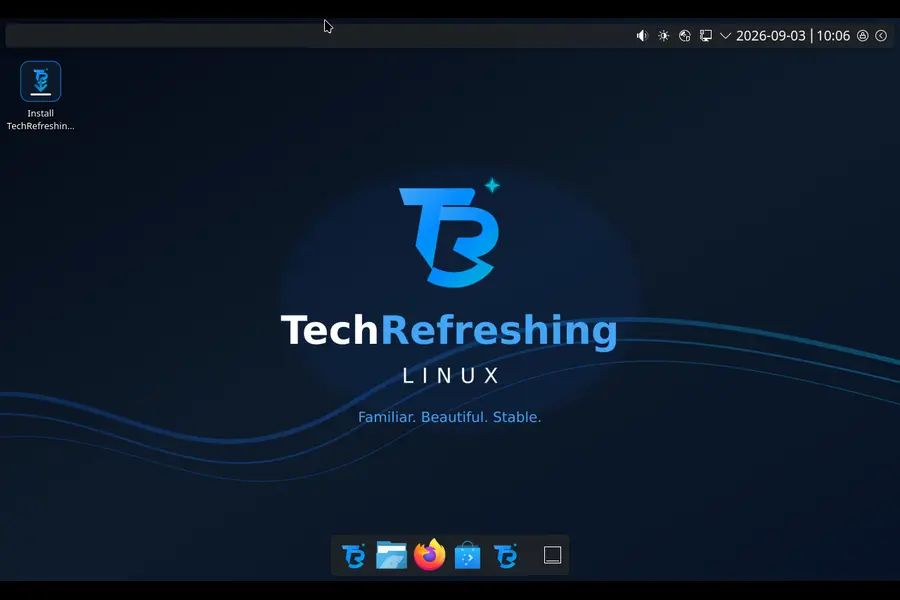
The desktop layout centres on a top panel carrying the application menu, system tray, and clock, paired with a centred, floating dock along the bottom for launching and switching between apps. TR Linux applies its own branding and icon choices on top of stock Plasma, but the underlying desktop is still KDE Plasma 6, with all the customisation options that come with it if you’d rather rearrange things.
A Straightforward Graphical Installer
Installation runs through Calamares, a graphical installer used by a number of independent Linux distributions. You can boot the ISO into a live session first, try the desktop, check your hardware, and only install once you’re satisfied it works the way you expect.
Before you install anything, back up your important files. Installer partitioning steps can permanently erase data if the wrong disk or partition is selected, and that risk exists regardless of how careful the installer’s interface looks. Take the extra few minutes to confirm you’re pointed at the correct drive.

Useful Applications from the First Boot
TR Linux comes with a practical set of applications rather than a minimal base you have to build up yourself. That includes Firefox ESR for browsing, LibreOffice for documents and spreadsheets, Thunderbird for email, VLC for media playback, and GIMP for image editing. Dolphin serves as the file manager, KDE Discover handles graphical software installation, and Timeshift is included for system snapshots. None of these are exclusive to TR Linux — they’re established open-source projects available on many distributions — but having them ready at first login saves the initial setup step of tracking each one down.

APT, Discover and Flatpak
If you’re new to Linux, “package management” just means how you install and update software. APT is the command-line tool Debian has used for decades, reliable and well documented. KDE Discover gives you a graphical alternative that looks and behaves more like an app store. Flatpak, with Flathub enabled, adds access to a large catalogue of sandboxed applications that run consistently across different Linux distributions. You can use whichever combination suits your comfort level, and none of them are mutually exclusive.

Welcome, Maintenance and Recovery Tools
At first login, the TR Linux Welcome application walks through the basics: what’s installed, where to find updates, and where to go for documentation and support. Beyond that, TR Linux includes shortcuts for system updates and maintenance, hardware-checking and diagnostic tools to help identify issues with components like Wi-Fi or graphics, and recovery and desktop layout tools in case something needs to be reset. None of these replace genuine backups, but they’re meant to make routine maintenance and troubleshooting more approachable.

Privacy Without Mandatory TR Linux Telemetry
TechRefreshing Linux does not include any mandatory TechRefreshing telemetry. I’m not collecting usage data from your installation as part of the distribution itself. That said, this doesn’t extend to every piece of software on the system. Applications like Firefox, Thunderbird, and any online services you connect to have their own separate privacy practices and settings, which are worth reviewing independently if that matters to you.
Hardware Requirements
These are practical starting points based on what the system needs to run and install comfortably, not guarantees that any specific machine will work perfectly.
Minimum starting point:
- 64-bit Intel or AMD processor
- 4 GB RAM
- 25 GB available storage
- 1024 × 768 display
- 4 GB or larger USB drive
Recommended for a more comfortable experience:
- 64-bit multicore processor
- 8 GB RAM or more
- 40 GB available storage
- Full HD display
- Reliable internet connection for updates
Before installing on any machine, boot the live environment first and test Wi-Fi, audio, graphics, Bluetooth, suspend, and any peripherals you rely on. Not every hardware combination is guaranteed to work out of the box, and confirming things in the live session avoids surprises after installation.
From Download to Desktop
- Download the ISO and its checksum file from the official release page.
- Verify the SHA-256 checksum before doing anything else.
- Create a bootable USB drive using a tool like Rufus, Ventoy, or Etcher.
- Boot your computer from the USB drive.
- Test the live environment — check your network, display, audio, and any peripherals.
- Back up your important data, then begin installation using Calamares.
To verify the download on Windows, open PowerShell and run:
Get-FileHash .\tr-linux-1.0-amd64.iso -Algorithm SHA256On Linux, run:
sha256sum tr-linux-1.0-amd64.isoThe result must exactly match the official checksum:
1e8f9fa5643dc0c55f26a2fa1ea5877141d999d7354804c1ba7a084cfd72b9dbIf the value doesn’t match, don’t install it. An incomplete download or a mismatched checksum usually means a corrupted file, and installing from it can cause problems partway through setup.
Installing Alongside Windows
TR Linux includes Windows dual-boot detection through GRUB and os-prober, but a few precautions make the process much safer and more reliable.
Back up your Windows files and personal data first. If BitLocker is enabled on your Windows drive, save the recovery key somewhere accessible before you start, since encrypted drives can behave unpredictably during partitioning. Disable Windows Fast Startup, since it can leave the filesystem in a state that interferes with dual-boot setups. Make sure Windows and the TR Linux installer are both running in the same firmware mode, preferably UEFI, and use Windows Disk Management to shrink your existing partition and create unallocated space before you begin.
During installation, take the time to confirm the correct disk and partitions are selected. Dual-boot detection generally works well, but it depends on your UEFI configuration, Fast Startup settings, BitLocker status, and how your existing partitions are laid out, so it isn’t something I can promise will work identically on every machine. Testing the live environment first gives you a chance to catch issues before they matter.
An Open and Transparent Project
The TR Linux build scripts and configuration are released under the GPL-3.0 licence, and the source code is publicly available on GitHub. You can inspect how the distribution is put together, review the known issues page, and read the security policy before deciding whether to trust it with your data.
TR Linux is built on Debian, and I want to be clear that this is an attribution, not a claim of official partnership — the same applies to KDE, Calamares, and the other open-source projects bundled in the distribution. Each of those projects, along with every included application, remains under its own separate licence.
Making the source available and documenting known issues publicly means you don’t have to take my word for how the system works. It doesn’t, on its own, guarantee the system is free of problems — that’s what the issue tracker and security policy are for, and I’d rather point to them directly than make broader claims about security here.
What Comes Next
Version 1.0 is a starting point, not a finished destination. I expect future updates to be shaped by real installation reports, hardware compatibility feedback, and issues that get documented clearly rather than guessed at. I don’t have specific features or release dates to announce beyond this release, and I’d rather not promise anything I can’t confirm yet.
If you decide to try TR Linux, the most useful thing you can do is test the live environment on your own hardware before installing, and if something doesn’t work, report it with as much detail as you can — especially your hardware specifics, since that’s often what makes a bug reproducible or not. Checking the known-issues page before you install can also save you some troubleshooting time, and following the official release channels is the best way to stay current as things change.
Download and Learn More
Everything you need to get TR Linux running is on the main TR Linux page, including the current release notes and download links.
The ISO itself is hosted on SourceForge, along with its SHA-256 checksum file and the full list of release files.
If you want to look under the hood, the source code is on GitHub, along with the issue tracker, the known issues page, and the security policy.
For more on the projects TR Linux is built with, you can read about Debian, KDE Plasma, the Calamares installer, and Flatpak with Flathub.
Frequently Asked Questions
Is TechRefreshing Linux free to download and use?
Yes. TR Linux is free to download, install, and use. The build scripts and configuration are released under the GPL-3.0 licence, and individual bundled applications remain under their own respective licences.
Can I try TR Linux without installing it?
Yes. The ISO boots into a live environment, so you can test your hardware — Wi-Fi, audio, graphics, and peripherals — before deciding to install anything to your drive.
Can I install TechRefreshing Linux alongside Windows?
TR Linux includes GRUB and os-prober to help detect an existing Windows installation. However, automatic detection is not guaranteed and depends on your UEFI mode, Fast Startup setting, BitLocker status and partition layout.
Does TR Linux collect telemetry?
No. TechRefreshing Linux does not include any mandatory TechRefreshing telemetry. Individual applications and any online services you use may have their own separate privacy practices.
Where can I report a problem?
For ordinary bugs, open an issue on the GitHub issue tracker and include your hardware details and steps to reproduce the problem. Potential security vulnerabilities should be submitted through private vulnerability reporting, not posted publicly.
Disclaimer: TechRefreshing Linux is an independent, community-built project and is not affiliated with, endorsed by, or officially supported by the Debian Project, KDE, Calamares, Mozilla, LibreOffice, or any other project it includes. Hardware compatibility is not guaranteed, and results may vary by device. Always back up your data before installing.