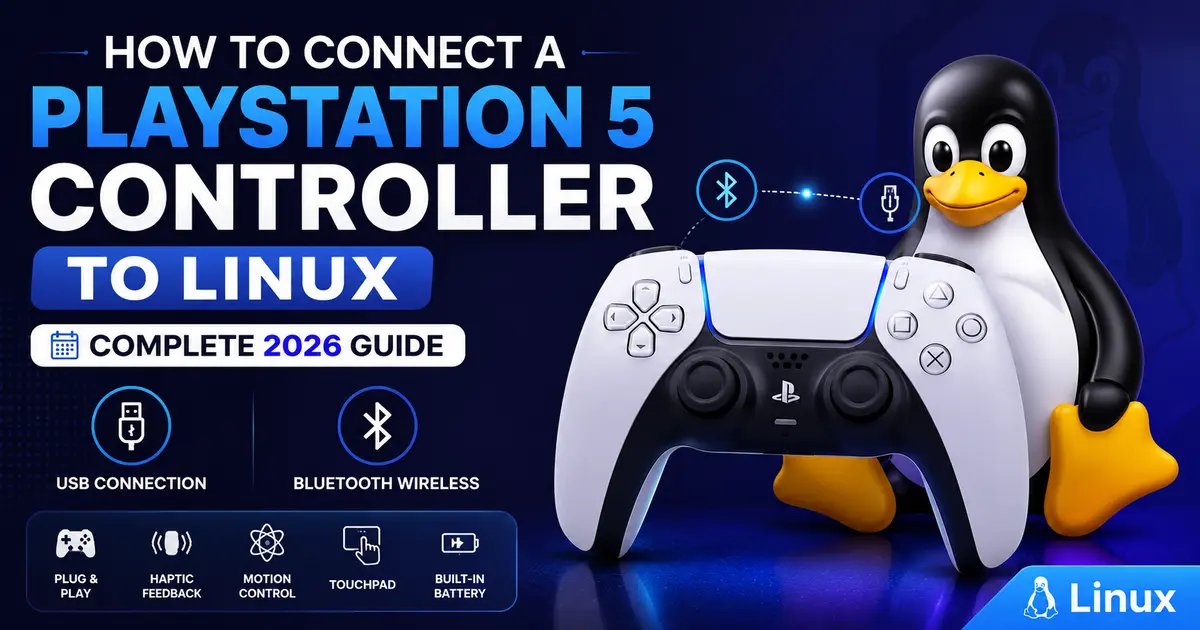
How to Connect a PlayStation 5 Controller to Linux (Complete 2026 Guide)
If you’ve ever plugged a DualSense controller into a Linux box and watched absolutely nothing happen, you’re not alone. Figuring out how to connect a PlayStation 5 controller to Linux used to be a frustrating mix of udev rules, third-party drivers, and forum posts from 2018 that no longer applied to anything. The good news is that Sony has actually put real engineering effort into Linux support over the past few years, and as of mid-2026, getting a DualSense or DualSense Edge working on a modern distro is genuinely straightforward — as long as you know which pieces matter and which ones are outdated advice you can ignore.
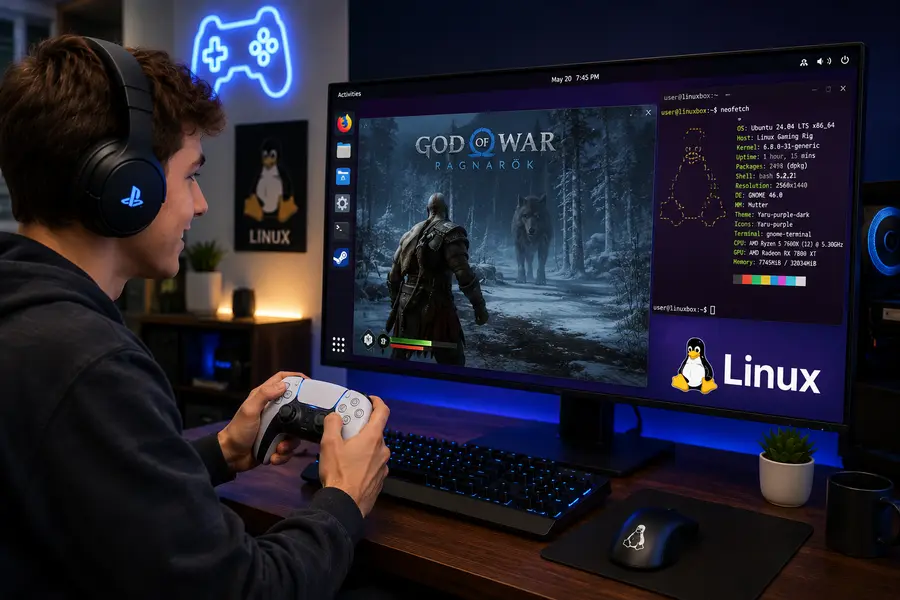
This guide walks through the entire process: USB, Bluetooth, kernel requirements, Steam Input configuration, troubleshooting the weird edge cases, and how the DualSense compares to other controllers once you’re actually gaming. I’ve pulled this together from hands-on testing across Arch, Fedora, and Ubuntu-based systems, so you’re getting what actually works, not just theory.
Quick disclaimer: this guide is based on independent testing and publicly available documentation. It isn’t affiliated with or endorsed by Sony Interactive Entertainment, and commands or file paths may vary slightly depending on your distribution and kernel version. Always check your own system’s output before copying commands.
Why This Used to Be Harder Than It Should Be
Before diving into steps, it helps to understand why DualSense support on Linux had a rocky start. The controller isn’t a simple HID gamepad — it packs a touchpad, a six-axis motion sensor, adaptive triggers, a multicolor lightbar, player indicator LEDs, a built-in microphone, and haptic feedback that’s more advanced than the classic rumble motors older controllers used. Generic HID drivers can read basic button and stick input from almost any gamepad, but they have no idea what to do with a touchpad sitting inside a controller or a lightbar that needs RGB commands sent to it.
Sony solved this by writing and upstreaming a dedicated Linux kernel driver called hid-playstation, maintained by Sony engineer Roderick Colenbrander. It was first merged into the mainline kernel back in 2021, and it has been steadily expanded since then — DualSense Edge support landed ahead of that controller’s retail launch, and later kernel releases added better rumble modes and more complete Bluetooth handling. You can browse the driver’s official documentation on the kernel.org HID subsystem pages if you want to see exactly which features are implemented at the kernel level. Because it lives in the kernel itself, you don’t need to install a separate app just to get the controller recognized, which is a nicer experience than what Windows users often deal with when they need vendor software just for basic detection.
What You Need Before You Start
You don’t need much, but these three things matter more than anything else:
- A reasonably current Linux kernel. Anything from kernel 5.16 onward has baseline DualSense support, but if you want full Bluetooth reliability, proper battery reporting, and the newer rumble mode, you’ll want kernel 6.x or newer. Most distributions shipping in 2026 are well past this.
- A DualSense or DualSense Edge controller. Both are supported natively. The original DualShock 4 also works through a separate
hid-sonydriver, so if you’re mixing PS4 and PS5 pads, both should be recognized. - Either a USB-C cable or Bluetooth. Both connection methods work, though they behave a little differently, which I’ll cover below.
One quick note on distros: rolling-release systems like Arch Linux, openSUSE Tumbleweed, and Fedora’s latest releases tend to get kernel and driver improvements faster because they ship newer kernels more frequently. Fixed-release systems such as Ubuntu LTS or Debian Stable can lag behind unless you’re running a hardware-enablement kernel or backported packages. If you’re on Ubuntu 22.04 and things aren’t working right, that’s often the actual reason — not a broken controller.
Method 1: Connecting via USB (The Reliable Option)
Wired is genuinely the easiest and most dependable way to get a DualSense working on Linux, especially the first time you set things up.
- Plug the controller into a free USB-A or USB-C port using a proper data cable (some cheap charge-only cables won’t transmit data — if the controller lights up but nothing responds, try a different cable).
- Open a terminal and run:
dmesg | grep -i playstationYou should see the hid-playstation driver load and identify the device.
- Confirm the controller shows up as an input device:
ls /dev/input/js*or, for more detail:
cat /proc/bus/input/devices | grep -A5 DualSense- Test it. Tools like
jstest-gtk,evtest, or simply opening Steam’s Big Picture controller test screen will confirm buttons, sticks, and triggers are all registering correctly.
If the driver isn’t loading automatically, it may simply not be built into your kernel’s initramfs. You can force it manually:
sudo modprobe hid_playstationIf that command succeeds without error but the controller still isn’t detected, unplug and replug it — sometimes the kernel needs to re-enumerate the device after the module loads.
Method 2: Connecting via Bluetooth (More Convenient, A Bit Fussier)
Bluetooth is where most of the “it’s not working” complaints come from, and it’s usually not actually a driver problem — it’s a pairing problem. Here’s the process that consistently works:
- Put the controller into pairing mode. Hold down the PlayStation button and the small Create/Share button (the one near the touchpad with the icon that looks like two overlapping rectangles) simultaneously for about five seconds. The lightbar will start flashing in a blinking double-pulse pattern, which means it’s discoverable.
- Open your Bluetooth settings. You can do this through your desktop’s GUI (GNOME Settings, KDE System Settings, etc.) or through the terminal with
bluetoothctl. - Using
bluetoothctl, run the following sequence:
   bluetoothctl
   scan on
Wait for an entry that says something like Wireless Controller or DualSense Wireless Controller to appear, then note its MAC address.
   pair XX:XX:XX:XX:XX:XX
   trust XX:XX:XX:XX:XX:XX
connect XX:XX:XX:XX:XX:XX- Check that it actually connected as an input device, not just a paired Bluetooth device. Being “paired” in the Bluetooth menu doesn’t always mean the HID profile connected successfully. Run
dmesgagain after connecting — you should seehid-playstationregister the Bluetooth interface specifically.
A common failure mode: the controller shows as paired in the system tray, but games and controller-test tools never see it. This is almost always a rejected HID connection at the bluetoothd level, which usually means the device wasn’t fully trusted before the connection attempt, or a stale pairing from another OS (like a Windows PC or the PS5 itself) is interfering. Removing the device with bluetoothctl remove XX:XX:XX:XX:XX:XX and re-pairing from scratch fixes this the vast majority of the time.
One thing worth knowing: a controller previously paired to your actual PS5 console needs to be put back into discovery mode before it’ll pair with a computer — it doesn’t multi-pair automatically the way some Bluetooth earbuds do.
Setting Up udev Rules (For Non-Root Access)
By default, some distros restrict raw HID device access to root, which breaks certain tools and games that talk to the controller directly (rather than through the standard joystick API). If you’re running into permission errors, create a udev rules file:
sudo nano /etc/udev/rules.d/70-dualsense.rulesAdd these lines:
# PS5 DualSense controller over USB hidraw
KERNEL=="hidraw*", ATTRS{idVendor}=="054c", ATTRS{idProduct}=="0ce6", MODE="0660", TAG+="uaccess"
# PS5 DualSense controller over Bluetooth hidraw
KERNEL=="hidraw*", KERNELS=="*054C:0CE6*", MODE="0660", TAG+="uaccess"
# PS5 DualSense Edge controller over USB hidraw
KERNEL=="hidraw*", ATTRS{idVendor}=="054c", ATTRS{idProduct}=="0df2", MODE="0660", TAG+="uaccess"
# PS5 DualSense Edge controller over Bluetooth hidraw
KERNEL=="hidraw*", KERNELS=="*054C:0DF2*", MODE="0660", TAG+="uaccess"
Then reload the rules without rebooting:
sudo udevadm control --reload-rules
sudo udevadm trigger
This step matters more than people expect — several DualSense management tools rely on direct hidraw access for things like lightbar color, adaptive trigger resistance, and microphone control, and none of that works if the permissions are locked to root.
Getting Full Feature Support: dualsensectl and Beyond
The kernel driver handles the basics — buttons, sticks, triggers, touchpad, and motion sensors all show up as standard input events. But features like lightbar color, player LEDs, microphone mute state, and adaptive trigger resistance need something extra, since there’s no universal Linux API for “make this specific gamepad’s lights turn purple.”
The most popular tool for this is dualsensectl, a lightweight command-line utility built specifically for controlling these extended features over hidraw. Once installed, you can do things like:
dualsensectl led-brightness low
dualsensectl lightbar 0 128 255
dualsensectl battery
It works over both USB and Bluetooth, and it’s the tool most desktop utilities and Steam Deck-adjacent projects lean on under the hood. The project is open source and actively maintained — you can find installation instructions and the full command list on the dualsensectl GitHub repository. If you just want the controller to work for gaming, you technically don’t need it — but if you want the lightbar to stop being a boring solid blue, this is where you’d go.
Steam Input: The Easiest Path for Actual Gaming
Here’s a detail a lot of guides skip: for the vast majority of Linux gamers, the real “controller setup” happens inside Steam, not at the OS level. Once the DualSense is recognized by the kernel — which the steps above confirm — Steam’s own Steam Input system takes over and handles the rest, including adaptive trigger effects and gyro-aiming in supported titles, without you touching a config file.
To enable it:
- Open Steam, go to Settings > Controller > General Controller Settings.
- Check the box for PlayStation Configuration Support.
- Steam will now treat the DualSense as a first-class controller, complete with per-game button mapping, trigger effect profiles, and touchpad-as-mouse support if a game doesn’t natively support it.
This matters because Proton games — the compatibility layer that lets Windows games run on Linux — often expect an Xbox-style controller layout internally. Steam Input translates DualSense inputs into that expected format automatically, which is why a lot of “PS5 controller doesn’t work in this Proton game” complaints disappear once Steam Input support is switched on rather than relying on the game’s native (and often DualSense-blind) controller detection. If you’re troubleshooting a specific title, checking its entry on ProtonDB is a good way to see whether other Linux players have already documented DualSense-specific quirks for that game.
Comparison: DualSense vs. DualSense Edge vs. Xbox Wireless Controller on Linux
If you’re choosing which controller to buy specifically for a Linux gaming setup, here’s how they stack up in practice, not just on paper.
| Feature | DualSense | DualSense Edge | Xbox Wireless Controller |
|---|---|---|---|
| Native kernel driver | Yes (hid-playstation) | Yes (hid-playstation) | Yes (xpad / xone) |
| USB support | Full | Full | Full |
| Bluetooth support | Full, occasionally finicky pairing | Full, same pairing quirks | Full, generally simpler pairing |
| Adaptive triggers | Yes, via Steam Input or dualsensectl | Yes, plus back paddles | No |
| Touchpad | Yes, mappable as mouse/buttons | Yes | No |
| Remappable back buttons | No | Yes (hardware-level) | No (software-level only via some tools) |
| Battery reporting | Yes | Yes | Yes |
| Price (2026 street pricing) | ~$74.99 USD | ~$199.99 USD | ~$59.99 USD |
| Best for | General Linux gaming, Proton titles | Competitive players wanting on-controller remapping | Simplicity-first setups, older kernels |
For most people, the standard DualSense is the better value on Linux — it gets you the touchpad, adaptive triggers, and motion sensing without the Edge’s premium price, and the driver support is identical between the two models. The Edge earns its cost back only if you actually use the swappable stick modules and remappable back buttons, which matter more in competitive shooters than in general-purpose gaming.
The Xbox controller remains the “it just works” option on older kernels or minimal distros where you don’t want to deal with any extra configuration, but you give up the touchpad and adaptive triggers entirely.
Common Problems and How to Actually Fix Them
Controller pairs but doesn’t respond in games.
This is almost always a HID connection issue, not a pairing issue. Remove the Bluetooth pairing entirely and redo it using the bluetoothctl sequence above, making sure trust is run before connect.
Touchpad or gyro not working in a specific game.
Not every game supports these natively, even on Windows. Enable Steam Input’s PlayStation configuration support, which maps the touchpad to mouse-like input and can enable gyro-aiming through Steam’s own translation layer, regardless of whether the game itself was coded with DualSense support in mind.
Controller disconnects randomly over Bluetooth.
This is frequently a power-management issue rather than a driver bug. Try:
echo on | sudo tee /sys/bus/usb/devices/*/power/controlfor USB Bluetooth adapters, or check your Bluetooth adapter’s firmware — cheap or older adapters are more prone to this than modern Intel or Qualcomm chipsets.
Rumble feels different or weaker than on PS5.
Older DualSense firmware versions simulate classic rumble through the haptic motors, which feels noticeably different from the newer firmware’s “classic rumble mode.” If your controller’s firmware predates this update, connecting it to a PS5 (or PC via Sony’s own tools) to update firmware can resolve the discrepancy — firmware updates themselves aren’t handled through Linux.
Permission denied errors on hidraw devices.
This is the udev rules issue covered earlier. Nine times out of ten, adding the rules file above and re-triggering udev solves it without a reboot.
Final Thoughts
Learning how to connect a PlayStation 5 controller to Linux isn’t the ordeal it was a few years back. Thanks to Sony’s own upstream kernel driver, most modern distributions detect the DualSense correctly the moment you plug it in or pair it over Bluetooth, and the remaining rough edges — permission issues, stale Bluetooth pairings, or missing udev rules — all have known, repeatable fixes. Whether you’re gaming through Steam and Proton, using an emulator, or just want a solid wireless input device for your desktop, the DualSense holds up well on Linux in 2026, and getting it running shouldn’t take more than a few minutes once you know which steps actually matter.
📚 Continue Reading
Is Drauger OS 7.8 Good for Everyday Desktop Use?
Discover whether Drauger OS 7.8 is suitable as a daily desktop operating system, including performance, gaming features, usability, and drawbacks.
Read More → Latest ReleaseWhat’s New in Ultramarine 44?
Explore the biggest improvements, new features, desktop enhancements, and package updates introduced in Ultramarine Linux 44.
Read More → Security LinuxWhat Is ParrotOS 7.3? Here’s Everything That Actually Matters
Learn what’s new in ParrotOS 7.3, including updated security tools, kernel improvements, performance enhancements, and who should upgrade.
Read More →About the Author