Budgie 10.10.3 Brings Polish and Fixes to the 10.10 Series, and it does more than a typical point release. The Buddies of Budgie team announced it on September 27, 2026 as the third minor update since Budgie 10.10 arrived.
Some changes fix annoyances that built up over months. Others bring back things people missed, like the Keyboard Layout applet, or deliver long-requested features such as free desktop icon placement.
I read the official release notes line by line and checked the linked issues, so you don’t have to. Below is what changed, why it matters, and who should care. If you run Budgie on Wayland with labwc, keep reading.
Key takeaways
- Budgie Menu gets favorites and working keyboard focus when you press Super
- The Keyboard Layout applet returns, rewritten in C
- You can now choose your primary monitor
- Desktop icons can be placed anywhere
- Raven no longer overlaps panels
- The labwc bridge gains media keys, cleaner keybinds, and config migrations
What Is Budgie 10.10.3?
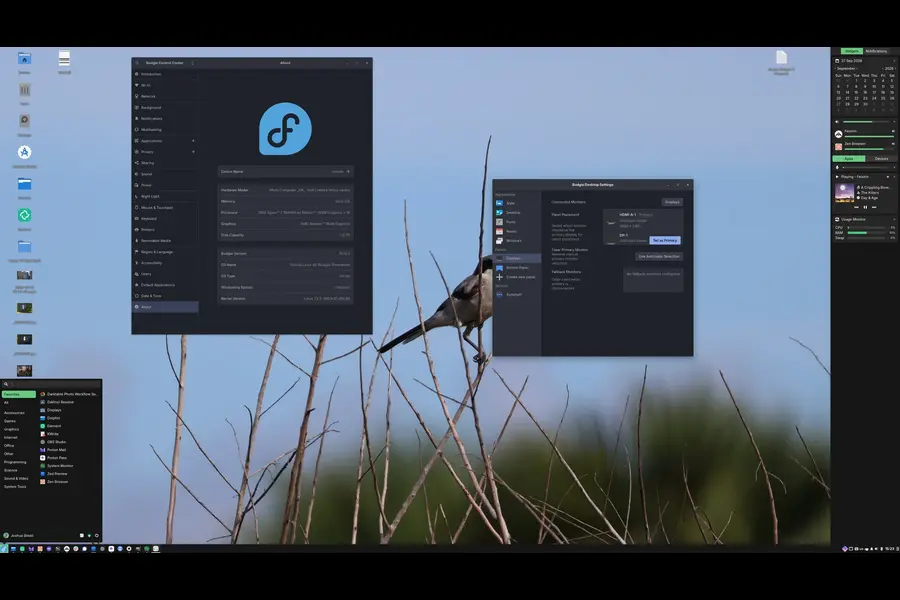
Budgie 10.10.3 is the third minor release of the 10.10 series, the generation that moved Budgie toward Wayland with labwc as the recommended compositor.
Point releases usually mean stability work. This one carries more weight. The project’s own stats show Budgie Desktop with 61 commits, about 11,200 lines added and 5,500 removed across 178 files. Budgie Desktop View, which handles desktop icons, had 10 commits and roughly 4,500 lines added.
That is a lot of change for a “minor” version.
Budgie Menu: Favorites and a Real Focus Fix
Favorites finally arrive
Until now, pinning apps only worked through the Icon Tasklist. In 10.10.3, right-click an app in Budgie Menu and choose “Add to favorites.”
Once you have one favorite, a Favorites category appears above All. Remove your last favorite while viewing it, and the menu returns you to All.
A few details worth knowing:
- Compact mode groups favorites at the top under a header
- Favorites are saved per menu, so two menus on two panels can hold different sets
- The right-click options include an app’s desktop actions, like a private browsing window
- The menu and Icon Tasklist now share code for those actions, so both list the same things
Pressing Super now works as expected
This is the fix many Wayland users will notice first. Since 10.10, Budgie Menu and applet popovers have been GtkPopovers. Under Wayland, a popover only receives keyboard input while its parent panel has focus.
Clicking the menu button focused the panel, so search worked. Pressing Super skipped the panel entirely, so your typing kept going to the previous window. Even after clicking the search box, Enter would not launch the selected app (issue #842).
The fix turns Budgie Menu back into a proper GtkWindow running as its own layer-shell surface, so the compositor can give it keyboard focus. Press Super and type.
The team chose not to convert every popover back to a window, since that would break the ABI. Budgie Menu exposes no ABI, and most applets don’t need this input behavior, so the change stays contained.
The Keyboard Layout Applet Returns
The applet was disabled in 10.10 because it relied on IBus and X11-specific code that crashed under Wayland (issue #650). Instead of rushing a patch, the team spent the series designing a sturdier approach.
How the new design works
The rewritten applet talks to three sources:
- Input sources configured in Budgie Control Center
- locale1 / systemd-localed
- Compositor-specific bridges
The tricky part: labwc does not listen to locale1. It only reads layouts from XKB_DEFAULT_* variables in its environment file. Without a translator, running localectl would do nothing on labwc.
So budgie-daemon acts as a hub through a new org.buddiesofbudgie.KeyboardLayout D-Bus interface. The applet requests a layout, the daemon broadcasts the request, and the labwc bridge writes the environment file and reloads labwc. Alt+Shift and Super+Space follow the same path.
To close the loop, the bridge watches that file, reads back the active layout, and updates the daemon’s CurrentLayout property. The applet then refreshes its panel label.
Which layout wins?
The bridge uses the first of these that is set:
- The layout you last picked in the applet or via shortcut
- Input sources in Budgie Control Center
- The system layout from locale1
/etc/default/keyboard- US English as a last resort
A caveat for Debian and Ubuntu users
The bridge also tries to set your system layout through locale1 so your TTY matches. That should work on Arch Linux, Fedora, and Solus, where Budgie Control Center’s polkit rule allows it without a password.
Debian and Ubuntu are exceptions. Debian blocks setting the layout through locale1, so the layout applies only to your Budgie session there. This also affects installers like Calamares on Wayland (Debian bug #1118702).
Because other bridges can implement the same interface, the design is reusable. The release notes mention Ubuntu Budgie’s Wayfire bridge as one example.
Primary Monitor Selection
Multi-monitor users had a recurring problem: panels landing on the wrong screen after a reboot or login (issue #954, issue #935). The Wayland protocols Budgie uses, wl_output and wlr output management, have no concept of a primary display, so no compositor could tell Budgie which one to use.
In 10.10.3, you decide.
The new Displays page
When more than one display is connected, Budgie Desktop Settings shows a Displays page. Choose “Set as Primary” on any monitor. Panels move there, along with notifications, on-screen displays, the Run dialog, and the Power dialog.
“Use Automatic Selection” clears your choice. A button also opens wdisplays, if installed, for arranging monitors.
Fallback behavior
Budgie remembers monitors you’ve set as primary as an ordered fallback list. If your primary disconnects for more than a few seconds, panels move to the next connected monitor on the list. If it returns within those seconds, nothing moves. While screens are off from idle, Budgie ignores monitor changes so panels stay put.
Budgie Desktop Services 1.0.3 adds guards in output management that should also improve suspend and resume behavior.
Raven Fits Between Your Panels
Raven, the side panel for notifications and widgets, could hang over panel ends depending on layout (issue #843). It sized itself from panel dimensions while the compositor centered it in the leftover space, and when the two disagreed, it overlapped.
Now Raven stretches between the top and bottom screen edges and lets the compositor work out the space around panels. It also closes when you click away onto another window or the desktop (issue #887).
Other Raven fixes:
- The Usage Monitor reads CPU, memory, and swap through libgtop instead of
/procfiles, fixing panel crashes on systems like postmarketOS on ARM (issue #890) - Rapid open/close toggling no longer breaks the animation
- The Sound Output widget shows the correct icon for Flatpak apps playing audio
- Do Not Disturb stays in sync between Raven and the Notifications applet
Free Desktop Icon Placement
Budgie Desktop View dates back to November 2020, when it was built as a grid-based view after newer Nautilus versions dropped desktop icon support. It worked, but it was rigid. You could reorder icons, not place them freely.
Budgie Desktop View 10.10.3 removes that limit.
Placement and layouts
Icons sit on a grid based on icon size, which you change with Ctrl+scroll. Positions are stored in grid cells, so layouts scale with size and renamed files keep their spot.
Budgie keeps a separate layout for each grid size. Return to a resolution and its layout is restored exactly. A new resolution gets a layout based on the closest one, with icons keeping their distance from the nearest edges, so a Trash icon in the bottom-right stays there. That new layout isn’t saved until you move an icon, so a briefly used resolution leaves nothing behind.
Upgrading with a custom order? It is imported at first login with Auto-arrange off, so your arrangement stays.
Selecting and arranging
- Drag from empty desktop space to select
- Hold Ctrl or Shift to extend a selection
- Ctrl+A selects everything, and arrow keys move between icons
The right-click menu adds these options:
- Auto-arrange (default on): arranges icons in columns using your Sort By choice; moving an icon turns it off
- Snap to Grid (default on): snaps icons to the nearest cell; off lets you place them anywhere
- Align to Grid: moves selected or all icons to the nearest free cells
- Sort By: name, type, or date modified, with Home, Trash, and mounted drives always first
Moving files and thumbnails
Dragging a selection onto Trash sends files there, highlighted in red. Dropping onto a folder, including Home, moves the files in. A name clash adds ” (Copy)” so nothing is overwritten.
Thumbnails now follow the freedesktop specification and share a cache with your file manager. Budgie Desktop View uses installed thumbnailers such as glycin-thumbnailer for images or ffmpegthumbnailer for video. Image loading no longer blocks the desktop, and the default size limit for image thumbnails rises from 10 MB to 25 MB.
The labwc Bridge Matures
The bridge translates your Budgie settings into labwc configuration, and 10.10.3 makes it considerably more robust.
- Cleaner keybinds: Empty entries that triggered login errors in labwc 0.20.2 (issue #956) are gone. Keybinds come from a template, only valid ones merge into
rc.xml, and your own custom keybinds are kept. - Media keys: Play, pause, next, and previous now work through a new media controller in budgie-daemon (issue #916). Volume and mic keys still use WirePlumber’s
wpctl. - Launcher keys: Terminal, calculator, browser, file manager, and media player keys work across distributions.
- Focus behavior: With sloppy or mouse focus, dropdowns in apps like Steam no longer close before you can click (issue #750). The bridge now sets labwc 0.20’s raise delay from your auto-raise setting.
- Show Desktop: On labwc 0.20 and newer, it uses labwc’s own action.
- Config migrations: Each change is tied to the
rc.xmlversion that introduced it, and only applies where the value is still the one Budgie shipped. The first migration fixes maximize keybind directions that labwc now flags as errors (issue #985). - Reliability: The bridge was split into smaller parts, fixing crashes such as one on brand new user profiles.
Comparison: Budgie 10.10.2 vs Budgie 10.10.3
| Area | Budgie 10.10.2 (and earlier 10.10.x) | Budgie 10.10.3 |
|---|---|---|
| App favorites | Icon Tasklist only | Also in Budgie Menu, saved per menu |
| Super key search | Typing could go to the previous window | Menu is a window that gets keyboard focus |
| Keyboard Layout applet | Disabled since 10.10 | Returns, rewritten in C |
| Primary monitor | Chosen automatically, panels could land wrong | Manual choice plus ordered fallback list |
| Desktop icons | Fixed grid with custom ordering | Free placement, per-grid-size layouts |
| Raven | Could overlap panels | Fits between panels, closes on click-away |
| Usage Monitor data source | Files under /proc | libgtop |
| Thumbnail cache | Not shared, per the notes’ spec change | Freedesktop spec, shared cache |
| Image thumbnail limit | 10 MB | 25 MB |
| Maximize keybind values | right / left (flagged as errors by labwc) | horizontal / vertical, auto-migrated |
| Secret Service | No oo7 support | Opt-in oo7 build option |
Packaging Notes for Distributions
If you maintain packages, this section is for you.
Dependencies
- Adds libgtop
- Drops libwnck, IBus, and intltool, with translation extraction now handled by Meson
- With runtime checks on, the labwc bridge needs dbus-python, PyGObject, and psutil, plus Gio, GLib, and Pango typelibs
- python-systemd is optional; without it the bridge logs to stdout
New build options
with-oo7andoo7-libexecdir(off by default)gsd-componentsandgsd-components-excludedto choose which gnome-settings-daemon components startbudgie-session-libexecdirandxdp-libexecdirfor per-package libexec layouts
Ship these together
- Budgie Desktop View 10.10.3, which raises the minimum GLib from 2.64 to 2.72
- Budgie Desktop Services 1.0.3
- budgie-extras 2.3.1
- Pocillo GTK theme 0.13.0, which adds compatibility with the Budgie Menu changes
Distributions can also ship their own keybinds.xml alongside the new keybinds.xml.example. Pairing new Desktop View with an older Budgie Desktop means clicking the desktop won’t close Raven.
oo7 Secret Service Support
Fedora 45 plans to switch its default Secret Service provider from GNOME Keyring and KWallet to oo7, with existing GNOME Keyring data migrated automatically.
Budgie 10.10.3 adds opt-in support for distributions. When enabled at build time, Budgie starts oo7’s daemon with your session and routes the Secret portal for sandboxed apps like Flatpaks to it. It is off by default, so distributions on GNOME Keyring are unaffected.
Notable Bug Fixes
- Workspaces: + and – change the count by one instead of running to the limit (issue #903)
- Tasklist: Clicking a button minimizes Firefox and Vivaldi again (issue #907), and switching workspaces no longer clears buttons (issue #904)
- Icon Tasklist: Touchpad scrolling switches between an app’s windows (issue #693), and Electron apps like Proton Mail group with their pinned launcher
- Wrong grouping: Android Studio no longer groups under a pinned OBS Studio
- Panel: No jitter on panels under 40px (issue #895), and your set size now applies to content instead of losing 5px to the shadow
- Polkit dialog: No more high-CPU hangs, which had also blocked logout, restart, and shutdown dialogs (issue #948)
- System tray: Some Wine app icons no longer cause type errors, possibly helping Lutris-related crashes (issue #958, issue #960)
- Crystal Dock: Toggling desktop icons no longer freezes it
- Login screen: Wallpaper sharing uses AccountsService’s standard interface, so display managers besides LightDM can use it
- Session script: The labwc start script runs with
/bin/shinstead of bash - Translations: The Trash applet and all 19 panel applet names are now translatable
After You Update: A Quick Checklist
Once 10.10.3 reaches your distribution, spend five minutes verifying the changes that matter most to you:
- Super key: Press it, type an app name, and confirm Enter launches it
- Favorites: Right-click an app in Budgie Menu and add it to favorites
- Keyboard layouts: Add a second input source and switch with Super+Space
- Monitors: If you have two displays, open the new Displays page and set your primary
- Desktop icons: Drag an icon to an empty spot, then try Ctrl+scroll to resize
- Raven: Open it, then click the desktop and confirm it closes
- Media keys: Play music and test pause and next
If something behaves differently, the project tracks problems on its GitHub issue tracker.
Pros and Cons
Pros
- The Super key launcher works properly under Wayland
- Free icon placement with per-resolution layouts is a genuine upgrade
- Multi-monitor panel placement becomes predictable
- Media and launcher keys work without manual setup
- The migration system makes future labwc changes less disruptive
- The bug list targets crashes and hangs, not just cosmetics
Cons
- Debian and Ubuntu users won’t get system-wide layout changes through the bridge
- Mixing new Desktop View with older Budgie Desktop loses click-to-close for Raven
- Packagers face new dependencies and companion packages to coordinate
- The Displays page only appears with multiple monitors
Who Should Update?
Update soon if you:
- Use Budgie on labwc and switch keyboard layouts
- Run two or more monitors
- Want freedom over desktop icon placement
- Have hit Polkit hangs, tasklist glitches, or tray crashes
Wait for your distribution if you:
- Use a stable release that packages Budgie on its own schedule
- Would rather not mix Budgie components manually
Conclusion
Budgie 10.10.3 Brings Polish and Fixes to the 10.10 Series in a way that feels earned rather than padded. The Super key launcher works again, multi-monitor panels behave predictably, and desktop icons finally go where you put them. The returning Keyboard Layout applet also arrives with a design other compositor bridges can reuse.
It isn’t a flashy release, but it fixes the things that irritate you every day. For anyone running Budgie on Wayland with labwc, it is one of the more meaningful point updates in the 10.10 line.
For the full changelog and contributor list, read the official Budgie 10.10.3 announcement.
Disclaimer: This article is based on the official Budgie 10.10.3 release notes published on September 27, 2026. Availability, package versions, and behavior may vary by Linux distribution. Always check your distribution’s documentation and back up important data before upgrading your desktop environment.
More Linux Reviews & Troubleshooting Guides
Explore more Linux distro reviews, lightweight desktop options, and practical troubleshooting guides from TechRefreshing.
openKylin 3.0 Review: AI-First Linux Desktop
Discover what openKylin 3.0 brings with Linux Kernel 7.0, UKUI 4.24, KylinBot, and system-level AI features.
Read the openKylin 3.0 Review → Linux Distro ReviewSparkyLinux 2026.09 Review: New Labwc Edition
See what’s new in SparkyLinux 2026.09, including the lightweight Labwc Wayland desktop, Debian Testing base, kernels, and performance.
Read the SparkyLinux 2026.09 Review → Linux TroubleshootingLinux Bluetooth Adapter Not Detected? Fix It
Learn how to diagnose missing Bluetooth adapters on Linux, including rfkill blocks, firmware problems, drivers, and services.
View the Bluetooth Fix Guide →