If you’ve upgraded to Ubuntu 26.04 LTS and noticed that the little update icon in your top bar has vanished, you’re not imagining things. Ubuntu 26.04 not showing update notifications has become one of the most common questions in Ubuntu forums over the past few months, and there’s a very specific, well-documented reason for it. The good news is that it’s fixable in a couple of minutes, and in most cases you don’t even need to do anything, because a patch has already rolled out. Let’s walk through exactly why this happens and how to get your notifications back.
Why Ubuntu 26.04 Isn’t Showing Update Notifications
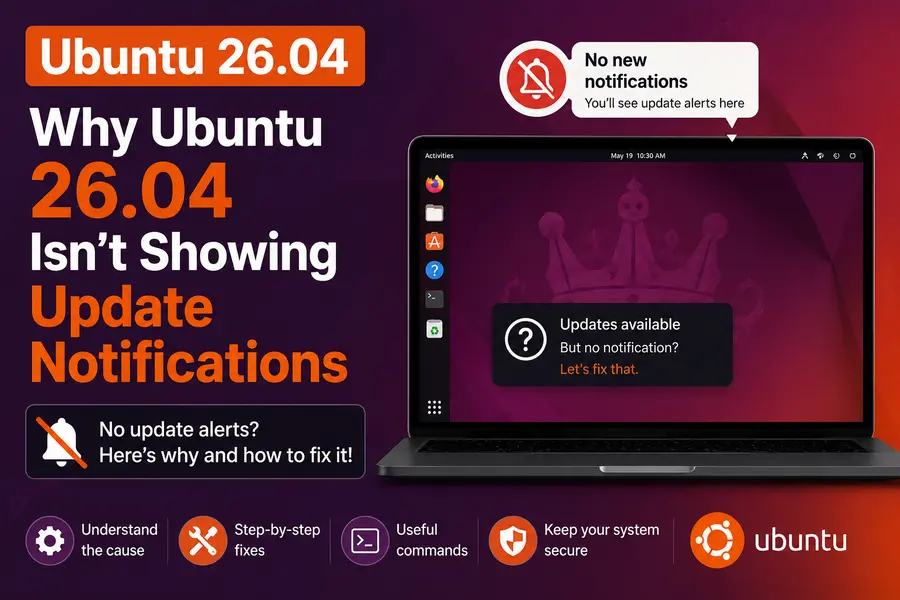
Here’s the short version: this isn’t a bug on your machine. It’s a default setting Canonical shipped with Ubuntu 26.04 LTS, and it caught a lot of long-time Ubuntu users off guard.
To understand what changed, it helps to look back one release. Ubuntu 24.04 didn’t have a dedicated update status icon at all — instead, it relied on the older Software Updater pop-up window that many users found intrusive, since it would occasionally steal focus while you were working. Ubuntu 25.10 replaced that behavior with a quieter system: a small tray icon paired with a desktop notification, powered by the Ubuntu update notifier. Most people liked it, because it was far less disruptive than the old pop-up.
Then came Ubuntu 26.04. Canonical set the show-updates-status-icon key to false by default, which switches off both the tray icon and the desktop notifications tied to it, and there’s no toggle for this in the Settings app. So if you’re coming from 24.04, this key is brand new territory. If you’re coming from 25.10, the behavior simply changed underneath you with the upgrade.
Canonical engineer Marco Trevisan has described this as a deliberate design choice rather than an oversight, a point he reiterated in an official Ubuntu Discourse discussion on the new default behavior. The reasoning appears to be less notification noise by default, with the assumption that users who want proactive alerts can turn the icon back on themselves.
There’s also an important distinction worth understanding here: security updates and non-security updates are treated very differently. Security patches still install automatically in the background through unattended-upgrades, regardless of whether the tray icon is visible. The actual gap was with routine, non-security package updates — the kind you’d normally want to glance at before installing — which simply weren’t being flagged to the desktop at all.
Symptoms
You’re likely dealing with this exact issue if you notice:
- No popup notifications ever appear, even after days of uptime
- The update icon is completely missing from the top bar / system tray
- App Center only shows available updates when you open it manually
- Running
apt list --upgradableorsudo apt updatein a terminal shows pending updates, but the desktop never mentions them - Software Updater doesn’t launch on its own schedule anymore
- Everything looks fine on a fresh install, but updates silently pile up over a few weeks
If any of these sound familiar, don’t worry — this is a known, well-documented behavior, and it’s straightforward to work around.
Quick Checks Before Fixing
Before diving into settings changes, rule out the basics. In my testing, a surprising number of “no notification” reports turn out to be simple connectivity or timing issues layered on top of the default behavior.
- Check your internet connection. Ubuntu can’t check for updates it can’t reach.
- Manually refresh the package index:
sudo apt update- Verify there are actually pending updates:
apt list --upgradable- Restart the update-notifier process (covered in detail in Solution 2 below) to rule out a stuck background process.
If updates show up in the terminal but never on the desktop, you’re almost certainly running into the Ubuntu 26.04 update notifications behavior described above, and one of the solutions below will fix it.
Solution 1: Enable the Update Status Icon
This is the fix that solves the problem for most people. Open a terminal and run:
gsettings set com.ubuntu.update-notifier show-updates-status-icon trueWhat this actually does: it flips the show-updates-status-icon key back to true in your dconf/gsettings database, which is exactly the key Canonical set to false by default in Ubuntu 26.04 LTS. Once it’s enabled, the update-notifier tray icon reappears, and desktop notifications tied to it start showing up again the next time updates are available. You don’t need to reinstall anything or reboot — the change takes effect immediately for new notification events.
If you’d rather use a graphical tool instead of the terminal, you can install dconf-editor and navigate to com > ubuntu > update-notifier > show-updates-status-icon. One thing worth checking here: make sure the “Use default value” toggle is switched off before you change the setting, otherwise your change won’t stick.
Solution 2: Restart Update Notifier
Sometimes the notifier process itself is simply not running, which produces the same symptoms as the disabled icon setting. To restart it:
killall update-notifier
/usr/lib/update-notifier/update-notifier &
This kills any stuck instance and relaunches it fresh in the background. It’s a safe operation — you’re not removing any data or configuration, just restarting a background helper process. This is a good first troubleshooting step if you’ve already enabled the status icon (Solution 1) but still aren’t seeing anything.
Solution 3: Check Update Settings
Ubuntu 26.04 made another change that trips people up, one that’s been discussed at length on the Ubuntu Community Hub: the “Software & Updates” utility is no longer installed by default on new installations. That’s the tool many long-time users relied on to configure how often Ubuntu checks for updates, which repositories are enabled, and how security updates are handled.
You can still install it if you want a graphical way to manage these settings:
sudo apt install software-properties-gtk update-managerOnce installed, open Software & Updates and check the “Updates” tab. Verify:
- The update check frequency (daily is the default and recommended setting)
- Whether “Notify me of a new Ubuntu version” is enabled
- That your security update source is pointed at the official Ubuntu repositories
While you’re checking settings, it’s also worth confirming that non-security update notifications aren’t being delayed intentionally. Ubuntu 26.04 applies a default delay of roughly seven days before nudging you about routine, non-security updates, which is expected behavior rather than a fault.
Solution 4: Install/Reinstall update-notifier
If the package itself is missing, broken, or was accidentally removed, reinstalling it clears up most remaining issues:
sudo apt update
sudo apt install --reinstall update-notifier
This pulls a clean copy of the package from your repositories and overwrites any corrupted files, without touching your personal data. Based on Ubuntu’s current behavior, this also ensures you’re running the patched version of update-notifier (see Solution 8 below), which fixes the underlying notification bug regardless of the tray icon setting.
Solution 5: Reset Notification Settings
If notifications are being silently suppressed at the system level rather than just the update-notifier level, reset the notification permissions for the app:
gsettings reset com.ubuntu.update-notifier no-show-notificationsThis clears any override that might be telling GNOME to block update-notifier’s notifications outright. It’s a safe reset — it only affects this one notification preference and won’t touch your other desktop settings, sounds, or do-not-disturb configuration. It’s worth double-checking this key is set to false (its default), since a stray true value here will silently block notifications even if everything else is configured correctly.
Solution 6: Install Pending Updates
Sometimes the simplest fix is to just clear the backlog:
sudo apt update
sudo apt upgrade
Why this helps: a large queue of long-pending updates can occasionally interfere with how update-notifier schedules its next check-in, especially if some packages have unmet dependencies sitting in a half-configured state. Clearing the queue gives the notifier a clean slate to work from, and many users report notifications resuming normally afterward.
Solution 7: Reboot the System
It sounds almost too simple, but a reboot restarts every background service tied to your desktop session, including update-notifier, GNOME Shell’s notification daemon, and any dconf watchers. If you’ve made changes using the solutions above and nothing seems to be taking effect, a reboot is the cleanest way to confirm the new settings have actually been applied system-wide rather than just to your current session.
Solution 8: When the Issue Is Actually a Canonical Design Change
It’s worth being upfront about something: for a lot of readers, none of the fixes above will feel necessary once you understand what’s actually happening.
Ubuntu 26.04 intentionally shipped with update notifications turned off by default. That’s not a support workaround — it’s the documented, current behavior of the release. Canonical’s own discussion threads confirm this was a deliberate choice tied to reducing desktop notification noise, not a regression.
That said, Canonical has since acknowledged that the original implementation went a step further than intended. Because update-notifier only fired desktop notifications when its tray icon was visible, having the icon off by default meant non-security updates weren’t being flagged anywhere at all — not even a one-time nudge. A Launchpad bug filed in early July 2026 documented this clearly: a user found ten pending non-security updates with zero notifications, and confirmed that manually forcing the tray icon on restored notifications immediately.
In response, an updated version of update-notifier was released as a security update for Ubuntu 26.04.1. This update removes the dependency on the tray icon entirely, so installing software through App Center, running unattended-upgrades, or checking manually all trigger the same underlying notification path regardless of whether the icon is visible. Because it shipped as a security update, this fix reaches most systems automatically through unattended-upgrades, without any action needed from you.
So depending on when you’re reading this and how up to date your system is, you may already be receiving notifications again without having changed a single setting. If you’re still not seeing them, running the update commands in Solution 6 will pull in the patched version, and Solution 1 gives you the tray icon back regardless.
Troubleshooting Table
| Problem | Cause | Solution |
|---|---|---|
| No icon in top bar | show-updates-status-icon set to false | Solution 1 |
| Icon present, no popups | update-notifier process not running | Solution 2 |
| Unsure what settings apply | “Software & Updates” tool missing | Solution 3 |
| Notifications never fire, even with icon on | Outdated update-notifier package | Solution 4 or 8 |
| Notifications blocked at GNOME level | no-show-notifications set to true | Solution 5 |
| Long backlog of updates, no prompts | Stuck update queue | Solution 6 |
| Settings changed but nothing works | Session not refreshed | Solution 7 |
| Everything is “working as intended” | Canonical’s default design change | Solution 8 |
| Updates show in terminal, not on desktop | Combination of icon + notifier version | Solutions 1, 4, and 8 |
| Non-security updates delayed | Built-in 7-day notification delay | Wait, or check via App Center manually |
Command Reference Table
| Command | Purpose |
|---|---|
sudo apt update | Refresh the local package index |
apt list --upgradable | List packages with pending updates |
sudo apt upgrade | Install all pending updates |
gsettings set com.ubuntu.update-notifier show-updates-status-icon true | Re-enable the tray icon and its notifications |
gsettings reset com.ubuntu.update-notifier no-show-notifications | Clear a notification-suppressing override |
killall update-notifier && /usr/lib/update-notifier/update-notifier & | Restart the notifier process |
sudo apt install --reinstall update-notifier | Reinstall a clean copy of the notifier package |
sudo apt install software-properties-gtk update-manager | Install the Software & Updates GUI tool |
Best Practices
- Keep automatic security updates enabled. Unattended-upgrades handles this quietly and reliably, and disabling it removes an important safety net.
- Check for updates regularly, even if it means opening App Center or running
apt updatemanually once a week, especially while notification behavior varies between systems. - Avoid disabling update-related services entirely just to silence notifications — muting the icon is enough, and it keeps the underlying update mechanism intact.
- Stick to official Ubuntu repositories for anything system-critical. Third-party PPAs can sometimes interfere with how updates are queued and reported.
- Update your system promptly after any fix above, since the patched update-notifier package resolves most of the confusion on its own.
Frequently Asked Questions
Is Ubuntu 26.04 not showing update notifications a bug?
The default of hiding the tray icon was an intentional design decision. However, the fact that this also silenced all non-security update notifications was treated as an unintended side effect and has since been patched.
Why is “Software & Updates” missing on my fresh install?
Canonical removed it from the default 26.04 install set. It’s still available in the repositories and can be reinstalled with sudo apt install software-properties-gtk.
Does this affect Ubuntu 24.04 or 25.10 too?
No. The show-updates-status-icon setting didn’t exist in 24.04, and in 25.10 it defaulted to enabled. The change is specific to Ubuntu 26.04 LTS.
How do I know if my system already has the fix?
Run apt list --upgradable and check for an update-notifier entry, or check your installed version against 3.207.2 or later using apt policy update-notifier.
Will this be fixed permanently in a future update?
Based on Ubuntu’s current behavior and the security patch already released for 26.04.1, the notification gap itself has largely been addressed. Whether Canonical changes the default icon visibility again remains to be seen in future point releases.
Conclusion
To sum it up: Ubuntu 26.04 not showing update notifications comes down to one setting Canonical switched off by default, combined with a related bug that briefly made the problem worse than intended. Re-enabling the status icon with gsettings set com.ubuntu.update-notifier show-updates-status-icon true solves it for most people immediately, and installing the latest update-notifier package closes the rest of the gap. Your security updates were never at risk either way, since unattended-upgrades keeps running in the background regardless of what’s visible on your desktop.
Final Tip
If you only do one thing after reading this, run sudo apt update && sudo apt upgrade and then re-enable the status icon. Between the patched update-notifier package and that one gsettings command, the vast majority of Ubuntu 26.04 users get their notifications back without touching anything else.
Disclaimer
This article reflects Ubuntu 26.04 LTS behavior and update-notifier fixes as of late July 2026. Canonical may adjust default settings in future point releases, so if your experience differs, check apt policy update-notifier to confirm your installed version.
Continue Your Linux Journey
If you’re troubleshooting Ubuntu, these expert Linux guides can help you improve performance, choose the right distribution, and stay updated with the latest Linux releases.
Tails 7.10 vs Tails 7.9: What’s Actually Changed?
Compare every major security improvement, performance enhancement, bug fix, and feature introduced in the latest Tails release.
Best Lightweight Linux Distros for 4GB RAM
Discover fast, lightweight Linux distributions that breathe new life into older laptops and desktop computers.
PipeWire vs PulseAudio: Which Is Better?
Learn the differences between PipeWire and PulseAudio, including latency, compatibility, gaming, professional audio, and desktop performance.
If you’re fixing Ubuntu update notification issues, the next most useful guide is our in-depth comparison of PipeWire vs PulseAudio. Many Ubuntu users troubleshoot audio, updates, and system configuration together after a fresh installation or major LTS upgrade.