Press the power button, and a few seconds later you’re staring at a login prompt or a desktop. Most people never think twice about it. But what happens during the Linux boot process is actually a tightly choreographed sequence of hardware checks, bootloader handoffs, kernel initialization, and service startups — and understanding it makes you a genuinely better sysadmin, developer, or troubleshooter.
I’ve spent years debugging boot failures on everything from Raspberry Pis to production servers running kernel 6.18 LTS, and the boot sequence is one of those topics that looks intimidating until you break it into stages. Once you see the pattern, a kernel panic or a stuck systemd unit stops being a mystery and starts being a checklist.
This guide walks through every stage of what happens during the Linux boot process, using terminology and version numbers that match what’s actually shipping in mid-2026 — including the current mainline kernel (7.1.5) and the actively maintained LTS branches (6.18, 6.12, 6.6, 6.1, and 5.10), as tracked on kernel.org.
Why the Boot Process Still Matters in 2026
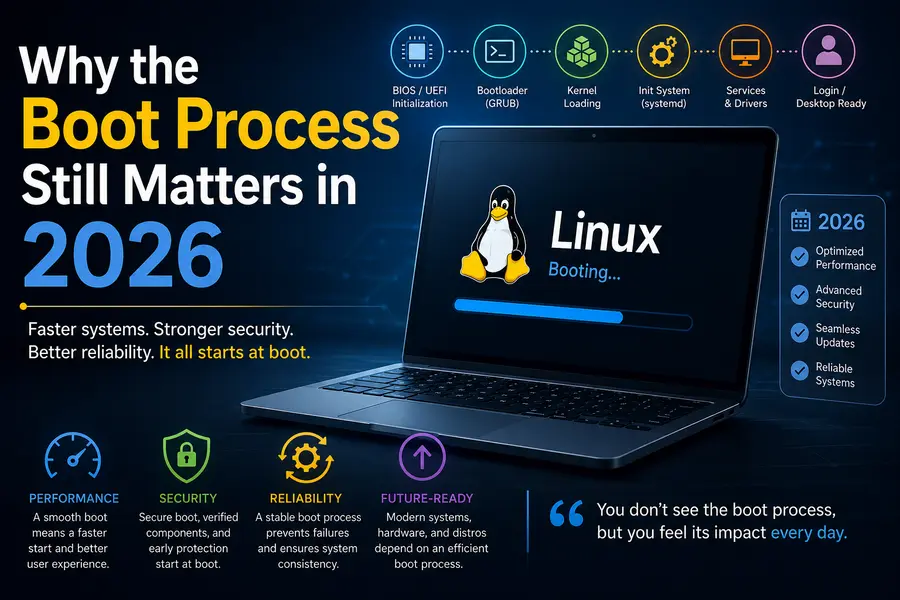
You might assume boot sequences are a “solved problem.” They’re not. Cloud images boot in under two seconds now, immutable distros like Fedora Silverblue and openSUSE MicroOS boot into read-only root filesystems, and secure boot chains have gotten considerably stricter thanks to ongoing firmware CVEs. If you manage servers, containers, or embedded devices, you’ll eventually hit a boot problem that Google can’t fully answer for you — and that’s when knowing the stages actually pays off.
There’s also a security angle that’s grown more relevant every year. Recent kernel stable cycles have shipped fixes for real vulnerabilities that intersect with boot-time code — things like KVM shadow paging bugs and firmware trust issues — which is exactly why keeping your kernel and bootloader current isn’t just busywork. The Linux kernel’s own stable release process documents exactly which branches are still receiving these fixes, and it’s worth bookmarking if you manage more than a couple of machines.
Stage 1: Power-On Self-Test (POST)
The moment you hit the power button, the motherboard firmware — either legacy BIOS or, far more commonly today, UEFI — takes over before Linux even enters the picture.
During POST, the firmware:
- Checks that the CPU, RAM, and essential chipset components respond correctly
- Initializes the memory controller
- Detects attached storage, keyboards, and other peripherals
- Looks for a bootable device based on the configured boot order
If POST fails, you’ll usually get a series of beep codes or an on-screen error before Linux is even loaded. This is firmware-level, not Linux-level — but it’s the true starting point of “what happens during the Linux boot process,” because nothing downstream can happen until POST hands off control cleanly.
BIOS vs UEFI in 2026
Almost every machine sold in the last decade uses UEFI, and by 2026 legacy BIOS is essentially a legacy compatibility mode rather than a real option on new hardware. The UEFI specification, maintained by the UEFI Forum, defines the standardized boot manager, variable storage, and Secure Boot chain that most modern firmware implements. UEFI matters here because it directly changes how the next stage — the bootloader — gets located and launched.
Stage 2: The Bootloader (GRUB2, systemd-boot, or UEFI Direct Boot)
Once firmware finds a bootable device, it hands control to a bootloader. This is the piece of software responsible for loading the Linux kernel into memory and passing it the right parameters.
GRUB2 is still the most widely deployed bootloader across Debian, Ubuntu, Fedora, and RHEL-based distros. It reads its configuration (typically /boot/grub/grub.cfg), presents a menu if configured to, and loads the selected kernel image along with an initial RAM disk.
systemd-boot has become the default on several Arch-based and minimal distros because it’s simpler and faster — it skips GRUB’s more complex scripting layer and works directly with the UEFI boot manager.
Some setups skip a traditional bootloader menu entirely and use UEFI’s own boot manager to chain-load the kernel directly, which shaves real time off boot on cloud instances and embedded devices where nobody needs a menu anyway.
What the Bootloader Actually Loads
At this stage, the bootloader loads two critical files into memory:
- The kernel image (commonly
vmlinuz-<version>, for examplevmlinuz-6.18.40on a system tracking the latest LTS branch) - The initial RAM filesystem (
initrdorinitramfs), which contains just enough drivers and tools to mount the real root filesystem
If you’ve ever edited a GRUB menu entry to add nomodeset or debug a stuck boot, this is the stage you were interacting with.
Stage 3: Kernel Initialization
This is where Linux itself actually starts running. The bootloader passes control to the kernel image, and the kernel begins decompressing itself into memory and taking over hardware management from the firmware.
During kernel initialization, several things happen almost simultaneously:
- The kernel initializes core subsystems: memory management, process scheduling, and interrupt handling
- Device drivers built into the kernel or loaded from the initramfs start detecting and initializing hardware — storage controllers, network interfaces, graphics
- The kernel mounts the initramfs as a temporary root filesystem
- Kernel messages get logged, which you can review later with
dmesgorjournalctl -k
If you’ve ever run dmesg | less after a weird boot, you’re literally reading the kernel’s own narration of this stage, which the kernel’s official admin-guide documentation covers in more depth for anyone who wants to go deeper. It’s one of the most useful debugging tools available, and it costs nothing but a terminal command.
Why the initramfs Exists
New Linux users often ask why the kernel doesn’t just mount the real root filesystem directly. The answer is practical: the kernel might need drivers for RAID, LVM, encrypted volumes (LUKS), or unusual storage controllers before it can even see the real root partition. The initramfs bundles exactly those drivers so the kernel can “unlock” the real filesystem, then it switches over — a process called pivot_root or switch_root.
This matters more than people realize. A misconfigured initramfs (missing a driver after a storage controller swap, for instance) is one of the single most common causes of a system that won’t boot after hardware changes. LWN.net’s coverage of the early boot process is a good next stop if you want a deeper technical breakdown of how pivot_root and switch_root actually work under the hood.
Stage 4: Init System Takes Over (systemd, in Practice)
Once the kernel has mounted the real root filesystem, it hands off control to the first userspace process — PID 1. On the overwhelming majority of Linux distributions in 2026, that process is systemd.
This is arguably the most misunderstood stage of what happens during the Linux boot process, because it’s where the “magic” of parallel service startup happens. The official systemd documentation is the definitive reference if you want to go beyond the basics covered here.
systemd works through units — configuration files describing services, mount points, sockets, timers, and targets. Instead of running everything in a strict sequential order (the old SysVinit approach), systemd builds a dependency graph and starts services in parallel wherever it’s safe to do so. That’s the main reason modern boots feel dramatically faster than they did fifteen years ago.
Key systemd Concepts During Boot
- Targets replace old runlevels.
multi-user.targetis roughly equivalent to the old runlevel 3 (no GUI), whilegraphical.targetlayers a display manager on top. - Unit dependencies are declared with directives like
Requires=,Wants=, andAfter=, which tell systemd what order things need to happen in without forcing unnecessary waiting. - systemd-analyze is the tool you actually want when boot feels slow. Running
systemd-analyze blameshows you exactly which service ate the most startup time, andsystemd-analyze critical-chainshows the dependency chain that determined your total boot time.
I’ve used systemd-analyze blame more times than I can count to catch a misbehaving network-wait service or a slow-starting database daemon that was quietly adding several seconds to every reboot on a production box.
Stage 5: Service and Daemon Startup
With PID 1 running and targets resolving, systemd starts bringing up the actual services your system depends on:
- Network configuration (NetworkManager, systemd-networkd, or a distro-specific tool)
- Logging (
systemd-journald, and oftenrsyslogalongside it) - Display managers for graphical logins (GDM, SDDM, LightDM)
- Any custom application services you’ve configured as systemd units
This is also where cloud-init runs on cloud instances, where container runtimes like containerd or Docker’s daemon start on container hosts, and where hardware-specific daemons (Bluetooth, printing, power management) come online on desktops and laptops.
By the end of this stage, the system has reached its configured default target, and you’re looking at either a login prompt or, on a graphical desktop, a display manager login screen.
Stage 6: User Login and Session Start
The final stage is deceptively simple from the outside but still involves real work:
- PAM (Pluggable Authentication Modules) verifies your credentials
- A user session is created, environment variables are set, and systemd creates a user-level systemd instance (
systemd --user) that manages your desktop session’s own services - For graphical sessions, the display manager hands off to your chosen desktop environment or window manager
At this point, boot is technically complete — the system has gone from a powered-off box to a fully usable, authenticated session.
Comparison: SysVinit vs. systemd Boot Behavior
Understanding what changed between the old and new init systems clarifies a lot of confusion people still have about “what happens during the Linux boot process” on older documentation versus what actually happens on a modern distro.
| Aspect | SysVinit (legacy) | systemd (current standard) |
|---|---|---|
| Startup order | Strictly sequential, numbered scripts | Parallel, dependency-graph based |
| Boot speed | Slower, especially with many services | Noticeably faster on multi-core systems |
| Configuration | Shell scripts in /etc/init.d/ | Declarative unit files (.service, .target, etc.) |
| Logging | Relies on separate syslog daemon | Built-in structured logging via journald |
| Debugging tools | Manual log inspection, limited tooling | systemd-analyze, journalctl, dependency graphs |
| Runlevels | Numbered (0–6) | Named targets (multi-user.target, etc.) |
| Still used today | Devuan, some embedded/minimal builds | Debian, Ubuntu, Fedora, RHEL, openSUSE, Arch |
If you’re managing a mixed environment — say, a handful of embedded devices still on SysVinit alongside a fleet of systemd-based servers — this table is worth keeping on hand, because troubleshooting instructions genuinely don’t transfer between the two.
Common Boot Problems and Where They Actually Live
Knowing the stages means you can localize a problem fast instead of guessing. Here’s how I map real-world symptoms back to the stage that’s actually failing:
- No display output at all, no beeps stop → Stage 1 (POST/hardware). This is a firmware or hardware issue, not a Linux issue.
- Bootloader menu doesn’t appear, or “no bootable device” error → Stage 2. Usually a corrupted GRUB config, wrong boot order in UEFI, or a disk that’s been unplugged/replaced.
- Kernel panic, “unable to mount root fs” → Stage 3, often an initramfs missing a driver after a storage change.
- System hangs on a specific service, or takes forever to reach login → Stage 4/5. This is exactly what
systemd-analyze blameis built to diagnose. - Login prompt appears but desktop never loads → Stage 6, usually a display manager or desktop session configuration issue.
That mapping alone has saved me hours of blind troubleshooting, because it tells you immediately whether you’re dealing with a hardware problem, a bootloader problem, or a service configuration problem — three completely different fixes.
A Quick Word on Kernel Versions (Mid-2026 Snapshot)
Because the exact behavior of a few boot-related subsystems (like initramfs generation and certain security mitigations) shifts slightly between kernel branches, it’s worth knowing where things stand as of late July 2026:
- Mainline stable: kernel 7.1.5, with 7.2 currently in release-candidate testing
- Actively maintained LTS branches: 6.18, 6.12, 6.6, 6.1, and 5.10, all of which received coordinated stable updates within the past week
- Recent stable cycles have prioritized security fixes touching virtualization (KVM/x86) and filesystem code (XFS), a reminder that boot-adjacent code keeps getting real-world security attention
None of this changes the six-stage structure described above — that’s been stable for years — but if you’re troubleshooting a boot issue tied to a specific CVE or driver regression, matching your running kernel version against a tracker like endoflife.date’s kernel page is a genuinely useful first step before you start digging through logs.
Frequently Asked Questions
What happens during the Linux boot process, step by step?
Firmware runs POST and hands off to a bootloader, the bootloader loads the kernel and initramfs, the kernel initializes hardware and mounts the real root filesystem, then systemd (PID 1) starts services in parallel until the system reaches its login target.
What is the difference between BIOS and UEFI boot?
BIOS uses a simpler, older boot process with a master boot record, while UEFI uses a dedicated boot manager, supports larger disks, and enables Secure Boot for verified kernel loading.
Why does Linux use an initramfs during boot?
The initramfs provides the drivers needed to access complex storage setups like RAID, LVM, or encrypted disks before the kernel can mount the real root filesystem.
How can I see what’s slowing down my Linux boot?
Run systemd-analyze blame to see which services take the longest, or systemd-analyze critical-chain to see the dependency path that determines total boot time.
What replaced runlevels in modern Linux?
systemd targets, such as multi-user.target and graphical.target, replaced the numbered runlevel system used by SysVinit.
Is GRUB still necessary on modern systems?
Not always — some distros use systemd-boot or boot the kernel directly via UEFI, though GRUB remains the default on most major distributions because of its flexibility with multi-boot setups.
Final Thoughts
Once you’ve walked through it a few times, what happens during the Linux boot process stops feeling like a black box. It’s six understandable stages: hardware self-check, bootloader handoff, kernel initialization, init system startup, service loading, and finally your login session. Each stage has its own failure modes, its own log files, and its own diagnostic tools — and knowing which stage you’re in in the middle of the problem is honestly half the battle.
Whether you’re debugging a server that won’t come back up after a kernel update, tuning boot times on a fleet of cloud instances, or just satisfying your own curiosity about what your laptop is actually doing in those few seconds after you hit power, this sequence is the same underlying map. Learn it once, and every future boot problem becomes a lot less mysterious.
Related Linux Guides
Why Linux Rarely Needs Defragmentation
Learn why Linux file systems such as Ext4, Btrfs, and XFS naturally minimize fragmentation and why most Linux users never need to defragment their drives.
Why Linux Uses Swap Even with Plenty of RAM
Understand how Linux manages memory, why swap remains important even with large amounts of RAM, and how it improves overall system stability.
Why Linux Dominates Servers but Not Desktop PCs
Explore why Linux powers most of the world’s servers while Windows and macOS continue to lead the consumer desktop market.