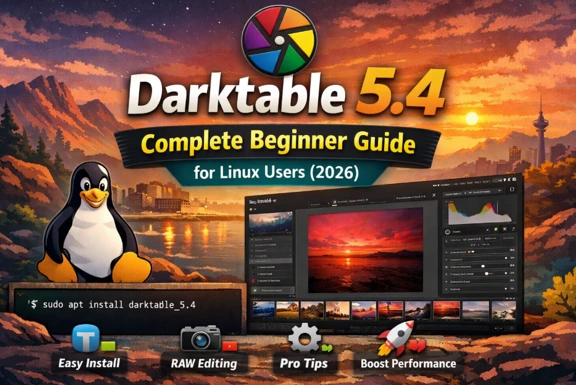
Darktable 5.4 is a powerful, free RAW photo editor built specifically for photographers who value control and privacy. This Darktable 5.4 complete beginner guide for Linux users will take you from installation to your first finished edit, with everything explained in practical terms.
If you’re a Linux user ready to move beyond JPEG editing and want to unlock the full potential of your camera’s RAW files, you’re in the right place. This tutorial assumes you’re new to RAW editing but comfortable navigating Linux. We’ll cover installation, interface basics, a complete first-edit workflow, and practical tips that prevent common mistakes. By the end, you’ll have edited your first RAW image and understand how to build a repeatable workflow in Darktable 5.4.
What’s New in Darktable 5.4 (Beginner Highlights)
Darktable 5.4 includes several refinements that matter even if you’re just starting out. The release focuses on stability and workflow improvements rather than dramatic overhauls, which is good news for beginners learning the fundamentals.
Capture Sharpening in the Demosaic Module
The demosaic module now includes a dedicated “Capture Sharpening” section. Demosaicing is the process that converts your camera’s RAW sensor data into a usable color image. Previously, sharpening was handled separately, but capture sharpening addresses the slight softness introduced during demosaicing itself.
For beginners, this matters because it separates technical sharpening (fixing what the conversion process softened) from creative sharpening (making details pop). The capture sharpening settings restore detail lost during RAW conversion before you apply any artistic sharpening later in your workflow. The default settings work well for most images, so you won’t need to adjust this immediately, but knowing it exists helps you understand why Darktable’s sharpening workflow has two stages.
Other Notable Improvements
Darktable 5.4 also brings better OpenCL stability on Linux systems with AMD and Intel GPUs, refined mask drawing tools, and performance optimizations for the pixelpipe (the processing engine). The interface remains consistent with 5.0 through 5.3, so tutorials from the past year still apply.
How to Install Darktable 5.4 on Linux
Linux users have four primary installation methods. Each has trade-offs between convenience, update speed, and system integration.
| Installation Method | Update Speed | Isolation | System Integration | Best For |
|---|---|---|---|---|
| Flatpak (Flathub) | Fast – official releases within days | Sandboxed, separate from system | Good (desktop integration works) | Most users; clean and reliable |
| AppImage | Fast – download latest directly | Portable, no installation needed | Limited (manual desktop file) | Testing or portable use |
| Distribution Repositories | Slow – depends on distro | Native system packages | Excellent (full integration) | Ubuntu LTS, Debian stable users |
| Build from Source | Immediate – git main branch | No isolation (system install) | Manual configuration required | Developers & bleeding-edge users |
Recommended: Flatpak Installation
The Flatpak version balances ease of use with recent updates. Install Flathub support if you haven’t already, then run:
This method keeps Darktable isolated from your system libraries, reducing conflicts and making troubleshooting easier. Updates arrive through your Flatpak manager within days of official releases.
Alternative: Distribution Repositories
If you prefer native packages, check your distribution’s version. Arch, Fedora, and openSUSE Tumbleweed typically offer Darktable 5.4 within weeks of release. Ubuntu and Debian stable lag behind but provide tested packages. Install using your package manager:
Verify the version with darktable –version after installation.
First Launch Checklist (Linux)
Before importing photos, configure these three areas to prevent headaches later.
Database Location: Darktable stores your edits, ratings, and metadata in a database separate from your image files. The default location is ~/.config/darktable/. This means your original RAW files remain untouched—all edits are non-destructive instructions stored in the database. Back up this folder regularly if you want to preserve your editing work.
Performance Basics: On first launch, go to Preferences → Processing and check your OpenCL settings. OpenCL uses your GPU to accelerate processing. If you have an NVIDIA GPU with proprietary drivers, enabling OpenCL works reliably. AMD and Intel GPU users should test carefully—some driver versions cause stability issues. If Darktable crashes during processing, disable OpenCL and rely on CPU processing until you’ve diagnosed the problem.
Color Management: Under Preferences → Color Management, set your display profile to “system display profile” if you’re on a standard monitor. Photographers with calibrated displays should point Darktable to their ICC profile. This ensures colors you see on screen match what you’ll get in exported images. The default settings work fine for most Linux users without color calibration equipment.
Understanding the Darktable 5.4 Interface
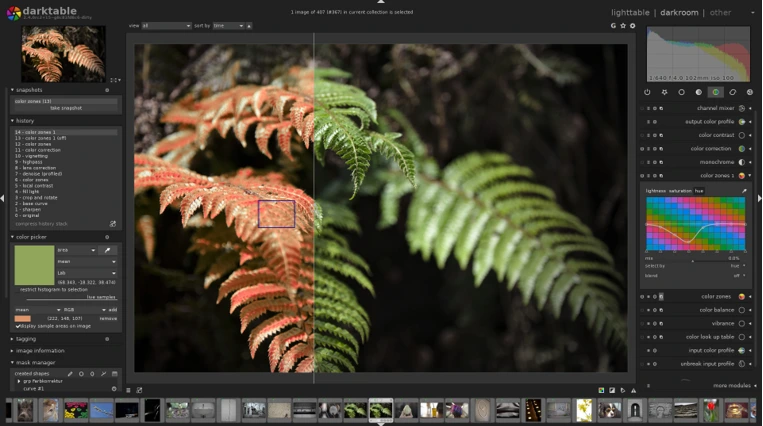
Darktable splits work across two primary views: Lighttable and Darkroom. You’ll switch between them frequently.
Lighttable vs Darkroom
Lighttable is your library view. Import RAW files here, rate them, apply metadata tags, and select images for editing. Think of it as your photo catalog. The filmstrip at the bottom persists across views, giving you quick access to other images in your collection.
Darkroom is where editing happens. Select an image in Lighttable and switch to Darkroom (click “Darkroom” at the top or press D). Here you’ll adjust exposure, color, sharpness, and everything else using modules stacked in the right panel.
History Stack
Every adjustment you make appears in the history stack on the left panel. Darktable records each step non-destructively. You can click any history entry to preview the image at that point, disable steps temporarily, or compress your history to simplify the stack. This approach differs from layer-based editors—instead of layers, you have a sequential list of processing instructions.
Snapshots
Snapshots let you compare your current edit against a saved reference point. While editing, click the snapshot button to save the current state. Toggle the snapshot overlay to see before-and-after comparisons. This helps evaluate whether your last ten adjustments actually improved the image.
Masks
Many modules support masks—tools that limit adjustments to specific areas. Drawn masks (circles, paths, gradients) and parametric masks (based on color or luminance) give you local control. You’ll use these for dodging and burning, selective color adjustments, and fixing blown highlights in skies. Masks are covered in detail during the workflow tutorial below.
Beginner Module Set
Darktable includes dozens of modules, but you need only a handful to start. Focus on these:
- Exposure: Adjust overall brightness and black point
- Sigmoid or Filmic RGB: Tone mapping (choose one, not both)
- Color Balance RGB: Master color adjustment tool
- Denoise (Profiled): Reduce sensor noise in high-ISO images
- Sharpen: Final output sharpening
- Crop: Frame your composition
- Local Adjustments (Masks): Selective edits using drawn or parametric masks
This list deliberately excludes legacy modules. Darktable’s interface shows older modules by default, but modern workflows rely on the scene-referred modules introduced in recent versions. Stick to the modules listed above until you understand the fundamentals.
Edit Your First RAW in Darktable 5.4: Step-by-Step Tutorial
This workflow follows Darktable’s scene-referred pipeline, which processes images in a way that matches how cameras capture light. You’ll adjust exposure first, map tones to your display, refine color, reduce noise, sharpen, apply local adjustments, crop, and export.
Beginner Workflow (Quick Reference)
- Import your RAW file into Lighttable
- Open image in Darkroom
- Adjust exposure to correct midtones
- Choose Sigmoid for tone mapping (disable Filmic RGB and Base Curve)
- Adjust color with Color Balance RGB
- Apply denoise if needed for high-ISO shots
- Enable capture sharpening in Demosaic module
- Add final sharpen before export
- Use masks for local adjustments (dodge/burn, sky recovery)
- Crop to final composition
- Export as JPEG or TIFF
Step 1: Import and Select Your Image
Click “Import” in Lighttable and navigate to your RAW files. Darktable creates database entries without copying files—your originals stay where they are. Select an image and press D to enter Darkroom.
Step 2: Adjust Exposure
The exposure module sets your image’s overall brightness. Your goal here is to place midtones correctly before any tone mapping happens.
Increase or decrease the exposure slider until the middle tones look natural. Don’t worry if highlights seem too bright or shadows too dark—you’ll address that next. For most daylight images, adjustments between -0.5 and +1.5 EV are typical.
The exposure module also has a black point adjustment. Slide it right slightly if your shadows look washed out or flat. This adds depth by ensuring true blacks exist in your image.
Step 3: Choose Sigmoid for Tone Mapping
Darktable 5.4 requires choosing one display transform: Sigmoid, Filmic RGB, or Base Curve. These modules map your RAW image’s wide brightness range to what your display can show.
Critical rule: Never enable more than one of these simultaneously. Using Sigmoid with Filmic RGB or Base Curve causes unpredictable results and double-processes your tone mapping.
For beginners, Sigmoid is the recommended choice in 2026. It’s simpler than Filmic RGB and produces natural-looking results without complex configuration.
Enable the Sigmoid module. The default settings usually work well. If your image still has blown highlights or blocked shadows after exposure adjustment, try these:
- Contrast: Lower to reduce harshness in bright areas
- Skew: Shift the tonal weight toward shadows (negative) or highlights (positive)
Sigmoid’s strength is that it preserves color while gracefully rolling off highlights. You’ll notice bright skies retain detail instead of clipping to white.
Important note on Filmic RGB: Disable Filmic RGB if it’s active. Darktable’s default workflows sometimes enable Filmic automatically. Click the power button next to Filmic RGB to turn it off. Similarly, locate the Base Curve module (often in legacy groups) and disable it. You want only Sigmoid active.
Step 4: Adjust Color with Color Balance RGB
Color Balance RGB is your primary color tool. It replaces older modules like Color Zones and provides more intuitive controls.
The module divides color adjustment into four luminance zones: shadows, midtones, highlights, and global. For your first edit, focus on the global tab.
- Hue: Shift overall color temperature if the image feels too warm (orange) or cool (blue)
- Chroma: Increase saturation slightly—RAW files often look flat initially
- Luminance: Usually left at default
Start with subtle chroma increases (around 10-20%). Oversaturated images scream “beginner edit.” Color should enhance the scene, not dominate it.
If specific colors need adjustment (green grass too yellow, blue sky too cyan), switch to the zone tabs and adjust the hue shift for that luminance range. This takes practice, so keep adjustments minimal on your first attempt.
Step 5: Denoise (If Needed)
High-ISO images show noise—random color and brightness speckles. The denoise (profiled) module reduces this using camera-specific noise profiles.
Enable the module only if your image shows visible noise. The defaults work well because Darktable knows your camera’s noise characteristics.
If defaults leave noise visible, increase the strength slider slightly. Be careful: aggressive denoising destroys fine detail. Zoom to 100% while adjusting to see the trade-off between noise reduction and detail preservation.
Step 6: Capture Sharpening
The demosaic module now includes capture sharpening, which corrects softness introduced during RAW conversion. This step happens early in the pipeline.
Open the demosaic module and locate the “Capture Sharpening” section. The default settings suit most situations. If your image still looks soft, increase the strength moderately. Avoid overdoing it—capture sharpening addresses technical limitations, not creative enhancement.
Step 7: Final Output Sharpening
After all other adjustments, enable the sharpen module. This is creative sharpening—making details crisp for your final output.
The sharpen module includes a radius and amount slider. Start with:
- Radius: 0.8 to 1.0
- Amount: 0.5 to 1.0
Zoom to 100% and observe fine details like foliage or textures. Proper sharpening makes these details clear without introducing halos or artifacts. If you see bright outlines around edges, you’ve over-sharpened. Reduce the amount slider.
Sharpening depends on output size. Images destined for web display need less sharpening than large prints. You’ll learn to adjust this based on your final use.
Step 8: Local Adjustments with Masks
Masks let you apply adjustments to specific areas. Common uses include brightening faces (dodging), darkening skies (burning), or recovering detail in bright clouds.
To create a local adjustment:
- Open any module (Color Balance RGB, Exposure, etc.)
- Click the mask indicator icon in the module header
- Choose a mask type: drawn (circle, path, gradient) or parametric (luminance, color)
- Draw your mask or configure parametric settings
- Adjust the module sliders—changes now affect only the masked area
Example: Brighten a subject’s face. Open exposure, create a circular drawn mask around the face, feather the edges generously, then increase exposure slightly. The brightness change affects only the masked region.
Parametric masks select areas by color or brightness automatically. To recover a blown sky, use a luminance parametric mask targeting highlights, then reduce exposure or adjust sigmoid specifically for that mask.
Masking is where Darktable’s power becomes apparent, but it takes practice. Start with simple drawn masks before experimenting with parametric approaches.
Step 9: Crop to Final Composition
The crop module should be one of your last steps. Earlier cropping limits your flexibility if you refine the composition later.
Select the crop tool, choose your aspect ratio (original, 16:9, 4:3, etc.), and drag to frame your subject. Use the rule of thirds guides to place key elements thoughtfully.
Cropping after all other adjustments ensures you’re composing based on your final tonality and color, not the unprocessed RAW preview.
Step 10: Export Your Image
You’ve completed the edit. Time to export.
Click “Export” in the right panel. Choose:
- Format: JPEG (for web, social media) or TIFF (for archival, print)
- Quality: 95% for JPEG (balances file size and quality)
- Size: Original or resize to specific dimensions
Hit export. Darktable processes your image using all the module instructions in your history stack and writes the final file to your chosen location.
Export Settings That Work
Export settings depend on your intended use. Here are practical defaults that cover most situations.
JPEG for Web and Sharing
JPEG strikes the best balance between quality and file size for online use.
- Format: JPEG
- Quality: 95% (excellent quality, reasonable file size)
- Color Space: sRGB (standard for web browsers and social media)
- Resize: Set to 2000 pixels on the long edge for web galleries, or leave at original size for high-quality sharing
Avoid JPEG quality below 90%. The file size savings aren’t worth the visible compression artifacts, especially in skies or smooth gradients.
TIFF for Archive and Print
TIFF preserves maximum quality and supports 16-bit color depth.
- Format: TIFF
- Bit Depth: 16-bit (future-proofs your archive)
- Compression: Deflate (lossless, reduces file size moderately)
- Color Space: Adobe RGB or ProPhoto RGB (wider gamut than sRGB for print)
TIFF files are large—a 24-megapixel RAW may export to a 150MB TIFF. That’s expected. Use TIFF when you plan to edit further in another application or send files to a print service.
Output Sharpening
Darktable’s export module includes output sharpening separate from the sharpen module in your workflow. This adjusts sharpening based on export resolution.
For most exports, enable “sharpen” in the export module with “medium” strength. This applies appropriate sharpening for your chosen output size automatically.
Speed and Stability Tips on Linux
Darktable is CPU and GPU intensive. These tips improve performance and reduce crashes.
GPU Acceleration (OpenCL) Caution
OpenCL accelerates processing using your GPU. It works reliably with NVIDIA proprietary drivers but can cause instability with Mesa (AMD and Intel open-source drivers).
If you experience random crashes, disable OpenCL in Preferences → Processing. Yes, processing becomes slower, but a stable workflow beats a fast but crash-prone one. Modern CPUs handle Darktable reasonably well even without GPU acceleration.
If you want to use OpenCL with AMD or Intel GPUs, test thoroughly. Edit multiple images, apply heavy adjustments, and export in batch mode. If crashes occur, revert to CPU-only processing.
Cache on SSD
Darktable caches processed image tiles to disk for faster reloading. By default, this cache lives in ~/.cache/darktable/.
If your home directory sits on an SSD, you’re set. If it’s on a spinning hard drive, performance suffers. Symlink the cache directory to an SSD partition:
This change makes navigating between images in Darkroom noticeably faster.
Wayland vs X11 Troubleshooting
Most modern Linux distributions default to Wayland, which works well with Darktable 5.4. If you encounter graphical glitches, UI freezes, or mask drawing problems, try forcing X11:
Log out, select “GNOME on Xorg” (or your desktop’s X11 session) at the login screen, and relaunch Darktable. If problems disappear, file a bug report with your distribution and GPU details—Wayland support is maturing but still has edge cases.
Common Beginner Mistakes
Avoid these pitfalls and your learning curve flattens considerably.
Using multiple display transforms: Never enable Sigmoid, Filmic RGB, and Base Curve simultaneously. This double-processes tone mapping and produces bizarre colors and contrast. Pick one (Sigmoid for beginners) and disable the others.
Adjusting exposure after tone mapping: Exposure changes should happen before Sigmoid or Filmic. Adjusting exposure after tone mapping breaks the mathematical assumptions these modules make, causing color shifts. If your image looks wrong after Sigmoid, go back to the exposure module instead of adding another exposure module later.
Over-sharpening: Beginners often push sharpening until halos appear around edges. Sharpening should be invisible—it makes details clear without calling attention to itself. Zoom to 100% and look for unnatural bright or dark outlines. If you see them, you’ve gone too far.
Ignoring color space on export: Exporting to Adobe RGB or ProPhoto RGB for web use causes dull colors in browsers, which assume sRGB. Always export sRGB for online sharing.
Skipping backups: Your database (~/.config/darktable/) holds all editing work. Back it up regularly. Losing this folder means re-editing every image from scratch.
Using legacy modules: Darktable’s interface shows old modules for backward compatibility. Avoid modules like “Color Zones,” “Shadows and Highlights,” or “Tone Curve.” Modern equivalents (Color Balance RGB, Exposure, Sigmoid) are more powerful and integrate better with the scene-referred workflow.
Frequently Asked Questions
Do I need to calibrate my monitor for Darktable?
No, but it helps. Darktable works fine on uncalibrated displays. However, without calibration, colors you see on screen may not match prints or other devices. For serious photography, invest in a colorimeter like the X-Rite i1Display or Datacolor SpyderX. For casual editing, the defaults work adequately.
Can I edit JPEGs in Darktable?
Yes, but Darktable is designed for RAW files. JPEGs have limited editing headroom—adjustments quickly introduce banding or color shifts. Use Darktable for RAW processing and simpler tools like GIMP for JPEG touch-ups.
Should I use Sigmoid or Filmic RGB?
Sigmoid is simpler and produces natural results with less tweaking. Filmic RGB offers more control but requires understanding its multiple tabs and interdependent sliders. Start with Sigmoid. Explore Filmic after you’re comfortable with the basics.
Why does my image look different in Darktable vs my camera’s LCD?
Your camera applies its own processing (contrast, saturation, sharpening) to the LCD preview. RAW files are unprocessed sensor data. Darktable shows the RAW truth, which often looks flat initially. Your edits bring out what the camera’s JPEG engine would have done automatically—but with full control.
How do I batch edit multiple images?
Edit one image completely in Darkroom. Return to Lighttable, select similar images, and copy/paste the history stack from your edited image. Darktable applies the same adjustments to all selected images. Fine-tune individual images afterward.
Darktable crashes when I enable OpenCL. How do I fix it?
Disable OpenCL in Preferences → Processing → uncheck “Activate OpenCL.” If you’re determined to use GPU acceleration, update your GPU drivers to the latest version. NVIDIA proprietary drivers are most stable. AMD and Intel open-source drivers (Mesa) work well on recent kernel versions, but older systems may need CPU-only processing.
What file format should I use for archiving RAW edits?
Keep your original RAW files plus Darktable’s database. The database stores all your editing instructions non-destructively. For exports you want to archive, use 16-bit TIFF with Adobe RGB or ProPhoto RGB color space. This preserves maximum editing flexibility if you return to the file later.
Can I use Darktable presets like Lightroom?
Yes. Darktable supports styles (presets). However, presets work best as starting points, not final solutions. Every image requires individual attention. Applying a “moody” preset blindly often looks worse than manual editing. Learn the fundamentals first, then create personal presets for repetitive tasks.
Conclusion and Next Steps
You’ve now completed your first RAW edit in Darktable 5.4, learned the essential workflow, and understand the interface basics. RAW editing is a skill that improves with practice—each image teaches you something about exposure, color, and composition.
Next steps for continued learning:
- Edit 20-30 images using the workflow above before exploring advanced modules
- Learn drawn and parametric masks in depth—local adjustments separate good edits from great ones
- Explore Color Balance RGB’s zone-specific controls for precise color grading
- Read the official Darktable manual sections on scene-referred workflow and module specifics
- Join Darktable communities (Discuss Pixls forum, Reddit r/FOSSPhotography) to see how experienced users approach edits
Disclaimer
This guide is for educational purposes only and is not affiliated with Darktable.org. While based on official documentation, software features may change. Always back up your RAW files and Darktable database. The author assumes no liability for data loss or issues arising from following this tutorial. For authoritative information, visit the official Darktable documentation at docs.darktable.org.
Also Read
Best Linux Distros for Students and Developers in 2026