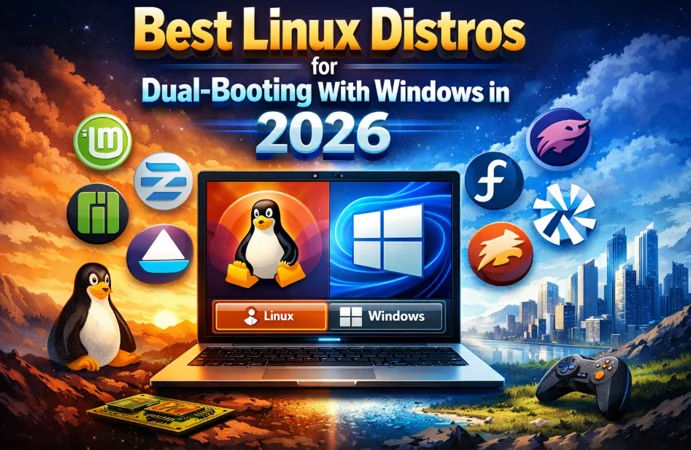
With Windows 10’s official support ending in October 2025, millions of users are exploring alternative operating systems. Dual-booting has become an increasingly popular solution, allowing you to enjoy Linux’s freedom and security while maintaining access to Windows when needed. But here’s the thing—not all Linux distributions handle dual-booting equally well. Some work seamlessly with Windows Boot Manager and Secure Boot, while others can turn your installation into a frustrating troubleshooting session.
Choosing the right distribution makes all the difference between a smooth, reliable setup and constant headaches. Whether you’re a developer needing both environments for work, a gamer who wants Linux performance with Windows compatibility, or simply curious about open-source software, this guide will walk you through the best Linux distros for dual-booting with Windows in 2026.
Why Dual-Booting Matters in 2026
Dual-booting lets you run two operating systems on the same computer, choosing which one to use each time you start your PC. This setup has become particularly relevant in 2026 for several reasons. With Windows 11’s strict hardware requirements leaving many capable machines behind, dual-booting offers a practical alternative to buying new hardware or abandoning Windows completely.
The Linux ecosystem has matured dramatically over the past few years. Gaming compatibility through Proton has improved tremendously, with over 3% of Steam users now running Linux. Professional software support continues to expand, and the community has never been stronger. Linux now accounts for a growing share of desktop operating systems, particularly among developers and tech-savvy users.
For those hesitant about completely switching to Linux, dual-booting provides the perfect middle ground. You can gradually transition to Linux for daily tasks while keeping Windows available for specific applications that only run on Microsoft’s platform. This flexibility makes dual-booting an ideal first step for anyone considering a move to open-source software.
Essential Criteria for Choosing a Dual-Boot Linux Distro
Not every Linux distribution handles dual-booting equally well. Understanding these key factors helps you make the right choice.
Safe Installation Process: The best distributions automatically detect Windows and configure the bootloader without risking your existing installation. Look for graphical installers like Calamares that offer clear dual-boot options and guided partitioning.
UEFI and Secure Boot Support: Modern computers require UEFI compatibility. Choose distributions that work with Secure Boot enabled, eliminating the need for BIOS modifications while maintaining security.
Hardware Compatibility: Top distributions include automatic driver detection, especially for NVIDIA graphics cards. This ensures WiFi, Bluetooth, and graphics work immediately after installation without manual troubleshooting.
Bootloader Reliability: A solid bootloader (GRUB or systemd-boot) peacefully coexists with Windows Boot Manager and survives Windows updates. Poor bootloader configuration can lock you out of either operating system.
Community Support: Strong documentation and active forums make troubleshooting straightforward. Established distributions with large user bases provide quicker solutions when issues arise.
Stability vs. Innovation: Rolling-release distros offer cutting-edge features but occasional instability. Fixed-release distributions with LTS versions prioritize stability. Choose based on your tolerance for potential issues.
Best Linux Distros for Dual-Booting With Windows in 2026
Best for Beginners & Everyday Users
Ubuntu
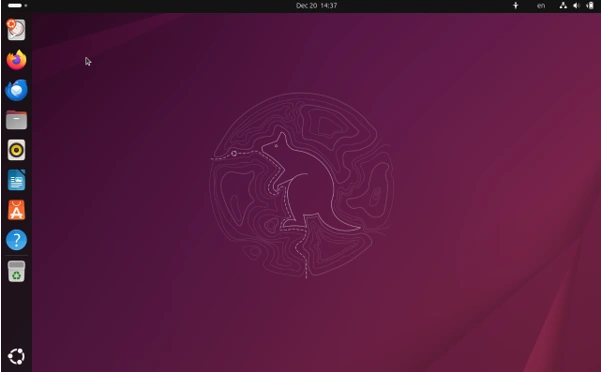
Ubuntu remains the gold standard for newcomers to Linux and dual-booting. Based on Debian, it offers exceptional hardware compatibility and the most extensive community support in the Linux world. The latest Ubuntu releases include significant improvements for dual-boot setups, making installation smoother than ever.
Why Ubuntu Excels for Dual-Booting: The Ubuntu installer automatically detects Windows installations and configures GRUB bootloader safely. Secure Boot works out of the box without requiring BIOS modifications. Ubuntu’s massive community means you’ll find solutions to virtually any problem within minutes of searching. The distribution provides excellent NVIDIA driver support through its Additional Drivers utility, crucial for users with discrete graphics cards.
Ubuntu also supports ZFS filesystem and offers improved guidance for dual-boot configurations. Hardware-backed full disk encryption adds security without compromising dual-boot functionality when properly configured. The distribution’s six-month release cycle, combined with LTS versions receiving five years of support, strikes an excellent balance between fresh features and stability.
Who Should Choose Ubuntu: Beginners making their first foray into Linux, developers requiring a reliable work environment, students needing extensive software availability, and anyone seeking maximum community support will find Ubuntu ideal. Its widespread adoption means most Linux tutorials and guides reference Ubuntu, simplifying the learning curve.
System Requirements: 4GB RAM minimum (8GB recommended), 25GB disk space, 2 GHz dual-core processor. Ubuntu runs smoothly on most hardware from the past decade, making it perfect for breathing new life into older machines.
Linux Mint
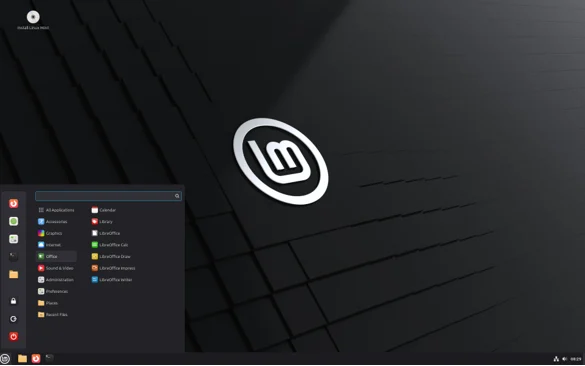
Linux Mint takes Ubuntu’s solid foundation and refines it with a more traditional desktop experience. Built on Ubuntu LTS releases, Mint inherits Ubuntu’s stability and hardware compatibility while offering a gentler learning curve for Windows users. The Cinnamon desktop environment closely resembles Windows layouts, reducing the adjustment period.
Why Linux Mint Works Well for Dual-Booting: Mint’s installer matches Ubuntu’s reliability in detecting Windows installations. The distribution prioritizes user-friendliness, removing potentially confusing features and focusing on essential functionality. Mint includes multimedia codecs out of the box, meaning videos and audio play immediately without additional configuration. This attention to usability extends to the dual-boot setup process.
The distribution’s conservative approach to updates minimizes risks of boot-related issues. Mint tests updates extensively before releasing them to users, reducing the chances of system-breaking changes. The Update Manager clearly categorizes updates by risk level, helping users make informed decisions about what to install.
Who Should Choose Linux Mint: Former Windows users seeking familiar desktop layouts, users prioritizing stability over cutting-edge features, those wanting a “it just works” experience without technical complexity, and anyone intimidated by terminal commands will appreciate Mint’s approach.
System Requirements: 2GB RAM minimum (4GB recommended), 20GB disk space, 64-bit processor. Mint’s efficiency makes it suitable for older hardware while still providing a modern, polished experience.
Zorin OS
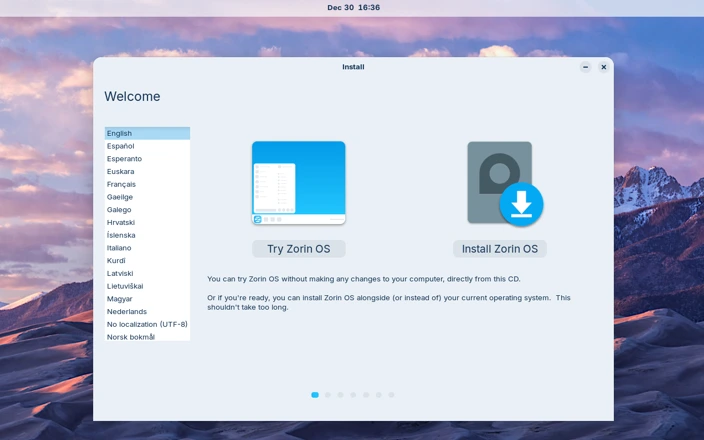
Zorin OS bridges the gap between Windows and Linux more elegantly than perhaps any other distribution. Created specifically to ease Windows users into Linux, Zorin offers customizable desktop layouts mimicking Windows 11, Windows 7, or macOS. The distribution’s polish and attention to user experience make it feel less like an alternative operating system and more like a natural evolution.
Why Zorin OS Shines for Dual-Booting: The Zorin installer provides clear dual-boot configuration options with visual guides. The distribution includes Windows application compatibility tools pre-configured, allowing you to run some Windows software directly in Zorin without rebooting. This feature reduces reliance on the Windows partition for daily tasks.
Zorin’s professional appearance and thoughtful design choices create confidence for users uncertain about Linux. The included “Zorin Appearance” app lets you switch between desktop layouts with one click, helping you find a comfortable working environment. Zorin Core (the free version) includes most features needed by typical users, while Zorin Pro adds enhanced business and creative professional tools.
Who Should Choose Zorin OS: Windows users making their first Linux installation, business professionals requiring polished aesthetics, users wanting Windows software compatibility without complexity, and those seeking a premium feel in an open-source distribution will find Zorin perfectly suited to their needs.
System Requirements: 2GB RAM minimum (4GB recommended), 64GB storage, dual-core 1 GHz processor. Zorin Core runs efficiently on modern hardware while Zorin Lite serves older computers admirably.
Pop!_OS
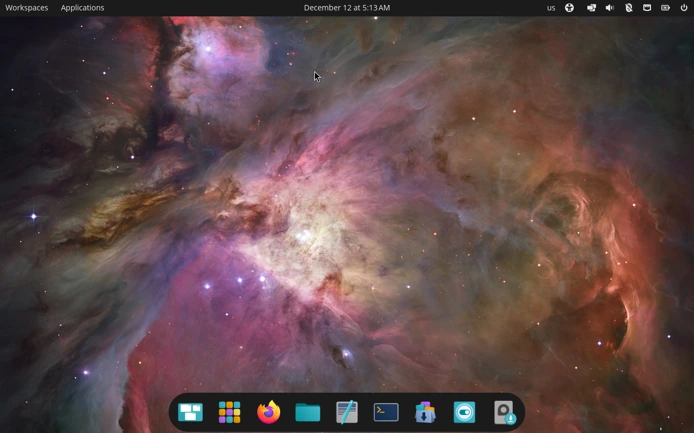
Developed by System76, a Linux computer manufacturer, Pop!_OS brings manufacturer-level polish to Ubuntu’s foundation. The distribution gained significant attention for its excellent NVIDIA graphics support and developer-friendly features. With the introduction of the COSMIC desktop environment in late 2025, Pop!_OS offers a unique, Rust-based interface that’s both modern and efficient.
Why Pop!_OS Stands Out for Dual-Booting: Pop!_OS provides separate ISO images for NVIDIA and AMD systems, ensuring optimal graphics driver setup from the start. This specialization eliminates one of the most common Linux frustrations. The distribution’s automatic window tiling and workspace management features boost productivity significantly.
However, Pop!_OS dual-booting requires some additional configuration compared to Ubuntu. The distribution uses systemd-boot instead of GRUB, which doesn’t automatically detect Windows installations. Users must manually configure the bootloader to access Windows, though detailed documentation guides you through the process. Despite this extra step, many users prefer Pop!_OS for its performance optimizations and clean interface once properly configured.
The COSMIC desktop introduced in Pop!_OS 24.04 LTS represents a significant evolution. Built from scratch in Rust, it delivers exceptional performance and seamless Wayland support. For dual-booters, COSMIC’s efficiency means more system resources available for your applications rather than the desktop environment itself.
Who Should Choose Pop!_OS: Developers needing cutting-edge tools, NVIDIA graphics card owners, users comfortable with minor configuration steps, creative professionals requiring performance, and anyone interested in modern desktop innovation will appreciate Pop!_OS’s offerings.
System Requirements: 4GB RAM minimum (8GB recommended), 20GB disk space. Pop!_OS requires slightly more resources than Ubuntu but delivers noticeably better performance on supported hardware.
Important Note: Recent testing indicates Pop!_OS may require additional bootloader configuration for dual-boot setups. Users should follow current documentation carefully and be prepared for some command-line work to establish dual-boot functionality.
Fedora Workstation
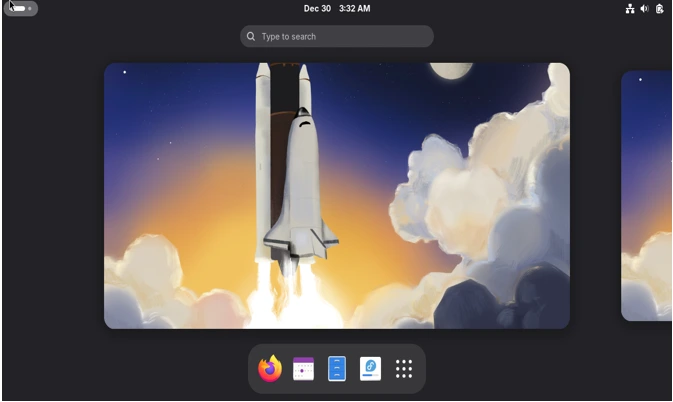
Fedora occupies a unique position in the Linux ecosystem, bridging bleeding-edge technology and production reliability. Sponsored by Red Hat, Fedora serves as the testing ground for features eventually appearing in Red Hat Enterprise Linux. This relationship ensures innovations undergo real-world testing before enterprise deployment, benefiting Fedora users with stable implementations of the latest technologies.
Why Fedora Works for Dual-Booting: Fedora’s Anaconda installer handles dual-boot configurations competently, automatically detecting Windows installations. The distribution pioneered Wayland adoption and includes Secure Boot support out of the box. Fedora’s commitment to open-source principles means proprietary drivers require manual installation, though clear documentation guides you through enabling RPM Fusion repositories for NVIDIA drivers.
Fedora’s six-month release cycle delivers newer software than Ubuntu LTS while maintaining stability through rigorous testing. The DNF5 package manager, rewritten in C++ for Fedora 42, dramatically improves package operation speeds. For developers and system administrators, Fedora provides an excellent preview of technologies becoming industry standards.
Who Should Choose Fedora: Developers wanting modern software stacks, system administrators training for Red Hat environments, tech enthusiasts enjoying cutting-edge features, users comfortable with occasional manual configurations, and anyone seeking a balance between innovation and stability will find Fedora rewarding.
System Requirements: 2GB RAM minimum (4GB recommended), 20GB disk space, 2 GHz dual-core processor. Fedora performs efficiently on modern hardware while demanding slightly more resources than lightweight distributions.
Best Performance & Rolling Release Distros
Manjaro
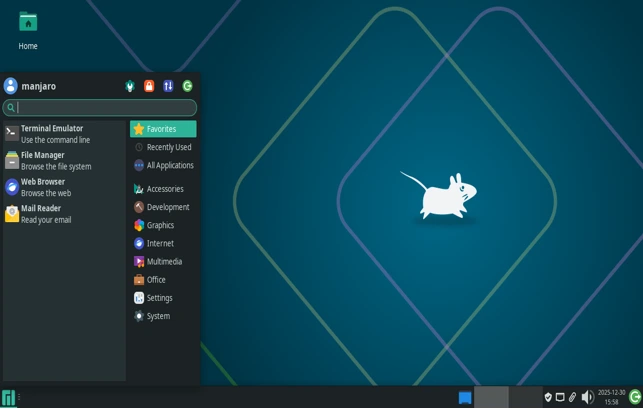
Manjaro makes Arch Linux accessible to mere mortals. While Arch Linux’s bleeding-edge nature and manual installation intimidate newcomers, Manjaro provides Arch’s benefits with user-friendly installation and pre-configured desktop environments. The distribution delays packages from Arch repositories by about two weeks, testing them for stability before releasing to users. This approach significantly reduces the risk of system-breaking updates common in pure Arch installations.
Why Manjaro Excels for Dual-Booting: Manjaro’s Calamares installer offers excellent dual-boot support with clear partitioning options. The distribution’s hardware detection matches or exceeds Ubuntu’s capabilities, automatically configuring drivers during installation. Manjaro includes both open-source and proprietary drivers, giving users choice based on their preferences and needs.
The Manjaro Hardware Detection tool automatically identifies and installs appropriate drivers for your system. For dual-booters, this automation eliminates hours of manual driver configuration. Manjaro’s access to the Arch User Repository (AUR) provides virtually unlimited software availability—if it runs on Linux, you’ll find it in AUR.
Who Should Choose Manjaro: Users wanting Arch’s rolling-release model without installation complexity, gamers seeking the latest graphics drivers and kernels, enthusiasts enjoying customization options, intermediate Linux users ready to move beyond beginner distributions, and anyone desiring extensive software selection will appreciate Manjaro’s approach.
System Requirements: 4GB RAM minimum, 30GB disk space, 64-bit processor. Manjaro’s efficiency allows it to run on older hardware while delivering modern features.
EndeavourOS
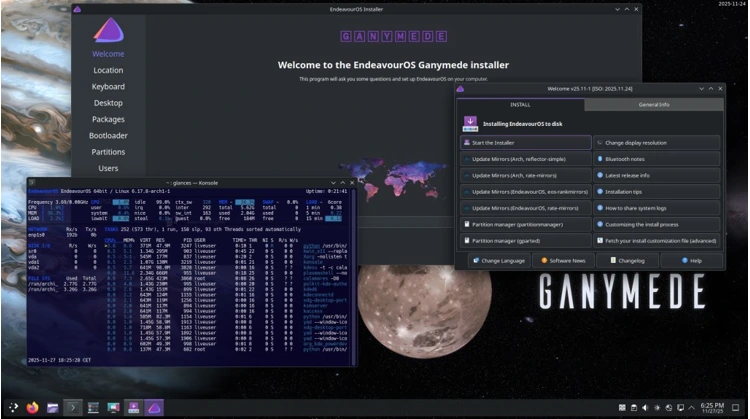
EndeavourOS represents Arch Linux with training wheels—minimal additions beyond Arch’s base system while providing a graphical installer and helpful community. Unlike Manjaro’s extensive customizations, EndeavourOS stays remarkably close to vanilla Arch, appealing to users wanting authentic Arch experience without manual installation challenges.
Why EndeavourOS Works for Dual-Booting: The Calamares installer includes straightforward dual-boot options with clear partitioning guidance. EndeavourOS’s minimal approach means fewer potential conflicts with Windows. The distribution installs with essential tools configured but leaves most customization to users, providing a clean slate for building your ideal system.
EndeavourOS includes the “eos-update-notifier” which checks for system updates and alerts you when available. This feature helps maintain system security without forcing automatic updates that might introduce instability. The distribution’s forums and community provide exceptional support for users learning to maintain their systems.
Who Should Choose EndeavourOS: Intermediate to advanced users seeking minimal bloat, enthusiasts wanting to learn Arch Linux without manual installation, users preferring to customize their systems from near-scratch, anyone comfortable troubleshooting occasional issues, and Linux users graduating from beginner-friendly distributions will find EndeavourOS perfectly positioned.
System Requirements: 2GB RAM minimum, 8GB disk space. EndeavourOS’s minimal installation uses far fewer resources than fully-featured distributions, leaving more power for your applications.
Best for Advanced Users & Power Users
NixOS
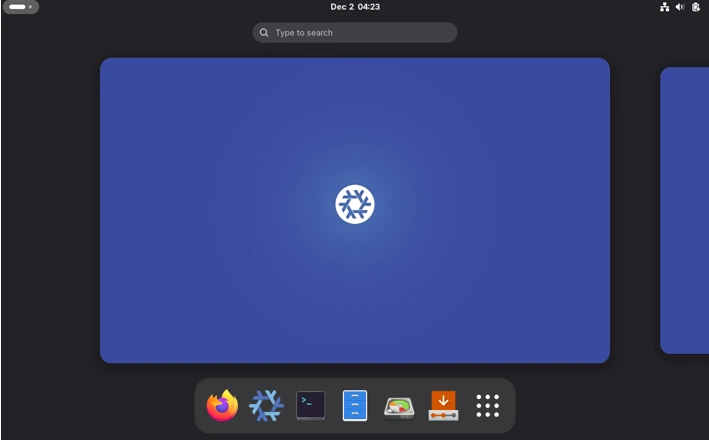
NixOS takes an entirely different approach to Linux system management. Built on the Nix package manager, NixOS treats your entire system configuration as code. This declarative model means you define your desired system state in configuration files, and NixOS makes it so. The result? Reproducible systems that can be reliably rebuilt, rolled back, and shared.
Why NixOS Matters for Dual-Booting: NixOS’s unique architecture allows atomic rollbacks to previous system states. If a dual-boot configuration breaks, you can instantly revert to a working state without losing work. The distribution’s os-prober integration automatically detects Windows installations when properly configured. NixOS configuration files specify bootloader settings, meaning your dual-boot setup becomes reproducible code you can version control.
Setting up NixOS for dual-booting requires more technical knowledge than other distributions. You’ll configure the bootloader in your system’s configuration.nix file, enabling GRUB with os-prober to detect Windows. The process involves more manual steps but provides unmatched control over your system configuration. Once configured, the setup remains stable and easy to maintain.
NixOS’s functional package management eliminates dependency conflicts entirely. Each package lives in its own unique path, preventing the “dependency hell” plaguing other Linux distributions. For developers building complex environments, this isolation proves invaluable.
Who Should Choose NixOS: Experienced Linux users comfortable with configuration files, developers requiring reproducible development environments, system administrators managing multiple machines, users valuing declarative system configuration, tech enthusiasts willing to invest learning time for long-term benefits, and anyone frustrated by traditional package management will find NixOS revolutionary once mastered.
System Requirements: 2GB RAM minimum (4GB recommended), 10GB disk space. NixOS’s efficient design allows it to run on modest hardware while supporting sophisticated configurations.
Important Considerations: NixOS requires resizing Windows’ EFI System Partition to at least 500MB for proper dual-boot functionality. The default 100MB Windows creates is insufficient for NixOS’s bootloader requirements. Users must be comfortable with partition editing and following detailed configuration instructions.
Best Lightweight & Low-End PC Distros
Xubuntu
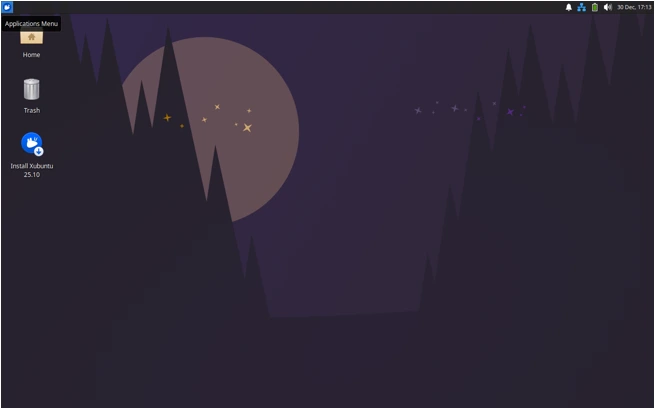
Xubuntu combines Ubuntu’s reliability and hardware compatibility with the lightweight Xfce desktop environment. This combination delivers a responsive, traditional desktop experience on hardware that would struggle with heavier alternatives. Xubuntu proves older computers don’t need retirement—they need the right operating system.
Why Xubuntu Excels for Dual-Booting: Xubuntu inherits Ubuntu’s excellent dual-boot support and installer capabilities. The distribution automatically detects Windows installations and configures the bootloader appropriately. Xubuntu’s efficiency means more resources available for applications rather than desktop eye candy, crucial for older hardware.
The Xfce desktop environment provides a familiar, Windows-like layout that doesn’t require relearning basic navigation. Traditional application menus, taskbar, and system tray work as expected, reducing confusion for new Linux users. Xubuntu includes essential applications pre-installed while avoiding the bloat of heavier distributions.
As an official Ubuntu flavor, Xubuntu receives the same security updates and support as mainline Ubuntu. This backing ensures reliability and long-term viability crucial for production systems. The five-year support cycle for LTS releases means you can install Xubuntu and forget about distribution upgrades for years.
Who Should Choose Xubuntu: Users with older hardware, those seeking maximum system responsiveness, people preferring traditional desktop layouts, users on machines with limited RAM, anyone wanting Ubuntu’s benefits with reduced resource usage, and budget-conscious users extending older computers’ lifespans will find Xubuntu ideal.
System Requirements: 1GB RAM minimum (2GB recommended), 20GB disk space, 1 GHz processor. Xubuntu runs smoothly on hardware from 2010 or later, making it perfect for resurrecting older machines.
Best Linux Distros for Gaming
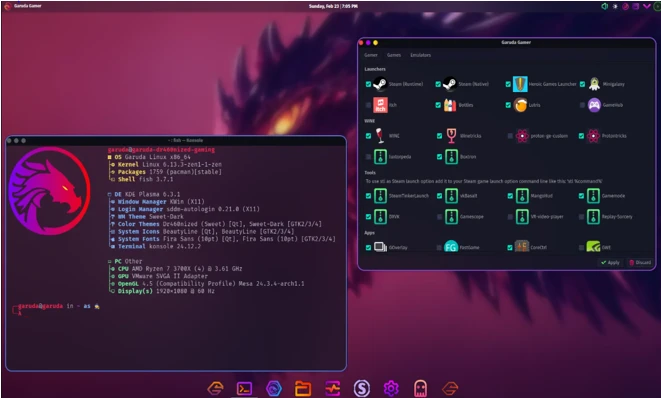
Garuda Linux
Garuda Linux targets gamers specifically, providing an Arch-based distribution optimized for gaming performance out of the box. The distribution’s stunning KDE Plasma interface combined with gaming-focused optimizations creates an experience rivaling or exceeding Windows for many titles. Garuda proves Linux gaming has matured from niche experiment to genuine Windows alternative.
Why Garuda Linux Dominates for Gaming: Garuda ships with the performance-tuned Zen kernel optimized for gaming workloads. The included Garuda Gamer utility simplifies installing gaming software—Steam, Lutris, Wine, Proton-GE, and more install with simple clicks. This curation eliminates the complexity traditionally associated with Linux gaming setup.
The distribution uses BTRFS filesystem with automatic snapshots, allowing instant system rollbacks if updates cause issues. This feature proves invaluable for gaming-focused systems where stability matters most. Garuda includes numerous performance tweaks like custom kernel parameters, I/O schedulers optimized for SSDs, and preload configurations accelerating application launches.
Garuda’s visual polish rivals commercial operating systems. The KDE Plasma desktop environment provides extensive customization while maintaining performance. The “Dr460nized” edition features a stunning, cyberpunk-inspired theme showcasing what’s possible with modern Linux desktops.
Why Garuda Works for Dual-Booting: Garuda’s installer handles dual-boot configurations competently, detecting existing Windows installations. The automatic snapshot feature provides safety nets if dual-boot configurations break, allowing easy recovery. For gamers maintaining Windows for anti-cheat protected games while using Linux for everything else, Garuda provides the performance and convenience needed.
Who Should Choose Garuda Linux: PC gamers ready to leave Windows, users with modern hardware (8GB+ RAM), enthusiasts enjoying customization, those valuing aesthetics alongside performance, Arch-curious users wanting gaming optimizations, and anyone seeking maximum gaming performance on Linux will find Garuda perfectly tuned.
System Requirements: 4GB RAM minimum (8GB strongly recommended), 30GB disk space, 64-bit processor, SSD strongly recommended. Garuda’s gaming optimizations and visual effects require relatively modern hardware to shine.
Comparison Table: Best Linux Distros for Dual-Booting
| Distribution | Best For | Difficulty | Desktop | Base | Release Model | Dual-Boot Support | Key Advantage |
|---|---|---|---|---|---|---|---|
| Ubuntu | Beginners, Developers | Easy | GNOME | Debian | Fixed (LTS) | Excellent | Largest community & documentation |
| Linux Mint | Windows Users | Easy | Cinnamon | Ubuntu | Fixed (LTS) | Excellent | Most familiar Windows-like experience |
| Zorin OS | Business Users | Easy | GNOME (Custom) | Ubuntu | Fixed | Excellent | Polished Windows transition |
| Pop!_OS | Developers, NVIDIA Users | Medium | COSMIC / GNOME | Ubuntu | Fixed (LTS) | Good* | Outstanding NVIDIA support |
| Fedora Workstation | Developers, Tech Enthusiasts | Medium | GNOME | Independent | Fixed (6-month) | Good | Latest Linux technologies |
| Manjaro | Intermediate Users, Gamers | Medium | Multiple | Arch | Rolling | Excellent | User-friendly Arch experience |
| EndeavourOS | Advanced Beginners | Medium | Multiple | Arch | Rolling | Good | Near-vanilla Arch setup |
| NixOS | Advanced Users, DevOps | Hard | Multiple | Independent | Rolling | Good** | Reproducible, declarative systems |
| Xubuntu | Older Hardware | Easy | Xfce | Ubuntu | Fixed (LTS) | Excellent | Lightweight & fast on low-end PCs |
| Garuda Linux | Gamers | Medium | KDE Plasma | Arch | Rolling | Good | Gaming-optimized out of the box |
Notes
- * Pop!_OS may require manual bootloader configuration when setting up a dual-boot with Windows.
- ** NixOS often requires EFI partition resizing and additional manual configuration during dual-boot installation.
Step-by-Step Guide: Setting Up a Dual-Boot System
Before installing any Linux distribution alongside Windows, proper preparation prevents most common issues. Follow these steps methodically for the smoothest dual-boot experience.
Preparation Phase (In Windows)
Backup Your Data: Before modifying disk partitions, back up all important files to external storage or cloud services. While dual-boot installation rarely causes data loss with modern installers, backups provide insurance against the unexpected. Take disk images if you want the ability to restore your exact Windows configuration.
Disable Fast Startup: Windows’ Fast Startup feature can interfere with Linux installations. Open Control Panel, navigate to Power Options, click “Choose what the power buttons do,” then “Change settings that are currently unavailable.” Uncheck “Turn on fast startup” and save changes. This ensures Windows fully shuts down rather than hibernating.
Disable BitLocker: If you’ve encrypted your Windows drive with BitLocker, temporarily disable it before installing Linux. Encrypted Windows drives complicate partition resizing and dual-boot setup. You can re-enable BitLocker after successfully configuring your dual-boot system.
Free Up Disk Space: Use Windows Disk Management (search “Create and format hard disk partitions” in Start Menu) to shrink your Windows partition. Right-click your C: drive, select “Shrink Volume,” and specify how much space to free for Linux. Allocate at least 40GB for comfortable Linux usage, more if you plan extensive file storage or gaming. The shrinking process may take several minutes.
Create Installation Media: Download your chosen Linux distribution’s ISO file from its official website. Use Rufus (for Windows) or Ventoy to create a bootable USB drive. Rufus offers simple, straightforward USB creation. Ventoy allows loading multiple ISO files on one USB drive, useful if you want to try several distributions. Follow the tool’s instructions to write the ISO to your USB drive.
Installation Phase
Boot from USB: Restart your computer with the installation USB inserted. During startup, press the key that opens your boot menu—commonly F12, F10, F2, or Delete depending on your motherboard manufacturer. Select your USB drive from the boot options. Ensure you select the UEFI option if available rather than legacy boot mode.
Try Before Installing: Most Linux distributions boot into a “live” environment from USB, allowing you to test the operating system before installation. Use this opportunity to verify your hardware works—WiFi connectivity, display resolution, sound, touchpad, etc. If critical hardware doesn’t function in the live environment, research solutions before installing.
Start Installation: Launch the installer from the desktop icon or applications menu. Most modern distributions use graphical installers like Calamares that guide you through the process with clear, user-friendly steps.
Choose Installation Type: When the installer asks about installation type, select “Install alongside Windows” or similar dual-boot option. The installer should automatically detect your Windows installation and propose a partition layout. Review the proposed layout carefully before proceeding. Some installers offer “Something else” or “Custom” options for manual partitioning—only use these if you understand Linux partition schemes.
Configure Partitions: For automatic partitioning, simply drag the slider to allocate space between Windows and Linux. For manual partitioning, you’ll need at minimum a root partition (/) formatted as ext4, and typically a swap partition equal to your RAM amount. Modern installations with ample RAM can skip swap or use smaller swap partitions. Don’t modify your Windows partitions.
Set Up User Account: Create your username and password. Choose a strong but memorable password—you’ll use it frequently for system administration tasks. Most installers offer encryption options for your home directory or entire Linux partition. Encryption adds security but slightly impacts performance.
Install Bootloader: The installer will install a bootloader (usually GRUB or systemd-boot) handling the choice between Windows and Linux at startup. This should complete automatically without user intervention. The bootloader typically installs to your computer’s EFI partition, separate from your Windows and Linux installations.
Complete Installation: Once installation finishes, the installer will prompt you to restart. Remove the USB drive and reboot. You should see the bootloader menu allowing you to choose between Linux and Windows. Select your preferred operating system and verify it boots correctly.
Post-Installation Configuration
Test Both Systems: Boot into both Windows and Linux to verify functionality. Confirm Windows remains unaffected and all your files are intact. In Linux, test internet connectivity, audio, graphics, and any hardware features you regularly use.
Update Your System: Once satisfied everything works, update both operating systems. In Linux, use your distribution’s package manager to install available updates. Keeping both systems updated ensures security and stability.
Install Additional Software: Begin installing applications you need in Linux. Most distributions include software centers for easy application installation. For Windows applications you can’t replace with Linux alternatives, consider Wine or dual-booting to Windows when necessary.
Configure Backup Solution: Set up regular backups for both your Windows and Linux installations. Linux tools like Timeshift can automatically create system snapshots, making recovery from problems trivial.
Common Dual-Boot Issues and Solutions
Even with careful preparation, dual-boot setups sometimes encounter issues. Understanding common problems and their solutions saves time and frustration.
GRUB Doesn’t Show Windows: If your bootloader only lists Linux options, the os-prober utility likely didn’t detect Windows. Boot into Linux and run sudo os-prober followed by sudo update-grub (for GRUB-based systems). This forces GRUB to rescan for operating systems. On systemd-boot systems like Pop!_OS, you’ll need to manually add Windows entries to the bootloader configuration.
Windows Updates Break Linux Boot: Windows updates occasionally modify boot configurations, preventing access to Linux. Boot from your Linux installation USB, open a terminal, and reinstall the bootloader to your EFI partition. Most distributions include repair tools or recovery modes for this exact situation. Detailed repair procedures vary by distribution—consult your distribution’s documentation for specific commands.
Cannot Access Windows Files from Linux: Modern Windows versions use fast startup and hibernation features that lock NTFS partitions. Ensure you’ve disabled fast startup in Windows. If you need to access Windows files from Linux regularly, fully shut down Windows rather than using restart, as restart often maintains the hibernation state.
Incorrect System Time: When dual-booting, Windows and Linux handle hardware clock differently—Windows assumes local time while Linux assumes UTC. This discrepancy causes incorrect time displays when switching between systems. The solution involves configuring either Windows to use UTC or Linux to use local time. Most distributions make changing this setting straightforward through system settings or simple terminal commands.
Secure Boot Prevents Linux from Booting: If you’ve disabled Secure Boot to install Linux, you can typically re-enable it after installation. Most modern distributions support Secure Boot. However, some third-party drivers (particularly NVIDIA) may not work with Secure Boot enabled. You’ll need to either sign the drivers or keep Secure Boot disabled.
Insufficient EFI Partition Space: Some distributions, particularly NixOS, require larger EFI partitions than Windows’ default 100MB. Resizing the EFI partition requires specific tools and careful execution. Tools like GParted can resize EFI partitions, but this operation carries risks. Always back up critical data before modifying boot partitions.
Final Recommendations
Choosing the best Linux distros for dual-booting with Windows in 2026 comes down to your needs and experience level. Beginners should start with Ubuntu or Linux Mint for their reliability and extensive community support. Zorin OS works beautifully for those prioritizing aesthetics, while gamers will appreciate Garuda Linux’s performance optimizations.
Intermediate users wanting rolling releases should explore Manjaro or EndeavourOS. For older hardware, Xubuntu breathes new life into aging machines. Advanced users and developers will find NixOS’s reproducible system management revolutionary, though it requires more technical knowledge.
Whatever distribution you choose, success depends on proper preparation—back up your data, follow installation instructions carefully, and research potential issues beforehand. The Linux ecosystem in 2026 offers exceptional options for everyone, from complete beginners to seasoned professionals. With Windows 10 support ended, now is the perfect time to explore what Linux offers through dual-booting.
Disclaimer
This article is for informational purposes only. While we’ve made every effort to provide accurate, up-to-date information, software and technology evolve rapidly. Always verify compatibility with your specific hardware before installation. Modifying disk partitions and installing operating systems carries inherent risks. Back up all important data before proceeding with any dual-boot installation. The author and publisher are not responsible for any data loss, hardware damage, or system issues that may occur during or after following these instructions. When in doubt, consult with qualified IT professionals or seek assistance from official distribution support channels.
Frequently Asked Questions
Can I dual-boot Linux and Windows on the same hard drive?
Yes, you can install both operating systems on the same drive by partitioning it into separate sections. Most Linux installers automatically detect Windows and configure the dual-boot setup for you.
Will dual-booting slow down my computer?
No, dual-booting doesn’t affect performance since only one operating system runs at a time. However, each OS will have less disk space available since you’re sharing the drive between them.
Can I access my Windows files from Linux?
Yes, Linux can read and write to Windows partitions (NTFS format). Just make sure to fully shut down Windows rather than using fast startup or hibernation, which can lock the partition.
What happens if a Windows update breaks my dual-boot setup?
Windows updates occasionally overwrite the bootloader, preventing Linux from booting. You can easily fix this by booting from a Linux USB drive and reinstalling the bootloader using your distribution’s recovery tools.
How much disk space do I need for Linux in a dual-boot setup?
A minimum of 25-30GB is recommended for basic usage, but 50GB or more is ideal if you plan to install many applications or games. You can always adjust partition sizes later if needed, though it requires caution.
Also Read
Choosing the best Linux distro with GNOME in 2026?