

A Linux computer that refuses to boot can look like a serious failure, but the problem is often easier to narrow down than it first appears. The system may stop at the firmware logo, drop into a GRUB prompt, show a black screen after the boot menu, or start Windows directly even though Linux is still installed on the disk.
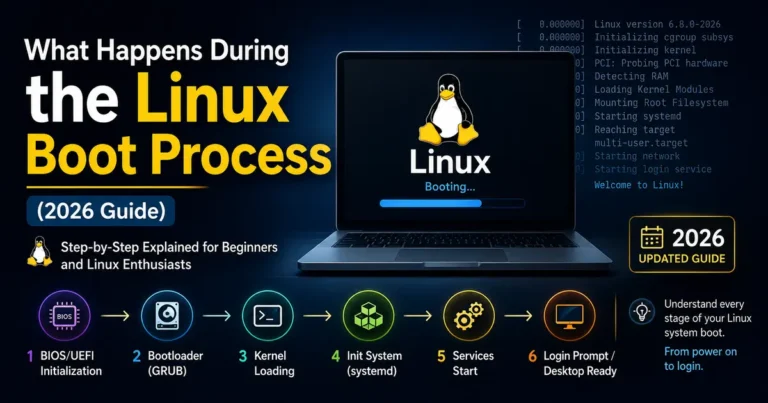
Linux Boot & GRUB Troubleshooting: Fix Boot Failures & GRUB Rescue problems becomes much easier once you identify exactly where the startup process is failing. UEFI or BIOS starts the machine, GRUB loads the Linux kernel, the kernel initializes the hardware, and the operating system then starts services and the login environment. A failure at each stage points to a different cause and requires a different fix.
This guide begins with simple checks that do not modify your disk. Once you know whether the problem is related to UEFI, GRUB, the kernel, initramfs, the filesystem, or the dual-boot configuration, you can apply the right repair instead of reinstalling GRUB or changing boot settings unnecessarily.
Before you repair anything: If the disk contains important files and the problem appeared after partitioning, a disk error, or a failed upgrade, back up what you can from a live Linux USB before making bootloader or filesystem changes.
Quick Diagnosis: Where Does Linux Stop Booting?
Use the symptom to decide where to begin.
| What you see | Most likely area to check first |
|---|---|
| Computer never reaches a boot menu | UEFI/BIOS, boot order, disk detection |
| Windows starts directly | UEFI boot order or missing GRUB entry |
| GRUB menu appears but Linux entry fails | Kernel, initramfs, root filesystem |
grub rescue> prompt | GRUB files, partition layout, bootloader installation |
grub> prompt | GRUB configuration or filesystem/partition lookup |
| “No bootable device” | Firmware boot entry, EFI files, disk/partition issue |
| Black screen after selecting Linux | Graphics, kernel parameters, display manager |
| Emergency shell/initramfs prompt | Root filesystem, UUID, storage or initramfs |
| Boot hangs on a service | systemd/service or hardware initialization |
| Linux boots only from an older kernel | Kernel or driver regression |
| Dual-boot entry disappeared | GRUB configuration, OS detection, UEFI entry |
Do not reinstall GRUB just because Linux does not reach the desktop. If the GRUB menu works and the kernel begins loading, the bootloader has already done much of its job.
1. Identify the Exact Point Where Booting Fails
Restart the computer and watch what appears.
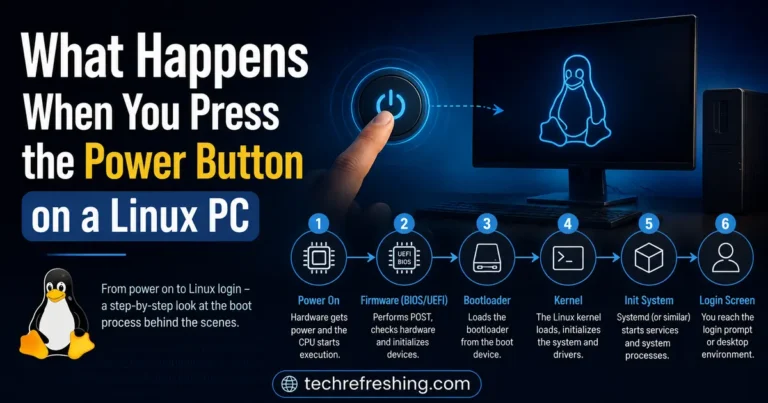
A normal Linux boot broadly passes through these stages:
- UEFI or BIOS firmware starts.
- Firmware selects a boot entry or device.
- GRUB or another bootloader starts.
- The bootloader loads the Linux kernel and initramfs.
- The kernel initializes storage and hardware.
- The root filesystem is mounted.
- systemd or another init system starts services.
- The display manager or console login appears.
The last thing you can see is a useful clue.
If you never see GRUB
Check the firmware boot menu first. On many PCs, a key such as F12, F11, Esc, F9, or Del opens a temporary boot menu, but the exact key depends on the manufacturer.
Look for an entry named after your Linux distribution, ubuntu, fedora, or a generic UEFI disk entry.
If the Linux boot entry exists and works when chosen manually, the problem may simply be the firmware boot order.
If GRUB appears but Linux fails afterward
That points away from a basic GRUB installation problem.
Pay attention to:
- the kernel version being selected;
- whether an older kernel boots;
- messages about missing UUIDs or filesystems;
- an initramfs/emergency shell;
- graphics failure after the kernel starts.
Avoid changing the bootloader until you have checked those clues.
2. Check Whether the Firmware Can See the Linux Disk
Enter UEFI/BIOS setup and confirm that the SSD or hard drive containing Linux is detected.
If the disk itself is missing in firmware, GRUB repair is not the place to start. Check the storage connection, drive health, firmware configuration, or hardware.
If the disk is visible, boot a Linux live USB when possible and inspect the partitions:
lsblk -fThis shows devices, filesystems, labels, and UUIDs.
You can also use:
sudo fdisk -lfor a broader view of partition tables and disks.
Do not format or recreate partitions just because their names look unfamiliar. The purpose at this stage is only to establish whether your Linux root partition and, on UEFI systems, the EFI System Partition still exist.
3. Check UEFI Versus Legacy BIOS Mode
A common source of boot trouble is installing or repairing Linux in a different firmware mode from the one the machine normally uses.
From a running Linux system or live environment, check whether the current session was booted in UEFI mode:
test -d /sys/firmware/efi && echo UEFI || echo Legacy-BIOSOn a modern UEFI installation, you will normally also have an EFI System Partition formatted as FAT32.
Use:
lsblk -fand look for a small FAT partition, often mounted at:
/boot/efiIf you are repairing a UEFI installation from live media, boot that live USB in UEFI mode as well. Mixing legacy BIOS and UEFI during a repair can lead to a bootloader being installed in the wrong way.
4. Check Existing UEFI Boot Entries
On UEFI systems, Linux boot entries are stored in firmware NVRAM.
If efibootmgr is installed, run:
sudo efibootmgr -vYou may see entries for Linux, Windows Boot Manager, or other operating systems.
Look at:
BootOrder;- the Linux entry;
- whether it points to an EFI loader on the expected disk.
If the Linux entry still exists but Windows comes first in BootOrder, changing the firmware boot order may be all that is required.
You can usually change it safely from the motherboard/laptop firmware setup instead of manually editing NVRAM from the command line.
If the Linux entry is completely missing, a proper bootloader reinstall may recreate it—but first confirm that the EFI System Partition and Linux files are still present.
5. GRUB Menu Is Missing but Linux Still Exists
Sometimes Linux is intact and only the path to GRUB has been lost.
Before reinstalling anything:
- Open the one-time firmware boot menu.
- Look for an existing Linux/GRUB entry.
- Check whether the Linux disk appears.
- Check the UEFI boot entries with
efibootmgr -v. - Confirm the EFI System Partition still exists.
If selecting the Linux entry manually starts GRUB, set that entry earlier in your firmware’s permanent boot order.
This situation is common after firmware updates, Windows updates, motherboard resets, or changes to disk configuration.
6. GRUB Menu Appears but the Wrong Kernel Fails
If GRUB loads normally, open its Advanced options submenu if your distribution provides one.
Try a previously installed kernel.
If an older kernel boots successfully while the newest one does not, the problem is more likely a kernel, driver, or initramfs regression than a damaged GRUB installation.
After getting into the system, check the current kernel:
uname -rInspect failed boot messages from the current boot with:
journalctl -b -p warningIf you booted a working older kernel, you can also inspect the previous failed boot where logs are available:
journalctl -b -1Do not remove the working older kernel until you have resolved the problem with the newer one.
7. Linux Drops to an Initramfs or Emergency Shell
An initramfs prompt often means the kernel started but could not mount the expected root filesystem.
Common causes include:
- a filesystem error;
- a changed partition UUID;
- storage not detected;
- an incorrect
/etc/fstab; - a broken or outdated initramfs;
- encrypted or LVM storage not activating correctly.
From a live USB or recovery environment, inspect:
lsblk -fCompare the actual UUIDs with the system’s filesystem table if the root filesystem can be mounted:
cat /etc/fstabDo not change UUIDs in fstab unless you have confirmed they are wrong.
If the filesystem reports errors, use the filesystem-specific repair tool only while the filesystem is unmounted. A careless filesystem repair can make recovery harder, so back up important data first when possible.
8. You See grub rescue>
The grub rescue> prompt usually means GRUB started but cannot find the files or modules it expects.
This can happen after:
- deleting or moving a Linux partition;
- changing partition layout;
- cloning disks;
- damaged GRUB files;
- reinstalling another operating system;
- changing the disk that firmware boots.
At the rescue prompt, you can inspect available drives and partitions:
lsGRUB may show entries similar to:
(hd0) (hd0,gpt1) (hd0,gpt2)You can inspect a partition:
ls (hd0,gpt2)/You are looking for the partition containing directories such as /boot, /boot/grub, or your Linux filesystem.
Temporary manual booting from a rescue prompt is possible, but commands depend heavily on the exact partition layout. For most users, a live USB followed by a controlled GRUB repair is safer than guessing device names at the rescue prompt.
9. You See a Normal grub> Command Prompt
A grub> prompt gives you more functionality than grub rescue> but still indicates GRUB did not load its normal menu configuration.
Start by listing disks and filesystems:
lsThen inspect likely Linux partitions.
If you locate the partition containing /boot/grub/grub.cfg, GRUB can sometimes load it with the configfile command.
For example, after identifying the correct partition:
configfile (hd0,gpt2)/boot/grub/grub.cfgThe partition number in that example is only illustrative. Do not copy it without checking your own layout.
If the normal menu appears and Linux boots, rebuild the GRUB configuration from the running system afterward.
10. Rebuild the GRUB Configuration When the Bootloader Works
There is an important difference between rebuilding GRUB’s menu configuration and reinstalling the GRUB bootloader.
If GRUB itself starts but entries are wrong or missing, you often only need to regenerate the configuration.
On Ubuntu, Debian, Linux Mint and distributions that provide update-grub:
sudo update-grubOn distributions using the standard grub-mkconfig command, the output path varies. A common layout is:
sudo grub-mkconfig -o /boot/grub/grub.cfgFedora-family systems may use grub2-mkconfig, and the correct configuration location depends on the distribution and firmware setup.
Use your distribution’s current documentation rather than copying an output path from another distro.
Rebuilding the menu is relatively different from writing a bootloader to a disk or EFI partition, so do not confuse the two operations.
11. When a GRUB Reinstall Is Actually Appropriate
A bootloader reinstall makes sense when:
- the EFI GRUB files are missing;
- GRUB no longer launches;
- the firmware entry was removed and needs to be recreated;
- a disk was cloned or replaced;
- another operating system overwrote or displaced the boot path;
- the GRUB installation itself is damaged.
It is not the first fix for a black screen that occurs after the Linux kernel starts.
The exact reinstall procedure depends on:
- UEFI versus legacy BIOS;
- distribution;
- partition layout;
- separate
/boot; - encryption;
- LVM;
- RAID;
- disk naming.
For a UEFI repair, you normally need the Linux root filesystem mounted, the EFI System Partition mounted in the correct place, and a live environment booted in UEFI mode. Distribution documentation should supply the correct grub-install or package-specific procedure.
If you are not certain which disk or EFI partition is correct, stop before running grub-install. Installing to the wrong target can turn one broken boot entry into several.
12. Windows Boots Directly After an Update
If a dual-boot machine suddenly skips GRUB and launches Windows, Linux may still be completely intact.
Check the firmware boot menu.
If the Linux/GRUB entry still starts normally, restore it as the first boot option in UEFI settings.
Then check:
sudo efibootmgr -vfrom Linux to understand the current boot entries.
A Windows update does not necessarily delete Linux. Often the firmware simply begins preferring Windows Boot Manager again.
Avoid repartitioning or reinstalling Linux until you have checked this.
13. Windows Is Missing From the GRUB Menu
If Linux boots but the Windows entry is missing, first make sure Windows Boot Manager still exists in the UEFI firmware and the Windows partitions are present.
GRUB’s operating-system detection behavior varies between distributions. Some installations do not automatically enable os-prober.
Before changing GRUB defaults, confirm that Windows is bootable from the firmware’s one-time boot menu.
If Windows works there, you have a GRUB menu-generation problem rather than a damaged Windows installation.
Follow your distribution’s documentation for enabling other-OS detection and regenerate the GRUB configuration afterward.
14. Black Screen After Choosing Linux in GRUB
If you can choose Linux in GRUB and then the screen goes black, GRUB has already passed control to the kernel.
Possible causes include:
- graphics driver problems;
- kernel regression;
- display-manager failure;
- a bad kernel parameter;
- NVIDIA/AMD/Intel driver issues;
- an external monitor or dock;
- encrypted storage waiting for input on another display.
Try an older kernel from GRUB’s advanced menu.
You can also temporarily edit a GRUB menu entry for diagnostic purposes. Highlight the Linux entry and press e. This lets you inspect the kernel command line for that single boot.
Changes made there are temporary unless you later edit the system configuration.
Avoid adding random kernel parameters from forum posts. Use temporary parameters only when you understand what they test.
15. Boot Hangs on a systemd Service
If the kernel starts and boot messages stop around a service, GRUB is probably not the problem.
After booting into recovery mode, an older kernel, or another usable target, check failed units:
systemctl --failedInspect the current boot:
journalctl -bFor a particular service:
systemctl status SERVICE_NAMEA mount defined in /etc/fstab, a network-dependent service, a failing disk, or a third-party daemon can delay boot for a long time.
Fix the failing service instead of reinstalling the bootloader.
16. Check the Root Filesystem and /etc/fstab
Boot failures sometimes appear after adding a disk, changing partitions, or editing fstab.
From a working rescue/live environment, inspect:
lsblk -fThen compare device UUIDs with:
cat /etc/fstabA missing removable drive configured without suitable options can delay or interrupt boot.
A root UUID that no longer matches the actual filesystem can prevent the operating system from mounting its root partition.
Make changes only after confirming which entry is wrong. Keep a copy of the original fstab before editing it.
17. Secure Boot Problems
Secure Boot can affect third-party kernel modules and drivers, particularly proprietary graphics or out-of-tree modules.
A system that reaches GRUB but fails later after installing a driver may not have a GRUB problem at all.
Check Secure Boot state where the mokutil utility is available:
mokutil --sb-stateDo not disable Secure Boot automatically. Modern distributions can work with Secure Boot when their kernels and modules are correctly signed.
If the issue started immediately after installing a third-party driver, investigate that driver and its signing/enrollment process first.
18. Use a Live USB Before Making Risky Repairs
A live Linux USB is one of the best tools for boot troubleshooting.
It lets you check whether:
- the internal disk is visible;
- partitions still exist;
- important data can be copied;
- the EFI System Partition is present;
- hardware works with a known environment;
- the installed system can be mounted for repair.
Before a bootloader reinstall or filesystem repair, copy irreplaceable files to another disk whenever possible.
Boot problems are stressful enough without turning them into data-loss problems.
A Practical Boot Troubleshooting Order
When Linux refuses to start, work through this sequence:
- Confirm the internal disk is visible in UEFI/BIOS.
- Check the one-time firmware boot menu.
- Decide whether GRUB appears.
- If GRUB appears, try an older kernel.
- Note whether the failure occurs before or after the kernel starts.
- Boot a live USB if the installed system is inaccessible.
- Inspect disks and filesystems with
lsblk -f. - On UEFI systems, inspect boot entries with
efibootmgr -v. - Check
/etc/fstaband filesystem UUIDs if boot reaches initramfs/emergency mode. - Rebuild the GRUB menu if GRUB works but entries are wrong.
- Reinstall GRUB only when the bootloader installation itself is actually missing or damaged.
- Back up important data before filesystem or partition repair.
The key is to repair the stage that failed—not every stage that happens to be involved in booting.
GRUB, UEFI and the Linux Kernel: What Each One Does
UEFI/BIOS is firmware. It initializes the machine and decides which bootloader or device to start.
GRUB is a bootloader. Its job includes finding and loading an operating-system kernel. The GNU GRUB documentation describes the bootloader as the software that loads and transfers control to the operating-system kernel.
The Linux kernel takes over after GRUB. It initializes drivers, storage, memory, and other hardware before starting userspace.
systemd or another init system starts services and brings the installed operating system to a usable login or desktop.
Knowing which layer you are looking at prevents unnecessary repairs. If GRUB displays its menu and starts a kernel, repeatedly reinstalling GRUB is unlikely to fix a graphics driver that fails several seconds later.
Official References Worth Keeping Handy
For deeper bootloader details, use current primary documentation:
- GNU GRUB Manual
- your Linux distribution’s installation and recovery documentation;
- your motherboard or laptop manufacturer’s UEFI/BIOS documentation.
GRUB repair commands are not completely interchangeable across Ubuntu, Fedora, Arch Linux, Debian, openSUSE, and other distributions. Check the instructions for the system you are actually repairing before writing anything to a disk or EFI System Partition.
A Linux boot problem becomes much easier to reason about once you know where startup stops. Begin with observation, keep working data safe, and make the smallest repair that matches the evidence.