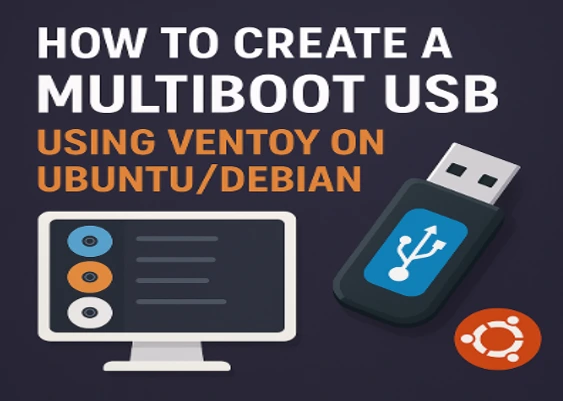
Hey there, fellow Linux enthusiast! If you’ve ever found yourself juggling multiple USB drives just to test a new Linux distro, install Windows on a friend’s machine, or rescue a bricked system, you’re not alone. In the world of open-source tinkering, time is precious, and so is storage space. That’s where Ventoy swoops in like a superhero cape for your flash drive. Imagine one USB stick holding dozens of bootable ISOs—Ubuntu, Debian, Fedora, even Windows—ready to boot at the press of a key. No more reformatting, no more headaches. Just copy, plug, and pick.
In this guide, we’re diving deep into how to create a multiboot USB using Ventoy on Ubuntu/Debian. I’ll walk you through every step with the clarity of a sunny afternoon, using the latest official details from Ventoy’s release as of November 2025 (version 1.1.07, dropped on August 18, 2025). Whether you’re a seasoned sysadmin on Debian 12 “Bookworm” or a newbie firing up Ubuntu 24.04 “Noble Numbat,” this post has you covered. We’ll cover prerequisites, installation, customization, troubleshooting, and even some pro tips to make your multiboot beast purr like a kitten.
By the end, you’ll have a versatile tool that saves hours and sparks creativity. Let’s boot up this adventure—grab your coffee, and let’s get that USB humming.
Why Ventoy? The Game-Changer for Multiboot USBs on Linux
Before we roll up our sleeves, let’s chat about why Ventoy deserves a spot in your toolkit. Traditional bootable USB creators like Rufus or dd force you to etch a single ISO onto the drive each time. Want to switch from Kali Linux to Pop!_OS? Wipe it clean and start over. It’s like rebuilding a Lego castle every playtime—frustrating and inefficient.
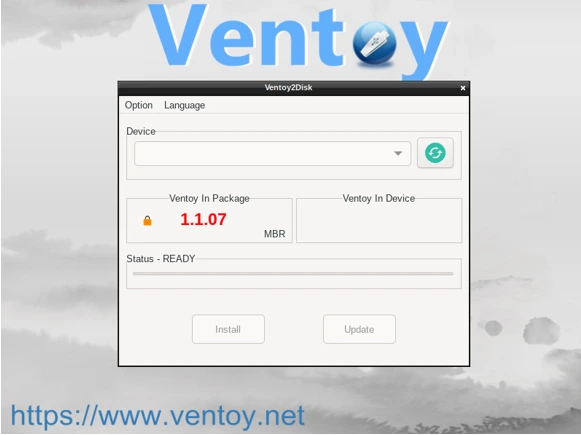
Ventoy flips the script. Developed by longtime open-source contributor Wang XinXin (aka “longpanda”), this free, GPLv3-licensed gem lets you install it once on a USB drive. From there, you simply drag-and-drop ISO files (or WIM, IMG, VHD(x), even EFI images) onto the drive’s first partition. Plug it into any compatible machine, and Ventoy’s elegant boot menu pops up, listing every image alphabetically. Select one, and it boots directly—no extraction, no formatting, no fuss.
As of Ventoy 1.1.07, here’s what makes it shine for Ubuntu/Debian users:
- Broad Compatibility: Supports Legacy BIOS (x86), UEFI (IA32/x86_64/ARM64/MIPS64EL), and even Secure Boot. Over 1,200 ISOs tested, covering 90%+ of DistroWatch’s top Linux flavors, Windows (up to Server 2025), ChromeOS, VMware, and more.
- Filesystem Flexibility: Defaults to exFAT for cross-platform love, but you can reformat to NTFS, FAT32, UDF, XFS, Ext2/3/4. Handles ISOs bigger than 4GB like a champ.
- Smart Features: Recursive scanning of subdirectories, dynamic ListView/TreeView menus, theme customization, password protection, and plugins for persistence (e.g., saving changes in live Linux sessions).
- Linux-Native Tools: CLI scripts for Ubuntu/Debian, plus GUI/WebUI options. Updates are nondestructive—your ISOs stay put.
- Performance Edge: Boots as fast as copying files allows, with no bloat. It’s lightweight enough for 8GB+ USBs but scales to SSDs or NVMe for massive collections.
In short, Ventoy isn’t just a tool; it’s liberation for IT pros, hobbyists, and anyone tired of USB Tetris. On Ubuntu/Debian, it integrates seamlessly with tools like lsblk and rsync, making the process feel like second nature. Ready to build yours? Let’s prep.
Prerequisites: What You’ll Need to Create Your Multiboot USB
No one’s a fan of mid-tutorial roadblocks, so let’s stock your digital pantry. Creating a multiboot USB using Ventoy on Ubuntu/Debian is straightforward, but a little prep goes a long way.
Hardware Essentials
- USB Drive: At least 16GB for starters (8GB works for light loads, but aim bigger for 20+ ISOs). USB 3.0+ for speed—Ventoy doesn’t care about brands, but SanDisk or Kingston hold up well under constant reads.
- Computer: Running Ubuntu 22.04 LTS or later, or Debian 12+. A second machine for testing boots is ideal, but QEMU (we’ll cover emulation) saves reboots.
- Backup Reminder: Ventoy will format your USB. Back up any data first—it’s gone forever otherwise.
Software Setup
Fire up your terminal (Ctrl+Alt+T on Ubuntu) and ensure your system is fresh:
sudo apt update && sudo apt upgrade –y
Install these packages for smooth sailing:
- wget or curl: For downloading Ventoy.
- unzip or tar: To extract the archive.
- lsblk: To identify your USB (usually pre-installed).
- Optional: rsync for bulk ISO copying, gparted for partition tweaks.
Run:
sudo apt install wget tar rsync gparted -y
Gather Your ISOs
Hunt down legitimate ISO files. Official sources only—avoid sketchy torrents to dodge malware. Examples:
- Ubuntu: ubuntu.com – Grab 24.10 “Oracular Oriole” for the latest.
- Debian: debian.org – Debian 12.8 “Bookworm” is rock-solid.
- Others: Fedora, Arch, Windows (from microsoft.com), or rescue tools like SystemRescue.
Store them in a folder like ~/Downloads/ISOs/. We’ll copy later.
Pro Tip: Start with 3-5 ISOs to test. A 32GB USB can hold 20+ (ISOs average 2-4GB).
With that squared away, you’re primed. Let’s download and install Ventoy.
Step-by-Step Guide: Installing Ventoy on Your USB Drive
Now, the meat: how to create a multiboot USB using Ventoy on Ubuntu/Debian. We’ll use the official CLI method—it’s precise, scriptable, and perfect for terminal lovers. (GUI/WebUI alternatives later.)
Step 1: Download the Latest Ventoy for Linux
Head to the official site or GitHub for version 1.1.07. In terminal:
cd ~/Downloads
wget https://github.com/ventoy/Ventoy/releases/download/v1.1.07/ventoy-1.1.07-linux.tar.gz
Verify the SHA256 hash for security (grab it from the release page):
sha256sum ventoy-1.1.07-linux.tar.gz
Match it against the official—peace of mind.
Extract:
tar -xzf ventoy-1.1.07-linux.tar.gz
cd ventoy-1.1.07
You’ll see Ventoy2Disk.sh—our installation wizard.
Step 2: Identify Your USB Device
Plug in your USB. Don’t mount it yet. List block devices:
lsblk -o NAME,SIZE,TYPE,MOUNTPOINT
Look for your USB (e.g., /dev/sdb – 14.9G, type disk, no mount). Warning: Wrong device? You could nuke your hard drive. Double-check with:
sudo fdisk -l | grep -i disk
Note the size—your 16GB USB won’t match your 1TB SSD.
Unmount if auto-mounted:
sudo umount /dev/sdb* # Replace sdb with yours
Step 3: Install Ventoy to the USB
Elevate to root and run the script. Basic install:
sudo sh Ventoy2Disk.sh -i /dev/sdb
This:
- Formats the drive (two partitions: tiny boot + large exFAT data).
- Installs Ventoy’s GRUB-based bootloader.
- Takes 10-30 seconds.
Output like “Install Ventoy to /dev/sdb successfully finished.” means success! Eject and reinsert—the first partition mounts as “Ventoy” (exFAT).
Options to spice it up:
- GPT Mode (for UEFI fans): sudo sh Ventoy2Disk.sh -i -g /dev/sdb
- Secure Boot: sudo sh Ventoy2Disk.sh -i -s /dev/sdb
- Custom Label: sudo sh Ventoy2Disk.sh -i -L “MyMultiBoot” /dev/sdb
- Reserve Space: sudo sh Ventoy2Disk.sh -i -r 1024 /dev/sdb (keeps 1GB at the end for extras).
If Ventoy’s already there? Update with -u or force with -I.
List info:
sudo sh Ventoy2Disk.sh -l /dev/sdb
Shows version, partitions—handy for verification.
Step 4: Copy Your ISOs to the Multiboot USB
Mount the USB (it auto-mounts on Ubuntu/Debian at /media/$USER/Ventoy or /run/media/$USER/Ventoy).
Navigate:
cd /media/$USER/Ventoy # Or wherever it mounted
ls # Empty? Perfect.
Copy ISOs. Single file:
cp ~/Downloads/ISOs/ubuntu-24.10-desktop-amd64.iso .
Bulk with rsync (mirrors directories, excludes junk):
rsync -av –progress ~/Downloads/ISOs/ /media/$USER/Ventoy/
Organize in folders for sanity—Ventoy scans recursively:
textVentoy/
├── Linux/
│ ├── ubuntu-24.10.iso
│ └── debian-12.8.iso
└── Windows/
└── win11.iso
Eject safely:
sudo eject /dev/sdb1
Boom—your multiboot USB is born!
Step 5: Boot and Test Your Creation
Restart, enter BIOS/UEFI (F2/Del), set USB first in boot order. Save and reboot.
Ventoy’s menu appears: A sleek list (or tree if you toggle F2) of your ISOs. Select one—say, Ubuntu—and it loads the distro’s installer. Magic!
For quick tests without rebooting, emulate with QEMU:
sudo apt install qemu-system-x86 -y
# From Ventoy dir
sudo ./Ventoy2Disk.sh -t /dev/sdb # Tests in QEMU
(Installs a temp Ventoy for simulation—remove after.)
If it boots, congrats! You’ve mastered how to create a multiboot USB using Ventoy on Ubuntu/Debian.
Customizing Your Ventoy Multiboot USB: Beyond the Basics
Ventoy’s not a one-trick pony. Let’s tweak it for flair and function.
GUI and WebUI Alternatives
CLI too bare-bones? Try VentoyGUI (in the tarball):
cd ~/Downloads/ventoy-1.1.07
./VentoyGUI.x86_64
Point-and-click install, same power.
WebUI: Run ./WebUI.sh for browser-based management—great for remote setups.
Themes and Menu Magic
Bored of the default blue? Download themes from Ventoy’s GitHub.
- Copy theme.txt and images to /ventoy/themes/ on the USB.
- Edit ventoy.json in a plugin dir for custom tips or aliases (e.g., “Ubuntu Latest” instead of filename).
Password-protect: Add -p flag on install or via plugins.
Plugins for Power Users
Ventoy’s plugin system is chef’s kiss. Official ones include:
- Persistence: Auto-save changes in live sessions (e.g., apt installs on Ubuntu live).
- Auto-Install: Script unattended OS setups.
- Injection: Pre-load drivers (WiFi for restricted hardware).
Create /ventoy/plugins/ on the USB, drop JSON configs. Example for persistence:
{
“persistence”: [
{
“image”: “/ubuntu-24.10.iso”,
“backend”: “/persistence.dat”,
“autosel”: 1
}
]
}
Resize .dat files with dd for storage.
TreeView mode (F2 at boot) nests folders—ideal for 50+ ISOs.
Troubleshooting Common Hiccups
Even smooth sails hit waves. Here’s how to debug.
| Issue | Cause | Fix |
|---|---|---|
| “No ISOs found” | Wrong partition or hidden files. | Ensure copies to first (exFAT) partition. Run ls -la /media/Ventoy. Rescan with F5 at boot. |
| Boot fails on UEFI | MBR vs. GPT mismatch. | Reinstall with -g. Disable Secure Boot temporarily. |
| USB not detected | Device ID wrong. | Re-run lsblk. Unmount all partitions. |
| Slow copying | FAT32 limit (<4GB files). | Stick to exFAT or NTFS. Use rsync –inplace. |
| Persistence not saving | Plugin misconfig. | Check JSON syntax. Use 4GB+ .dat file. |
| QEMU test crashes | Missing BIOS. | Install qemu-system fully; try -t -g. |
For deep dives, Ventoy’s forum or GitHub issues are goldmines. If all else fails, Ventoy2Disk.sh -I force-reinstalls.
Pro Tips: Maximizing Your Multiboot USB on Ubuntu/Debian
Capacity Hacks: 128GB USB? Theme it as a “rescue kit” with Hiren’s BootCD, Clonezilla, and GParted Live.
- Script It: Automate with a Bash script:
#!/bin/Bash
USB=/dev/sdb
ISODIR=~/Downloads/ISOs
sudo sh Ventoy2Disk.sh -i $USB
rsync -av $ISODIR/ /media/$USER/Ventoy/
echo “Multiboot ready!”chmod +x create_multiboot.sh && ./create_multiboot.sh
- Beyond USB: Install to SD cards for Raspberry Pi multiboot or internal SSDs for offline testing.
- Security: Encrypt the data partition with LUKS post-install (reformat carefully).
- Community Builds: Check DistroWatch for Ventoy-tested ISOs. Recent 2025 threads praise it for Mint 22 and Kali 2025.1.
Wrapping Up: Your Multiboot Journey Starts Now
There you have it—a comprehensive blueprint for how to create a multiboot USB using Ventoy on Ubuntu/Debian. From downloading 1.1.07 to booting your first ISO, we’ve covered the why, how, and wow factors. Ventoy isn’t just software; it’s a workflow revolution, turning chaotic USB drawers into streamlined powerhouses.
Whether you’re deploying Debian servers, demoing Ubuntu to friends, or just geeking out on live sessions, this setup will save you time and sanity. Got tweaks or tales? Drop a comment below—I’d love to hear how your multiboot beast performs.
Happy booting, and remember: In Linux, one USB rules them all.
Disclaimer
The information provided in this blog post is for educational and informational purposes only. Creating a multiboot USB using Ventoy involves formatting a storage device, which will permanently erase all existing data on that device. The author and publisher of this article are not responsible for any data loss, hardware damage, system instability, or any other issues that may arise from following the instructions in this guide.
- Always double-check the device name (e.g., /dev/sdb, /dev/sdc) before running any commands. Selecting the wrong device can result in complete data loss on your internal hard drive or SSD.
- Verify that all ISO files you use come from official, trusted sources to avoid malware or corrupted images.
- Booting third-party operating systems or tools may void warranties, violate licensing terms, or trigger anti-piracy mechanisms (especially with Windows ISOs).
- Some features (Secure Boot, persistence, plugins) may not work perfectly on all hardware configurations or with every Linux distribution.
- The author is not affiliated with the Ventoy project and does not guarantee that future versions of Ventoy will behave exactly as described here.
Proceed at your own risk and always maintain backups of important data. If you are unsure about any step, seek help from experienced users or consult official Ventoy documentation at https://www.ventoy.net.
By following this guide, you acknowledge that you assume full responsibility for the outcome.
Also Read
Why Nitrux 5.0 Linux Distro shines