If you just installed a fresh distro and your wireless card is nowhere to be found, you’re not alone. I’ve fixed this exact problem on more laptops than I can count over the years — from a five-year-old ThinkPad with a dead Broadcom card to a brand-new MediaTek MT7925-based ultrabook that a client bought two weeks before this was written. “Linux cannot detect Wi-Fi adapter” is one of the most searched troubleshooting phrases among new and experienced Linux users alike, and in almost every case it has nothing to do with a broken laptop. It comes down to missing firmware, a driver that hasn’t landed in your kernel yet, or a hardware switch you forgot was flipped.
This guide walks through why it happens, how to diagnose it properly instead of guessing, and the exact fixes for Ubuntu, Debian, Fedora, Arch, and a few other distros people actually run in 2026. We’ll also look at which chipsets still cause headaches and which ones just work out of the box, based on what’s held up (and what hasn’t) across dozens of real installs.
Why Linux Cannot Detect Wi-Fi Adapter in the First Place
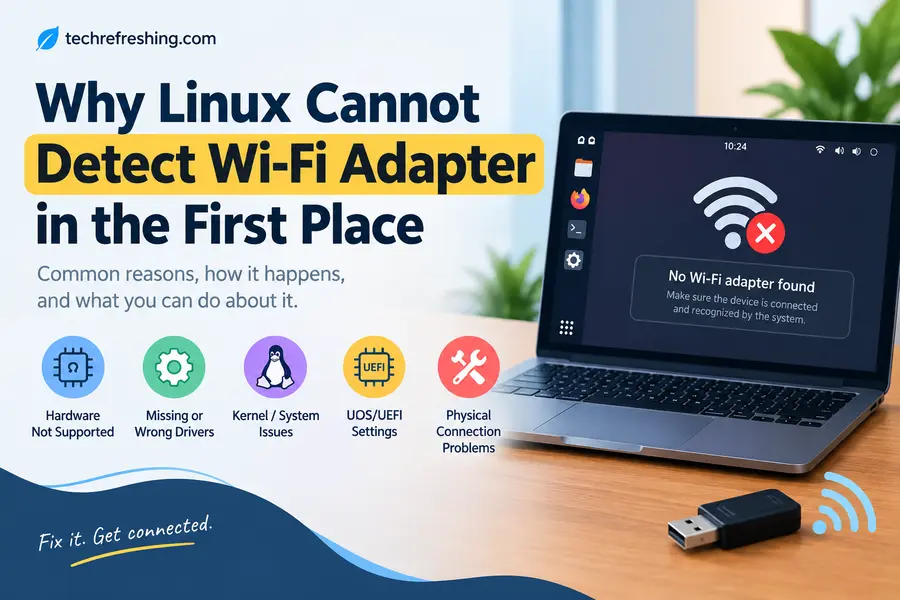
Wi-Fi on Linux is a layered problem. The card has to be seen by the kernel, matched to a driver, and then loaded with firmware — and any one of those three steps can fail silently. Here’s what’s usually going on.
1. Missing or Proprietary Firmware
A huge share of Wi-Fi chips, especially from Broadcom, Realtek, and some Intel AX/BE-series cards, need a binary firmware blob to function. The kernel driver itself might load fine, but without the firmware file sitting in /lib/firmware, the radio simply never turns on. Distros that ship only free software by default — Debian’s non-free-firmware-free installer images, for example — are the most common victims here. The Debian Wiki’s firmware page is the most reliable reference for exactly which package covers which chipset.
2. The Driver Hasn’t Made It Into Your Kernel Yet
Brand-new Wi-Fi 7 (802.11be) chipsets and some MediaTek MT79xx cards found in 2025–2026 laptops often need a kernel version newer than what your distro ships. If you’re running Debian 12 or an older Ubuntu LTS with a 6.1 or 6.5 kernel, a card that needs mt7925e or a patched ath12k driver simply won’t show up, because the driver code didn’t exist yet when that kernel was frozen. You can check exactly which kernel version introduced support for a given driver in the official kernel.org changelogs or the Linux Wireless project docs before assuming your hardware is unsupported.
3. The Adapter Is Physically or Logically Disabled
This sounds obvious, but it’s genuinely one of the top causes reported in Linux forums. A hardware kill switch, a BIOS setting that disables the internal wireless card in favor of a dock’s Ethernet port, or rfkill silently blocking the radio after a suspend/resume cycle — all of these make the adapter invisible even though the hardware itself is fine.
4. USB Wi-Fi Dongles With No Linux Support
Cheap USB adapters, especially ones built around Realtek RTL8188EU, RTL8192EU, or newer RTL8851BU chips, are notorious. Some ship with drivers that were never upstreamed into the kernel, meaning lsusb sees the device, but iwconfig or nmcli never shows a wireless interface.
5. Secure Boot Blocking Unsigned Kernel Modules
If you installed a third-party driver via DKMS (common with Broadcom’s wl driver or Realtek out-of-tree modules), Secure Boot can silently refuse to load it because the module isn’t signed with a trusted key. The module compiles fine, modprobe reports no errors, and the interface still never appears.
6. Conflicting or Blacklisted Kernel Modules
Some distros blacklist an in-tree driver in favor of a DKMS one, or vice versa, and if both are half-installed you end up with neither working. This is common on machines that have been through multiple driver install attempts from different tutorials.
How to Actually Diagnose the Problem
Before applying any fix, spend two minutes figuring out which of the above you’re actually dealing with. Guessing wastes more time than diagnosing, and this is the same sequence I run on any machine before touching a config file. The Arch Wiki’s Network Configuration/Wireless page has one of the best breakdowns of this diagnostic flow and is worth bookmarking even if you’re not on Arch.
Step 1 — Confirm the kernel sees the hardware at all
lspci -k | grep -A 3 -i networkFor USB dongles, use:
lsusbIf nothing shows up here, you’re looking at a physical connection issue, a disabled BIOS setting, or genuinely faulty hardware — not a driver problem.
Step 2 — Check if a driver is bound to the device
Look at the Kernel driver in use line in the lspci -k output. If it’s blank, the kernel found the chip but has no matching driver loaded.
Step 3 — Check rfkill status
rfkill listIf you see Soft blocked: yes or Hard blocked: yes next to your wireless device, that’s your answer — no driver troubleshooting needed.
Step 4 — Check dmesg for firmware errors
dmesg | grep -i firmwareA line like Direct firmware load failed tells you immediately that the driver loaded but the binary blob it needs isn’t installed.
Fixes by Distro
Here’s where most guides get vague. The actual command you run depends heavily on which distro and package manager you’re using, so let’s go one by one.
Ubuntu (22.04, 24.04, and 26.04 LTS)
Ubuntu bundles most common firmware through the linux-firmware package, but it can still be out of date on older LTS images.
- Update firmware and drivers first:
sudo apt update && sudo apt install --reinstall linux-firmware sudo apt install linux-generic-hwe-26.04Thehwe(hardware enablement) kernel pulls in a newer kernel stack without switching your whole release, which is the single most effective fix I’ve seen for brand-new laptops on Ubuntu LTS. Canonical documents the full HWE stack policy on the Ubuntu Wiki if you want to confirm which kernel line your release maps to. - For Broadcom cards specifically:
sudo apt install bcmwl-kernel-source - For Realtek USB dongles not detected at all, check Ubuntu’s
additional driverstool first (software-properties-gtk) before compiling anything manually.
Debian 12/13
Debian’s default installer images exclude non-free firmware unless you specifically download the “unofficial” image with non-free firmware bundled, which trips up a lot of new users. Debian explains the reasoning and the exact image links on its official Firmware page, which is worth reading once so this doesn’t catch you again on a future install.
- Enable the non-free-firmware component:
sudo nano /etc/apt/sources.listAddnon-free-firmwareto your existing lines, then:sudo apt update sudo apt install firmware-linux firmware-realtek firmware-atheros firmware-iwlwifi - Reboot after this. Firmware packages generally aren’t hot-loadable after the fact.
Fedora (44 and current releases)
Fedora is strict about only including free software in its main repos, so proprietary firmware is handled by RPM Fusion, the community repository most Fedora users end up adding within their first hour of using the distro anyway.
- Enable RPM Fusion:
sudo dnf install https://download1.rpmfusion.org/free/fedora/rpmfusion-free-release-$(rpm -E %fedora).noarch.rpm \ https://download1.rpmfusion.org/nonfree/fedora/rpmfusion-nonfree-release-$(rpm -E %fedora).noarch.rpm - Install the broader firmware pack:
sudo dnf install linux-firmware - Fedora ships a fairly recent kernel by default, so for very new Wi-Fi 7 cards this is usually enough without a manual kernel upgrade.
Arch Linux and Arch-based distros (Manjaro, EndeavourOS, CachyOS)
Arch’s rolling model means you almost always have the latest kernel, but firmware still has to be installed explicitly.
sudo pacman -S linux-firmwareIf you’re on a very recent chipset and linux-firmware in the stable repos hasn’t caught up yet, pull the git snapshot package instead:
yay -S linux-firmware-gitThis one line has fixed more “brand new laptop, no Wi-Fi” threads on the Arch Linux forums than almost any other single fix, because mainline firmware commits often land in the git package weeks before the tagged release.
openSUSE
openSUSE Tumbleweed behaves like Arch here — rolling kernel, firmware needs to be current.
sudo zypper install kernel-firmware-allFor Leap (the fixed-release branch), you may need to add the non-OSS repository first since Leap defaults to a more conservative package set. openSUSE’s own hardware compatibility documentation is a good sanity check before assuming a chip is unsupported.
Firmware and Driver Installation Deep Dive
Once you’ve confirmed via dmesg that firmware is the missing piece, here’s how to manually place a firmware file if your distro’s package doesn’t cover your exact chip revision (this happens with very recent MediaTek and Qualcomm Wi-Fi 7 modules).
- Identify the exact chip and needed firmware filename from
dmesg. - Download the correct
.binfile from the linux-firmware kernel.org git repository. - Copy it into
/lib/firmware/(matching the exact subfolder path the driver expects). - Run
sudo modprobe -rand thensudo modprobeon the relevant driver module, or simply reboot.
This manual route is really a last resort. In 95% of real-world cases, keeping linux-firmware current through your package manager solves it without ever touching a .bin file directly.
Chipset Comparison: Which Wi-Fi Cards Actually Behave on Linux
Not all wireless chips are created equal when it comes to Linux support. Here’s an honest comparison based on real-world driver maturity as of late 2026.
| Chipset Family | Linux Support Level | Typical Fix Needed | Notes |
|---|---|---|---|
| Intel AX200/AX210/BE200 | Excellent (in-tree) | Usually none; just keep linux-firmware updated | Best overall Linux experience, works on nearly every distro out of the box |
| Qualcomm Atheros QCA6xxx | Very good (in-tree) | Occasional firmware update | Common in Chromebooks and budget laptops, stable for years |
| Realtek RTL8822CE/8852BE | Good, improved a lot recently | Firmware package + occasionally a newer kernel | Used to be painful; mainline driver quality has improved sharply since 2024 |
| MediaTek MT7921/MT7925 | Good but kernel-version sensitive | Needs kernel 6.3+ (MT7921) or 6.7+ (MT7925) | Found in many 2025–2026 thin-and-lights; older LTS kernels won’t see it |
| Broadcom BCM43xx (older) | Inconsistent | bcmwl-kernel-source or broadcom-wl DKMS package | Common in older MacBooks running Linux; needs manual driver most of the time |
| Realtek USB dongles (RTL8188EU family) | Poor to none in mainline | Manual DKMS driver from GitHub, Secure Boot may need disabling | Classic “works on Windows, invisible on Linux” budget dongle |
If you’re buying a new Wi-Fi adapter specifically for Linux compatibility, Intel’s AX/BE series remains the safest bet by a wide margin, followed by Qualcomm Atheros.
When It’s Not Software: Hardware-Level Checks
If you’ve updated firmware, confirmed the driver is bound, and rfkill shows nothing blocked, and the card still doesn’t appear, check these before assuming the card is dead:
- Reseat the M.2 Wi-Fi card if you’re comfortable opening the laptop — a slightly loose connector is a surprisingly common cause after a RAM or SSD upgrade.
- Check BIOS/UEFI settings for a “Wireless LAN” or “M.2 Slot” toggle that may have been disabled.
- Try the adapter in Windows briefly (dual boot or another machine) to rule out actual hardware failure before spending more time on Linux-side fixes.
Preventing This on Your Next Install
- Before installing any distro on new hardware, search the exact laptop model plus “linux-firmware” to see if others have hit the same wall.
- Prefer distros with recent kernels (Fedora, Arch-based, or Ubuntu’s HWE kernel) if your machine is less than a year old — the wireless chip is one of the most kernel-version-sensitive components on any system.
- Keep a USB Ethernet adapter or a phone-tethering option handy during installation, since you’ll often need internet access just to pull the firmware package that fixes your Wi-Fi in the first place.
Conclusion
Linux cannot detect Wi-Fi adapter problems almost always trace back to one of a small number of causes: missing firmware, a driver that hasn’t caught up with brand-new hardware, or the radio being blocked at the software or BIOS level. Once you diagnose which of these you’re dealing with using lspci, rfkill, and dmesg, the actual fix is usually a single package install away — linux-firmware on Arch and openSUSE, firmware-linux plus the non-free-firmware repo on Debian, RPM Fusion on Fedora, or the HWE kernel on Ubuntu. Keep your firmware package current, favor Intel or Qualcomm chipsets if you’re choosing new hardware, and you’ll rarely run into this issue again.
FAQ
Why does my Wi-Fi adapter show up in Windows but not in Linux?
This almost always means the chipset uses a proprietary driver or firmware blob that Windows bundles automatically but Linux doesn’t install by default, so you need to add it manually through your distro’s firmware package.
Does rfkill unblock all fix a missing Wi-Fi adapter?
It only helps if the adapter is being soft-blocked; if the interface doesn’t appear in lspci or lsusb at all, rfkill won’t do anything since there’s no radio for it to unblock.
Why did my Wi-Fi stop working after a kernel update?
A kernel update can occasionally drop or rename a driver module, so check dmesg for errors and try reinstalling linux-firmware or rolling back to the previous kernel from your bootloader menu.
Is it worth buying a USB Wi-Fi dongle instead of fixing the internal card?
Yes, if your internal chipset has poor Linux support (like older Realtek USB chips), a dongle built around an Intel or Atheros chipset is often faster to get working than chasing down out-of-tree drivers.
Do I need to disable Secure Boot for Wi-Fi drivers to work?
Only if you’re installing a third-party DKMS driver that isn’t signed with a trusted key; in-tree kernel drivers and official distro firmware packages work fine with Secure Boot enabled.
Disclaimer: Commands, package names, and version numbers in this guide reflect the state of each distribution and the upstream kernel at the time of writing and may change as new releases ship. Always verify against your distro’s official documentation before modifying system files or kernel modules, and back up important data before making driver-level changes.