Windows 11’s hardware requirements pushed a lot of people toward Linux who never planned on leaving Windows in the first place. Others just want a desktop that doesn’t nag them, track them, or crawl on a five-year-old laptop. The reasons vary, but the question that follows is always the same: which Linux distribution actually makes sense for someone who’s never used one?
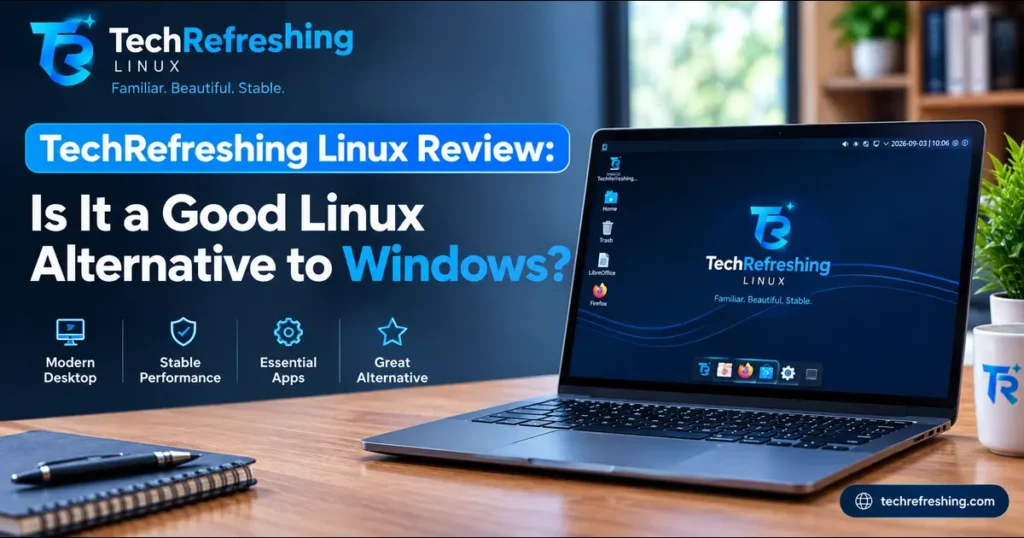
This TechRefreshing Linux Review takes a close look at TechRefreshing Linux — TR Linux for short — the distribution built by Anup Yadav, founder of TechRefreshing.com. Version 1.0 was released as a stable build on September 3, 2026, built on Debian 13 “Trixie” with KDE Plasma 6, and aimed squarely at beginners and Windows users rather than Linux veterans who already know what they want. From here on, this review uses “TR Linux,” the same short form the project uses.
What follows covers how TR Linux 1.0 is assembled, what everyday use looks like, its published hardware requirements, and how it compares to Windows 11, Ubuntu, and Linux Mint. It also covers where TR Linux runs into the same walls every Linux desktop does — because a review that only lists upsides isn’t a review, it’s an ad.
Disclosure: TR Linux is developed by TechRefreshing.com, the publisher of this article. We’ve aimed to keep this review balanced and factual, but readers should be aware of that relationship. This article is based on the project’s published documentation rather than independent third-party testing, and we encourage readers to verify current details on the official TR Linux page before installing.
What Is TR Linux?
TR Linux is a Linux distribution built by Anup Yadav through TechRefreshing.com, using Debian 13 Stable as its foundation and KDE Plasma 6 as its desktop. Version 1.0 is the project’s first stable release. It’s aimed at people migrating from Windows, first-time Linux users, students, and anyone who wants a working desktop without spending a weekend configuring one.
Three terms get thrown around loosely here, so it’s worth separating them:
- The Linux kernel is the core software that manages your hardware — memory, processes, devices. It’s the engine, not the car.
- A Linux distribution is the full operating system built around that kernel: package manager, system tools, default apps, installer, the works. Debian, Ubuntu, and TR Linux are all distributions, each making different choices on top of the same basic engine.
- A desktop environment is what you actually see and click on — panels, menus, window controls. KDE Plasma, GNOME, and Cinnamon are desktop environments.
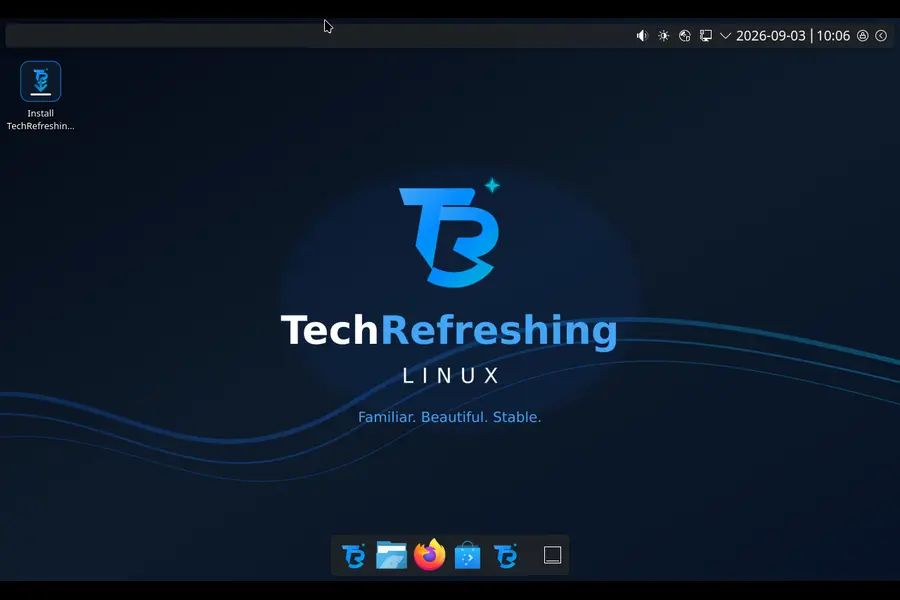
One point the project itself is explicit about: TR Linux is an independent project, developed solo, and it isn’t produced, endorsed, or supported by the Debian Project, KDE, Calamares, Mozilla, LibreOffice, or any other upstream project it builds on. Naming those projects is attribution, not partnership.
Why Was TR Linux Created?
The developer’s stated reasoning is straightforward: new Linux users tend to spend their first few hours configuring a desktop instead of using one. He’d used Debian for years and valued its predictability — tested packages, deliberate security updates, mature documentation — but recommending plain Debian to a newcomer usually meant walking them through desktop setup, driver checks, and software sources afterward.
KDE Plasma solves part of that, since it’s flexible enough to feel familiar to Windows users. But an unconfigured Plasma desktop is closer to a blank canvas than a finished product, which isn’t what a first-time user wants to see after installing an OS.
TR Linux is the attempt to close that gap: finish the installer, log in, and find a desktop that already looks intentional — top panel, centered dock, a welcome app explaining what’s there, and enough pre-installed software to be immediately useful. The stated goal isn’t to hide Linux or restrict control. Everything underneath is still Debian and still editable. The aim was removing setup work that stands between installing the OS and actually using it.
TR Linux at a Glance
| Feature | TR Linux 1.0 |
|---|---|
| Developer | Anup Yadav, TechRefreshing.com |
| Base distribution | Debian 13 “Trixie” Stable |
| Desktop environment | KDE Plasma 6 |
| Installer | Calamares |
| Software management | APT, KDE Discover, and Flatpak (Flathub enabled) |
| Included applications | Firefox ESR, LibreOffice, Thunderbird, VLC, GIMP, Dolphin, Timeshift |
| Architecture | 64-bit Intel and AMD (amd64) |
| Release date | September 3, 2026 |
| Licence | GPL-3.0 for build scripts and configuration |
| Intended users | Beginners, Windows users, students, general desktop users |
| Mandatory telemetry | None included by the distribution |
TR Linux Desktop Experience: Is It Familiar to Windows Users?
TR Linux runs KDE Plasma 6, arguably the most reconfigurable desktop environment in the Linux world, arranged with a top panel carrying the application menu, system tray, and clock, plus a centered floating dock along the bottom for pinned and running applications.
Worth being precise: that’s closer to a macOS layout than a Windows one, visually. TR Linux isn’t a clone of either. It borrows conventions both platforms use — a panel for system status, a dock for launching and switching apps — that anyone coming from a modern desktop OS will recognize within minutes.
TR Linux applies its own branding and icon choices on top of stock Plasma, but the underlying desktop is still KDE Plasma 6, with every customization option that comes with it. Panel position, themes, widgets, and shortcuts are all changeable without installing third-party tools. If the default arrangement doesn’t suit you, that’s a settings problem, not a dealbreaker.
Included Software and Everyday Use
TR Linux ships with a practical application set rather than a minimal base you build up yourself:
- Firefox ESR for browsing, on the extended-support release channel.
- LibreOffice for documents and spreadsheets, including reasonable compatibility with Microsoft Office file formats.
- Thunderbird for email, calendars, and contacts.
- VLC for media playback, which handles nearly anything without codec hunting.
- GIMP for cropping, retouching, and general image editing.
- Dolphin as the file manager, KDE Discover for graphical software installation, and Timeshift for system snapshots.
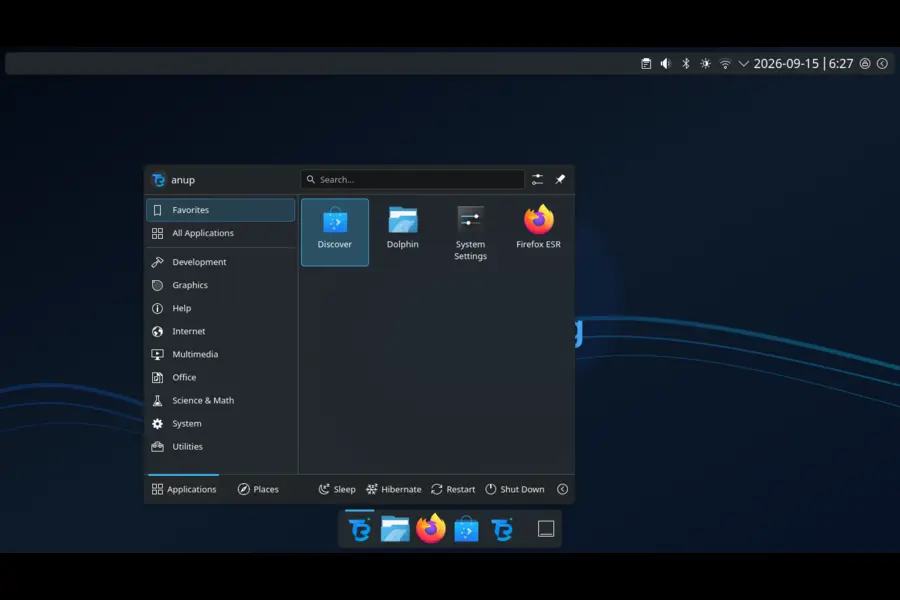
None of these are exclusive to TR Linux — they’re established open-source projects available on many distributions. The value is having them ready at first login instead of tracking each one down.
There’s also a TR Linux Welcome app that runs at first login, walking through what’s installed, where updates live, and where documentation and support are. Beyond that, the distribution includes shortcuts for system updates and maintenance, hardware-checking and diagnostic tools for identifying issues with components like Wi-Fi or graphics, and recovery and desktop-layout reset tools. None of that replaces real backups, but it makes routine maintenance more approachable for someone who doesn’t want to start with the terminal.
Where things get harder is specialized software. Microsoft’s desktop Office apps, Adobe’s Creative Cloud lineup, industry-specific professional tools, and most Windows-only games don’t run natively on any Linux desktop, TR Linux included. Compatibility layers and virtualization close some of that gap, but not reliably and not for everything. If your work depends on one particular Windows application, check for a Linux equivalent before committing.
Software Installation and Updates
TR Linux gives you three ways to manage software, and they aren’t mutually exclusive.
APT is the command-line package manager Debian has used for decades — reliable, enormously well documented, and the traditional route for installing software and applying system updates.
KDE Discover is the graphical software center, behaving more like an app store for anyone who’d rather not touch a terminal.
Flatpak, with Flathub enabled out of the box, adds a large catalog of sandboxed applications that run consistently across distributions. It’s the usual route for newer app versions or software Debian doesn’t package directly.
That three-way setup is a sensible choice for a beginner distribution, since it doesn’t force a newcomer into the command line while still leaving APT available for anyone who wants it. The one habit worth carrying over from any OS: stick to official repositories and Flathub rather than random third-party downloads.
One honest caveat about the Debian Stable base — and the project states this itself — stability means tested, consistent package sets, not the newest version of everything. If you want the latest release of every app the moment it ships, a rolling-release distribution fits that goal better than TR Linux does.
TR Linux vs Windows 11
| Category | TR Linux 1.0 | Windows 11 |
|---|---|---|
| Operating system model | Linux distribution based on Debian 13 Stable | Microsoft’s Windows operating system |
| Desktop | KDE Plasma 6 | Windows desktop |
| Software installation | APT, KDE Discover, Flatpak/Flathub | Microsoft Store, installers, and other supported methods |
| Minimum RAM | 4 GB (8 GB recommended) | Per Microsoft’s published requirements |
| Windows application compatibility | Native Linux applications; some Windows software may need compatibility tools | Broad native Windows application support |
| Customization | Highly customizable KDE Plasma 6 desktop | Windows personalization options |
| Updates | Debian package updates via APT, Discover, and Flatpak | Windows updates and servicing |
| Cost | Free, GPL-3.0 build scripts | Licence cost, typically bundled with hardware |
| Best fit | Users wanting a Linux desktop and Windows alternative | Users needing Windows-native software or ecosystem features |
The gap that actually matters is software compatibility, not aesthetics. Windows 11 runs Windows-native software directly, full stop. TR Linux runs Linux-native software, with partial and inconsistent coverage for Windows programs through compatibility tools. Driver support tells a similar story — Windows has an edge because most hardware is built with Windows as the primary target.
TR Linux earns its keep elsewhere. KDE Plasma 6’s customization goes further than Windows allows without third-party add-ons, its 4 GB minimum is modest by current standards, and there’s no licence to buy. Whether it revives a specific older machine is still a question only that machine can answer — the project is explicit that hardware compatibility isn’t guaranteed.
Neither system wins outright on speed, security, or privacy across the board. The right pick depends on what software and hardware you can’t compromise on.
TR Linux vs Ubuntu and Linux Mint
| Feature | TR Linux | Ubuntu | Linux Mint |
|---|---|---|---|
| Base | Debian 13 Stable | Ubuntu base, derived from Debian | Ubuntu or Debian editions |
| Default desktop | KDE Plasma 6 | Ubuntu Desktop uses GNOME | Cinnamon is the main edition |
| Main focus | A preconfigured, familiar desktop from first boot | Broad Linux ecosystem and mainstream desktop use | Familiar desktop experience and ease of use |
| Package management | APT, Discover, and Flatpak | APT and other supported methods | APT and other supported methods |
| Project scale | Independent, solo-developed | Backed by Canonical | Established team with a long track record |
| Best for | Users wanting TR Linux’s particular setup and defaults | Users seeking a widely documented Linux distribution | Users seeking a familiar desktop-oriented Linux experience |
These are three separate projects, not variations on the same thing. Ubuntu’s biggest asset isn’t its desktop, it’s its size: more users means more forum posts, more tutorials, more chance that your error message has already been solved by someone else. Linux Mint built its reputation specifically around easing the Windows transition, and it’s been doing that for years longer than TR Linux has existed.
TR Linux’s angle is narrower: Debian Stable underneath, KDE Plasma 6 configured on top, plus welcome and maintenance tooling aimed at people who’ve never used Linux. It’s also worth being clear-eyed that this is a solo, independent project at version 1.0 — which means a far smaller body of third-party documentation than Ubuntu or Mint have accumulated. That’s not a criticism of the work; it’s a practical consideration if you expect to search for help.
Hardware Requirements and Compatibility
TR Linux 1.0 targets 64-bit Intel and AMD systems (amd64) and ships as a single ISO. The project publishes these figures as practical starting points, not guarantees that any specific machine will work perfectly.
Minimum:
- 64-bit Intel or AMD processor
- 4 GB RAM
- 25 GB available storage
- 1024 × 768 display
- 4 GB or larger USB drive for installation media
Recommended:
- 64-bit multicore processor
- 8 GB RAM or more
- 40 GB available storage
- Full HD display
- Reliable internet connection for updates
Those are modest requirements by 2026 standards, which supports the “useful on older hardware” goal — though 4 GB RAM with KDE Plasma 6 will feel tighter than 8 GB once you have a browser and an office app open simultaneously.
Hardware compatibility remains the part of switching to Linux that trips up more people than the desktop layout ever does. The usual trouble spots apply here as anywhere: Wi-Fi and Bluetooth chipsets, graphics drivers for newer or proprietary GPUs, laptop audio configurations, printers and scanners, and touchpad gesture support. Owners of very new or highly specialized hardware needing vendor-specific drivers may hit gaps.
The project’s own advice is worth repeating: boot the live environment first and test Wi-Fi, audio, graphics, Bluetooth, suspend, and any peripherals you rely on before installing anything. No published benchmarks are available for TR Linux 1.0, so this review offers no performance figures — the live session on your own machine is the only reliable test.
Is TR Linux Good for Beginners?
The case for TR Linux as a first distribution has real substance: a desktop configured before you arrive, applications installed at first boot, Calamares handling installation graphically, a Welcome app explaining the layout, Discover for installing software without the terminal, and Timeshift for snapshots when something goes wrong.
The learning curve is still real. Terms like “repositories,” “dependencies,” and “sudo” don’t map onto anything from Windows. Software you relied on may need a Linux substitute, which sometimes means changing a habit rather than swapping an icon. Odd hardware quirks might send you to an issue tracker instead of a support wizard. And Linux organizes files and settings differently enough that confident Windows users still hit “wait, where is that” moments early on.
There’s also a version-1.0 consideration. This is a first stable release from an independent developer, and the project says future updates will be shaped by real installation reports and hardware feedback. That’s an honest position, but it means early adopters should expect to encounter and report rough edges rather than assume everything is already polished. Checking the published known-issues page before installing is genuinely worth the five minutes.
How to Try TR Linux Before Installing
The project documents a clear process, and it’s the right one:
- Download the ISO and its checksum file from the official release page. The ISO is hosted on SourceForge.
- Verify the SHA-256 checksum against the published value before doing anything else. On Windows that means
Get-FileHashin PowerShell; on Linux,sha256sum. If the value doesn’t match, don’t install it — a mismatch usually means a corrupted download. - Create a bootable USB drive using a tool like Rufus, Ventoy, or Etcher.
- Boot from the USB drive.
- Test the live environment thoroughly — network, display, audio, peripherals.
- Back up your important data, then install via Calamares.

That backup step matters more than it sounds. Installer partitioning can permanently erase data if the wrong disk is selected, and that risk exists no matter how friendly the interface looks.
Installing Alongside Windows
TR Linux includes GRUB and os-prober for Windows dual-boot detection, but a few precautions make it considerably safer:
- Back up your Windows files first.
- If BitLocker is enabled, save the recovery key somewhere accessible before starting, since encrypted drives can behave unpredictably during partitioning.
- Disable Windows Fast Startup, which can leave the filesystem in a state that interferes with dual-boot setups.
- Make sure Windows and the TR Linux installer run in the same firmware mode, preferably UEFI.
- Use Windows Disk Management to shrink your existing partition and create unallocated space beforehand.
The project is careful not to promise dual-boot detection works identically everywhere, since it depends on UEFI configuration, Fast Startup, BitLocker status, and partition layout. That caution is warranted.
Official resources:
- Project website: https://techrefreshing.com/
- TR Linux page with release notes and downloads: https://techrefreshing.com/tr-linux/
- Source code: https://github.com/Techrefreshing/TR-Linux
Pros and Cons of TR Linux
Pros
- Debian 13 Stable underneath, with a package base tested for consistency rather than novelty.
- KDE Plasma 6 arrives configured, not as a blank canvas.
- Genuinely useful applications installed at first boot, including Timeshift for snapshots.
- Three software management routes — APT, Discover, and Flatpak — so terminal use is optional, not required.
- Welcome app plus hardware diagnostic and recovery tools aimed at people who don’t yet know where to look.
- Modest published requirements: 4 GB RAM and 25 GB storage as a starting point.
- Build scripts published under GPL-3.0 with a public issue tracker, known-issues page, and security policy.
- Free to download and use.
Cons
- Windows-only software often has no native Linux equivalent.
- Debian Stable means older application versions; rolling-release distributions ship newer software sooner.
- amd64 only — no 32-bit or ARM builds in version 1.0.
- As a solo, independent project at 1.0, it has far fewer third-party tutorials and community answers than Ubuntu or Mint.
- Hardware compatibility isn’t guaranteed, particularly for very new or specialized components.
- Dual-boot detection depends on your firmware and partition setup and isn’t promised to work identically everywhere.
- No published benchmarks exist yet, so performance claims can’t be verified independently.
Who Should Use TR Linux?
TR Linux makes sense for:
- Windows users curious about Linux who don’t want desktop configuration to be the first obstacle.
- First-time Linux users who’d rather start from a finished-looking desktop than build one.
- Students and home users whose computing is mostly browsing, documents, email, and media.
- People who already like Debian but don’t want to assemble a desktop from a minimal install.
- Owners of older 64-bit machines willing to test the live session before committing.
Who Should Consider Another Operating System?
TR Linux is probably the wrong call for:
- Anyone whose work depends on Windows-only professional software with no Linux alternative.
- Users who want the newest package versions immediately — Debian Stable deliberately lags.
- People who strongly prefer GNOME, Xfce, or another desktop environment.
- Anyone building a minimal server install, which isn’t what this distribution targets.
- Owners of very new or highly specialized hardware requiring vendor-specific drivers.
- Gamers whose must-play titles use anti-cheat systems that don’t function on Linux.
- Anyone who’d rather not be an early adopter of a version 1.0 release.
None of that is a knock on TR Linux specifically — most of it applies to Linux desktops generally, and it’s better to know going in.
Final Verdict: Is TR Linux a Good Alternative to Windows?
This TechRefreshing Linux Review comes down to a reasonably clear conclusion: TR Linux 1.0 is a thoughtfully assembled first release for Windows users who want to try Linux without desktop configuration being the thing that scares them off. Debian 13 Stable underneath, KDE Plasma 6 configured on top, a practical application set at first boot, three ways to install software, and modest 4 GB RAM requirements add up to a genuine starting point rather than a marketing promise. Publishing the build scripts under GPL-3.0 alongside a public issue tracker and known-issues page is the right instinct too.
It isn’t a wholesale Windows replacement, and the project doesn’t claim to be one. Windows-only software, certain games, and hardware needing vendor-specific drivers remain real walls. Debian Stable’s older package versions won’t suit everyone. And as an independent solo project at version 1.0, it carries less accumulated community documentation than Ubuntu or Mint — something worth weighing if you expect to search for help often.
If your use case lines up, testing it costs an hour and a USB drive. Verify the checksum, boot the live session, check your hardware, and decide from there.
Frequently Asked Questions
What is TR Linux?
TR Linux is a Debian-based Linux distribution developed by Anup Yadav through TechRefreshing.com, built on Debian 13 with KDE Plasma 6 and aimed at beginners and Windows users.
Is TR Linux based on Debian?
Yes — TR Linux 1.0 uses Debian 13 “Trixie” Stable as its base, though it’s an independent project and isn’t endorsed or supported by the Debian Project.
Is TR Linux free?
Yes, TR Linux is free to download, install, and use, with build scripts and configuration released under the GPL-3.0 licence and bundled applications under their own respective licences.
What are TR Linux’s system requirements?
The published minimum is a 64-bit Intel or AMD processor, 4 GB RAM, 25 GB storage, and a 1024 × 768 display, with 8 GB RAM and 40 GB storage recommended for a more comfortable experience.
Can TR Linux run Windows applications?
Not natively — it runs Linux software, and while some Windows applications work through compatibility tools, others won’t run at all, so checking specific programs beforehand matters.
Can I install TR Linux alongside Windows?
TR Linux includes GRUB and os-prober for detecting existing Windows installations, but successful dual-boot depends on your UEFI mode, Fast Startup setting, BitLocker status, and partition layout.
Does TR Linux collect telemetry?
No, the distribution includes no mandatory TechRefreshing telemetry, though individual applications like Firefox and Thunderbird have their own separate privacy practices worth reviewing.
Can I try TR Linux without installing it?
Yes — the ISO boots into a live environment, letting you test Wi-Fi, audio, graphics, and peripherals before writing anything to your drive.
Where can I learn more about TR Linux?
The official TR Linux page at techrefreshing.com/tr-linux hosts release notes and downloads, and the source code, issue tracker, and known-issues page are on GitHub.