![How to Install Vim 9.2 on Windows, Mac, and Linux [Complete Guide]](https://techrefreshing.com/wp-content/uploads/2026/02/How-to-Install-Vim-9.2-on-Windows-Mac-and-Linux-1024x538.webp "How to Install Vim 9.2 on Windows, Mac, and Linux [Complete Guide] 1")
Vim 9.2 just dropped on Valentine’s Day 2026, and it’s bringing some genuinely exciting features to this legendary text editor. Whether you’re a long-time Vim user or someone who’s been curious about switching from your current editor, learning how to install Vim 9.2 on Windows, Mac, and Linux is easier than you might think.
This complete guide will walk you through every step of the installation process, no matter which operating system you’re using. Let me share exactly how to get Vim 9.2 up and running on your system, plus what makes this release worth the upgrade.
What is Vim? Understanding the Editor Before You Install
If you’re new to Vim, you might be wondering what all the fuss is about. Why do so many developers swear by a text editor that’s been around since 1991?
The Basics: More Than Just a Text Editor
Vim stands for “Vi IMproved”—it’s an enhanced version of the Unix vi editor that’s been refined over three decades. But calling Vim just a “text editor” is like calling a Swiss Army knife just a blade. It’s a complete text manipulation environment that lives in your terminal (though GUI versions exist too).
Here’s what makes Vim different: it’s designed around the idea that your hands should never leave the keyboard. No reaching for the mouse, no hunting through menus. Everything happens through keyboard commands, and once you learn them, editing text becomes remarkably fast.
Why Developers Choose Vim
It’s Everywhere: SSH into any Linux server, and Vim (or its predecessor vi) is already there. No installation needed. This makes it invaluable for system administration and remote work.
It’s Fast: Not just in performance (though it launches instantly and handles massive files without breaking a sweat), but in how quickly you can edit once you know the commands. Need to delete everything inside parentheses? di( does it. Change a word? cw. These commands become second nature.
It’s Customizable: Your .vimrc configuration file can transform Vim into exactly the editor you need. Whether you’re writing Python, editing HTML, or working with configuration files, Vim adapts to your workflow.
It’s Powerful: Macros, regular expressions, split windows, tabs, syntax highlighting for hundreds of languages, integration with external tools—Vim does it all. Many developers use it as their primary IDE.
The Modal Editing Philosophy
This is the biggest conceptual shift for newcomers. Most editors have one mode: you type, and characters appear. Vim has multiple modes:
Normal Mode is where you navigate and manipulate text. Think of it as “command mode”—each keystroke is an instruction, not a character to insert.
Insert Mode is where you actually type text. You enter it by pressing i, and exit back to Normal mode by pressing Esc.
This separation might seem weird at first, but it’s genius. In Normal mode, your entire keyboard becomes a control panel. j and k move down and up. dd deletes a line. yy copies it. You’re not typing text—you’re commanding the editor.
Who Uses Vim?
You’ll find Vim users across the entire spectrum of tech:
- System administrators who spend their days in terminals managing servers
- Software developers writing everything from web apps to system software
- DevOps engineers editing configuration files and automation scripts
- Data scientists working with code and documentation
- Writers and academics who appreciate distraction-free writing and version control integration
Some people use Vim for everything. Others use it alongside their main IDE for quick edits or remote work. There’s no “right way” to use Vim—it fits into your workflow however you need it.
Vim vs. Modern Editors: What’s the Tradeoff?
Let’s be honest about what you’re getting into. Modern editors like VS Code or Sublime Text have graphical interfaces, extensive plugin marketplaces, and work exactly like you’d expect coming from other software. You can be productive immediately.
Vim has a learning curve. The first time you open it, you might not even know how to exit (it’s :q, by the way—a meme older than some programmers). You’ll spend a week or two feeling slower than you were in your old editor.
But here’s the thing: that investment pays off. After a month, you’ll be back to your old speed. After three months, you’ll be noticeably faster. After six months, you’ll have muscle memory for hundreds of commands, and editing text will feel effortless.
The tradeoff is immediate productivity versus long-term efficiency. Vim is the latter.
Is Vim Right for You?
Vim makes sense if you:
- Spend a lot of time editing text or code
- Value keyboard efficiency over mouse-driven interfaces
- Work on remote servers or systems via SSH
- Want an editor that will be available and familiar anywhere you go
- Enjoy optimizing your tools and workflow
- Don’t mind investing time to learn something powerful
Vim might not be your first choice if you:
- Prefer visual interfaces and discoverable features
- Need immediate productivity without a learning period
- Primarily work in a single IDE that does everything you need
- Rarely edit plain text files
There’s no shame in deciding Vim isn’t for you. But if you’re even slightly curious, the installation is free and reversible. Give it a week, work through the tutorial, and see how it feels.
Vim in 2026: Still Relevant?
With AI-powered editors and sophisticated IDEs everywhere, is Vim still relevant? Absolutely.
Vim’s efficiency hasn’t been obsoleted by modern tools—if anything, it complements them. Many developers use Vim keybindings inside VS Code or IntelliJ. The editing model is that good.
Plus, Vim has kept evolving. Version 9.2 isn’t just maintenance patches—it’s adding modern features like improved completion, better language server protocol support, and native Wayland support for Linux. The Vim community actively develops plugins that rival IDE features.
The fundamental advantage—being able to edit text at the speed of thought through keyboard commands—never goes out of style. Whether you’re editing code in 2026 or configuration files in 2036, those skills transfer.
What’s New in Vim 9.2?
Before we jump into installation, let’s talk about why you might want to upgrade. Vim 9.2 isn’t just another incremental update—it’s been two years since version 9.1, and the development team has packed in some substantial improvements.
The standout feature? Full Wayland support for Linux users. If you’ve been dealing with clipboard issues or UI glitches on Wayland, those headaches are now history. The release also brings native dark mode for Windows menus and title bars, along with significantly improved high-resolution display support.
For developers, the enhanced completion system with fuzzy matching is a game-changer. The new diff mode improvements make comparing files actually pleasant, especially when you’re working with large configuration files. And if you’re into scripting, the Vim9 language now supports enums, generic functions, and tuple data types.
Installing Vim 9.2 on Windows
Windows users have several solid options for getting Vim 9.2 installed. I’ll cover the most reliable methods.
Method 1: Using the Official Installer (Recommended)
This is the easiest route if you’re new to Vim or just want a straightforward installation.
- Head to the official Vim download page
- Look for the PC section and click through to the Windows installer
- You’ll be directed to the vim-win32-installer releases page
- Download the latest signed installer (look for files like gvim_9.2.xxxx_x64_signed.exe)
- Run the installer and follow the setup wizard
The installer will ask you a few questions during setup. Here’s what I recommend:
- Install Location: The default C:\Program Files (x86)\Vim works fine for most people
- Desktop Shortcuts: Up to you, but they’re handy when you’re starting out
- Create .bat Files: Say yes—this lets you run Vim from any command prompt
- Shell Integration: Enable “Edit with Vim” in the context menu for easy file access
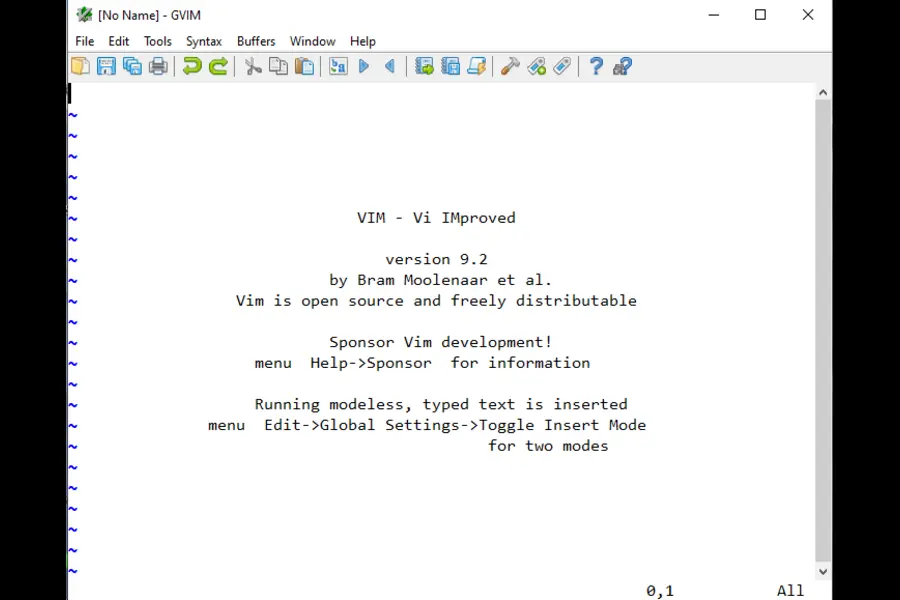
When you’re done, open PowerShell or Command Prompt and type vim –version to confirm everything’s working. You should see version 9.2 along with a list of compiled features.
Method 2: Windows Package Manager (winget)
If you prefer the command line, Windows’ built-in package manager makes installation a breeze.
Open PowerShell and run:
winget install vim.vim
That’s it. Windows will download and install Vim 9.2 automatically. The winget approach is perfect if you’re managing multiple machines or prefer scriptable installations.
For those who want bleeding-edge nightly builds:
winget install vim.vim.nightly
Method 3: Chocolatey Package Manager
If you’re already using Chocolatey for package management, installing Vim is just as simple:
choco install vim
Chocolatey gives you some extra installation options. For instance, if you want to skip desktop shortcuts:
choco install vim --params "/NoDesktopShortcuts"
Verifying Your Windows Installation
After installation, verify everything’s working:
- Open PowerShell
- Type vim –version and press Enter
- You should see “VIM – Vi IMproved 9.2” with the compilation date
- Try launching Vim by simply typing vim or gvim for the graphical version
The Windows version includes both the terminal version (vim) and the GUI version (gvim). Most people find gvim more approachable when starting out since it has menus and toolbar buttons.
Installing Vim 9.2 on Mac
Mac users have some excellent options, from the terminal-based installation to the full-featured MacVim GUI.
Method 1: Homebrew (Most Popular)
Homebrew is the de facto package manager for macOS, and it makes installing Vim incredibly straightforward.
First, if you don’t have Homebrew installed, open Terminal and run:
/bin/bash -c "$(curl -fsSL https://raw.githubusercontent.com/Homebrew/install/HEAD/install.sh)"
Once Homebrew is ready, install Vim:
brew update
brew install vim
This usually takes a few minutes while Homebrew compiles Vim with optimal settings for your Mac. When it’s done, you can verify the installation:
vim --version
You should see version 9.2 along with all the enabled features. Homebrew compiles Vim with support for Python, Ruby, and Perl, which is handy if you use plugins that depend on those languages.
Method 2: MacVim (GUI Version)
If you prefer a more Mac-like experience with native GUI elements, MacVim is your best bet. It feels like a proper Mac application while giving you the full power of Vim.
Install MacVim using Homebrew:
brew install macvim
Alternatively, download it directly from the MacVim releases page and drag it to your Applications folder.
MacVim gives you a toolbar, menus, and better mouse support—perfect if you’re transitioning from another editor. But you still get all the keyboard-driven efficiency that makes Vim legendary.
Launch MacVim from your Applications folder or by running mvim in Terminal.
Important Note About Pre-installed Vim
macOS comes with Vim pre-installed, but it’s usually an older version with limited features. When you install via Homebrew, the new version will take precedence in your PATH. You can confirm which version you’re using:
which vim
It should show /usr/local/bin/vim or /opt/homebrew/bin/vim (on Apple Silicon Macs) rather than /usr/bin/vim.
Verifying Your Mac Installation
Test your installation:
vim --version
Look for “VIM – Vi IMproved 9.2” at the top. Check the features list—you should see lots of + signs indicating enabled features like +python3, +clipboard, and +terminal.
Try opening a file:
vim test.txt
Press i to enter insert mode, type something, press Esc, then type :wq and hit Enter to save and quit. If that works, you’re all set.
Installing Vim 9.2 on Linux
Linux users have the most installation options, depending on your distribution. The good news is that Vim 9.2 is making its way into official repositories, though availability varies by distro.
Ubuntu and Debian-based Distributions
For Ubuntu, Debian, Linux Mint, and similar distributions, the process is straightforward:
sudo apt update
sudo apt install vim
This installs the full-featured “huge” version of Vim with all the bells and whistles. If you previously had the minimal vim-tiny package, this will upgrade you to the complete version.
Important note: Official repositories might not have Vim 9.2 yet depending on when they update. To check what version you’ll get:
apt policy vim
Getting the Latest Vim 9.2 on Ubuntu
If the official repos don’t have 9.2 yet, you can compile from source:
# Install build dependencies

sudo apt install build-essential git libncurses5-dev


# Clone the Vim repository

git clone https://github.com/vim/vim.git

cd vim


# Compile and install

cd src

./configure --with-features=huge --enable-python3interp

make

sudo make install
This gives you complete control over which features to enable. The compilation takes about 5-10 minutes depending on your system.
Fedora, CentOS, and RHEL
For Red Hat-based distributions:
# Update system

sudo dnf update


# Install full-featured Vim

sudo dnf install vim-enhanced


# On older systems using yum

sudo yum install vim-enhanced
Arch Linux and Manjaro
Arch Linux typically has the latest software in its repositories:
sudo pacman -Syu
sudo pacman -S vim
Arch users usually get new Vim releases within days of official release, so you’ll likely get 9.2 right away.
OpenSUSE
For OpenSUSE users:
sudo zypper refresh
sudo zypper install vim
Verifying Linux Installation
Regardless of your distribution, verify the installation:
vim --version | head -n 5
This shows the version info and first few features. You should see version 9.2.
Check that you have the “Huge” version:
vim --version | grep "Huge version"
If you see “Huge version without GUI” or “Huge version with GTK3 GUI”, you’re good to go.
Testing Wayland Support on Linux
One of Vim 9.2’s headline features is full Wayland support. To test it:
echo $XDG_SESSION_TYPE
If it shows “wayland”, open gvim (the GUI version) and try copying text. It should work seamlessly with your system clipboard now.
First Steps After Installation
Now that you’ve got Vim 9.2 installed, here’s how to get started without feeling overwhelmed.
Running the Built-in Tutorial
Vim 9.2 includes a new interactive tutor plugin. It’s the fastest way to learn the basics:
vimtutor
This takes about 30 minutes and covers the essential commands. You’ll learn how to move around, edit text, save files, and understand Vim’s modal editing system.
Understanding the Basics
Vim works differently than most editors because it’s modal. Here are the core modes:
- Normal Mode: Where you start. Press Esc to get here from any other mode. This is for navigating and manipulating text.
- Insert Mode: Press i to enter. This is where you actually type text.
- Visual Mode: Press v to enter. This is for selecting text.
- Command Mode: Press : to enter. This is for running commands like save (:w) or quit (:q).
Essential Commands to Memorize
You really only need a handful of commands to start being productive:
- i – Enter insert mode (start typing)
- Esc – Return to normal mode
- :w – Save the file
- :q – Quit Vim
- :wq – Save and quit
- :q! – Quit without saving
- dd – Delete a line
- u – Undo
- Ctrl+r – Redo
Don’t try to learn everything at once. Master these basics, and you’ll be functional within an hour.
Configuring Vim
Vim’s power comes from customization. Your configuration lives in a file called .vimrc (or _vimrc on Windows).
Create your config file:
Linux/Mac:
vim ~/.vimrc
Windows:
vim ~/_vimrc
Here’s a starter configuration that makes Vim more comfortable:
" Enable syntax highlighting

syntax on


" Show line numbers

set number


" Enable mouse support

set mouse=a


" Set tab width to 4 spaces

set tabstop=4

set shiftwidth=4

set expandtab


" Enable incremental search

set incsearch


" Highlight search results

set hlsearch


" Enable file type detection

filetype plugin indent on


" Show matching brackets

set showmatch


" Enable auto-indentation

set autoindent

set smartindent
Save this file, restart Vim, and you’ll have a much more pleasant editing experience.
What Makes Vim 9.2 Worth Upgrading?
Let’s talk about the practical benefits you’ll actually notice.
Better Completion
The new fuzzy matching in completion is remarkably useful. When you’re typing and press Ctrl+n for completion, Vim now finds matches even if you’ve only typed part of the word. For example, type “getuser” and it’ll match “getUserById” without you needing to type the exact beginning.
This works across your entire buffer, making it feel more like modern IDE autocompletion.
Improved Diff Mode
If you use Vim for comparing files (:diffsplit), the new linematch algorithm and inline highlighting make it so much easier to see exactly what changed. Character-level highlighting shows you precisely which parts of a line differ, not just that the line is different.
The diffanchors option lets you tell Vim to treat certain markers as section boundaries, so changes in one section don’t throw off the alignment in another.
Performance Improvements
Vim 9.2 feels snappier, especially when working with large files. The completion system is more responsive, and syntax highlighting uses less CPU. These aren’t revolutionary changes, but they add up to a noticeably smoother experience during long editing sessions.
Better Platform Integration
Windows users get native dark mode support for menus and title bars—finally! The integration with the Windows theme system means Vim looks natural in your desktop environment.
Linux users on Wayland no longer have to deal with clipboard quirks or rendering issues. The experimental Wayland support is solid enough for daily use.
Mac users benefit from better Retina display support and improved integration with native macOS features.
Troubleshooting Common Installation Issues
Windows: “vim is not recognized as an internal or external command”
This means the installation directory isn’t in your PATH. The installer usually handles this, but if it didn’t:
- Search for “Environment Variables” in Windows settings
- Edit your PATH variable
- Add C:\Program Files (x86)\Vim\vim92 (or wherever you installed it)
- Restart your terminal
Mac: “vim: command not found” After Homebrew Install
If Homebrew installed successfully but you can’t run vim:
# For Intel Macs

echo 'export PATH="/usr/local/bin:$PATH"' >> ~/.zshrc

source ~/.zshrc


# For Apple Silicon Macs

echo 'export PATH="/opt/homebrew/bin:$PATH"' >> ~/.zshrc

source ~/.zshrc
Linux: Vim Opens in “Restricted Mode”
If you see “restricted mode” warnings:
vim --clean test.txt
This runs Vim without loading your configuration, which helps diagnose issues. If it works, your .vimrc might have problematic settings.
General: Clipboard Not Working
Make sure Vim was compiled with clipboard support:
vim --version | grep clipboard
You should see +clipboard. If you see -clipboard, you need to install a version with clipboard support or recompile with the –with-features=huge flag.
Should You Use Vim or Neovim?
This guide focuses on Vim 9.2, but it’s worth addressing the Neovim question since many people ask.
Neovim is a fork of Vim that emphasizes extensibility and modern features. It has a strong ecosystem and excellent plugin support. However, Vim 9.2 has closed much of the feature gap:
- Vim 9.2 now has a modern plugin API
- Terminal integration is solid in both
- Both support modern language servers
- Vim’s Vim9script is faster than VimL
The practical differences are smaller than they used to be. If you’re starting fresh, either choice is valid. Vim has better backwards compatibility with older scripts and is installed on virtually every Unix system. Neovim has better async support out of the box and a more active plugin development community.
For this guide, stick with Vim 9.2—it’s rock solid, actively maintained, and you’ll find it everywhere.
Next Steps: Making Vim Your Own
Once you’re comfortable with basic editing, explore these areas:
- Plugin Management: Install a plugin manager like vim-plug or Vundle to easily add functionality. Popular plugins include NERDTree for file browsing, fzf for fuzzy file finding, and vim-airline for a better status line.
- Language Support: Install language-specific plugins for syntax checking, completion, and formatting in your primary programming language.
- Color Schemes: Try different color schemes to find one that’s easy on your eyes. Popular options include gruvbox, solarized, and nord.
- Key Mappings: Create custom keyboard shortcuts that match your workflow. This is where Vim really becomes “your” editor.
Wrapping Up
Installing Vim 9.2 is straightforward on every platform, and the improvements in this release make it worth the upgrade. Whether you’re using the official installer on Windows, Homebrew on Mac, or your package manager on Linux, you can be up and running in just a few minutes.
The learning curve is real—Vim does things differently than most editors. But that’s precisely why so many developers stick with it for decades. Once those keyboard commands become muscle memory, you’ll edit text faster than you ever thought possible.
Take it slow, work through the tutorial, customize your setup gradually, and don’t feel pressured to become a Vim ninja overnight. The productivity benefits compound over time.
Start with the basics, add one new command or feature each week, and before you know it, you’ll be one of those people who can’t imagine using anything else.
Ready to dive in? Pick your platform, follow the installation steps, and give vimtutor a try. You might just find your new favorite editor.
Disclaimer
This guide is based on publicly available information about Vim 9.2 as of February 2026. Installation steps may vary slightly depending on your specific system configuration. Always refer to the official Vim documentation at vim.org for the most current information. We are not affiliated with the Vim development team.
Also Read
ObsidianOS Review 2026: The Anti-Brick Linux Distribution