If you’re planning to dual-boot Windows and Linux in 2026, you’ve probably run into one piece of advice that shows up in almost every tutorial: turn off Fast Startup first. It sounds like a small, optional step you could skip if you’re in a hurry. It isn’t. So let’s answer the question properly: should you disable Fast Startup before installing Linux? Short answer — yes, almost always, and skipping it is one of the most common reasons dual-boot installs go sideways.
This isn’t a theoretical warning. It’s a real, documented cause of corrupted partitions, disappearing files, and Linux installers that flat-out refuse to touch your Windows drive. Below, I’ll walk through exactly what Fast Startup does, why it clashes with Linux, how to turn it off properly, and what happens if you ignore the advice anyway.
What Fast Startup Actually Is
Fast Startup — sometimes called Hybrid Boot or Hiberboot — has been part of Windows since Windows 8, and it’s still enabled by default on Windows 11 in 2026. It’s not a true shutdown. When you click “Shut Down,” Windows closes your user session the way it normally would, but instead of clearing the kernel and loaded drivers from memory, it freezes that kernel session into a file on disk, similar to hibernation.
The next time you power on, Windows doesn’t reboot the operating system from scratch. It reloads that frozen kernel image, which shaves several seconds off boot time. On modern NVMe-based laptops, this is the difference between a boot that takes four or five seconds versus one that takes closer to ten. That speed gain is real, and it’s the whole reason Microsoft ships it turned on by default.
The catch is what happens to your disks while this is going on.
Why Fast Startup Breaks Dual Boot With Linux
When Fast Startup is active, Windows treats your system drive as still “in use” even after you’ve shut down, because technically the OS never fully unloaded. The NTFS partition gets flagged as hibernated and dirty rather than cleanly closed.
Here’s where it collides with Linux. Most Linux distributions read NTFS through the ntfs-3g or the newer kernel-native NTFS driver. Both are built to protect your data, so when they detect a partition in a hibernated state, they refuse to mount it read-write. Depending on the distro, you’ll either get an error telling you to boot back into Windows and shut down properly, or the partition mounts as read-only, which defeats the purpose of accessing your files from Linux at all.
If you force a write to that hibernated partition anyway — and some tools will let you — you’re now writing changes to a filesystem that Windows still thinks is mid-session. The next time you boot back into Windows, it resumes from that frozen state and effectively overwrites whatever Linux just changed. That’s how people lose files, corrupt partition tables, or end up with a Windows install that won’t boot at all.
This isn’t a rare edge case. It’s one of the most frequently reported dual-boot problems on forums, and Microsoft’s own support community acknowledges that a Fast-Startup-enabled shutdown can leave shared drives in an inconsistent state that prevents other operating systems from mounting them properly.
What Happens If You Install Linux Without Disabling It First
A few different failure patterns show up depending on your setup:
- The installer can’t see free space correctly. If you shrank your Windows partition to make room for Linux but didn’t fully shut down afterward, some installers will misread the available space or throw disk errors during partitioning.
- GRUB installs but Windows partition won’t mount. You finish the install, boot into your new Linux system, and try to grab a file off your Windows drive — only to find it’s locked or read-only.
- The Windows Update trap. Fast Startup keeps parts of the previous session alive, which can interfere with pending updates that require a genuine cold boot to finish applying. This can leave Windows in a stuck “pending restart” loop that has nothing to do with Linux at all, but makes an already complicated dual-boot machine harder to troubleshoot.
- Shared EFI partition conflicts. On UEFI systems, Windows and Linux typically share the same EFI System Partition for boot files. If Windows hasn’t released its lock on the drive cleanly, changes GRUB makes to that partition during installation can be inconsistent with what Windows expects to find there next time it boots.
None of these are guaranteed to happen every time. Plenty of people get lucky and never notice an issue. But “it might be fine” isn’t a great strategy when the fix takes less than sixty seconds. The ArchWiki’s dual-boot guide puts it plainly: after disabling the setting, you need to fully shut down Windows before touching the installer, since a simple reboot isn’t enough to clear the hibernated state.
How to Disable Fast Startup Before Installing Linux
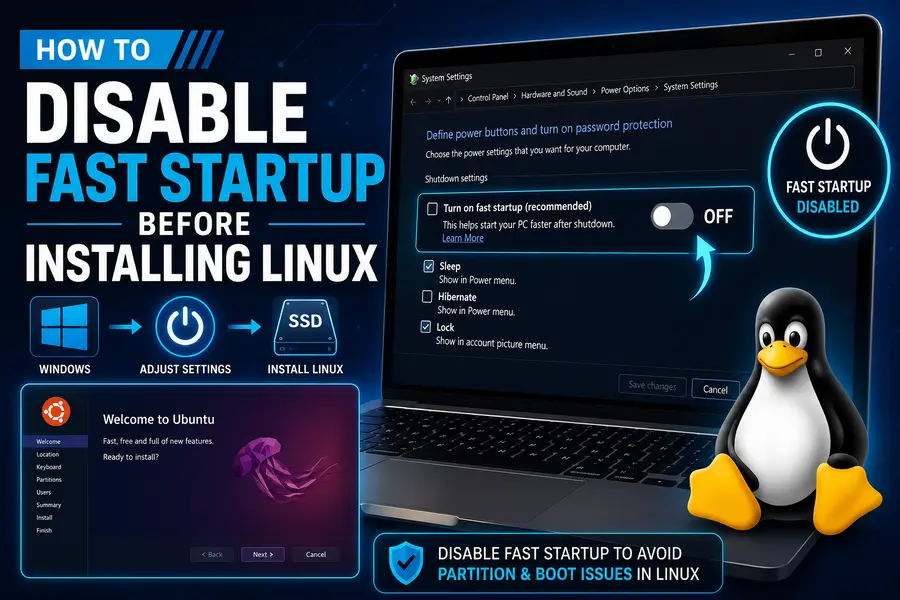
You have two ways to do this on Windows 11 as of 2026. Both work — pick whichever you’re more comfortable with.
Method 1: Through Control Panel (keeps hibernation available)
- Open Control Panel and go to Power Options.
- Click Choose what the power buttons do on the left sidebar.
- Click Change settings that are currently unavailable — this requires administrator rights.
- Under Shutdown settings, uncheck Turn on fast startup (recommended).
- Click Save changes.
This method disables Fast Startup specifically while leaving your ability to use Sleep or full Hibernate intact.
Method 2: Through the terminal (removes hibernation entirely)
Open PowerShell or Command Prompt as administrator and run:
powercfg /h offThis disables Fast Startup and removes the hiberfil.sys file completely, which also frees up disk space equal to a portion of your installed RAM. It’s the more thorough option, but you lose the ability to hibernate the machine until you turn it back on with powercfg /h on.
The step people forget
Turning off the setting isn’t enough on its own. After disabling Fast Startup, you need to fully shut down Windows — not just click Restart — before you boot into your Linux installer or live USB. A restart doesn’t necessarily clear the hibernated state the same way a cold shutdown does. Shut the machine down completely, wait a few seconds, then power it back on into your installer.
Fast Startup vs. Fast Boot vs. Hibernate — Don’t Mix These Up
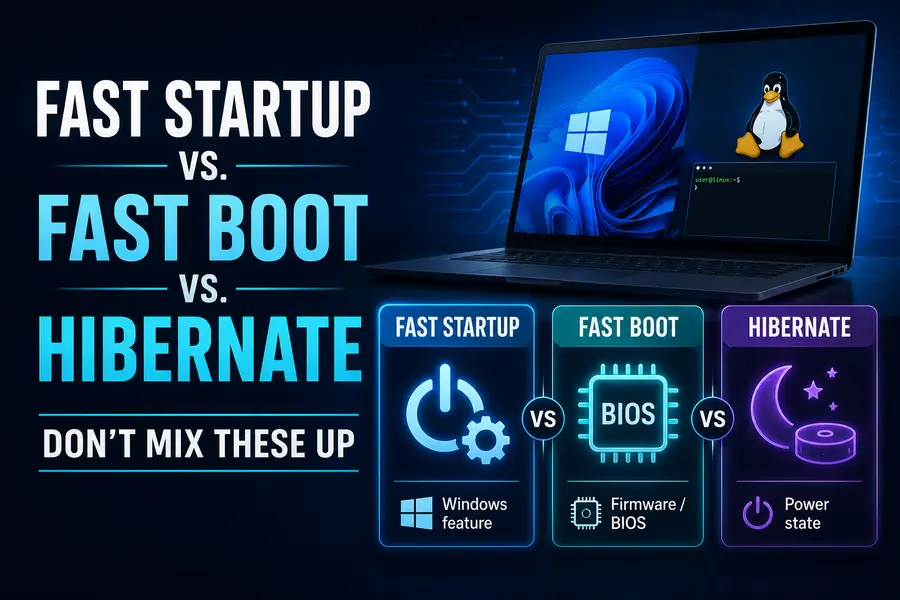
A lot of confusion around this topic comes from three settings that sound alike but do different things.
| Setting | Where it lives | What it does | Does it affect Linux dual boot? |
|---|---|---|---|
| Fast Startup | Windows Power Options | Hibernates the kernel session instead of a full shutdown | Yes — locks the NTFS partition and can corrupt shared drives |
| Fast Boot | UEFI/BIOS firmware | Skips parts of POST and hardware initialization to boot faster | Sometimes — can prevent boot-menu access or hide USB drives during install |
| Hibernate | Windows power state | Full session frozen to disk when you manually choose Hibernate | Not directly, but the drive is locked until you resume, so don’t dual-boot into that state |
Fast Boot, the firmware-level setting, is a separate thing from Fast Startup, the Windows setting, even though they sound almost identical. Fast Boot can cause its own headache: it sometimes skips the initialization needed for your keyboard to register a boot-menu key press, or it can hide USB drives from the boot order entirely. If you can’t get your Linux installer USB to show up at boot, check this setting in your UEFI firmware too, alongside disabling Windows’ Fast Startup.
Secure Boot and BitLocker: Related Steps Worth Knowing About
Since you’re already in the UEFI settings disabling Fast Boot, it’s worth understanding two more things that often come up in the same conversation.
Secure Boot isn’t the obstacle it used to be. Windows 11 requires Secure Boot-capable firmware, and most mainstream Linux distributions — Ubuntu, Fedora, Debian, openSUSE — now support Secure Boot out of the box through signed bootloaders. You generally don’t need to disable it just to install Linux anymore. If your installer hangs or your screen goes black during boot, temporarily turning off Secure Boot to get through the install, then testing whether your distro handles it fine afterward, is a reasonable troubleshooting step — but it’s not a required part of the Fast Startup conversation.
BitLocker, if you have it enabled, adds another layer. Shrinking a BitLocker-encrypted partition or making firmware changes can sometimes trigger a recovery key prompt on next boot. Have your BitLocker recovery key saved somewhere safe (your Microsoft account, printed out, wherever) before you start resizing partitions for Linux. Microsoft’s own community threads on setting up dual boot with Ubuntu are worth a skim if you hit an error that doesn’t match anything here — official channels get updated as Windows patches change default behavior.
Real-World Comparison: What Changes When You Disable It
It helps to see the actual trade-off rather than just take it on faith.
With Fast Startup left on:
- Boot times a few seconds faster on most modern SSD and NVMe laptops
- Windows partition frequently inaccessible or read-only from Linux
- Risk of file corruption if you write to the shared drive from Linux anyway
- Occasional interference with driver reinitialization for USB and audio devices after boot
- Some Windows updates fail to fully apply because the kernel never truly unloads
With Fast Startup off:
- Boot time increases modestly — often from around four seconds to somewhere in the eight-to-ten-second range on NVMe systems
- Windows partition mounts cleanly and reliably from Linux every time
- Updates apply properly since each shutdown is a genuine cold boot
- Wake-on-LAN and remote management tools work as expected, since the machine is actually powered off rather than hibernated
- One less variable to troubleshoot if something goes wrong during or after the Linux install
For a single-boot Windows machine, Fast Startup is a reasonable convenience. For anything sharing a disk with Linux, the handful of seconds it saves isn’t worth the risk to your data.
Do You Need to Keep It Off Permanently?
Yes, for as long as you’re dual-booting. This isn’t a one-time step you do just for the install and then re-enable afterward. Every time Windows boots with Fast Startup on, it goes right back to locking the drive the way it did before. If you plan to move files between Windows and Linux, access a shared NTFS data partition, or even just want GRUB to reliably see both operating systems, Fast Startup needs to stay disabled on any machine running Linux alongside Windows.
The one exception is if you set up a fully separate-drive dual boot with no shared partitions at all and never touch the Windows drive from Linux. Even then, most people find it’s not worth the risk of forgetting which drive is which.
Quick Troubleshooting: Already Installed Linux Without Disabling It?
If you’re reading this after the fact and you’re already seeing a locked or unmountable Windows partition from Linux, here’s the fix:
- Boot back into Windows normally.
- Disable Fast Startup using either method above.
- Fully shut down (not restart) at least once.
- Boot into Linux and try mounting the partition again — it should now mount normally.
- If it’s still flagged as dirty, you can clear the flag from Linux using
ntfsfixon the partition, but only after Fast Startup is off and Windows has done one clean shutdown.
Frequently Asked Questions
Does disabling Fast Startup slow down my computer?
It adds a few seconds to boot time, but it doesn’t affect performance once you’re logged in — Fast Startup only changes how the system powers on, not how it runs.
Will disabling Fast Startup delete my files?
No, disabling the setting is completely safe and doesn’t touch your files; it only changes how Windows shuts down and starts back up.
Can I re-enable Fast Startup after installing Linux?
Not if you want reliable access to your Windows partition from Linux — it needs to stay off for as long as you’re dual-booting on a shared or accessible drive.
Is Fast Boot in BIOS the same as Fast Startup in Windows?
No, Fast Boot is a firmware-level setting that skips hardware checks during POST, while Fast Startup is a Windows feature that hibernates the kernel session — both can cause dual-boot issues, but they’re configured separately.
Does this apply to every Linux distribution?
Yes, the issue comes from how Windows handles the NTFS partition, not from any specific distro, so Ubuntu, Fedora, Linux Mint, Debian, and others are all affected the same way.
Final Thoughts
So, should you disable Fast Startup before installing Linux? Every bit of evidence — from Microsoft’s own support documentation to years of dual-boot troubleshooting threads — points to the same answer: yes, do it before you install, and keep it off for as long as Windows and Linux share a disk. It costs you a few seconds of boot time and takes less than a minute to turn off. In exchange, you avoid the much bigger headache of a corrupted partition, a locked Windows drive, or an installer that can’t finish the job properly. If you’re about to set up dual boot, disable Fast Startup first, do a full shutdown, and then start your Linux installer — it’s the one step that saves you from most of the common dual-boot horror stories.
Disclaimer: This guide is for general informational purposes. Always back up your important files before resizing partitions, changing firmware settings, or installing a new operating system. If you’re unsure about any step, consult official Microsoft or Linux distribution documentation, or seek help from a qualified technician.