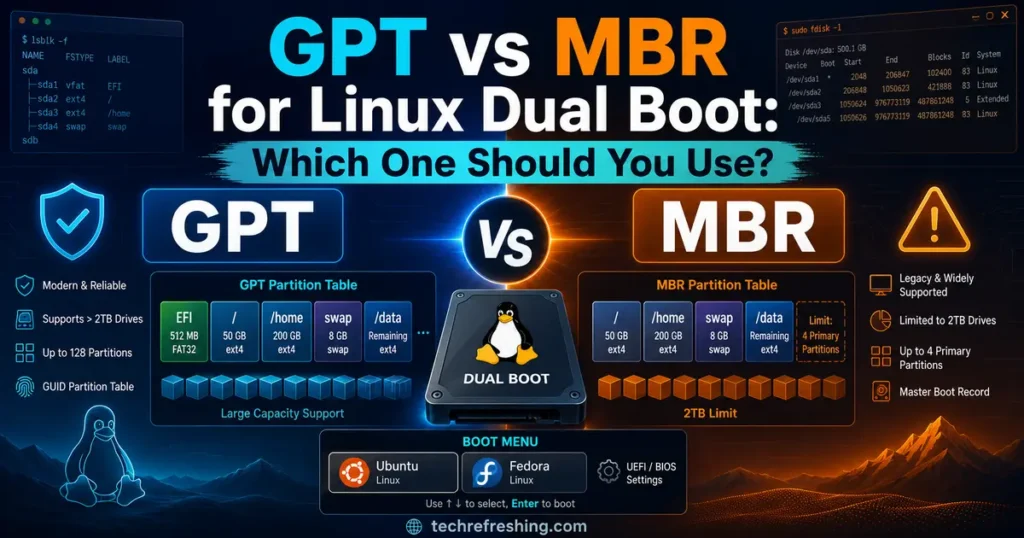
If you’re setting up a dual boot system in 2026, you’ve probably run into this fork in the road before you even install a single package: GPT vs MBR for Linux dual boot. It sounds like a small technical detail, but picking the wrong partition table can mean the difference between a smooth two-minute boot menu setup and an afternoon spent troubleshooting a GRUB rescue prompt. This guide breaks down exactly how GPT and MBR differ, which one you should actually use for a Windows-Linux dual boot in 2026, and how to avoid the mistakes that trip up even experienced users.
I’ve set up dual boot machines on everything from decade-old ThinkPads to brand-new laptops shipping with Windows 11 and Secure Boot enabled, and the partition table choice is almost never actually optional anymore. Modern hardware has quietly made the decision for you in most cases — but understanding why matters, especially if you’re working with older gear, external drives, or a system that was somehow set up wrong from the start.
What GPT and MBR Actually Are
Before comparing the two, it helps to know what a partition table even does. It’s the map your firmware and operating system use to figure out where each partition on your disk starts and ends, and which one to boot from.
MBR (Master Boot Record) has been around since 1983. It crams the boot code, partition table, and disk signature into a single 512-byte sector at the very start of the drive. It’s old, simple, and was never designed with modern storage sizes in mind.
GPT (GUID Partition Table) is the newer standard, defined as part of the UEFI specification, introduced alongside UEFI firmware in the late 1990s and now the default across virtually all new PCs. Every partition gets its own globally unique identifier, and the partition table itself is stored in more than one place on the disk, so a single corrupted sector doesn’t necessarily take the whole system down.
The short version: MBR is the legacy option built for BIOS-era hardware, and GPT is the modern standard built for UEFI firmware. If you’re buying a laptop or building a desktop today, it almost certainly ships with UEFI firmware and a GPT disk by default.
GPT vs MBR for Linux Dual Boot: The Core Differences
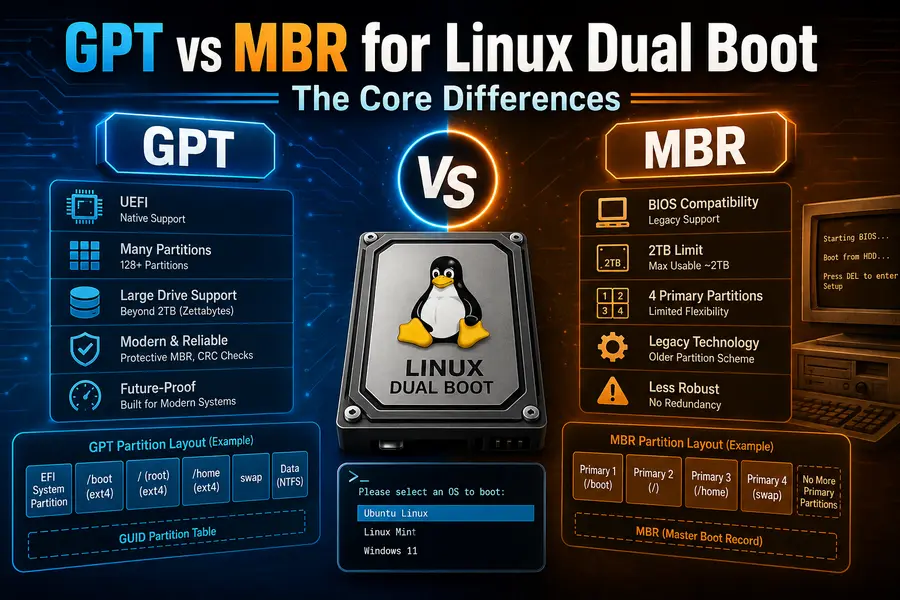
Here’s where the two schemes actually diverge in ways that matter for a dual boot setup.
Disk Size and Partition Limits
MBR uses 32-bit addressing for locating data on the disk, which caps any single MBR partition at 2TB. If you’ve got a 4TB or 8TB drive, MBR simply can’t address the space beyond that 2TB ceiling — the rest becomes unusable unless you switch to GPT.
GPT doesn’t have that problem. It supports drives up into the zettabyte range, far beyond anything consumer hardware uses today. If you’re running Linux and Windows side by side on a large modern SSD, this alone makes GPT the only sensible choice.
MBR is also limited to four primary partitions, or three primary partitions plus one extended partition holding additional logical partitions. For a dual boot setup with Windows’ recovery partition, EFI partition, main OS partition, and a Linux root and swap partition, you run out of primary slots fast. GPT allows up to 128 partitions by default on most implementations, so you’re not juggling extended partition workarounds.
Firmware Compatibility
This is the part that actually decides things for most people. UEFI firmware — which is standard on every PC sold since roughly the early-to-mid 2010s — expects a GPT disk for native booting. Legacy BIOS boot mode expects MBR.
Microsoft’s own documentation on configuring UEFI/GPT-based hard drive partitions confirms that UEFI-based devices must use a GPT-formatted drive for the boot volume. You technically can run MBR on a UEFI system using something called the Compatibility Support Module (CSM), which emulates legacy BIOS behavior. But CSM is being phased out on new hardware, and running your Linux dual boot in legacy mode while Windows sits in a separate boot mode is one of the most common reasons dual boot setups break entirely.
Redundancy and Data Integrity
MBR stores its partition table exactly once, in that single boot sector. If that sector gets corrupted — from a bad shutdown, a failing drive, or a partitioning mistake — the whole disk can effectively become unreadable.
As the Arch Linux wiki’s GPT documentation explains in more technical detail, GPT keeps a backup of its partition table at the very end of the disk, and it runs CRC32 checksums against the partition metadata. That means the firmware can actually detect when something’s gone wrong, and in many cases can recover using the backup copy. It’s not a substitute for backups, but it’s a meaningful reliability upgrade over MBR’s single point of failure.
Secure Boot Requirements
If you want Secure Boot enabled during your Linux dual boot — and most major distributions like Ubuntu, Fedora, and openSUSE support it out of the box now — you need UEFI firmware, which means you need GPT. Secure Boot simply doesn’t function on legacy BIOS/MBR systems because it relies on UEFI’s boot chain verification. If keeping Secure Boot active alongside Windows matters to you (and for most users it should stay on), GPT isn’t optional — Microsoft lists UEFI and Secure Boot capability among the baseline Windows 11 specifications, which is part of why GPT has become the default rather than a niche choice.
Comparison Table: GPT vs MBR at a Glance
| Feature | MBR | GPT |
|---|---|---|
| Introduced | 1983 | Late 1990s (with UEFI) |
| Max disk size | 2TB | ~9.4 zettabytes |
| Max partitions | 4 primary (or 3 + extended) | 128 by default |
| Firmware required | Legacy BIOS (or CSM on UEFI) | UEFI |
| Secure Boot support | No | Yes |
| Partition table redundancy | None (single copy) | Backup copy + CRC32 checks |
| Boot speed | Marginally faster in rare edge cases | Effectively equal on modern hardware |
| Best suited for | Pre-2012 BIOS-only machines, small USB drives | Any modern PC, drives over 2TB, dual boot with Windows 11 |
| Windows 11 compatibility | Not supported for the boot drive | Required |
| Recovery from corruption | Difficult to impossible | Often recoverable from backup table |
Which One Should You Actually Use?
For the overwhelming majority of people reading this in 2026, the answer is straightforward: use GPT.
If your machine was manufactured in the last several years, it’s running UEFI firmware, and Windows is almost certainly already installed on a GPT disk with an EFI System Partition. In that case, matching Linux to GPT isn’t really a choice you’re making from scratch — it’s the setup that keeps both operating systems talking to the same firmware boot manager without conflict.
Here’s how to confirm what you’re working with before you install anything:
- On Windows, open the System Information tool and check the “BIOS Mode” field. It’ll say either UEFI or Legacy.
- In Disk Management, right-click your main disk and check its properties for “GUID Partition Table (GPT)” versus “Master Boot Record (MBR).”
- On a Linux live USB, run
sudo parted -lorlsblk -o NAME,PTTYPEto see the partition table type for each disk.
If Windows shows UEFI and GPT, install your Linux distribution in UEFI mode too. Most installers, including the Ubuntu installer and the Fedora installer, auto-detect this and won’t give you much trouble. The main thing to watch is your boot USB — many firmware boot menus list the same flash drive twice, once as a UEFI entry and once as a legacy entry. Picking the wrong one is a surprisingly common mistake that causes Linux to boot correctly but then fail to see the Windows Boot Manager afterward.
When MBR Still Makes Sense
MBR isn’t extinct. There are a handful of legitimate reasons someone might still reach for it in 2026:
- You’re working with genuinely old hardware — think pre-2011 desktops or laptops — that only supports legacy BIOS with no UEFI option at all.
- You’re formatting a small USB drive meant to be broadly compatible across very old and very new systems for simple file transfer, not booting.
- You’re maintaining a legacy industrial or embedded system that was never updated past BIOS-era firmware and replacing it isn’t realistic right now.
Outside of those situations, choosing MBR for a new dual boot setup in 2026 is choosing to work against your hardware rather than with it.
Common Mistakes People Make During Dual Boot Setup
A lot of “GPT vs MBR” confusion isn’t really about the partition tables themselves — it’s about mismatches between Windows and Linux boot modes. A few patterns show up again and again:
Installing Linux in legacy mode on a UEFI/GPT Windows system. This is probably the single most common dual boot failure. The Linux installer creates an MBR-style setup or fails to register itself properly with the UEFI boot manager, and afterward the system either can’t find Linux, can’t find Windows, or boots straight past the GRUB menu into one OS only.
Not backing up before touching partitions. Shrinking a Windows partition to make room for Linux is generally safe, but “generally safe” isn’t the same as risk-free, especially if BitLocker or device encryption is active. Suspend encryption first, and keep a backup regardless of how routine the process feels.
Assuming disk size determines the choice. Some people think MBR is fine as long as their drive is under 2TB. Technically true, but it ignores the firmware and Secure Boot side of the equation, which matters more on current hardware than raw disk capacity does.
Reformatting the wrong disk during Linux install. This isn’t a GPT/MBR issue specifically, but it’s worth repeating: always double-check which physical disk you’re targeting during partitioning, especially on systems with multiple drives.
GPT and the EFI System Partition
One detail that trips people up: with GPT and UEFI, both Windows and Linux typically share a single EFI System Partition (ESP) rather than each having its own boot sector. This partition, usually a few hundred megabytes formatted as FAT32, holds the boot loaders for every OS on the disk.
When you install Linux alongside an existing Windows setup, most distributions will detect the existing ESP and add GRUB’s boot entry to it rather than creating a new one. This is exactly why you generally don’t need to wipe your whole disk to dual boot — Linux just needs its own root partition (and optionally a separate home or swap partition) alongside the ESP that’s already there.
If your installer instead offers to create a brand-new EFI partition, that’s usually a sign something is misconfigured, and it’s worth pausing to check your boot mode before continuing.
Converting MBR to GPT: Is It Worth It?
If you’ve got an older MBR disk and want to move to GPT for a cleaner dual boot setup, you have options that don’t necessarily require a full wipe:
- Windows’s built-in
mbr2gpttool can convert an MBR system disk to GPT in place, provided the disk layout meets certain requirements (basically no more than the standard set of primary partitions and enough free space). - GParted, run from a Linux live USB, can convert an empty or backed-up disk from MBR to GPT, though it will erase existing partition data on that disk.
- A clean reinstall is often the most reliable route if the disk is small, old, or already causing boot issues — sometimes it’s genuinely faster than troubleshooting a stubborn in-place conversion.
Whichever method you choose, back up your data first. Partition table conversions are generally safe when done correctly, but “generally safe” and “irreversible if something goes wrong” can both be true at once.
Final Thoughts
When it comes down to GPT vs MBR for Linux dual boot, the decision in 2026 is really about matching your Linux installation to the firmware and partition style your Windows installation already uses. For nearly everyone running current hardware, that means GPT paired with UEFI — it handles larger drives, supports far more partitions, works with Secure Boot, and offers real redundancy that MBR simply can’t match. MBR still has a narrow lane for older BIOS-only machines and specific legacy use cases, but it’s not the setup you want to choose by default anymore.
Before you install anything, take five minutes to confirm your current boot mode and partition table on both Windows and your Linux installer. That small check upfront is what separates a dual boot setup that just works from one that leaves you googling GRUB error codes at midnight.
Frequently Asked Questions
Is GPT better than MBR for dual booting Windows and Linux?
Yes, for almost all modern hardware. GPT works with UEFI firmware, supports Secure Boot, and handles larger drives and more partitions than MBR can.
Can I dual boot Linux with Windows if my disk is MBR?
Yes, but only in legacy BIOS mode, and Windows 11 requires GPT for its boot drive, so most current systems won’t support an MBR dual boot without conversion.
Do I need to convert MBR to GPT before installing Linux?
Only if your Windows installation is already on GPT with UEFI, which is true for nearly all machines from the last several years; matching partition tables prevents boot conflicts.
Will converting from MBR to GPT delete my data?
Not necessarily. Tools like Windows’s mbr2gpt can convert in place without data loss, though you should always back up first in case something goes wrong.
Does GPT slow down boot times compared to MBR?
No, the difference is negligible on modern hardware; GPT’s slightly larger metadata has no meaningful impact on real-world boot speed.
Can I use MBR on a UEFI system?
Yes, through the Compatibility Support Module (CSM), but this is being phased out on new hardware and often causes dual boot conflicts, so it’s not recommended.
How do I check if my disk is GPT or MBR before installing Linux?
On Windows, check Disk Management’s disk properties; on a Linux live USB, run sudo parted -l or lsblk -o NAME,PTTYPE to see the partition table type.
Disclaimer: This guide is for general informational purposes only. Partitioning and dual boot setups carry a real risk of data loss, so back up your files before making any disk changes, and consult your device manufacturer’s documentation for hardware-specific steps.