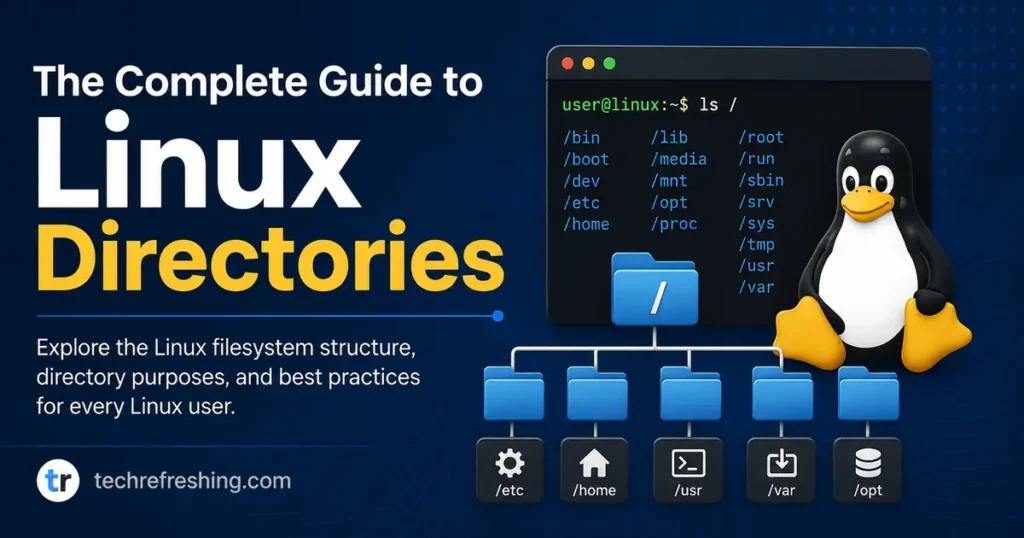
If you’ve just switched to Linux, or you’re staring at a terminal wondering why there’s a folder called /proc that seems to contain nothing and everything at once, you’re not alone. Every new Linux user hits this wall eventually. Windows gives you C:\, Program Files, and Users, and that’s basically it. Linux gives you close to twenty top-level directories, each with its own job, its own history, and its own quirks depending on which distro you’re running.
This guide exists to fix that confusion once and for all. We’re going to walk through every major Linux directory, explain what actually lives inside it, and show you how things differ across Ubuntu, Fedora, Debian, Arch, and openSUSE. By the end, you’ll be able to look at any Linux system — a server, a laptop, a Raspberry Pi — and know exactly where to look for what you need. This really is the complete guide to Linux directories, written for people who want to understand the “why,” not just memorize a list.
Why Linux Directories Aren’t Random
Unlike Windows, where folder structure is largely a Microsoft convention, Linux’s directory layout follows a formal specification called the Filesystem Hierarchy Standard (FHS). It’s been around since 1994, and it’s the reason you can sit down at an Ubuntu server, a Fedora workstation, or a Raspberry Pi running Raspbian and instinctively know that configuration files live in /etc and user data lives in /home.
Here’s something worth knowing if you’re researching this in 2026: the FHS spec itself recently changed hands. It was maintained by the Linux Foundation for years, but as of late 2025 it’s now published and maintained by freedesktop.org, with the most recent documentation refresh dated April 2026. The core structure hasn’t changed dramatically — this isn’t a spec that gets rewritten often — but it’s a good reminder that even something as “settled” as directory layout is still actively maintained by real people, not frozen in amber from the 90s.
Most mainstream distros — Ubuntu, Debian, Fedora, openSUSE — follow FHS closely, and Ubuntu’s own documentation lays out exactly how it maps the standard onto its own packaging system. A few, like Gentoo, explicitly say they don’t fully adhere to it and treat it as loose guidance rather than law. That distinction matters more than people think, and we’ll get into it distro by distro further down.
The Linux Directory Tree at a Glance
Before diving into specifics, it helps to see the whole picture. Here’s the standard hierarchy rooted at /:
/
├── bin -> usr/bin        (essential user command binaries)
├── boot                  (bootloader files, kernel images)
├── dev                   (device files)
├── etc                   (system-wide configuration)
├── home                  (personal user directories)
├── lib -> usr/lib        (essential shared libraries)
├── media                 (mount points for removable media)
├── mnt                   (temporary mount points)
├── opt                   (optional/third-party software)
├── proc                  (virtual filesystem, kernel & process info)
├── root                  (home directory for the root user)
├── run                   (runtime data since last boot)
├── sbin -> usr/sbin      (system administration binaries)
├── srv                   (data for services hosted on this system)
├── sys                   (virtual filesystem, kernel/device info)
├── tmp                   (temporary files, cleared on reboot)
├── usr                   (user programs, libraries, documentation)
│   ├── bin
│   ├── lib
│   ├── local
│   ├── sbin
│   └── share
└── var                   (variable data: logs, caches, spool files)
That’s the skeleton. Now let’s put some meat on it.
Breaking Down Every Major Directory
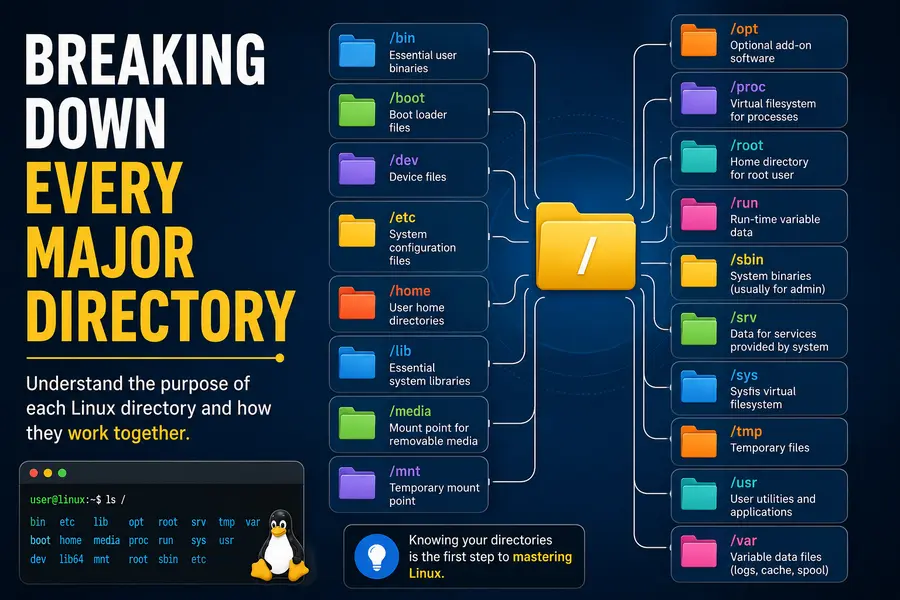
/bin and /sbin — The Command Toolbox
/bin holds essential command-line programs every user needs, things like ls, cp, cat, and bash itself. /sbin holds the equivalent tools for system administration — fdisk, iptables, reboot — commands that typically need root privileges to do anything useful.
Here’s a twist that trips people up: on most modern distros, /bin and /sbin aren’t real directories anymore. They’re symbolic links pointing to /usr/bin and /usr/sbin. This change, called the “usr merge”, rolled out across Fedora back in 2011 and has since become the default on Debian, Ubuntu, and Arch. The historical reason for splitting /bin from /usr/bin was that early Unix systems sometimes couldn’t fit everything on one disk, and /bin needed to work even if /usr wasn’t mounted yet. That constraint is basically irrelevant on modern hardware, so distros consolidated the two to simplify packaging and reduce duplication.
/boot — What Gets Your System Running
This is where the Linux kernel image, initial RAM disk (initrd or initramfs), and bootloader configuration live. If you’re using GRUB, you’ll find /boot/grub here too. On UEFI systems, there’s often a separate /boot/efi partition formatted as FAT32, which is a hardware requirement, not a Linux design choice.
A practical tip: if your system won’t boot after a kernel update, /boot is almost always where you start troubleshooting. Running out of space here — which happens more than you’d expect after several kernel upgrades pile up old images — is one of the most common causes of failed updates on Debian-based systems.
/dev — Everything Is a File
Linux treats hardware devices as files, and /dev is where they show up. Your hard drive might appear as /dev/sda, a USB stick as /dev/sdb1, your keyboard input as /dev/input/event0. This isn’t a quirky design choice; it’s a foundational Unix philosophy that makes it possible to read from a disk with the same tools you’d use to read a text file.
/dev is managed dynamically by udev (or systemd-udevd on modern systemd-based distros), which populates it automatically as hardware is detected. You won’t manually create files here in normal use.
/etc — The Configuration Hub
If /bin is the toolbox, /etc is the settings menu for your entire operating system. Network configuration, user account details in /etc/passwd, package manager sources, systemd service files, and application configs almost universally live here. The name reportedly started as an abbreviation for “et cetera” back when it was a dumping ground for anything that didn’t fit elsewhere, but today it’s one of the most structured and important directories on the system.
If you’re editing anything in /etc, back it up first. A single typo in /etc/fstab, the file that defines how partitions get mounted at boot, can leave a system unable to start.
/home — Where You Actually Live
Every regular user gets a subdirectory here: /home/yourname. Documents, downloads, desktop configuration, browser profiles, SSH keys — all of it sits under your home directory. On multi-user systems, this is also where disk quotas typically get enforced.
One distro-specific note: some minimal server installs and container images skip creating /home entirely if no non-root users exist, which surprises people coming from desktop Linux.
/lib, /lib64 — Shared Libraries
These hold shared library files (.so files) that binaries in /bin and /sbin need to run — comparable to .dll files on Windows. Like /bin, these are now symlinks into /usr/lib on merged-/usr systems. /lib64 exists specifically for 64-bit libraries on systems that also support 32-bit compatibility.
/media and /mnt — Mounting Points
Both directories exist for mounting filesystems, but they serve different purposes. /media is where desktop environments automatically mount removable devices — USB drives, SD cards, external hard drives — typically creating a subfolder named after the device label. /mnt is meant for manual, temporary mounts that a system administrator sets up by hand, like mounting a network share for a one-off task.
/opt — Third-Party Software’s Home
Software that doesn’t come from your distro’s package manager, particularly large commercial applications, often installs itself into /opt. Think Google Chrome (on some installs), certain Java applications, or vendor software like network monitoring suites. Each application typically gets its own subdirectory, such as /opt/google/chrome, keeping it self-contained and easy to remove.
/proc and /sys — Windows Into the Kernel
These two confuse newcomers the most because they don’t contain real files on disk. They’re virtual filesystems generated on the fly by the kernel.
/proc exposes information about running processes (each has a numbered subdirectory matching its PID) and system statistics like CPU info (/proc/cpuinfo) and memory usage (/proc/meminfo). /sys exposes information about devices and kernel subsystems in a more structured, modern way that largely superseded some of /proc‘s older responsibilities. If you’ve ever run cat /proc/cpuinfo to check what processor you have, you’ve already used this directory without needing to know the theory behind it.
/root — The Administrator’s Home
This is the home directory for the root (superuser) account, separate from /home for a practical reason: root often needs to log in and operate even when /home is on a separate, unmounted partition, such as during system recovery.
/run — Runtime State
A relatively newer addition to the standard hierarchy, /run stores runtime data created since the last boot: process IDs, sockets, and lock files that need to be cleared every restart. Before /run was standardized, this data was scattered across /var/run and /var/lock, which are now typically symlinks pointing into /run for backward compatibility.
/srv — Service Data
Meant for data served by the system, like files for a web server or FTP server. In practice, /srv is one of the least consistently used directories across the Linux world — plenty of admins still put web files in /var/www instead, which is technically also valid and extremely common on Debian and Ubuntu web servers.
/tmp — Temporary and Disposable
Applications and users can write temporary files here, and on most distros, /tmp is cleared automatically on reboot, sometimes because it’s mounted as tmpfs, a filesystem that lives entirely in RAM. Never store anything here you actually want to keep.
/usr — The Bulk of the System
/usr is the largest directory on most installations and holds the majority of user-facing programs, libraries, and documentation that aren’t essential for early boot. It has its own internal structure mirroring the root filesystem: /usr/bin, /usr/lib, /usr/sbin, and /usr/share for architecture-independent data like icons, man pages, and fonts. /usr/local is reserved for software you compile and install yourself, kept separate so it doesn’t get overwritten by package manager updates.
/var — Data That Changes Constantly
/var holds variable data: system logs (/var/log), package caches (/var/cache), mail spools, and print queues. If your disk is mysteriously filling up, /var/log is one of the first places to check — log files can balloon in size on systems with heavy traffic or misbehaving services. On database and web servers, /var is often given its own dedicated partition precisely because its growth is unpredictable.
How Directory Structure Differs Across Major Distros
This is where things get genuinely interesting, because “Linux directories” isn’t a single uniform experience. The FHS is a guideline, and distros interpret it with their own priorities.
| Distro | FHS Compliance | Notable Differences | Package Manager Data Location |
|---|---|---|---|
| Ubuntu / Debian | Strong, near-full compliance | Uses merged /usr; /etc/apt for sources; Snap packages add /snap and /var/lib/snapd | /var/lib/dpkg, /var/cache/apt |
| Fedora | Strong compliance, often first to adopt new FHS-adjacent conventions | Merged /usr since 2011 (pioneered the shift); heavy use of /var/lib/rpm; strong SELinux context labeling throughout /etc | /var/lib/rpm, /var/cache/dnf |
| Arch Linux | Full FHS-style layout, rolling release | Minimal by design — fewer pre-created directories out of the box; /etc/pacman.d for mirror lists | /var/lib/pacman |
| openSUSE | Strong compliance | /etc/sysconfig used more extensively than most distros for service configuration; YaST manages many /etc files directly | /var/lib/rpm, /var/cache/zypp |
| Gentoo | Explicitly non-compliant by policy | Maintainers state directly that Gentoo does not adhere to FHS and treat it as general guidance only; heavy customization expected | /var/db/pkg |
| Raspberry Pi OS (Debian-based) | Strong compliance | Adds /boot/firmware for Pi-specific boot files separate from the standard kernel location | /var/lib/dpkg |
A few things worth calling out from that table. Fedora was actually the trailblazer for the merged-/usr change that Ubuntu and Debian later adopted — it’s a good example of Red Hat’s engineering team pushing changes upstream that eventually became the norm across the ecosystem. Arch, true to its “keep it simple” philosophy, doesn’t create directories you’re not using, so a fresh Arch install can look noticeably sparser than a fresh Ubuntu one.
Gentoo is the honest outlier here. Its own wiki states plainly that Gentoo does not adhere to the FHS, and treats any FHS-based guidance as general advice rather than a rulebook. If you’re coming from Ubuntu and try Gentoo expecting identical directory behavior, you’ll hit friction fast.
Practical Tips for Navigating Linux Directories
A few habits that separate people who feel comfortable in a Linux shell from people who feel lost:
- Use
df -hregularly to check disk usage across mounted filesystems, especially/varand/booton servers. - Never manually delete files in
/procor/sys— they’re virtual and self-managing; deleting them can crash processes or has no effect at all. - Check
/var/log/syslogor/var/log/journal(depending on your distro) first when troubleshooting almost any system issue. - Keep personal scripts and manually compiled software in
/usr/localor~/bin, not/usr/bin, so package manager updates don’t overwrite your work. - Treat
/etcchanges like code changes — copy the original file before editing it, so you always have a way back.
Frequently Asked Questions
What is the most important directory in Linux?/etc and /home are arguably the most important for everyday use, since /etc controls system configuration and /home holds your personal data.
What’s the difference between /bin and /usr/bin?
On modern distros they’re the same thing — /bin is now a symbolic link to /usr/bin as part of the “usr merge” that started with Fedora and spread to most major distros.
Why is /proc empty when I check its file size?/proc is a virtual filesystem generated by the kernel in real time, not stored on disk, so tools that measure disk space don’t report meaningful sizes for it.
Do all Linux distros use the same directory structure?
Most major distros like Ubuntu, Fedora, Debian, and openSUSE follow the Filesystem Hierarchy Standard closely, but some, like Gentoo, explicitly don’t fully comply and treat it only as loose guidance.
Where should I install software I compile myself?
Use /usr/local, which exists specifically for locally built software so it never conflicts with files your package manager controls.
What happens if /tmp fills up?
Applications relying on temporary storage can start failing or crashing, since many programs write scratch files there during normal operation; clearing unused files or rebooting (on systems where /tmp is tmpfs) usually resolves it.
Wrapping Up
Understanding your filesystem isn’t just trivia — it’s the foundation for troubleshooting, securing, and genuinely mastering any Linux system, whether it’s a personal laptop running Ubuntu or a production server running Debian. That’s really the point of this complete guide to Linux directories: once you know why /etc holds configs, why /var grows unpredictably, and why /proc doesn’t behave like a normal folder, the entire operating system stops feeling like a maze and starts feeling like a system you actually understand.
Every distro puts its own small spin on the layout, but the underlying logic stays consistent because it’s built on decades of Unix tradition and an actively maintained standard. Spend some time exploring these directories on your own machine — run ls -la / and poke around. It’s the fastest way to turn this guide from something you read into something you actually know.
Disclaimer: This guide is provided for educational purposes based on the Filesystem Hierarchy Standard and publicly available distro documentation current as of August 2026. Directory layouts and conventions can vary by distro, release version, and custom system configuration, so always check your own system and official distro docs before making changes to critical files or partitions.