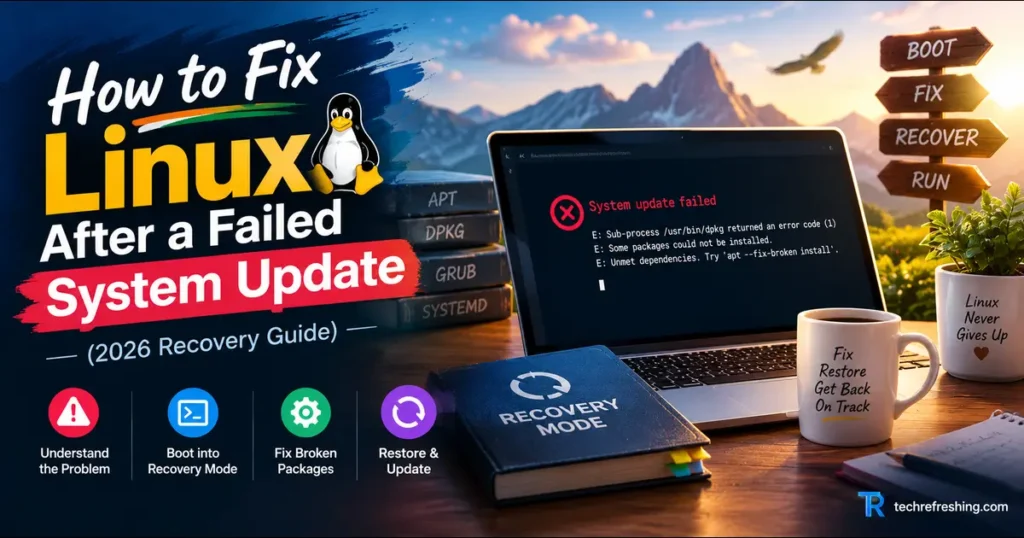
You started the update, stepped away, and came back to a frozen progress bar, a black screen, or a login loop. It looks like a disaster, but your files are almost certainly fine. What’s usually broken is the package database, the initramfs, or the bootloader entry that connects them.
This guide shows how to fix Linux after a failed system update on Ubuntu, Debian, Fedora and Arch. The approach is the same on all four: start with the gentlest fix and only escalate when you need to. Everything here reflects where each distribution stands in October 2026.
Quick Triage: Start Here
Find your symptom, then jump to the matching section.
| What you see | Most likely cause | Go to |
|---|---|---|
| Update errored out, but the system boots | Interrupted package configuration | Step 2 |
| Boots to a terminal, no desktop | Graphics driver or display manager | Step 3 |
| Black screen or kernel panic at boot | Bad kernel or initramfs | Step 4 |
| “No bootable device” or GRUB prompt | Bootloader damage | Step 5 |
| One app or service broke after updating | A single bad package version | Step 6 |
Where the Major Distros Stand in October 2026
Failed updates cluster around big transitions, so it helps to know what’s current.
- Ubuntu 26.04 LTS launched on 23 April 2026 with Linux 7.0 and GNOME 50. The 26.04.1 point release arrived in late August, which also opened the direct upgrade path from 24.04 LTS. Support runs to April 2031, per the Ubuntu 26.04 release notes.
- Debian 13 “trixie” reached point release 13.7 on 12 September 2026, according to the Debian errata page. Full support lasts until 9 August 2028 and LTS until 30 June 2030. Debian 11 “bullseye” reached end of life on 31 August 2026, so anyone still on it no longer receives security updates.
- Fedora 44 shipped on 28 April 2026 with DNF5 and a built-in system-upgrade command. Fedora 45 is in beta, with the final release targeted for 20 October 2026.
- Arch Linux is rolling. Check the Arch news page before large updates.
The practical takeaway: if you’re about to jump Fedora 44 to 45 or Ubuntu 24.04 to 26.04, take a snapshot first. Early-week release upgrades are where most of these failures happen.
Why Linux Updates Fail
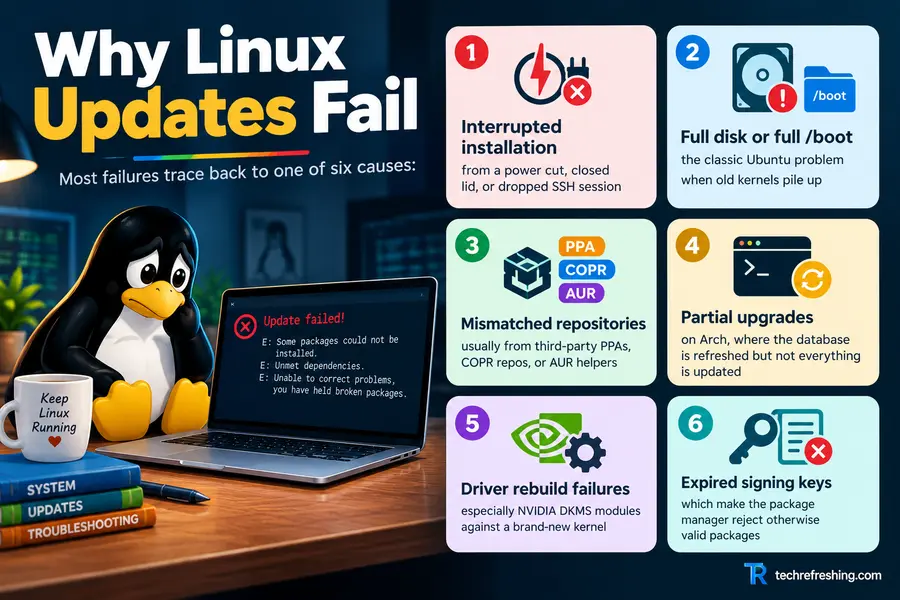
Most failures trace back to one of six causes:
- Interrupted installation from a power cut, closed lid, or dropped SSH session
- Full disk or full /boot, the classic Ubuntu problem when old kernels pile up
- Mismatched repositories, usually from third-party PPAs, COPR repos, or AUR helpers
- Partial upgrades on Arch, where the database is refreshed but not everything is updated
- Driver rebuild failures, especially NVIDIA DKMS modules against a brand-new kernel
- Expired signing keys, which make the package manager reject otherwise valid packages
Step 1: Diagnose Before You Touch Anything
Spend two minutes reading logs. Random commands can turn a small problem into a bigger one.
# Ubuntu / Debian
less /var/log/apt/term.log
less /var/log/dpkg.log

# Fedora
sudo dnf history list
journalctl -b -1 -p err

# Arch
less /var/log/pacman.log
The last twenty lines usually name the package that failed. Then rule out the cheapest cause:
df -h / /bootIf either shows 100%, free space first. On Ubuntu and Debian, sudo apt autoremove --purge clears old kernels safely.
Step 2: Repair a Half-Finished Update From a Working Terminal
This is the best-case scenario. Run the commands in order and stop when one works.
Ubuntu and Debian (APT)
sudo dpkg --configure -a
sudo apt --fix-broken install
sudo apt update
sudo apt full-upgrade
The first command finishes interrupted configuration. The second resolves dependency breaks.
If you get a lock error, check for a running process before deleting anything:
ps aux | grep -E 'apt|dpkg|unattended'If one is running, wait for it. Remove stale lock files only when nothing is running.
Failed a release upgrade partway through, such as 24.04 to 26.04? Run sudo dpkg --configure -a and sudo apt --fix-broken install, then start sudo do-release-upgrade again. It generally resumes cleanly.
Fedora (DNF5)
sudo dnf check
sudo dnf distro-sync
sudo dnf history list
sudo dnf history undo <ID>
distro-sync aligns installed packages with your enabled repositories and fixes most mismatches. If one transaction caused the damage, history undo reverses it.
After a failed release upgrade, inspect the staged job with dnf offline status and clear it with sudo dnf system-upgrade clean before retrying. The Fedora offline upgrade guide covers the details.
Arch Linux (pacman)
Never run pacman -Sy alone and then install something. That creates partial upgrades. Always sync and upgrade together:
sudo pacman -SyuIf pacman reports invalid or corrupted packages, refresh the keyring:
sudo pacman -Sy archlinux-keyring
sudo pacman -Su
If the database is locked and no pacman process is running, remove /var/lib/pacman/db.lck. The Arch Wiki pacman page explains most error messages you’ll meet.
Step 3: Fix a Black Screen or Login Loop
If you reach a text console but not the desktop, the kernel is probably fine. The graphics stack is the suspect. Press Ctrl + Alt + F3, log in, and check these:
- NVIDIA driver mismatch: run
sudo dkms status. If a module shows “added” but not “installed”, rebuild withsudo dkms autoinstall. - Wrong file ownership: a login loop often means
~/.Xauthorityis owned by root. Fix it withsudo chown $USER:$USER ~/.Xauthority. - Broken display manager: reinstall it, for example
sudo apt install --reinstall gdm3on Ubuntu and Debian,sudo dnf reinstall gdmon Fedora, orsudo pacman -S gdmon Arch. - Outdated GNOME extensions: GNOME 50 broke some older ones. Rename
~/.local/share/gnome-shell/extensionsto disable them all at once.
Here’s a useful test. Create a fresh user account. If it logs in fine, the problem is a config file in your home folder, not the update itself.
Step 4: Boot an Older Kernel
When the newest kernel won’t start, use the previous one. Linux keeps old kernels for exactly this reason.
- Restart and hold Shift (BIOS) or tap Esc (UEFI) to open GRUB.
- Choose Advanced options.
- Select the second-newest kernel.
Once it boots, reinstall the broken kernel and rebuild its initramfs:
# Ubuntu
sudo apt install --reinstall linux-image-generic
sudo update-initramfs -u -k all
sudo update-grub

# Debian
sudo apt install --reinstall linux-image-amd64
sudo update-initramfs -u -k all
sudo update-grub

# Fedora
sudo dnf reinstall kernel-core
sudo dracut --force --regenerate-all

# Arch
sudo pacman -S linux
sudo mkinitcpio -P
Step 5: Rescue a Dead System With a Live USB and chroot
If nothing boots, boot a live USB and step inside your installed system. First, find your partitions:
lsblk -fThen mount and enter. Replace the device names with your own:
sudo mount /dev/sdXn /mnt
sudo mount /dev/sdXm /mnt/boot/efi      # EFI partition, UEFI systems only
for i in dev dev/pts proc sys run; do sudo mount --bind /$i /mnt/$i; done
sudo chroot /mnt
Run the repair commands from Step 2, then rebuild the boot files:
# Ubuntu / Debian
update-initramfs -u -k all
update-grub

# Fedora
dracut --force --regenerate-all

# Arch (use arch-chroot instead of the manual mounts)
mkinitcpio -P
grub-mkconfig -o /boot/grub/grub.cfg
Type exit, run sudo umount -R /mnt, and reboot.
Using LUKS encryption? Unlock the container first with cryptsetup open. On Btrfs, mount the right subvolume, for example -o subvol=@. The Arch Wiki chroot guide and the Ubuntu GRUB2 community page are both worth bookmarking.
Step 6: Downgrade One Problem Package
Sometimes a single new version is the culprit, and rolling back just that package is gentler than anything above.
Arch keeps old versions in its cache:
sudo pacman -U /var/cache/pacman/pkg/package-name-oldversion.pkg.tar.zstIf the cache is cleaned, the Arch Linux Archive keeps historical builds.
Debian and Ubuntu can pin a specific version:
apt list -a package-name
sudo apt install package-name=version-string
sudo apt-mark hold package-name
Fedora uses sudo dnf downgrade package-name, followed by sudo dnf versionlock add package-name to keep it there.
Remove the hold once a fixed version ships.
Comparison Table: Recovery Tools Across the Big Four
| Feature | Ubuntu 26.04 LTS | Debian 13.7 | Fedora 44 | Arch Linux |
|---|---|---|---|---|
| Package manager | APT | APT | DNF5 | pacman |
| First-aid command | dpkg --configure -a | dpkg --configure -a | dnf distro-sync | pacman -Syu |
| Built-in rollback | No | No | dnf history undo | Package cache or Arch Archive |
| Initramfs rebuild | update-initramfs -u | update-initramfs -u | dracut --force | mkinitcpio -P |
| Old kernels kept | Several until autoremove | Several until autoremove | Three by default | One unless configured |
| Snapshot tools | Timeshift | Timeshift | Btrfs snapshots, Snapper | Snapper, Timeshift |
| Failure risk | Low | Lowest | Low to medium | Highest |
| Support window | To April 2031 | To Aug 2028 (LTS 2030) | Roughly 13 months | Rolling |
Debian and Ubuntu LTS fail least often because packages are tested longer before release. Arch gives you the newest software, and the tradeoff is that you do more of the quality control yourself.
Pros and Cons of Each Recovery Approach
Snapshot Rollback (Timeshift or Snapper)
Pros: Restores the whole system in minutes and leaves personal files alone.
Cons: Must be configured before disaster strikes, and it uses extra disk space.
Manual Package Repair
Pros: Surgical, free, and you learn exactly what broke.
Cons: Can take several attempts when dependency chains get tangled.
chroot From a Live USB
Pros: Works when nothing else does and can rebuild the bootloader directly.
Cons: Needs a second USB drive, and a wrong grub-install target creates new problems.
Fresh Reinstall
Pros: Gives you a guaranteed clean slate.
Cons: Slowest option, and you’ll reconfigure every app afterward.
My recommendation: try manual repair first, use chroot if booting fails, and reinstall only when the filesystem itself is damaged.
How to Stop It Happening Again
- Set up Timeshift or Snapper today. Timeshift takes about five minutes.
- Keep a rescue USB with your distribution on it.
- Leave headroom. Keep at least 5 GB free on root and check /boot before kernel updates.
- Read release notes first, and wait a week or two before a major release upgrade.
- Protect long updates. Plug in your laptop, and run server updates inside
tmuxso a dropped SSH session can’t kill them. - Limit third-party repositories. Each one is another source that can fall out of sync.
- Back up your home folder separately. Snapshots protect the system, and a real backup protects your files.
When to Stop and Get Help
If you see filesystem errors, drive SMART warnings, or emergency mode complaining that a partition can’t be mounted, stop running repair commands. Copy off what you can from a live USB, then run fsck on the unmounted partition.
When you post for help, include your distro and version, the exact command you ran, and the last lines of the relevant log. The Ubuntu Discourse, Fedora Discussion, Arch forums and Debian user lists all answer faster when you do.
Conclusion
A failed update feels catastrophic, but it’s usually a configuration problem sitting on a healthy system. The pattern holds across distros: read the logs, check disk space, repair the package state, fall back to an older kernel, and use chroot only when you must.
Now you know how to fix Linux after a failed system update, from a simple dpkg --configure -a to a full bootloader rebuild. The best next move is preventive. Set up a snapshot tool this week, and the next failed update becomes a five-minute detour instead of an emergency.
Frequently Asked Questions
Can I fix Linux after a failed update without losing files?
Yes. Package and bootloader repairs don’t touch your home directory, and a live USB lets you copy files off first if you’re worried.
What should I run first after an interrupted apt upgrade?
Run sudo dpkg --configure -a, then sudo apt --fix-broken install. Together they finish half-configured packages and resolve dependency breaks.
Why is my screen black after a Linux update?
Usually a graphics driver or kernel module didn’t rebuild for the new kernel. Boot an older kernel from GRUB, then reinstall or rebuild the driver.
How do I roll back a bad update on Fedora 44?
Find the transaction with sudo dnf history list, then run sudo dnf history undo <ID>. For wider mismatches, use sudo dnf distro-sync.
Is it safe to delete apt lock files?
Only if no apt or dpkg process is running, which you can check with ps aux | grep apt. Deleting them mid-update can corrupt the package database.
What does chroot do in Linux recovery?
It lets you run commands inside your installed system from a live USB. That makes it possible to rebuild the initramfs and bootloader when the system won’t start.
How can I prevent failed Linux updates?
Take a Timeshift or Snapper snapshot before major updates and keep enough free disk space. Never interrupt an update in progress.
Should I reinstall Linux after a failed update?
Only as a last resort, such as when the filesystem is damaged. Most failed updates are fixable in under an hour with the steps above.
Disclaimer: This article is for general informational purposes. Commands that modify system files, partitions or bootloaders can cause data loss if misused, so back up important data and double-check device names like /dev/sdX before running them. Release dates and support windows reflect official project pages as of October 2026 and may change, so confirm details on each distribution’s website.
More Linux Troubleshooting Guides
Having another Linux issue? Explore these practical guides to troubleshoot common desktop, display, and Debian problems.