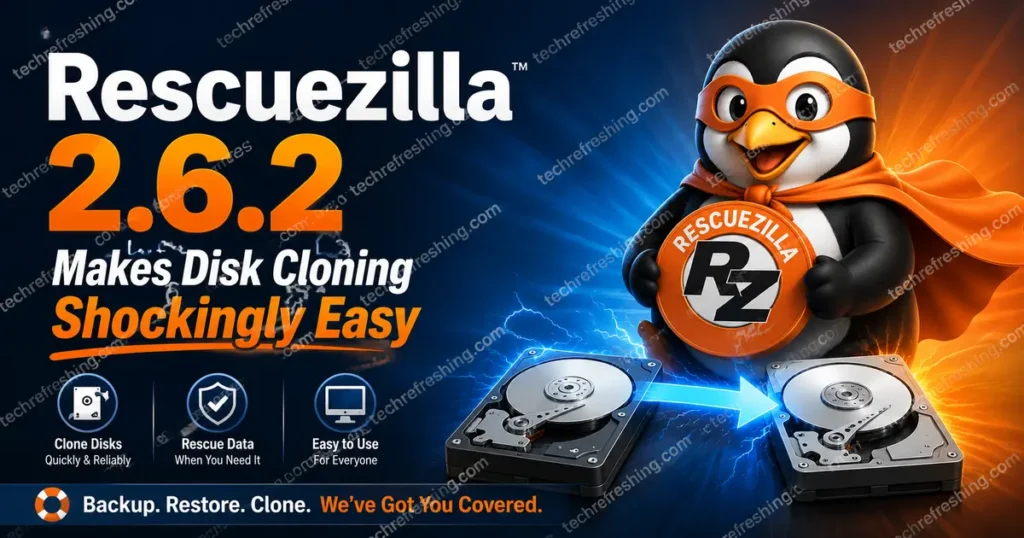
If you’ve ever stared down a failing hard drive or needed to migrate an entire system to a new SSD without losing a single file, you already know the dread that comes with it. Most tools either demand that you have a computer science degree or make you wade through a command-line interface that feels like it was designed to intimidate beginners. That’s exactly why Rescuezilla 2.6.2 makes disk cloning shockingly easy — and the timing of this release couldn’t be better.
Released on May 16, 2026, Rescuezilla 2.6.2 is the latest stable update to this open-source, Ubuntu-based “Swiss Army Knife of System Recovery.” It’s built on the freshly minted Ubuntu 26.04 LTS (Resolute Raccoon) and brings the kind of hardware support and under-the-hood improvements that make real-world use significantly smoother. Whether you’re a casual home user who wants peace of mind backups, or a sysadmin managing dozens of machines, this version has something meaningful for you.
Let’s dig in.
What Exactly Is Rescuezilla?
Before getting into what’s new, a quick word for anyone just discovering this tool.
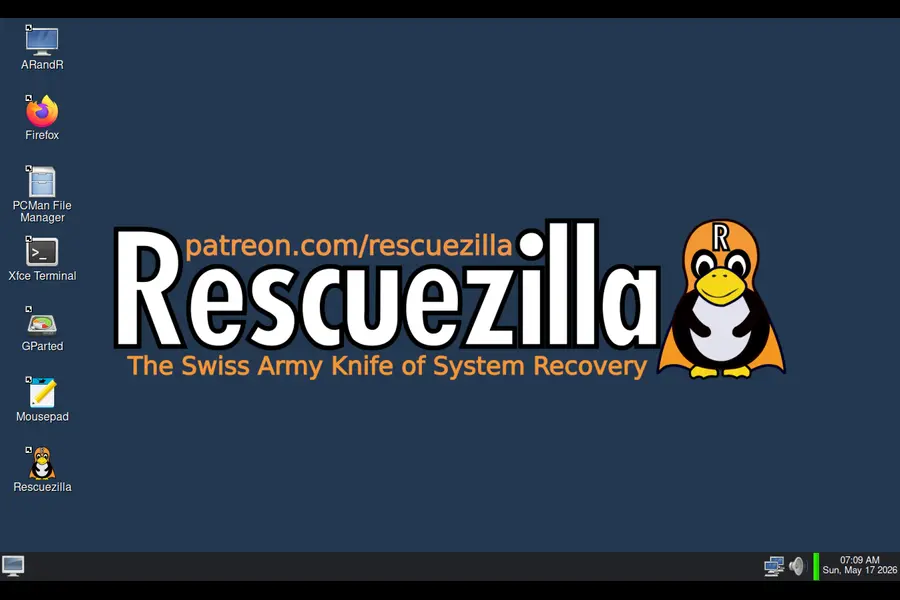
Rescuezilla is a free, open-source disk imaging and cloning application that wraps the powerful (but notoriously complex) Clonezilla engine in a clean, accessible graphical interface. You boot into it from a USB drive, and within minutes you can back up an entire disk, clone it to another drive, or restore from a previous image — all without needing to type a single terminal command.
It has earned over 2,200 GitHub stars and has been described by users across forums and review sites as the tool they turn to when everything else either costs money or requires too much expertise. The compatibility list is impressively wide — it reads images from Clonezilla, VirtualBox VDI, VMware VMDK, Qemu QCOW2, Hyper-V VHDx, raw .dd/.img files, Redo Rescue, Foxclone, FOG Project, FSArchiver, and virtually every virtual machine image format supported by the qemu-nbd utility.
In short, Rescuezilla is the tool that finally makes serious disk cloning accessible to everyone.
Why Rescuezilla 2.6.2 Is a Big Deal
The 2.6.x line has been on a steady upward trajectory since version 2.6.0 landed in March 2025. Each release has addressed real-world pain points rather than just adding features for the sake of a changelog. Version 2.6.2 continues that tradition with a specific focus on broader hardware support, an updated cloning engine, and improved reliability for complex disk setups.
Ubuntu 26.04 LTS “Resolute Raccoon” as the New Base
The headline change is the jump to Ubuntu 26.04 LTS (codenamed “Resolute Raccoon”) as the default base for the recommended ISO. This is significant because Ubuntu 24.10 (Oracular), which was the base for the 2.6.1 release, only covered hardware roughly up to October 2024. If you bought or built a PC after that point, there was a real chance of running into driver issues during boot or device detection problems.
The Resolute Raccoon base brings hardware support current to approximately April 2026, which means newer CPUs, NVMe controllers, Wi-Fi cards, and graphics adapters are far more likely to work out of the box. For anyone who has experienced the frustration of a recovery tool failing to recognize your target drive, this alone is reason enough to upgrade.
Alongside the recommended Resolute build, users can also download builds based on Ubuntu 25.10 (Questing), which has been added as a backfill option for those who need that kernel generation’s specific hardware compatibility.
Key Features and Changes in Rescuezilla 2.6.2
Partclone 0.3.47 — A Massive Engine Upgrade
At the core of every disk clone or backup Rescuezilla performs is partclone, the open-source partition cloning library. Version 2.6.2 ships with partclone 0.3.47, released in March 2026, jumping from version 0.3.37 which was included in 2.6.1 (released June 2025). That’s nearly a year’s worth of improvements to the cloning engine itself — better performance, improved reliability, and bug fixes that directly affect the quality of your backups and restores.
This isn’t a cosmetic change. Partclone is the engine under the hood that actually reads and writes your disk data sector by sector. Upgrading it to the latest stable release is one of the most impactful things the Rescuezilla team can do between major versions.
Broader Hardware Support — No More “Drive Not Found” Headaches
One of the most common frustrations users reported with older Rescuezilla releases was booting into the tool only to find that the very drive they wanted to back up wasn’t being detected. With the Ubuntu 26.04 LTS base, newer storage controllers — particularly those using newer NVMe standards — are much more likely to be recognized immediately.
This matters enormously in 2026, when many users are on modern motherboards with PCIe 5.0 NVMe drives or newer AMD and Intel platforms. The previous Ubuntu 24.10 base simply didn’t have kernel-level support for some of these controllers.
Temporary Build Adjustments
The developers made a pragmatic decision in this release to temporarily disable some older build variants to streamline the release process. Specifically:
- Disabled: The 32-bit (Intel i386) build based on Ubuntu 18.04 LTS (Bionic Beaver)
- Disabled: Older 64-bit builds based on Ubuntu 22.04 (Jammy), Ubuntu 24.04 (Noble), and Ubuntu 25.04 (Plucky)
This is a temporary measure while the team focuses development resources on the newer, actively supported bases. For the overwhelming majority of users running modern hardware, this has zero practical impact — you’d be reaching for the 64-bit Resolute or Questing ISO anyway. Users who specifically need the legacy builds can still find earlier releases on GitHub.
Improved Translation Support
Rescuezilla has grown into a genuinely global tool with users across North America, Europe, Asia, and beyond. Version 2.6.2 integrates language selection for translations that are listed in Weblate but haven’t been started yet, actively encouraging community contributors to begin work on those languages. This is a thoughtful addition that signals the project’s commitment to accessibility for non-English speaking users.
How to Get Started with Rescuezilla 2.6.2
Getting up and running is genuinely straightforward. Here’s the process:
Step 1: Download the ISO
Head to rescuezilla.com/download and grab the recommended build: rescuezilla-2.6.2-64bit.resolute.iso. This is the file optimized for modern hardware.
Step 2: Write It to a USB Drive
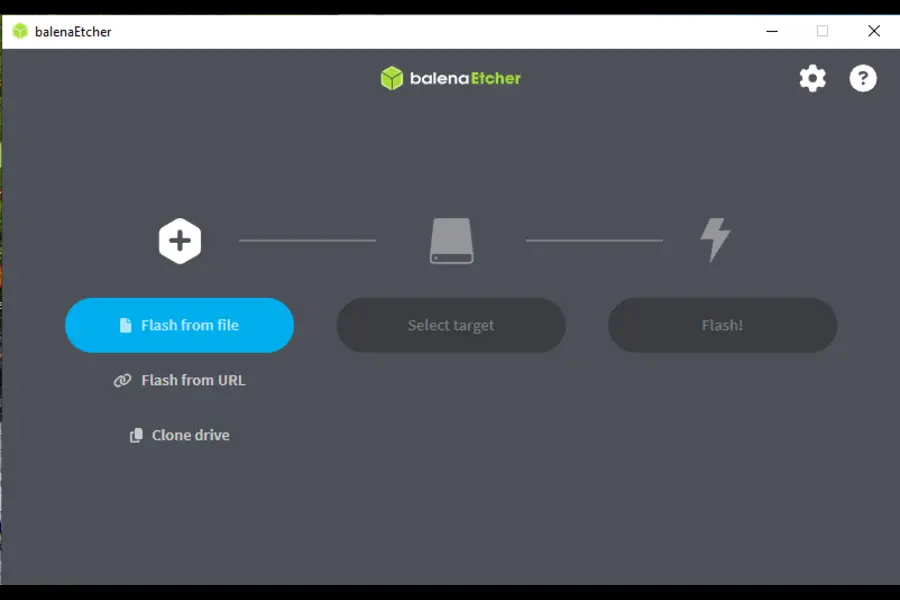
Use a tool like balenaEtcher (available for Windows, Mac, and Linux) to write the ISO to a USB stick. Fair warning: this will completely erase whatever is on the USB drive, so pick one you don’t need.
Step 3: Boot from the USB
Restart your computer with the USB inserted. Depending on your system, you may need to press F8, F12, or Delete during startup to access the boot menu and select the USB drive.
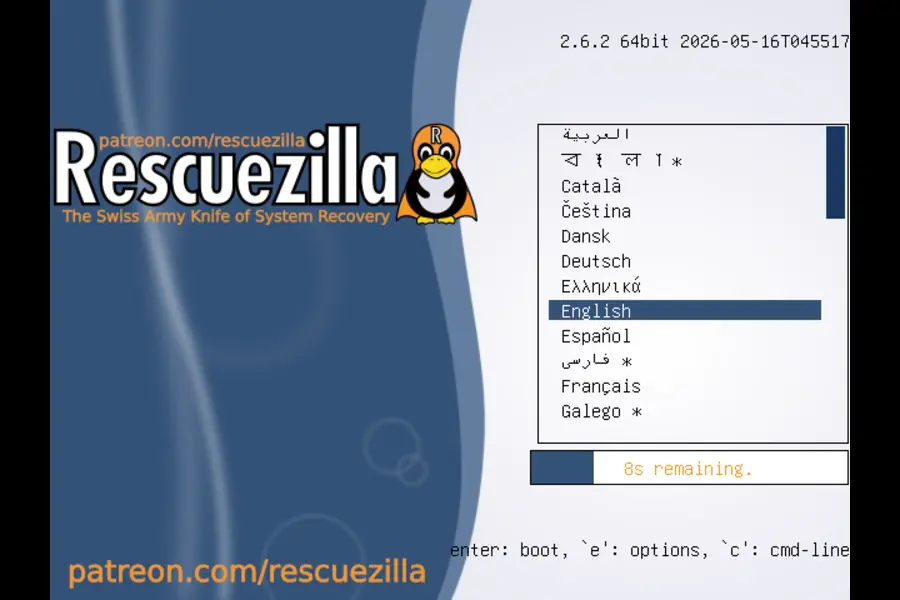
If you see a blank screen after booting, don’t panic. Select “Graphical Fallback Mode” from the Rescuezilla boot menu. Each ISO variant has slightly different video driver configurations, and the fallback mode handles most display compatibility issues. If that still doesn’t work, try an alternative ISO variant from the GitHub releases page.
Step 4: Use the Interface
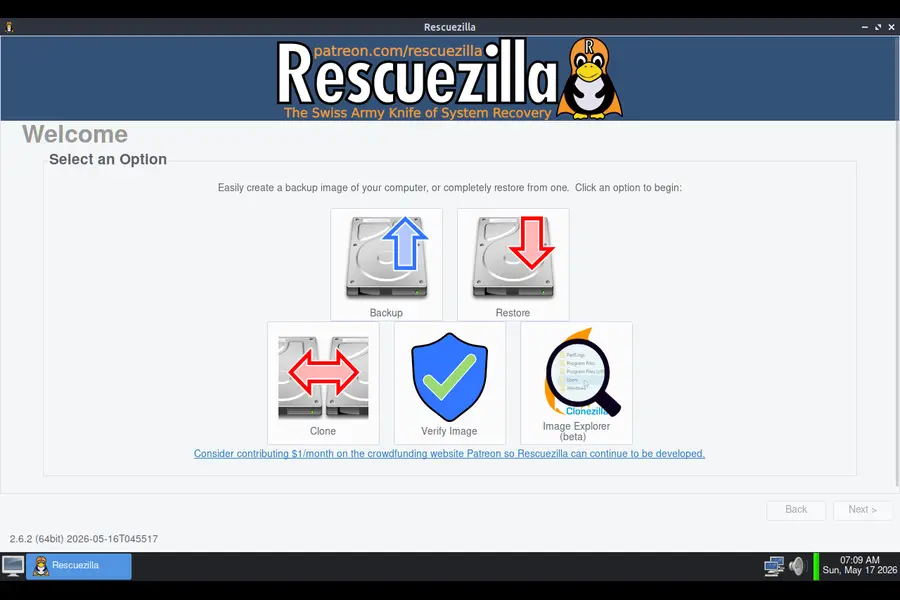
Once booted, you’ll have a full mini operating system loaded entirely into RAM. The Rescuezilla graphical interface launches automatically. From here, you can select your operation — Backup, Restore, or Clone — and the wizard walks you through the rest step by step.
Who Is Rescuezilla 2.6.2 Actually For?
This is worth spelling out, because “disk cloning tool” can sound intimidating even when the tool itself isn’t.
Home users who want to clone their HDD to a new SSD before the old one dies — Rescuezilla handles this with a five-click workflow. No command line involved.
IT professionals and sysadmins who need to image multiple workstations, restore a machine to a known good state, or migrate systems across hardware — the Clonezilla compatibility means Rescuezilla fits neatly into existing enterprise workflows.
Small business owners running their own computers who want a simple, reliable backup strategy that doesn’t require a subscription or cloud storage — Rescuezilla works entirely offline with local drives or network shares.
Enthusiasts and hobbyists who maintain multiple Linux or Windows installations and want the ability to snapshot and restore their setups quickly.
Rescuezilla vs. Clonezilla: Why the GUI Matters
This comparison comes up constantly in forums, and for good reason. Clonezilla is the gold standard for disk cloning performance and flexibility. It’s incredibly powerful. It’s also, frankly, intimidating if you’re not already comfortable at a command line. The text-based interface has a learning curve that trips up users who just want to clone a drive and move on with their day.
Rescuezilla uses Clonezilla’s engine under the hood but presents it through a proper graphical interface. You get the speed and reliability of Clonezilla’s partclone backend — now at version 0.3.47 — without needing to memorize syntax or navigate nested menus of cryptic options. And because Rescuezilla creates images that are fully compatible with Clonezilla, you’re not locked into one tool. You can create a backup with Rescuezilla and restore it with Clonezilla later, or vice versa.
This compatibility bridge is genuinely important for mixed environments where different team members have different comfort levels with the command line.
What’s Coming Next
The Rescuezilla team has been transparent about the roadmap. The next release has two major items confirmed:
1. ARM64 build support — expanding Rescuezilla to ARM-based hardware, which is increasingly relevant given the rise of ARM-based servers and desktops.
2. A major overhaul of Image Explorer — using indexed-gzip and a significantly improved UI. Image Explorer is the feature that lets you browse and extract individual files from a Rescuezilla backup without doing a full restore, and making it faster and more intuitive has been on the wishlist for a while.
Both of these are meaningful additions that will expand what Rescuezilla can do and for whom.
Final Thoughts
There’s a reason disk cloning has historically felt like a job for specialists. The tools have either been expensive commercial software or technically demanding open-source solutions that assume you already know what you’re doing. Rescuezilla has consistently pushed against that reality, and version 2.6.2 is the clearest expression yet of what it’s trying to be.
With Ubuntu 26.04 LTS as its foundation, partclone 0.3.47 driving the actual cloning work, and a hardware compatibility ceiling that finally reaches into mid-2026, Rescuezilla 2.6.2 makes disk cloning shockingly easy without sacrificing any of the reliability that serious users demand. It’s free, it’s open-source, and it gets the job done — whether you’re a first-timer cloning your first SSD or a seasoned IT pro imaging a lab full of workstations.
Download the ISO, write it to a USB, and have it on hand. The day you need it, you’ll be very glad you did.
Disclaimer
This blog post is intended for informational purposes only. While every effort has been made to ensure the accuracy of the information based on official Rescuezilla release data available as of May 2026, software features, compatibility, and availability may change over time. Always refer to the official Rescuezilla website and GitHub releases page for the most current and accurate information. The author is not affiliated with the Rescuezilla project or its developers.